On the “Service works” page you plan the regular maintenance of machines, equipment and work objects, carry it out following the checklist, and approve it. The page is used by the people responsible for maintenance, the mechanics and those who approve their work.
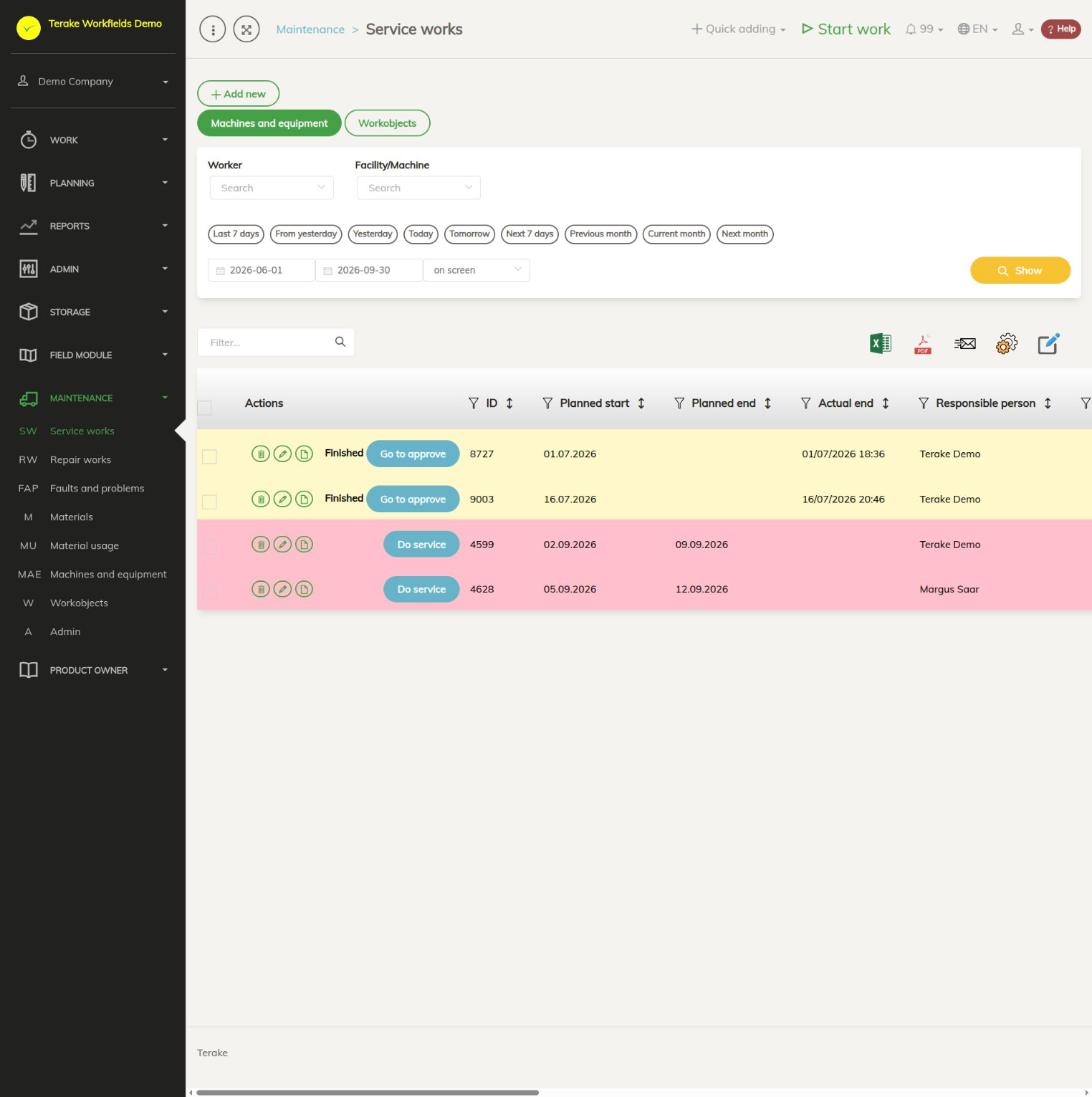
Page layout
- The buttons “Machines and equipment” and “Workobjects” choose whether the list shows maintenance of machines or of work objects.
- Filters “Worker” and “Facility/Machine” (the work object for work objects) and the period. The list shows maintenance whose “Planned start” is within the selected period; press “Show”.
- The “Actions” column has a bin (delete, only for the role “Administrator”), a pencil (change the maintenance data) and a document icon (the view for carrying out the maintenance). The button “Do service” opens the same view; a maintenance that is done shows the text “Done”, and one that is not approved shows the button “Go to approve”.
- Other columns: “ID”, “Planned start”, “Planned end”, “Actual end”, “Responsible person”, “Approver”, “Service work description” (the maintenance schedule), “Service interval”, “Maintained item”, “Vehicle engine hours”, “Kilometers”, “Additional” and the number of tasks: “Total points”, “Correct”, “Not correct” and “Unhandled”.
The row colour shows the state of the maintenance:
- red: the maintenance is due (the planned date, engine hours or kilometres have been reached), but it has not been done;
- yellow: the maintenance is coming up and a warning about it has been sent, or the maintenance is done but not approved;
- green: the maintenance is done and approved;
- no colour: the maintenance is planned and not yet near.
How to start using the maintenance module
- Add the machines and equipment and set “Responsible for maintenance” and the maintenance schedule for each (see Machines and equipment).
- Describe the maintenance schedules, service intervals and tasks in the menu item “Admin” (see Maintenance ADMIN).
- If you want to follow the lifespan of wear parts (for example engine oil, brake discs), add materials of the type “Spare part” (see Materials) and, on the machine’s “Parts” tab, the machine’s parts with their replace and check tasks.
- Plan the maintenance on this page.
How to plan a maintenance
- Press “Add new”. If you start from the machine’s “Maintenance” tab with the button “Plan new maintenance”, the machine, schedule and responsible person are already filled in.
- Select the “Class” (“Facility/Machine” or “Workobject”) and the “Maintained item”. If the maintained item has a maintenance schedule set, the “Maintenance schedule” is filled in automatically.
- Select the “Service interval”. The schedule together with the interval decides which tasks the maintenance gets. If the interval has a number of days, the “Planned start” offered is today plus the interval’s days and the “Planned end” a week later.
- For a machine, enter the “Vehicle engine hours” and/or “Kilometers” at which the maintenance must be done. The warning is sent and the maintenance is marked overdue according to these readings. The check and the warnings run a couple of times a day, see Automated processes.
- Select the “Responsible person” (by default yourself) and, if needed, change the planned dates and add “Additional” information.
- Press “Save”. The maintenance gets the schedule’s tasks; for tasks that are the replace task of a machine part, the part’s material and amount are added.
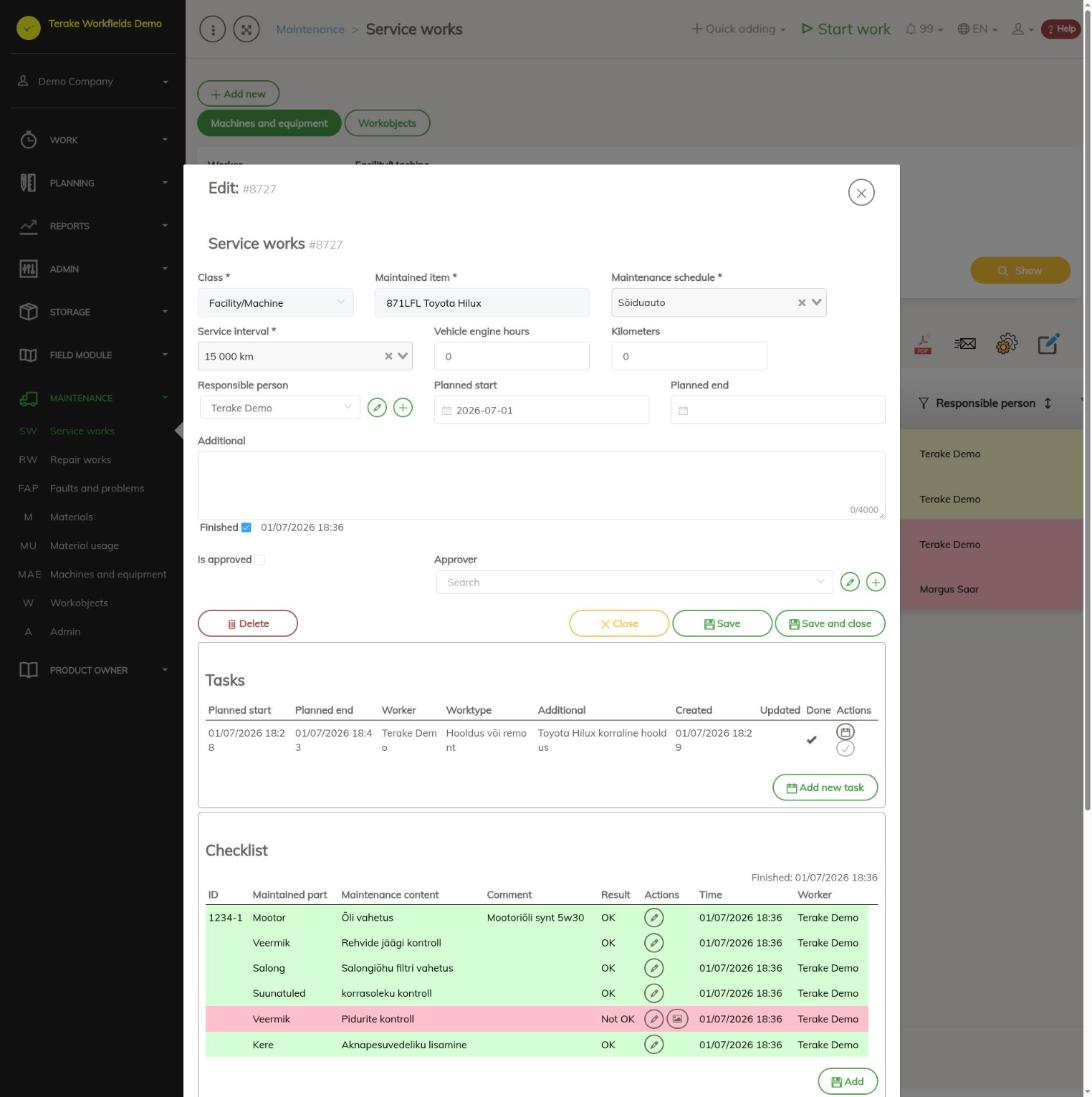
On saving, a task is created for the person responsible for the maintained item’s maintenance. The block “Tasks” shows the maintenance’s tasks; the button “Add new task” opens the calendar view Tasks, where you can share the maintenance work between one or more mechanics. The block “Material usage” lists the materials added to the tasks with amount and price.
How to carry out a maintenance
- Press the row’s “Do service” button, or the “Checklist” block in the edit window.
- Mark each task with the button “OK” or “Not OK”. For a part that is checked, enter the measured value; for a part that is replaced, enter the new lifespan values (“Initial value”, “Warning value”, “Lifespan end”).
- Add material used for a task with the button “Add material”, and a new task with the button “Add”.
- When the last task is marked, the maintenance is marked done automatically. With the button “Mark inspection finished” you finish the maintenance even if some task was left unmarked. The maintenance keeps the time it was finished (“Actual end”).
How to approve a maintenance
For a maintenance that is done, press “Go to approve” and then “Approve inspection” or “Approve and plan next”. The latter immediately opens a new maintenance for the same machine. If some task was left “Not OK”, the button “Plan repair of items not in order” creates a repair work that gets these tasks together with their materials and files (see Repair works).
Warnings about upcoming maintenance
For machine maintenance Terake sends an e-mail notification twice: when the maintenance is coming up (by the interval’s notification value) and when the maintenance is due. The notification goes to the maintenance’s responsible person, the machine’s “Responsible for maintenance” and “Responsible person”, and all employees with the role “Dispatcher”. The warning conditions are described on the page Maintenance ADMIN. No notifications are sent for the maintenance of work objects.
Who can see and change it
- The “Maintenance” menu is shown to employees with the role “Vehicle service”.
- The buttons “Go to approve”, “Approve inspection” and “Approve and plan next” are available to the roles “Administrator” and “Foreman”.
- Only the role “Administrator” can delete a maintenance from the list.
Tips
- After doing the maintenance, replace the planned engine hours and kilometres with the actual reading; then the next maintenance can be planned more accurately.
- All maintenance of one machine is on the machine’s “Maintenance” tab.
API calls on this page
For integrations and AI assistants: this page uses the following Terake API calls. The full description is in the API reference.
When the page opens:
PUT /api/appsettings/{key}– Saves one application setting by keyGET /api/inspections/facility– InspectionCase collection of facilities
Adding, changing and deleting (from the API description):
DELETE /api/inspections/facility/{id}– Delete InspectionCase by ID or UUID
Other calls from this screen’s dialogs and actions:
DELETE /api/inspection-cases/{inspection_case_id}/item/{item_id}/material_usage/{material_usage_id}– Delete InspectionCase Item Material UsageDELETE /api/inspection_case_items/{inspection_case_item_id}– Deletes an unhandled InspectionCase itemDELETE /api/inspection-cases/facility/{id}– Delete InspectionCase by ID or UUIDDELETE /api/inspection-cases/workobject/{id}– Delete InspectionCase by ID or UUIDDELETE /api/inspections/workobject/{id}– Delete InspectionCase by ID or UUIDDELETE /api/repair-cases/{id}– Delete InspectionCase by ID or UUIDGET /api/inspection-cases/{inspection_case_id}/item/{item_id}– Get InspectionCaseItemGET /api/inspection_case_items/{id}/files– List all files related with parent objectGET /api/inspection-cases/facility/{id}– InspectionCase by ID or UUIDGET /api/inspection-cases– InspectionCase collectionGET /api/inspection-cases/workobject/{id}– InspectionCase by ID or UUIDGET /api/inspections/facility/{consumer_id}– InspectionCase collection of one facilityGET /api/inspections– InspectionCase collectionGET /api/inspections/workobject/{consumer_id}– InspectionCase collection of one work objectGET /api/inspections/workobject– InspectionCase collectionGET /api/repair-cases/{id}– InspectionCase by ID or UUIDPOST /api/repair-cases– Create new InspectionCasePUT /api/inspection-cases/{inspection_case_id}/item/{item_id}/material_usage/{material_usage_id}– Creates or modifies the material usage of an InspectionCase itemPUT /api/inspection-cases/{inspection_case_id}/item/{item_id}– Modifies an InspectionCase itemPUT /api/inspection-cases/facility/{id}– Modifies InspectionCasePUT /api/inspection-cases/workobject/{id}– Modifies InspectionCasePUT /api/repair-cases/{id}– Modifies InspectionCase