The “Machines and equipment” page is the company’s register of machines, implements, equipment and other maintained units. Here you decide who is responsible for a machine and how it can be selected for work, and you see the machine’s maintenance, faults, refuelings, work and parts. The page is used by the administrator. The list, loading from a file, archiving and “Bulk edit parameters” are described in general on the Admin Settings page.
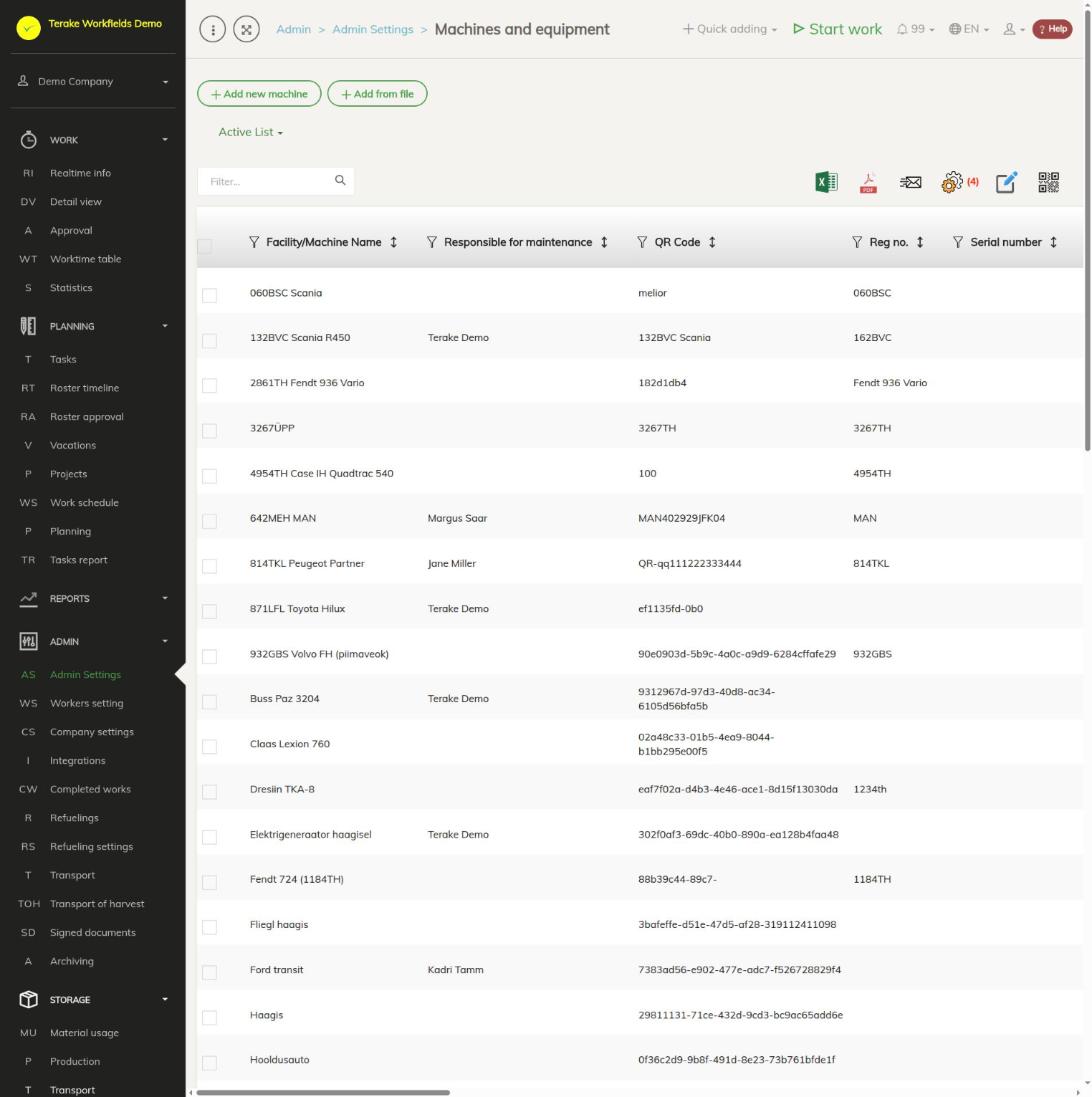
Page layout
- The “Add new machine” and “Add from file” buttons and the “Active list” / “Archived list” drop-down.
- Table columns include: “Facility/Machine Name”, “Reg no.”, “Facility type”, “Main machine”, “Implement”, “Maintenance unit”, “Division / department”, “Responsible for maintenance”, “Responsible person”, “Faults”, “Show in map”, “Outer ID / ID 2”. You can show more columns (e.g. “VIN code”, “Serial number”, “Engine hour price”) in the view settings.
- Red row: the machine has an unresolved fault with severity “Important” or “Critical”, or a part of the machine has reached the end of its lifespan. Yellow row: the machine has an unresolved “Informative” fault, or a part has reached the warning level.
How to add or change a machine
- Press “Add new machine” or click the row of an existing machine.
- Enter the “Facility/Machine Name” and select the “Facility type”.
- Tick how the machine is used: “Main machine”, “Implement” and/or “Maintenance unit”.
- Set the responsible persons and fill in the other fields you need (see below).
- Press “Save and close”. The other tabs become available after the first save.
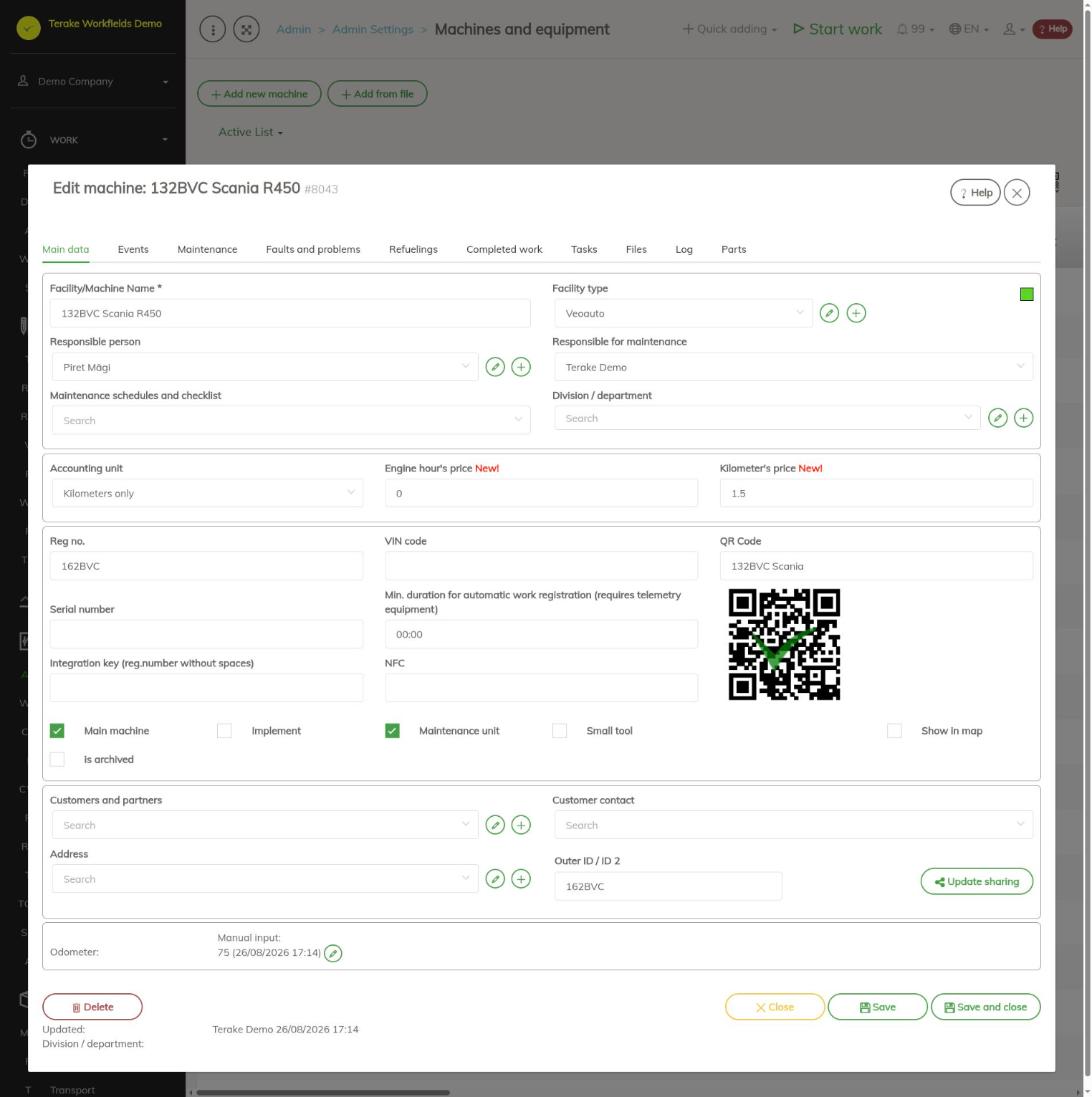
The “Main data” tab
- Facility/Machine Name: shown in reports and options; it should be recognisable and different from the others.
- Facility type: used to filter machines of the same type and to link worktypes (see Types of equipment).
- Responsible person: responsible for the machine administratively: papers, insurance, inspection, road tax, lending and stocktaking. Without a responsible person, the inventory part of the “Log” tab cannot be used.
- Responsible for maintenance: organises the machine’s maintenance and receives notifications about upcoming maintenance, registered faults and reminders from the “Events” tab.
- Maintenance schedules and checklist: the maintenance schedule that applies to this machine (see Maintenance work guide).
- Division / department: the division whose workers see the machine in their options.
- Accounting unit, Engine hour’s price, Kilometer’s price: for pricing the use of the machine.
- Reg no., VIN code: shown in reports, and used to link the machine to fuel station and telemetry integrations. Integration key (reg.number without spaces) is needed when the integration partner uses another identifier.
- Serial number, NFC, QR Code: for identifying the machine; the QR code image appears after saving, and for an existing machine with the “Fill QR Code” button.
- Min. duration for automatic work registration (requires telemetry equipment): if telemetry gives the machine’s location, movements longer than this are registered as work even if nobody started work with the machine. The registration runs about once an hour, see Automated processes.
- Main machine: shown in the options for main machines (the machine the work is done with). Implement: shown in the options for implements and attachments. Maintenance unit: shown in the options for maintenance units (an object that work is done on; it can also belong to a customer). Small tool: a smaller tool.
- Show in map: the machine’s location is shown on the map in real time if telemetry provides it.
- is archived: the machine is no longer in the options but stays visible with earlier work and refuelings.
- Customers and partners, Customer contact: if the machine belongs to a customer. Address: a permanent location or garage.
- Outer ID / ID 2: the machine’s code in accounting, for exporting data.
- For a machine with telemetry you see the latest known “Engine hours” and “Odometer” reading; you can correct it with the pencil.
Other tabs
- Events: upcoming deadlines, for example the end of the technical inspection or insurance. A reminder about an upcoming event is sent to the person responsible for maintenance and to dispatchers.
- Maintenance: the machine’s maintenance register, with the “Plan new maintenance” button.
- Faults and problems: faults registered for the machine and how they were resolved (see also Faults and problems).
- Refuelings, Completed work, Tasks: refuelings, work and plans linked to the machine.
- Files: pictures and documents of the machine. You can add document types on the Document types page.
- Log: the history of data changes, the telemetry and engine hours log, the log of pre-use inspections, and “Inventory”: who uses the machine or has borrowed it.
- Parts: the machine’s important wear parts (see below).
How to track the machine’s parts
A machine part is a wear part with a set lifespan or measurable wear, for example engine oil (lifespan in kilometers and days) or brake discs.
- Open the “Parts” tab and press “Add”.
- Enter the “Name” (e.g. “engine oil”) and, if needed, the “Serial number”.
- Select the “Replace Task” (the maintenance schedule task that resets the lifespan counter) and, if needed, the “Check or measure task” if the part’s wear must be measured by hand (e.g. brake disc thickness). You do not need to add mileage, engine hours or days here; they are counted automatically.
- Select the “Spare part” (a specific material; you can add a new one right there) and enter the “Amount”: the quantity replaced at a time, in the material’s units (e.g. 4.7 litres of oil or 2 brake discs).
- Press “Save and close”. You can change the part’s settings later with the “Settings” button in the part’s block.
You can enter the starting values of a new part’s counters with the “Replace” button (e.g. if the last oil change was done at 45,000 km). Another option is to plan a maintenance during which the part is replaced; the readings are updated during the maintenance. With the “Check” button you enter a measured value; “Historical values” shows the history of measurements.
Who can see and change it
The page opens for the “Administrator” role. The “Dispatcher” and “Vehicle service” roles can also add and change machines from next to a selection field on other pages (see Admin Settings). Another company’s machine can be archived for your own company but not changed.
Tips
- If you have many machines, check the “Responsible for maintenance” and “Responsible person” columns in the list; this quickly shows which machines have no one responsible.
- When loading from a file, “Facility/Machine Name” and “Facility type” are mandatory; an unknown facility type is created automatically.
- Getting started with the maintenance module is described in the Maintenance work guide, refuelings on the Refuelings page.
API calls on this page
For integrations and AI assistants: this page uses the following Terake API calls. The full description is in the API reference.
When the page opens:
GET /api/facilities– All Facilities list
Adding, changing and deleting (from the API description):
DELETE /api/facilities/{id}– Delete FacilityPOST /api/facilities/{id}/files– Add new file to parent objectPOST /api/facilities– Create FacilityPOST /api/facilities/{parent_id}/part– Creates or modifies a Facility Part.PUT /api/facilities/{id}– Modify FacilityPUT /api/facilities/{id}/togglearchive– Toggle Archive/Un-archive Facility
Other calls from this screen’s dialogs and actions:
DELETE /api/calendarevents/{id}– Deletes a calendar eventGET /api/facilities/enginehours-log/{id}– Facility engine hours and kilometers history from manual entryGET /api/facilities/{id}– Get FacilityGET /api/facilities/{id}/files– List all files related with parent objectGET /api/facilities/telemetry-log/{id}– Facility engine hours and kilometers history from telemetry data logGET /api/facilities/{parent_id}/part/{id}/measure_history– Facility Part check historyGET /api/facilities/{parent_id}/part– Facility Parts collectionGET /api/facilities/{parent_id}/part-with-history– Facility Parts collection with measurement historyGET /api/faults/facility/{faultitem_consumer_id}– Faultitem collection of one facilityGET /api/fuelfillings/{id}– FuelFilling by ID or UUIDGET /api/fuelfillings/facility/{facility_id}– Fuel fillings recorded against one facility.GET /api/inspection-tasks-by-facility/{facility_id}– All inspection tasks available for FacilityGET /api/inspections/facility/{consumer_id}– InspectionCase collection of one facilityGET /api/inspections– InspectionCase collectionGET /api/inventorylog/{id}– Get Facility Inventory LogGET /api/pre-usage-check/facility/{consumer_id}– Pre-usage checks of one facilityGET /api/relations/{object_type}/{object_id}– Returns the objects related to one Terake objectGET /api/integration-partner-data/{terake_object_code}/{object_id}– Integration partner id's related to objectPOST /api/calendarevents/{id}– Creates or modifies a calendar event attached to a parent objectPOST /api/facilities/integration– Registers a Facility reported by the integration serverPOST /api/facilities/log-mapping-event– Records a facility-mapping event sent by the integration serverPOST /api/inventory_facility/{facility_id}/{event_name}– Change Inventory status by registering eventPUT /api/facilities/{parent_id}/check/{id}– Measure Facility Part