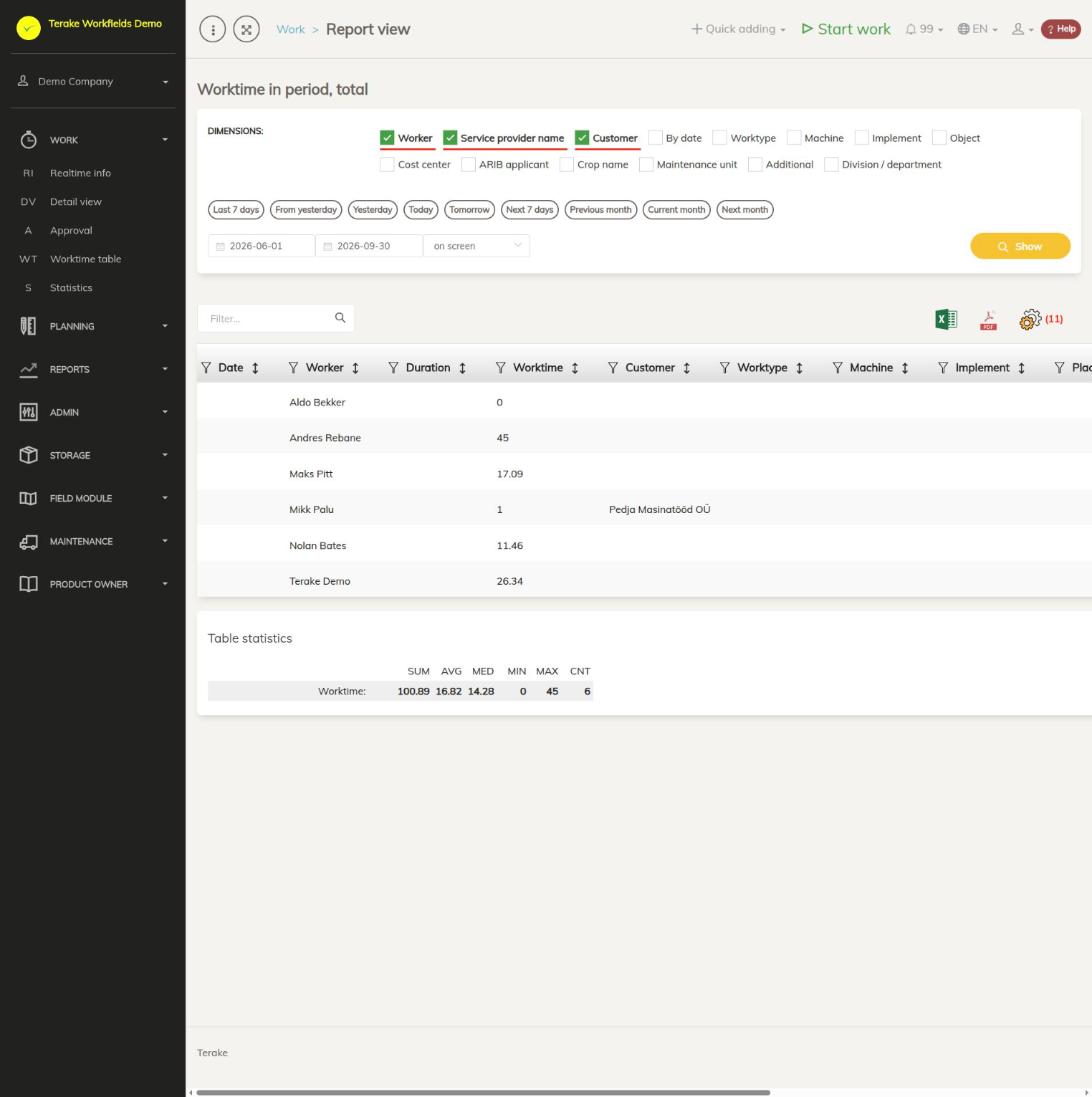
“Report view” (heading “Worktime in period, total”) shows the approved work time of the selected period in summary, for example by worker or by customer. This page is not in the menu: it opens when you have received an invitation to share information from another Terake user and open the link in the invitation e-mail.
How to accept an invitation
- Open the link in the invitation e-mail.
- If you are not logged in to Terake, log in and open the link again. The invitation is accepted only if you are logged in when you open the link.
- The invitation is accepted automatically. The inviting company starts sharing information with your company, and the inviter appears in your company’s list of customers and partners (if it was not there already).
- Then the report opens.
The inviter sees in their customer’s details when the invitation was answered. What each side shares with the other is set on the Customers and partners page.
Page layout
- “Dimensions” – use the ticks to choose what the rows are summarised by. By default “Worker”, “Service provider name” and “Customer” are selected. You can also select, for example, “By date”, “Machine”, “Implement”, “Cost center” and “Division / department”, and in an agricultural company also “Crop”. The more you select, the more detailed the rows.
- Period buttons – “Last 7 days”, “From yesterday”, “Yesterday”, “Today”, “Tomorrow”, “Next 7 days”, “Previous month”, “Current month” and “Next month” fill in the date fields.
- Date fields – the start and end of the period; the end date is included in the period.
- Output choice – “on screen” shows the table on the page, “MS Excel file” downloads the result as a file.
- “Show” – builds the report.
- Table – each row is one combination of the selected dimensions. The most important columns: “Date” (if you split by date), “Worker”, “Partner”, “Customer”, “Machine”, “Implement”, “Cost center”, “Division / department” and “Worktime” (hours as a decimal number). Columns you did not split by stay empty.
- “Table statistics” – under the table are the sum, average, median, minimum, maximum and number of rows of “Worktime”.
How to build the report
- Under “Dimensions”, tick what you want to see the work time by, for example only “Customer” to see each customer’s total hours.
- Select the period with a button or enter the start and end date.
- Press “Show”.
- Use the search field above the table to filter the rows. Click a column heading to sort.
- To get an Excel or PDF file, press the Excel or PDF icon above the table. Use the gear icon to choose which columns to show.
What the report counts
- Only approved works. Unapproved works are not in the report (see Approval).
- Only works registered in your company.
- A work counts in the period if its start is within the period; the whole duration of the work goes to the start date.
- Works with the same start and end time are not counted. Deleted works are not counted.
- Pauses are not included in the work time.
Tips
- To view and correct individual works, use the Detail view page.
- Sending an invitation and the sharing settings are described on the Customers and partners page.
API calls on this page
For integrations and AI assistants: this page uses the following Terake API calls. The full description is in the API reference.
When the page opens:
GET /api/report/worktimesummary– Worked-hour rows for a period, record based or aggregated by dimension
Other calls from this screen’s dialogs and actions:
GET /api/materials/{id}– Get MaterialGET /api/materials/{id}/harvest_sources– Harvest Material sourcesGET /api/materials/{id}/material_composition– Harvest Material compositionGET /api/materials/{material_id}/inventory– MaterialInventory of a materialPUT /api/invitationresponse– Accepts a sharing invitationPUT /api/terake-relations– Replaces the relations between one Terake object and a set of objects of another type