On the “Workunits” page you manage the units that measure the volume of completed work, for example the number of rooms cleaned, hectares sown or loads hauled. The workunit amount is added on the “Workunits” tab of the completed work form and the plan form. The page is used by the administrator. The list and loading from a file are described in general on the Admin Settings page.
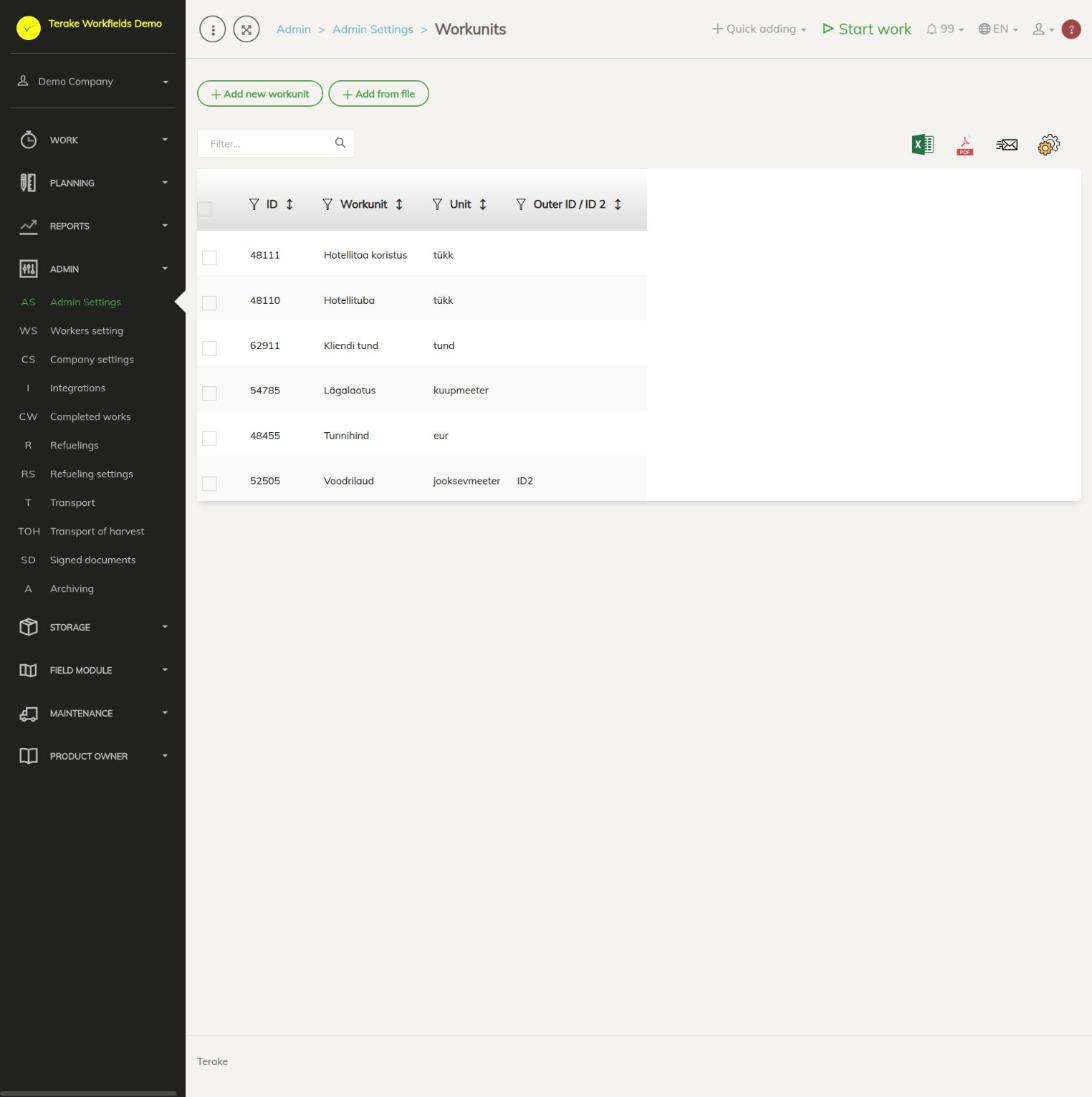
Page layout
- The “Add new workunit” and “Add from file” buttons.
- Table columns: “ID”, “Workunit”, “Unit” and “Outer ID / ID 2”. The “Filter…” field and the column filters help you find a workunit.
- Workunits cannot be archived or changed with “Bulk edit parameters”. A workunit that is no longer needed can be deleted.
How to add or change a workunit
- Press “Add new workunit” or click the row of an existing workunit. The “Add new workunit” or “Edit workunit” window opens.
- Enter the “Name” (mandatory), for example “Hotel room” or “Load”.
- Select the “Unit”: the unit the workunit amount is measured in (e.g. piece, cubic metre, running metre).
- If needed, select the “Calculation unit”: the unit the consumption is counted per (e.g. hour or hectare). Only units suitable as a calculation basis are offered.
- If needed, enter the “Ratio per unit”: how many workunits are used per accounting unit. After the field you see the selected units in brackets, for example (piece/hour).
- If needed, enter the “Default amount”: the usual amount per work.
- If needed, enter the “Outer ID / ID 2”: the code in accounting or another system.
- Press “Save” (the window stays open) or “Save and close”.
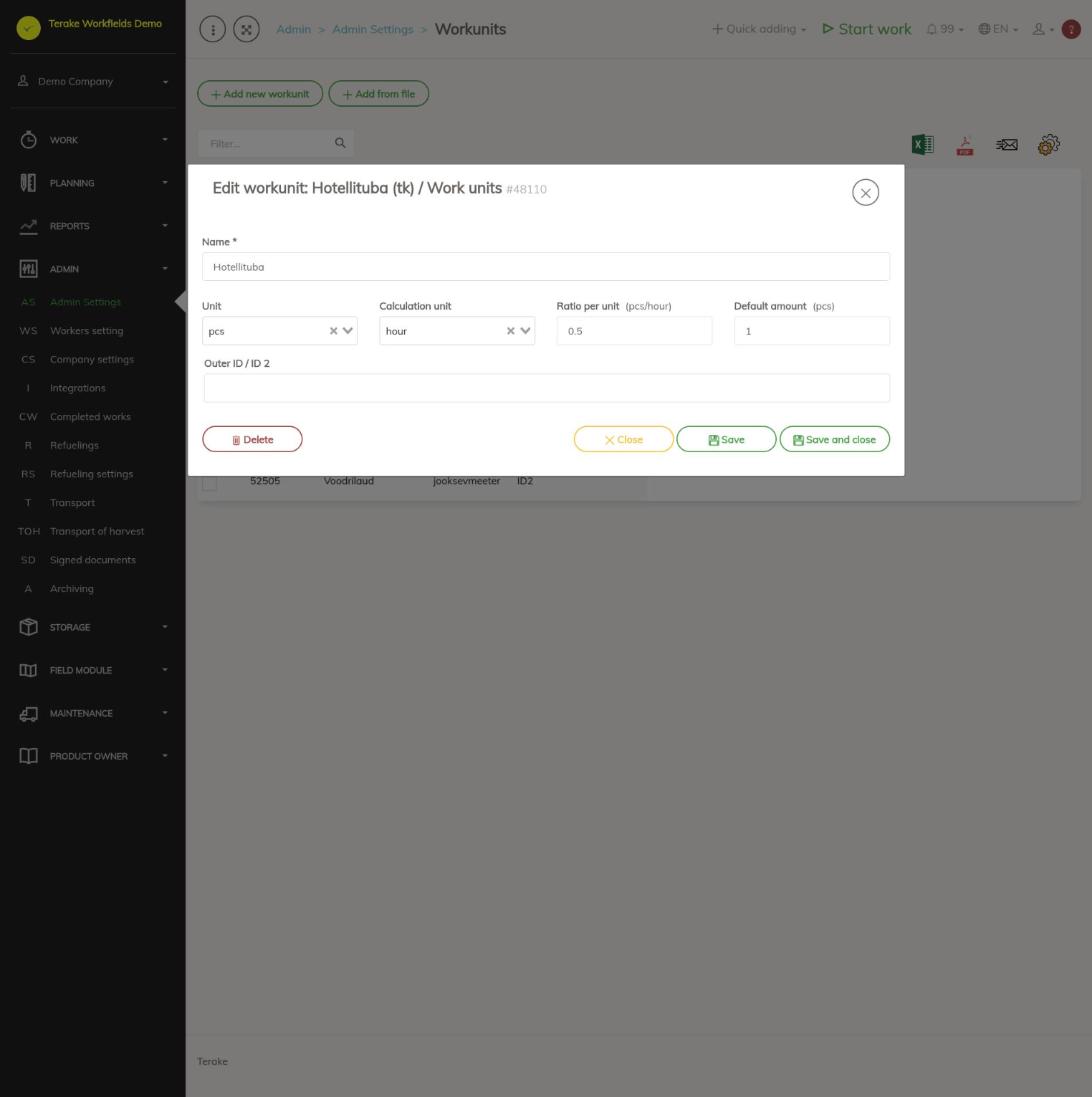
To delete a workunit, open it and press “Delete”. In numbers you can use either a point or a comma as the decimal separator.
How to load workunits from a file
- Press “Add from file” and choose an Excel file.
- Match the columns to fields: “Workunit” and “Unit” are mandatory, and you can also load “Outer ID / ID 2”.
- New units are not created from the file: if a unit in the file does not exist in Terake, the default unit is used (the cell is blue).
- Press “Save”. A more detailed description is on the Admin Settings page.
How workunits are used
- The completed work form has the “Workunits” tab: select the workunit, enter the “Amount” and press the save button. The tab can be used after the work is first saved.
- The plan form also has the “Workunits” tab. When you select a workunit, “Ratio per unit” and “Amount total” are filled in with the workunit’s default values; “Ratio per unit” is shown when the plan’s workobject has an area.
- You can see a summary of completed workunits in the Workunits report.
Who can see and change it
The page is in the Admin menu and opens only for the “Administrator” role, who can add, change and delete the company’s workunits. No other role gives a separate right to add or change workunits. If “Users have by default create privilege” is ticked in the company settings, other users, except “Observer” and “ARIB employee”, can change a record they added within 48 hours of adding it.
Tips
- Give the workunit a name that says clearly what is counted. The options show the name together with the unit.
- If the workunit has already been used in work, think before deleting it whether you still need it in reports.
API calls on this page
For integrations and AI assistants: this page uses the following Terake API calls. The full description is in the API reference.
When the page opens:
GET /api/workunits– Material collection
Adding, changing and deleting (from the API description):
DELETE /api/workunits/{id}– Delete MaterialPOST /api/workunits– Create or modify MaterialPUT /api/workunits/{id}– Modify Material
Other calls from this screen’s dialogs and actions (from the web client’s code):
GET /api/workunits/{id}– Get Material