The “Workobjects” page is where work objects are managed. In the storage module this is where you turn a work object into a storage and see which materials, and how much of them, are in each storage. A work object used as a storage can be selected on a work’s material row, when entering an inventory balance, and as the origin or destination of a transport.
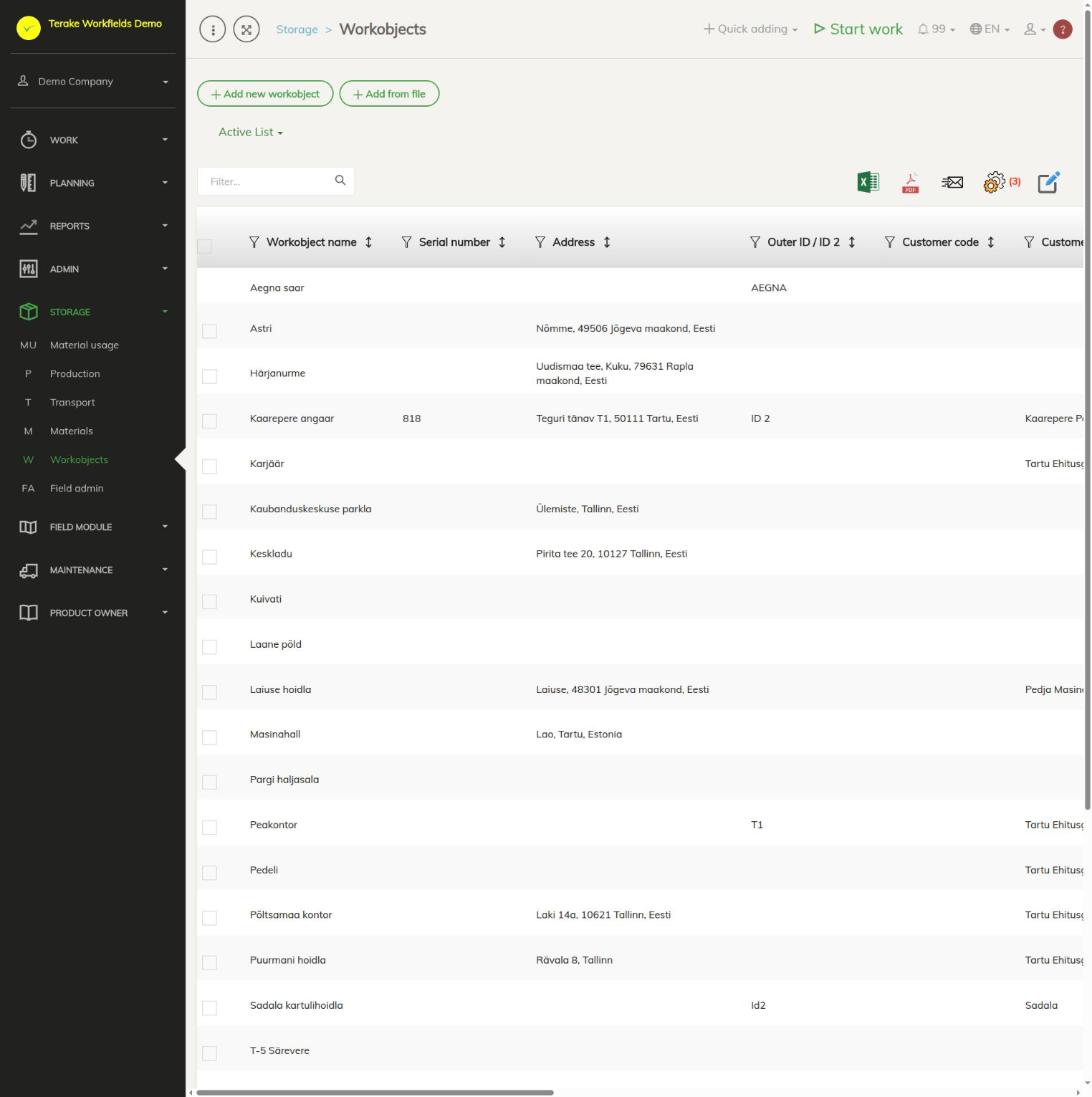
Page layout
- Buttons “Add new workobject” and “Add from file”, drop-down “Active list” / “Archived list”.
- The table columns include “Workobject name”, “Serial number”, “Address”, “Outer ID / ID 2”, “Customer code” and “Customer”. The list is the same as in the “Admin” menu; there is no separate column for objects used as storages, you see that in the object’s window.
- Click a row to open the work object.
How to turn a work object into a storage
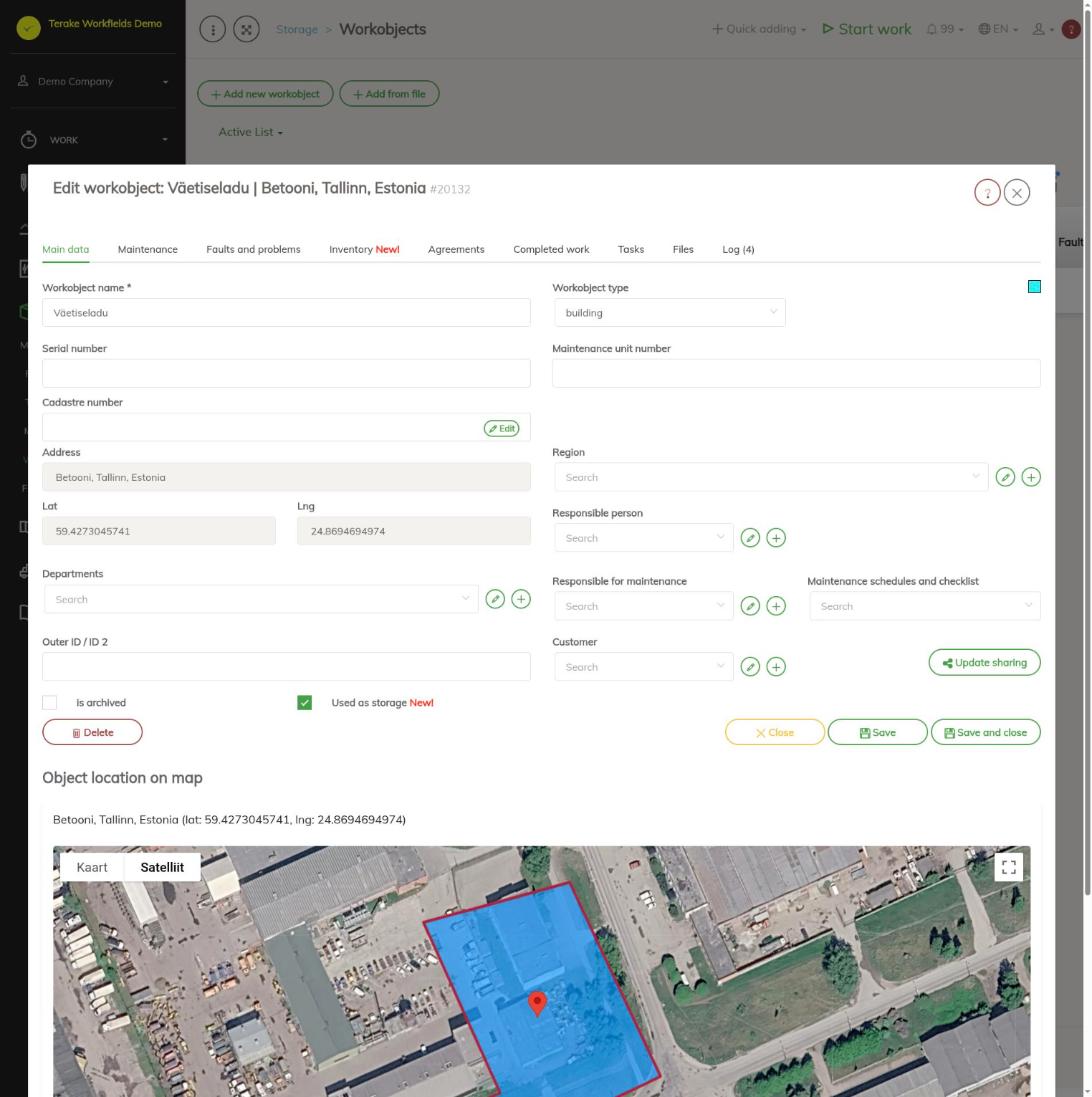
- Click the work object’s row, or press “Add new workobject” for a new storage and enter at least the “Workobject name”.
- On the “Main data” tab, tick “Used as storage”.
- Press “Save” or “Save and close”.
After saving, the object’s window gets an “Inventory” tab and the object is offered everywhere a “Storage” is asked for. A field can also be marked as a storage, see Field admin.
How to view a storage’s inventory
- Open the work object used as a storage.
- Select the “Inventory” tab.
- For each material in this storage the table shows the “Material”, the “Amount” with its unit, and the “Time” the inventory last changed. A negative amount means that more has been used or hauled out of the storage than has been entered or brought in.
- The button with the refresh icon reloads the data, the Excel icon downloads the table.
What changes a storage’s inventory
- An inventory balance entered by hand in the material’s window (“Insert inventory balance”).
- Material used in work (“Material usage” tab) decreases, and production (“Production” tab) increases, the inventory of the storage selected on the work’s row.
- A transport whose origin is this storage decreases the inventory, and a transport whose destination is this storage increases it. The same applies when material is moved from one storage to another.
The balance and movements of one material across all storages are on the page Materials.
Who can see and change it
The storage module is shown to employees who have the role “Stock management”. The roles “Administrator” and “Stock management” can add and change work objects (including the “Used as storage” mark). Work objects shared by a partner can be used but not changed.
Tips
- If you remove the “Used as storage” mark, the object disappears from the storage choices and the “Inventory” tab is hidden.
- The other fields and tabs of a work object are described on the page Workobjects.
- If a material was left without a storage in work or when entered, it is in the storage “Undefined”.
API calls on this page
For integrations and AI assistants: this page uses the following Terake API calls. The full description is in the API reference.
When the page opens:
GET /api/workobjectsonly– Workobjects without their related agrifield data
Adding, changing and deleting (from the API description):
DELETE /api/workobjectsonly/{id}– Delete WorkobjectPOST /api/workobjectsonly– Creates or modifies a WorkobjectPUT /api/workobjectsonly/{id}– Modifies a Workobject
Other calls from this screen’s dialogs and actions (from the web client’s code):
DELETE /api/agreements/{id}– Delete Agreement by ID or UUIDDELETE /api/inspections/workobject/{id}– Delete InspectionCase by ID or UUIDDELETE /api/workobjects/cadastres/{workobject_id}/{cadastre_id}– Removes a Workobject from a CadastreDELETE /api/workobjects/{id}– Delete WorkobjectDELETE /api/workobjects/{id}/files/{uuid}– Delete fileGET /api/agrifield/pria/massive/{massiveid}– Returns Pria MassiveGET /api/cadastres/{id}– Get CadastreGET /api/faults/workobject/{faultitem_consumer_id}– Faultitem collection of one work objectGET /api/faults/workobject– Faultitem collection of work objectsGET /api/fieldbook– Fieldbook Agrifield collectionGET /api/geoinfo/cadaster/{num}– Cadastral register information for one cadastre numberGET /api/geometry/agrifielddata/{id}– Geometry of one agrifield_data record.GET /api/inspections– InspectionCase collectionGET /api/inspections/workobject/{consumer_id}– InspectionCase collection of one work objectGET /api/inspections/workobject– InspectionCase collectionGET /api/fieldbook/overlapping-check/{agrifield_id}/{crop_period_id}– Reports fieldbook entries whose geometry overlaps for one Agrifield and crop periodGET /api/workobjects/{id}– Get WorkobjectGET /api/workobjects– All Workobjects listGET /api/workobjectsonly/{id}– Get WorkobjectPOST /api/agreements– Create new AgreementPOST /api/workobjects/cadastres/{workobject_id}/{cadastre_id}– Add Cadastre to WorkobjectPOST /api/workobjects– Creates or modifies a WorkobjectPUT /api/agrifields/{id}/setcropperiod– Sets the Agrifield data for a crop periodPUT /api/geometry/agrifielddata/{id}– Stores the geometry of an Agrifield data recordPUT /api/workobjects/{id}– Modifies a Workobject