On the “Projects” page you plan and follow projects. A project is a one-off undertaking limited in time and resources. For each project you can compare the forecast work hours and costs with those planned into tasks, those in the work schedule and those actually worked.
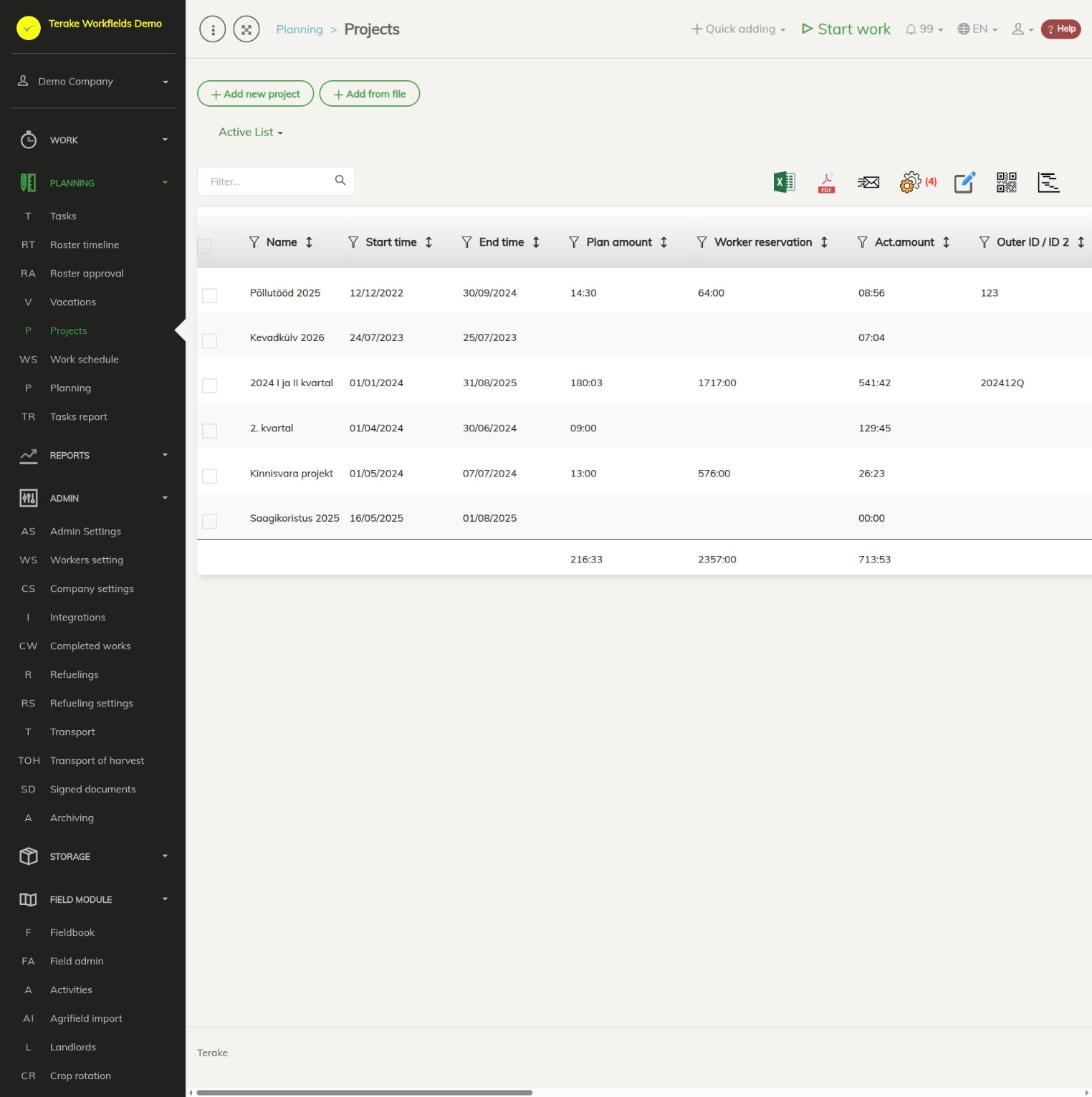
Page layout
- “Add new project” and “Add from file” (importing projects from a file).
- “Active list”: in the dropdown you can also view archived projects.
- Table columns (a selection): “Name”, “Start time”, “End time”, “Planned workhours”, “Worker reservation”, “Plan amount”, “Act.amount”, “Budget”, “Planned budget (worker)”, “Planned budget (work type)”, “Actual cost (worker)”, “Actual cost (work type)”, “Division / department”, “Project manager”, “Customer”, “Outer ID / ID 2”, “Actual end date”, “Archived”, “Additional”. The hour and amount columns have a total at the bottom. Use the gear wheel icon to choose the columns shown.
- Row buttons: the chart icon opens the project’s graphical overview, the pencil opens the project.
- Icons above the table: Excel and PDF download, “Bulk edit parameters” (for example archiving, department, customer, project manager, cost center for the selected projects) and “View project graph” for the selected projects.
How to add a project
- Press “Add new project”.
- Enter the “Name” (required) and be sure to enter “Start time” and “End time”.
- If needed, link the project to a customer (“Customers and partners”), a division/department and a cost center, and select the “Project manager”. The selected worker automatically gets the Project Manager role.
- Enter “Planned workhours” and “Planned budget” if you want to compare the plan with actual figures later.
- “QR Code” makes it easier to select the project in the mobile app; the QR image appears after saving. “Outer ID / ID 2” is, for example, for linking to the accounting system.
- Press “Save and close”.
For a finished project, fill in “Actual end date” and tick “Archived”.
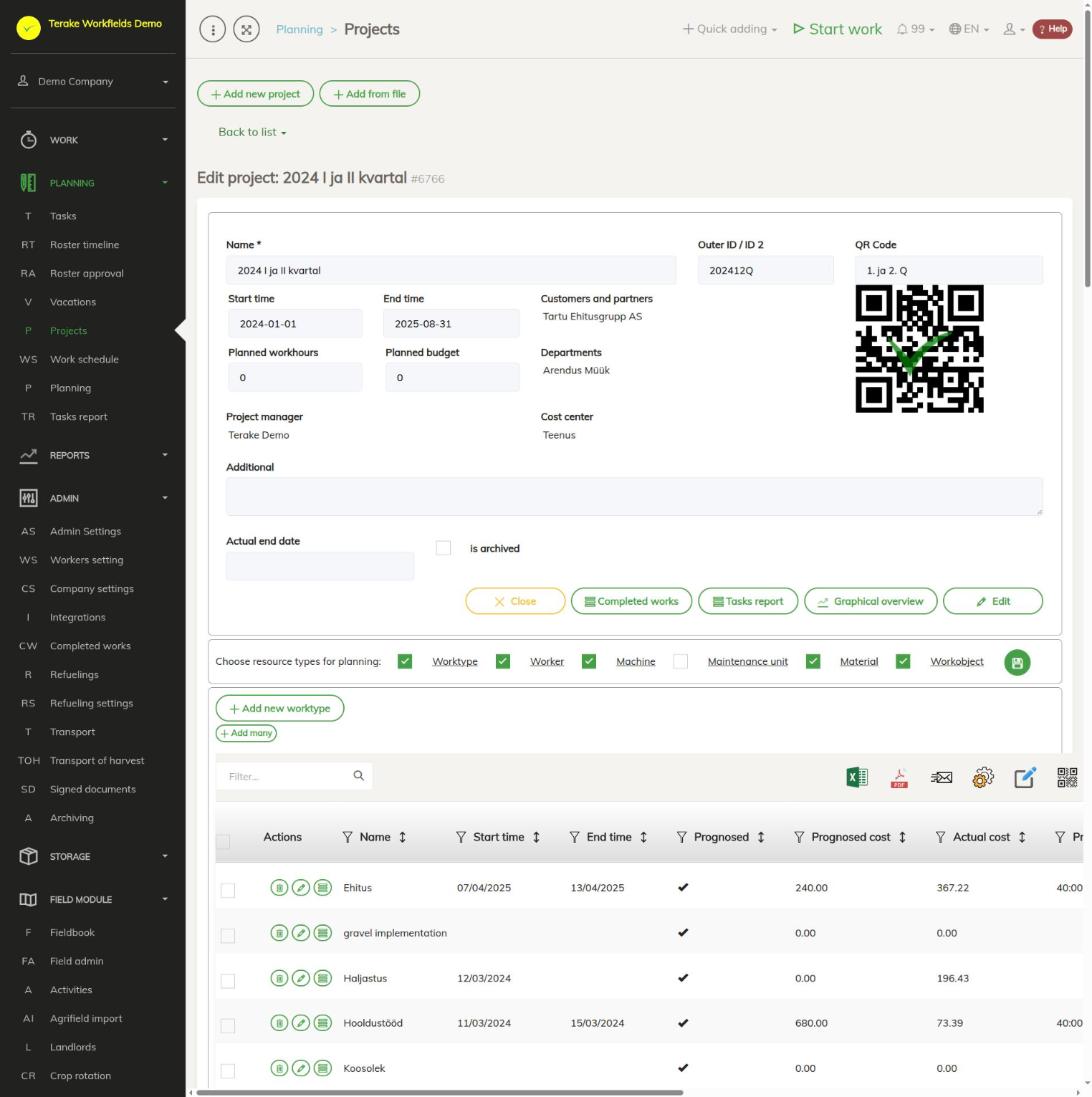
How to plan a project’s resources
The pencil button opens the project view. To change the details, press “Edit”. At the bottom of the view are the buttons “Completed works” and “Tasks report” (the project’s work records and tasks) and “Graphical overview”.
- With the checkboxes on the “Choose resource types for planning” row, choose which resource tables are shown in the project view: “Worktype”, “Worker”, “Machine”, “Maintenance unit”, “Material”, “Workobject”. The save button next to them remembers the choice.
- In each resource table, add a resource with the “Add new …” button, or several at once with the “Add many” button.
- Enter the period and the forecast amount (hours or quantity of material) for the resource.
The resource table shows side by side “Progn. hours” (the forecast you entered), “Plan hours” (in tasks), “Roster hours” (in the work schedule), “Act.hours” (completed work) and the forecast and actual cost.
Who can see and change it
The page is visible to the roles Administrator, Observer, Agronomist, Power user and Project Manager. Projects can be added and changed by Administrator and the roles that have the right to change projects; for others the “Edit” button is hidden.
Tips
- Plan a project’s work on the Tasks and Roster timeline pages by selecting the “Project” on the form.
- The graphical overview is described on the Graphical overview page.
API calls on this page
For integrations and AI assistants: this page uses the following Terake API calls. The full description is in the API reference.
When the page opens:
GET /api/projects– Projects list
Adding, changing and deleting (from the API description):
DELETE /api/projects/{id}– Delete Project by ID or UUIDPOST /api/projects– Create or modify a ProjectPUT /api/projects/{id}– Modify a Project
Other calls from this screen’s dialogs and actions:
DELETE /api/project-resource/{resource_type}/{project_id}/{resource_id}– Removes a resource from a Project, together with its QR image and preferencesGET /api/office-hours– Office hours in periodGET /api/project-resource/{resource_type}/{project_id}– Project related Resources collectionGET /api/project-resource/{resource_type}/{project_id}/{resource_id}– Project statistics row for one resourceGET /api/projects/{id}– Project by IDGET /api/appsettings/visiblefields/{tablename}– Visible columns of an admin UI tablePOST /api/project-resource/{resource_type}/{project_id}– Creates or modifies a Project resourcePUT /api/project-resource/{resource_type}/{project_id}/{resource_id}– Modifies a Project resourcePUT /api/appsettings/visiblefields/{tablename}– Saves which columns are visible for a table in the admin UI