On the “Materials” page of the storage module you manage the company’s materials and their inventory: you enter the initial amount or the amount counted at stocktaking, view the balance and movements by storage, and move material from one storage to another. The page is used by the employee who keeps the stock records.
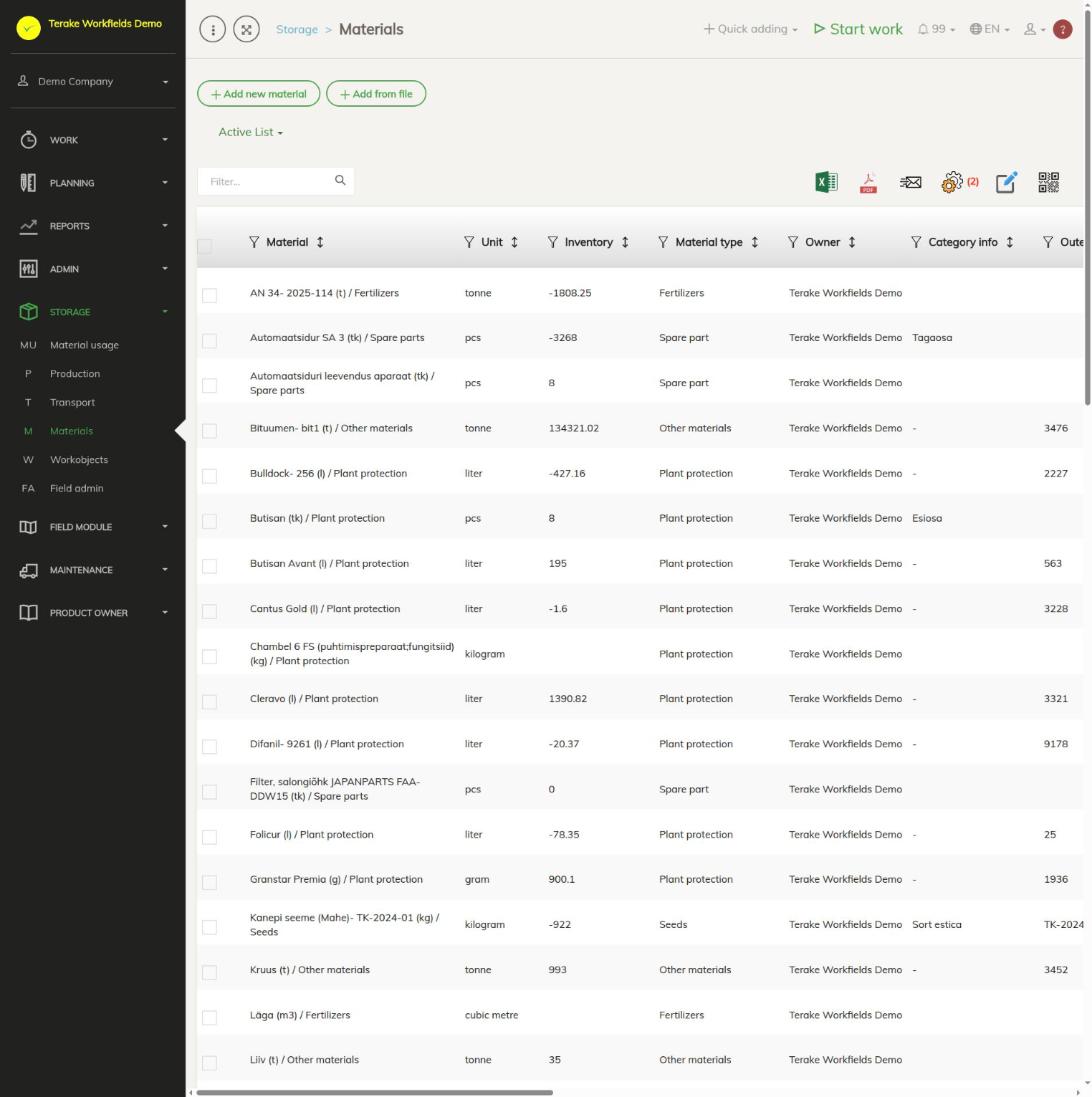
Page layout
- Buttons “Add new material” and “Add from file”, drop-down “Active list” / “Archived list”.
- The table columns include “Material”, “Unit”, “Inventory”, “Material type”, “Owner”, “Category info” and “Outer ID / ID 2”. The “Inventory” column shows the material’s current amount in all storages together. A negative inventory means that more material has been used or taken out than has been entered.
- Click a row to open the material. The material window opens with the tabs “Main data” and, if the material has an inventory, “Inventory”.
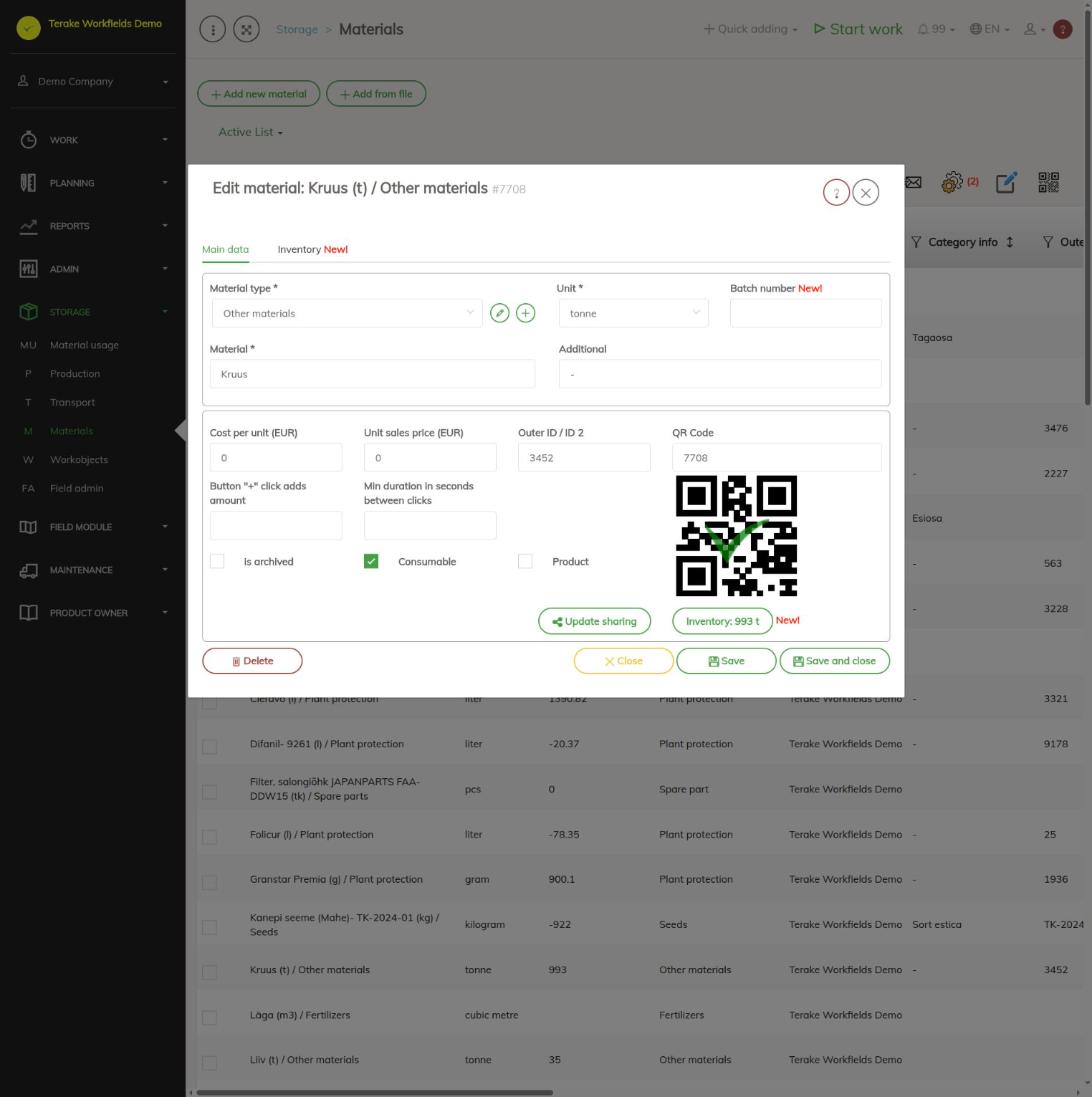
A material’s main data for stock records
- Unit: all inventory balances and movements are in this unit.
- Consumable: a material that is used up in work.
- Product: a product made as the result of work. A material marked as a product can be added to a work on the “Production” tab, other materials on the “Material usage” tab.
- Inventory: when the material has an inventory, the button shows the amount (for example “Inventory: 993 t”) and opens the “Inventory” tab. If there is no inventory yet, the button “Insert inventory balance” is in the same place.
The other fields (material type, prices, QR code, fertiliser data and more) are described on the page Materials.
How to enter an inventory balance
- Open the material and press “Insert inventory balance” (on the “Main data” or “Inventory” tab).
- Select the “Inventory time”.
- Select the “Storage”. The choices are “Undefined” and the work objects and fields marked “Used as storage”. If you do not select a storage, the amount goes to the storage “Undefined”.
- Enter the “Amount” in the material’s unit.
- If needed, select the “Document type” (see Document types) and write “Additional” information.
- Press “Save and close”.
The amount entered is the storage’s balance at the start of the selected date. From there on Terake calculates the inventory itself: material used in work and transports to and from the storage change it. There is one entered balance per material, storage and date; if you enter a new amount for the same day, it replaces the previous one.
How to view the balance and movements
- Open the material and select the “Inventory” tab.
- At the top is the material’s current total inventory, below it the section “Balances and movements by storage” for each storage separately.
- Each storage’s table has the columns “Time”, “Source”, “In”, “Out” and “Inventory”, and the last row “Current inventory”.
- The “Source” column shows what changed the inventory: “Inventory” (an amount entered by hand), “Completed work”, “Transport” or “Material moving”, with the record number. The pencil button opens that record for editing.
- The button with the refresh icon reloads the data, the Excel icon downloads the tables.
How to move material to another storage
- Open the material and select the “Inventory” tab.
- Press “Material moving”.
- Enter the “Transport time”, select “Starting point” (the storage the material is taken from) and “Destination” (the storage it is taken to).
- Enter the “Amount” and, if needed, the “Waybill” number.
- Press “Save and close”. The inventory of the origin decreases and that of the destination increases by the same amount.
The move also appears in the list on the page Transport, and it creates a completed work record.
How to correct or delete an entered balance
- On the “Inventory” tab, find the row whose “Source” is “Inventory” and press the pencil button.
- Correct the “Inventory time”, “Amount” or “Additional” and press “Save and close”, or press “Delete”.
The window shows whether the record was “Inserted manually” or “Auto-calculated”. The first entered balance of a material and storage cannot be deleted.
Who can see and change it
The storage module is shown to employees who have the role “Stock management”. The roles “Administrator”, “Stock management”, “Agronomist” and “Vehicle service” can add and change materials. An inventory balance can be entered only for your own company’s materials; materials shared by a partner can be used but not changed.
Tips
- Before entering inventory balances, mark the storages with “Used as storage” in the work object’s or field’s window, see Workobjects.
- If the “Storage” is left empty in work, the usage goes to the storage “Undefined”. Always select a storage on the work’s material row so that the inventory is correct.
- Summaries of material usage and production are in the reports Material usage and Production.
API calls on this page
For integrations and AI assistants: this page uses the following Terake API calls. The full description is in the API reference.
When the page opens:
GET /api/materials– Material collection
Adding, changing and deleting (from the API description):
DELETE /api/materials/{id}– Delete MaterialPOST /api/materials/{material_id}/inventory– Save MaterialInventoryPOST /api/materials– Create or modify MaterialPOST /api/materials/{parent_id}/lifespan– Assign Lifespan to MaterialPUT /api/materials/{id}– Modify Material
Other calls from this screen’s dialogs and actions (from the web client’s code):
DELETE /api/workdones/{wdid}/materialusages/{usageid}– Deletes a material usage of a WorkdoneGET /api/materials/{id}– Get MaterialGET /api/materials/{id}/harvest_sources– Harvest Material sourcesGET /api/materials/{id}/material_composition– Harvest Material compositionGET /api/materials/{material_id}/inventory– MaterialInventory of a materialGET /api/workdones/{wdid}/materialusages– Workdone collection