“Worker settings” is the list of the company’s workers and users. Here you add new workers, change their data, login details and roles, and archive workers who have left. The page is used by users with the “Administrator” and “Personnel” roles.
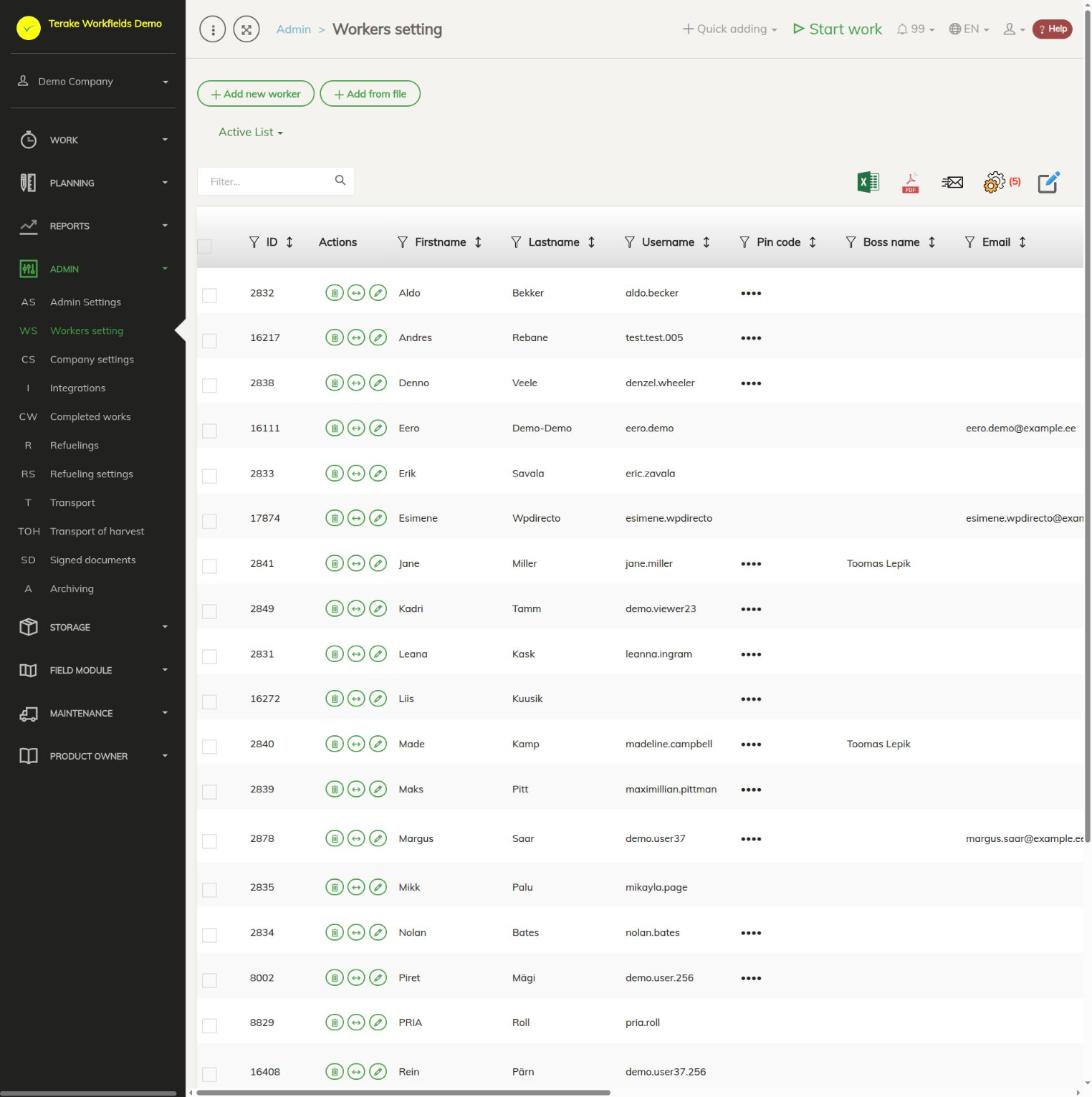
Page layout
- At the top are the buttons “Add new worker” and “Add from file”. On the right you can choose whether to show the “Active list” or the “Archived list”.
- Above the table are the search field “Filter…” and the icons “open in Excel”, “open as PDF file”, “Send to email”, “set view” (which columns to show; a red number shows how many columns are hidden) and “Bulk edit parameters”.
- The table columns include “ID”, “Username”, “First name”, “Last name”, “Profession”, “Division / department”, “Boss”, “Email”, “Phone”, “Outer ID / ID 2”, “Roles”, “GPS required (on phone)”, “Time tracking type” and “Hourly rate”. With the funnel icon in a column heading you can filter the table by that column’s values, and sort it with the arrows.
- The “Actions” column has three buttons on each row: the trash can (“Delete”), the button with two arrows (“Switch to user”) and the pencil (“Edit”). Clicking a worker’s row also opens the worker form.
How to add a new worker
- Press “Add new worker”.
- Enter the “First name” and “Last name”, and the “Password” twice (at least 6 characters). The username is made from the name automatically.
- If you wish, select the “Profession”, “Boss”, “Default worktype”, “Main machine” and “Division / department”, and enter the “Email” and “Phone”.
- If the worker has an e-mail address and “Send log in instruction e-mail” is ticked, they are sent an e-mail with login instructions and links for downloading the mobile app, in the selected “Communication language”. If there is no e-mail address, give the username and password to the worker yourself.
- Press “Save and close”. Roles, login details and files can be added after the main data has been saved.
Only the “Administrator” can add a new worker. A new worker always gets the “User” role; other roles are added on the “Roles” tab.
How to add workers from a file
- Press “Add from file” and “Select file”. Excel (xls, xlsx), OpenDocument (ods) and comma-separated text (csv) files are supported. Tick “File has header row” if the first row of the file holds the column names.
- Above each column, select which field that column’s data goes into. The mandatory fields are “First name”, “Last name” and “Password”.
- Check the preview. The background colour of the cells shows problems: red means an empty mandatory field, orange a wrong data type, yellow a new value that will be created (for example a new profession or department), and blue a value that was not found and is replaced by the default value.
- Press “Save”. The “Import result” column shows the result of each row.
Each row of the file adds a new worker; existing workers are not updated from a file. Login instructions are sent to workers added from a file if they have an e-mail address and this is enabled under “Company settings”.
Worker form
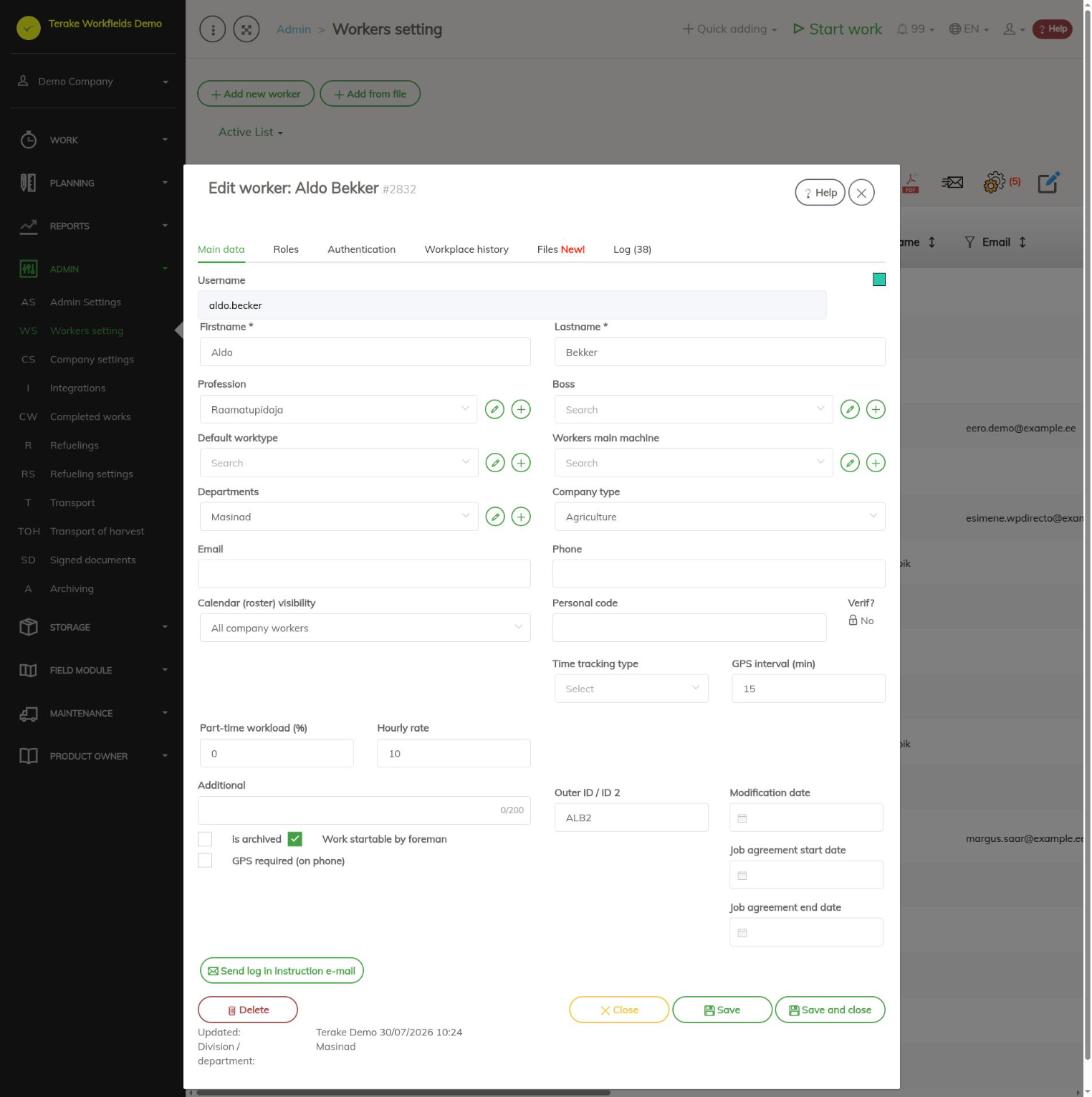
Main data
- “Profession”, “Division / department”, “Hourly rate” and “Workload (%)” apply from the “Modification date” (today by default). Works done from that date on are linked to the new values; earlier works keep the old ones. The changes are shown on the “Workplace history” tab.
- “Calendar (roster) visibility” decides whose roster the worker can see. The company’s default value is under “Company settings”.
- “GPS interval (min)” and “GPS required (on phone)” control how the worker’s location is recorded in the mobile app.
- The “Personal code” is locked when it has been verified (“Verif?”); a verified personal code can only be changed by Terake.
- “Employment contract start date” and “Employment contract end date” are the validity of the employment contract.
- “Work startable by foreman” lets a user with the “Foreman” role change this worker’s data.
- “Archived” moves the worker to the archived list. When a worker is archived, they are removed from their links to bosses, departments, brigades, groups and approvers, and their PIN, RFID and NFC codes are deleted.
- The form of an existing worker has the button “Send log in instruction e-mail”, with which you can send the instructions later, for example if the e-mail address was added after the worker was created.
Roles
The tab is visible to users with the “Administrator” and “Personnel” roles. Tick the worker’s roles and press “Set roles”. The meaning of the roles is described below. Depending on the roles, the tab also has:
- “Brigade members” (with the “Foreman” role): the workers whose works the foreman can start and stop in the mobile app. Save with the “Save brigade members” button.
- “Approvable workers” (with the “Approver” role): the workers whose works the approver can change and confirm. Save with the “Save approvable workers” button.
- “ARIB payees”, crop years and “Field” (with the “ARIB employee” role): which applicants, crop years and fields the user can see. If nothing is selected, all are shown. Save with the “Set ARIB payees” button.
- “Subordinates”: the workers whose “Boss” this worker is (view only).
Login details
- “Change password”: a new password (at least 6 characters). Another worker’s password can be changed by the “Administrator”.
- “Change username”: the username must have at least 6 characters and at least one letter, and must not contain spaces or letters with diacritics.
- “Generate new pin”: creates a new four-digit PIN code for the worker that no other worker in the company has.
- “RFID code” and “NFC code” are saved with the buttons “Update RFID” and “Update NFC”.
Workplace history, Files and Log
- “Workplace history” shows the periods in which the worker’s profession, department, hourly rate and workload applied. With the pencil you can change the start of a period and its values. Below is “Summarised working time”: the periods of summarised working time accounting (“Period length (months)”, “Norm hours”).
- “Files” is for documents linked to the worker (for example contracts, certificates).
- “Log” shows who changed the worker’s data and when, and the last time the worker was online with the mobile app.
How to change the data of several workers at once
- Tick the workers in the left column of the table.
- Press the “Bulk edit parameters” icon. The window shows the “Record count”.
- Tick the fields to change (for example “Profession”, “Division / department”, “Boss”, “Hourly rate”, “Calendar (roster) visibility”, “GPS required (on phone)”, “Archived” or “Generate new pin”), choose the new values and press “Save and close”.
Switch to user
The “Administrator” can use the button with two arrows to continue as another worker and see Terake the way that worker sees it (the question “Continue as another user?”). Changes made during that time are recorded in the log with the administrator’s name.
Roles and rights
If a worker has several roles, their rights are combined. Roles decide which menu items the user sees and which data they can change.
- “User” is held by every worker. They use the mobile app and see their own data. They can change their own works until the works are confirmed.
- “Administrator” also sees the “Admin” menu and can change everything in the company. Only the administrator can add new workers, change other workers’ passwords and usernames, change the company settings and integrations (“Company settings”, “Integrations”) and use the “Switch to user” button. They can also change works confirmed more than 30 days ago.
- “Observer” sees the menus “Work”, “Planning”, “Reports” and “Field module” and the works of all workers, but does not see the “Admin” menu. The role itself gives no right to add or change data. It suits, for example, an auditor or a supervisor.
- “Approver” sees the menus “Work” and “Planning”. They can change and confirm the works of the workers marked as approvables on their “Roles” tab, and works that have no worker.
- “Project Manager” sees “Realtime info”, “Detail view”, “Approval” and the planning menu items, including “Projects”. They can change works with no project. A project’s manager can change the works of their project. The role is added to a worker automatically when they are made a project’s manager.
- “Personnel” sees the “Worker settings” menu item under “Admin” and the “Roles” tab on the worker form. They can give workers roles, including the “Administrator” role, so give this role only to a person you trust.
- “Power user” sees “Realtime info” and the planning menu items. They can change all works regardless of confirmation and who reports to whom. Under “Quick adding” in the top menu bar they have more choices than an ordinary user.
- “Vehicle service” sees the “Maintenance” menu. They can change faults and maintenance works and, according to the role’s rights, machines and materials.
- “Dispatcher” sees the “Reports” menu. They can change faults and maintenance works and, according to the role’s rights, machines and refuelings. The dispatcher is sent the notifications about machines (faults, maintenance deadlines, calendar events).
- “Accountant” sees the “Reports” menu and, under “Admin”, the menu items “Completed works”, “Refuelings”, “Refueling settings”, “Transport”, “Transport of harvest” (in an agricultural company) and “Signed documents”.
- “Agronomist” sees the menus “Planning”, “Reports” and “Field module”. They can change crops, soil samples and field works linked to a crop year and, according to the role’s rights, work objects (including fields) and materials.
- “ARIB employee” sees only the “ARIB module” menu and the fieldbook in it. They cannot change anything and see only the applicants, crop years and fields assigned to them on the “Roles” tab. The role is meant for an employee of the Agricultural Registers and Information Board (PRIA) doing supervision.
- “Foreman” can start and stop the works of their brigade members in the mobile app and change the data of workers who have “Work startable by foreman” ticked.
- “Self planner” sees the planning menu items and their own tasks in planning.
- “Stock management” sees the “Storage” menu.
- “Api (external IT system)” is meant for a user through which another information system exchanges data with Terake.
Some rights do not depend on the role:
- A worker’s “Boss” can change the data and works of the workers they manage.
- If “Users have by default create privilege” is ticked under “Company settings”, users can add new entries to selection fields (for example work object, machine, customer) and change and delete an entry they added themselves within 48 hours. This does not apply to the “Observer” and “ARIB employee” roles.
- A machine can be changed by the machine’s “Responsible person”. The “Responsible for maintenance” can change the faults of that machine.
- A work confirmed more than 30 days ago can be changed only by the “Administrator” and the “Power user” (and field works linked to a crop year also by the “Agronomist”).
Tips
- Do not delete a worker who has left; archive them instead, so that their works stay in the reports.
- If a worker’s profession or hourly rate changed retroactively, choose the correct “Modification date” before saving so that the reports use the correct values.
- The default values for new workers (sending login instructions, communication language, roster visibility) are on the Company settings page.
- Read about changing and confirming works on the Completed works page.
API calls on this page
For integrations and AI assistants: this page uses the following Terake API calls. The full description is in the API reference.
When the page opens:
GET /api/workers– All Workers list
Adding, changing and deleting (from the API description):
DELETE /api/workers/{id}– Delete Worker by ID or UUIDPOST /api/workers– Create WorkerPOST /api/workers/{id}/files– Add new file to parent objectPUT /api/workers/{id}– Modify Worker
Other calls from this screen’s dialogs and actions:
DELETE /api/identificators/{id}– Delete Identificator by ID or UUIDDELETE /api/summarised_worktime/{worker_id}/{id}– Delete WorkerSummarisedWorktimeGET /api/workers/last-seen/{id}– Last recorded device access for one worker, by worker id or uuidGET /api/workers/brigade-members/{id}– Brigade members of one worker acting as foreman, by worker id.GET /api/workers/{id}– Worker by ID or UUID.GET /api/identificators/{id}– Identificator by ID or UUIDGET /api/identificators– Identificator collectionGET /api/identificators/worker/{id}– Identificators registered for one workerGET /api/summarised_worktime/{worker_id}– Summarised worktime list by worker.GET /api/workers/{id}/files– List all files related with parent objectPOST /api/flatapi/worker-factory-credentials– Registers a PIN, NFC or RFID credential for a workerPOST /api/identificators– Create new IdentificatorPOST /api/summarised_worktime– Creates WorkerSummarisedWorktimePUT /api/worker-generatepin/{id}– Generates factory credentials (PIN) for a WorkerPUT /api/workers/brigade-members/{id}– Replaces the brigade members of a WorkerPUT /api/workers/change_username/{id}– Change Worker usernamePUT /api/workers/priapayees/{id}– Replaces the PRIA payees a Worker represents and the crop periods visible to themPUT /api/send_welcome_letter/{id}– Sends the welcome letter to a WorkerPUT /api/workers/approvables/{id}– Replaces the set of Workers whose work this Worker may approvePUT /api/workers/setpassword/{id}– Sets a new password for a WorkerPUT /api/workers/setroles/{id}– Replaces the roles of a WorkerPUT /api/workplace/{id}– Modifies a WorkplacePUT /api/identificators/{id}– Modifies an IdentificatorPUT /api/summarised_worktime/{id}– Creates a new WorkerSummarisedWorktime, or modifies the one named in the URL