The “Planning” page is a table view of tasks: the rows are resources (workers, machines, implements, customers or workobjects), the columns are the days of the selected period and the cells hold that day’s tasks. Here you can add the same task to several resources and days at once, or change and delete several existing tasks at once. The page is used by work planners and managers.
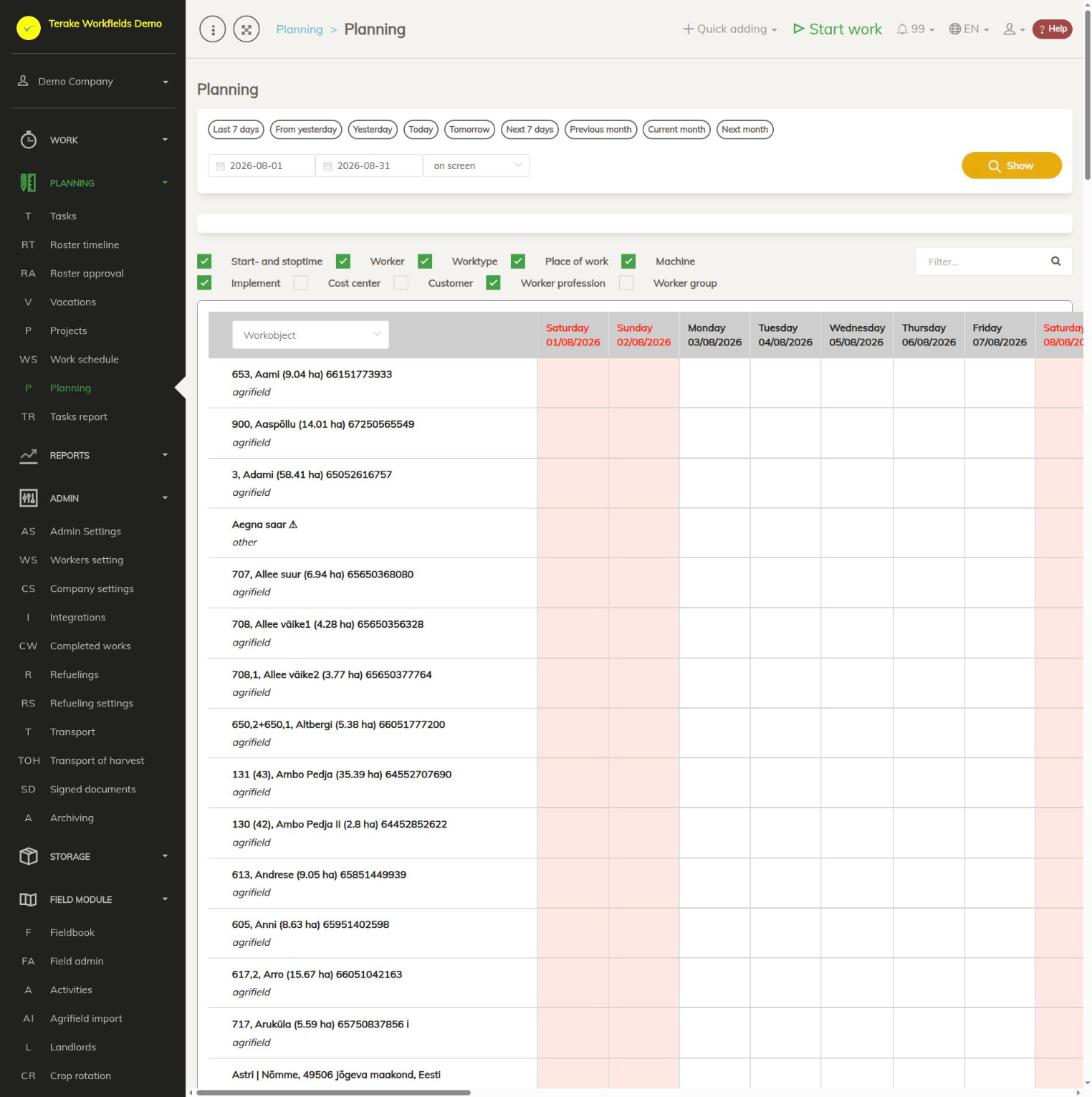
Page layout
- Period: quick choices (for example “Next 7 days”, “Current month”) or a start and end date; press “Show”. The table holds up to 51 days at a time.
- Resource filter: for workers “Show workers only in groups” (groups and divisions/departments, “Manage groups” button), for machines and implements “Show only those types”.
- Checkboxes that set what is shown about a task in a cell: “Start and end time”, “Worker”, “Worktype”, “Place of work”, “Machine”, “Implement”, “Cost center”, “Customer”; “Worker profession” and “Worker group” show these details under the worker’s name. The choice is remembered.
- “Filter…”: searches by the resource’s name (for a worker also by profession, for a machine by type).
- Table: in the header of the first column, choose the kind of resource: “Worker”, “Machine”, “Implement”, “Customer” or “Workobject”. The choice is remembered. Weekends are highlighted.
- A task in a cell: a checkbox for selecting the task and a pencil button for opening the task form.
- “Clear selected dates and resources” below the table: clears all selections.
- “To-do list”: work that needs doing, from which plans can be created.
- Template and buttons at the bottom of the page: adding plans and changing the selected plans.
How to add plans to several resources and days
- Select the period and the kind of resource.
- Click the cells where the plan should be added (resource row and day). A selected cell is highlighted; a second click clears the selection.
- Fill in the template at the bottom of the page:
- “Starting time” and “Ending time” (08:00 and 17:00 by default). If the end is earlier than the start, the task ends on the next day.
- “Duration” and “Work cost”.
- “Event subject”, “Worktype”, “Worker”, “Place of work”, “Machine”, “Implement”, “Cost center”, “Project”, “Customers and partners”, “Maintenance unit” and “Additional”. The field of the selected kind of resource (for example “Worker” in the workers table) cannot be filled in the template: it is taken from the table row. If several values are selected in a field, the first one is used.
- Press “Add plans to selected days and resources”. One task is created for each selected cell.
A plan can also be added from the “To-do list”: select the cells, fill in the times in the template and press the button with the calendar icon on the list row. The tasks are created with that work’s details. If no cell is selected, the message “Nothing is selected” is shown. Work can be added to the list with the “Add new” button.
How to change or delete several plans at once
- Tick the checkboxes of the tasks to change in the cells (clicking a task selects or clears it). The number of selected tasks is shown in the heading “Currently selected (… pc) plan editing”.
- Fill in the template fields you want to change. Empty fields stay the same on the tasks.
- Press “Apply to selected plans”. The tasks stay on the same day but get the template’s times and the filled-in fields. If a task’s worker changes, the previous worker gets a notification.
- To delete the selected tasks, press “Delete selected plans”.
To change a single task, press its pencil button. The task form opens; its fields are described on the Tasks page.
Who can see and change it
The page is visible to the roles “Administrator”, “Approver”, “Observer”, “Agronomist”, “Self planner” and “Power user”.
All tasks can be changed by “Administrator”, “Agronomist”, “Self planner”, “Vehicle service”, “Power user” and “Project Manager”. A task linked to a worker can also be changed by “Approver”, “Foreman” and “Personnel” and by the worker’s direct manager. The creator of a task can change it within 48 hours of creating it. On the form of a single task, the save and delete buttons are shown only to those who have the right to change it; “Observer” can only view the form.
Tips
- “Apply to selected plans” always overwrites the times of the selected tasks. Check the template’s “Starting time” and “Ending time” before pressing it.
- Changing the period or the kind of resource clears all selections.
- Tasks can also be viewed as a calendar on the Tasks page and as a table on the Tasks report page.
API calls on this page
For integrations and AI assistants: this page uses the following Terake API calls. The full description is in the API reference.
When the page opens:
GET /api/todos– Planitem collectionGET /api/multiplan/{resource_type}– Plan rows for a period grouped by resource type
Adding, changing and deleting (from the API description):
DELETE /api/todos/{id}– Delete Planitem by ID or UUIDPOST /api/multiplan/{resource_type}– Add multiple PlanitemPUT /api/multiplan/{resource_type}– Edit multiple Planitem
Other calls from this screen’s dialogs and actions:
DELETE /api/customer/{customer_id}/person/{id}– Deletes a Customer contact personDELETE /api/plans/{id}– Delete Planitem by ID or UUIDDELETE /api/plans/{planid}/materialusages/{usageid}– Deletes one material usage of a PlanitemDELETE /api/rosteritems/{id}– Delete Rosteritem by ID or UUIDDELETE /api/worker_groups/{id}– Delete WorkerGroupGET /api/workers/brigade-members/{id}– Brigade members of one worker acting as foreman, by worker id.GET /api/multiplan/data– Plan rows for a period grouped by resource typeGET /api/planreport/{id}– Planitem by IDGET /api/planreportsync/{id}– Planitem by IDGET /api/plans/{id}– Planitem by IDGET /api/plans– Planitem collectionGET /api/plans/{id}/files– List all files related with parent objectGET /api/plans/{calendaritem_id}/recurrence– Recurrence Setup related to RosteritemGET /api/plans/{planid}/materialusages– Material usages planned on one planitem.GET /api/projects/{id}– Project by IDGET /api/relations/{object_type}/{object_id}– Returns the objects related to one Terake objectGET /api/worker_groups/{id}– Get WorkerGroupGET /api/workers/{id}/files– List all files related with parent objectGET /api/workobjectsonly/{id}– Get WorkobjectGET /api/worktypes/{id}– Get WorktypePOST /api/customer/{customer_id}/person/{id}– Creates or modifies a Customer contact personPOST /api/sendinvitationletter– Sends a partnership invitation to a customer's e-mail addressPOST /api/main_facility– Create FacilityPOST /api/maintenance_unit– Create FacilityPOST /api/multiplan/delete– Deletes multiple PlanitemPOST /api/plans/{planid}/materialusages– Adds material usage to a PlanitemPOST /api/plans/{id}/files– Add new file to parent objectPOST /api/plans/{planid}/mark-as-done– Creates a Workdone from a Planitem and marks the plan item donePOST /api/plans– Creates or modifies a PlanitemPOST /api/plans/{id}– Creates or modifies a PlanitemPOST /api/plans/{calendaritem_id}/recurrence– Creates or modifies the recurrence of a Rosteritem or PlanitemPOST /api/rosteritems/{id}– Creates or modifies a Rosteritem (Scheduled Work or an absence). Returns an array of itemsPOST /api/worker_groups– Creates or modifies a WorkerGroupPUT /api/plans/{id}– Creates or modifies a Planitem. Planitem subtypes, set through roster_type, are Task (id 8,
the common case, with planned start and stop time), Todo (id 12, no planned stop time),
Teamwork (id 18) and Groupwork (id 19).PUT /api/worker_groups/{id}– Creates or modifies a WorkerGroup