In this window you add or change a fuel card or another identifier that links refuelings to a machine and a worker. The window opens with the pencil or plus button next to the “Fuel card” field on the refueling form: the plus adds a new card, the pencil changes the selected card. The refueling form opens on the Refuelings page and from the machine form.
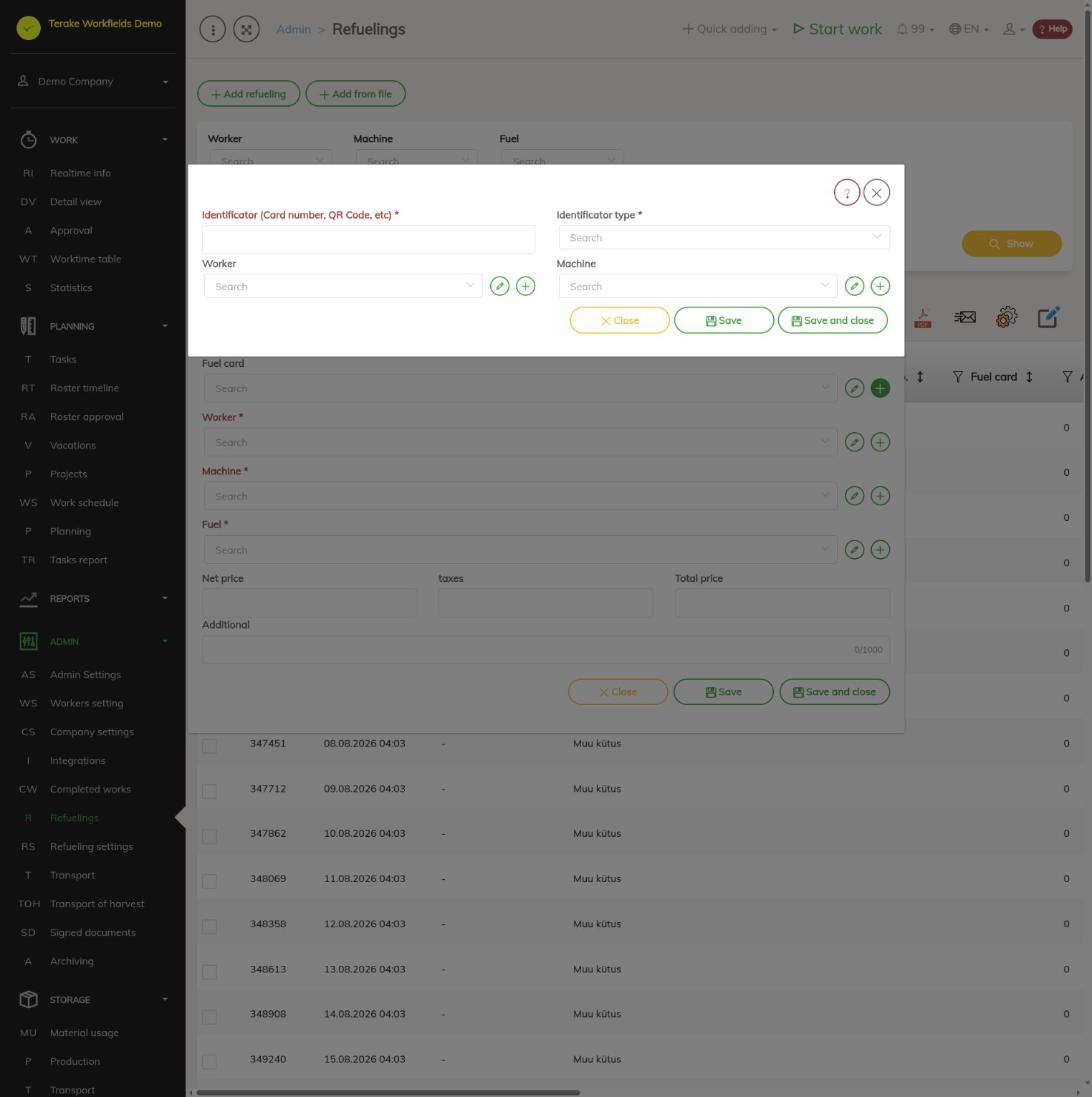
Form fields
- “Identifier (card number, QR code, etc.)” (mandatory): the card number or other identifier exactly as it appears in the refueling data. A refueling that comes in from the refueling data is linked to the card by it.
- “Identifier type” (mandatory): the kind of identifier. The options of the refueling’s “Fuel card” field contain only identifiers whose type is fuel card; an identifier of another type does not appear there.
- “Worker”: the worker the card is given to.
- “Machine”: the machine the card is used to refuel.
- “Apply selected machine and/or worker to all fuel fillings of this card”: this checkbox appears when you change the fuel card’s worker or machine (see below).
“Worker” and “Machine” have their own pencil and plus buttons, with which you can change the worker or machine or add a new one.
How to add a fuel card
- Open the refueling form (e.g. on the “Refuelings” page with the “Add refueling” button, or by clicking a refueling row).
- Press the plus button next to the “Fuel card” field.
- Enter the “Identifier (card number, QR code, etc.)” and select the “Identifier type” (fuel card).
- If needed, select the “Worker” and “Machine”.
- Press “Save and close”. The new card can now be selected on the refueling form.
How to change a fuel card
- On the refueling form, select the card in the “Fuel card” field and press the pencil button next to it.
- Change the fields you need, for example when the card is given to another worker or machine.
- If you changed the worker or machine, the “Apply selected machine and/or worker to all fuel fillings of this card” checkbox appears. Tick it if earlier refuelings with this card should be completed with the new link.
- Press “Save” or “Save and close”.
The “Apply selected machine and/or worker to all fuel fillings of this card” checkbox does not overwrite existing links. It only fills in missing data: this card’s refuelings that have no machine get the card’s machine, and refuelings whose worker is anonymous get the card’s worker. The same change is made to the work of those refuelings. Refuelings that already have a machine or a named worker are not changed; correct them one by one on the refueling form.
Who can see and change it
The refueling form from which this window opens can be used by the “Administrator”, “Accountant”, “Dispatcher” and “Vehicle service” roles. Only the “Administrator” can add and change fuel cards; no other role gives the right to change fuel cards. If “Users have by default create privilege” is ticked in the company settings, other users, except “Observer” and “ARIB employee”, can also add a new fuel card with the plus button and change a card they added within 48 hours of adding it. Fuel cards belong to a company: you cannot see or change another company’s cards.
Tips
- Enter the card number exactly as it appears in the refueling data.
- The “Apply selected machine and/or worker to all fuel fillings of this card” checkbox only works when changing an existing card. It is not applied when saving a new card.
- For the list of refuelings, loading from a file and fuel balances, see the Refuelings and Refueling settings pages.