My profile shows your personal details and your workplace details. Here you can change your name and e-mail address, link your Google account and choose who can see your calendar.
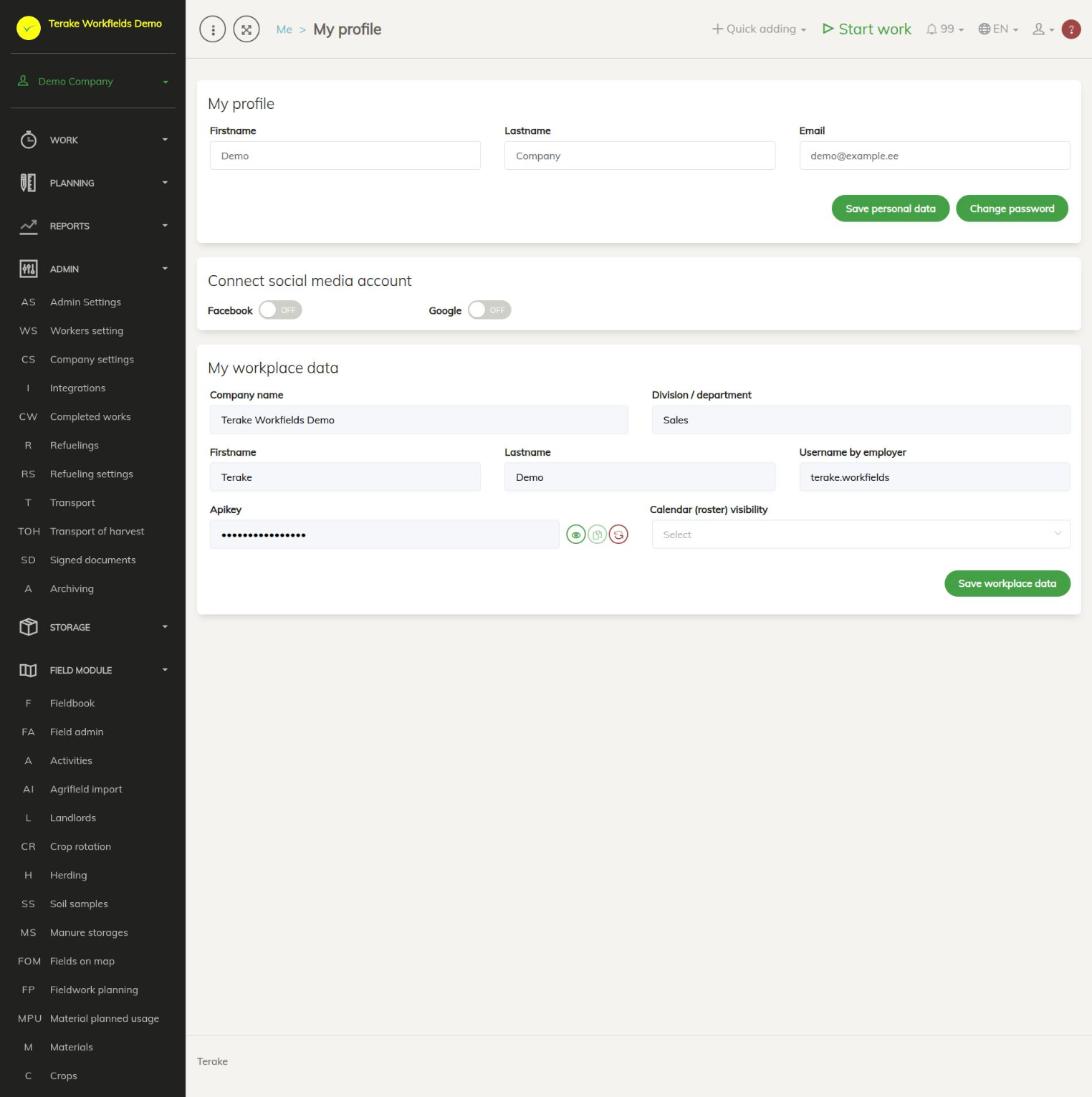
Page layout
- “My profile”: “First name”, “Last name” and “Email”. These are the details of your personal user account.
- “Connect social media account”: the Facebook and Google switches.
- “My workplace data”: “Company name”, “Division / department”, your name and “Username by employer”, and where used also “Profession” and “Boss”. These details are changed by the company’s administrator.
- “Apikey”: your personal key that lets other programs contact Terake on your behalf.
- “Calendar (roster) visibility”: who can see your calendar.
How to change your name or e-mail address
- Correct the “First name”, “Last name” or “Email” fields. The first name and last name must have at least 2 letters.
- Press “Save personal data”.
To change your password, press “Change password”.
How to link your Google account
- Turn on the Google switch.
- Log in with your Google account in the window that opens.
After linking, you can log in on the Terake login page with the Google button. To remove the link, turn the switch off. There is also a Facebook switch, but the login page has no Facebook button.
How to choose who can see your calendar
- Under “Calendar (roster) visibility”, select one option: “Only manager”, “Colleagues in my department” or “All company workers”.
- Press “Save workplace data”.
Your boss and approver can always see your calendar. The choice affects whether your colleagues see you on the My calendar page.
Apikey
The key is hidden. The button with an eye shows or hides the key, and the button next to it copies it. The red button creates a new key. When a new key is created, the old key stops working at once, and you have to log in again on devices where it was used (for example in the mobile app). Create a new key if you suspect that someone else may know your key.
Tips
- Do not share your Apikey with others. It gives access to your data.
- If your workplace details contain an error, for example the wrong department or boss, tell your company’s administrator.
API calls on this page
For integrations and AI assistants: this page uses the following Terake API calls. The full description is in the API reference.
Other calls from this screen’s dialogs and actions (from the web client’s code):
GET /api/my/apikey– Returns the calling Worker's own API keyPOST /api/my/apikey/renew– Replaces the calling Worker's API key at oncePOST /api/my/apikey/renew-at-next-login– Marks the calling Worker's API key to be replaced at the next sign-inPOST /api/my/roster-visibility– Shows or hides the calendar for the calling WorkerPOST /api/relate/{provider}/{token}– Links an existing Worker to a Google or Facebook identityPOST /api/unrelate/{provider}– Unlinks a Worker from a Google or Facebook identity