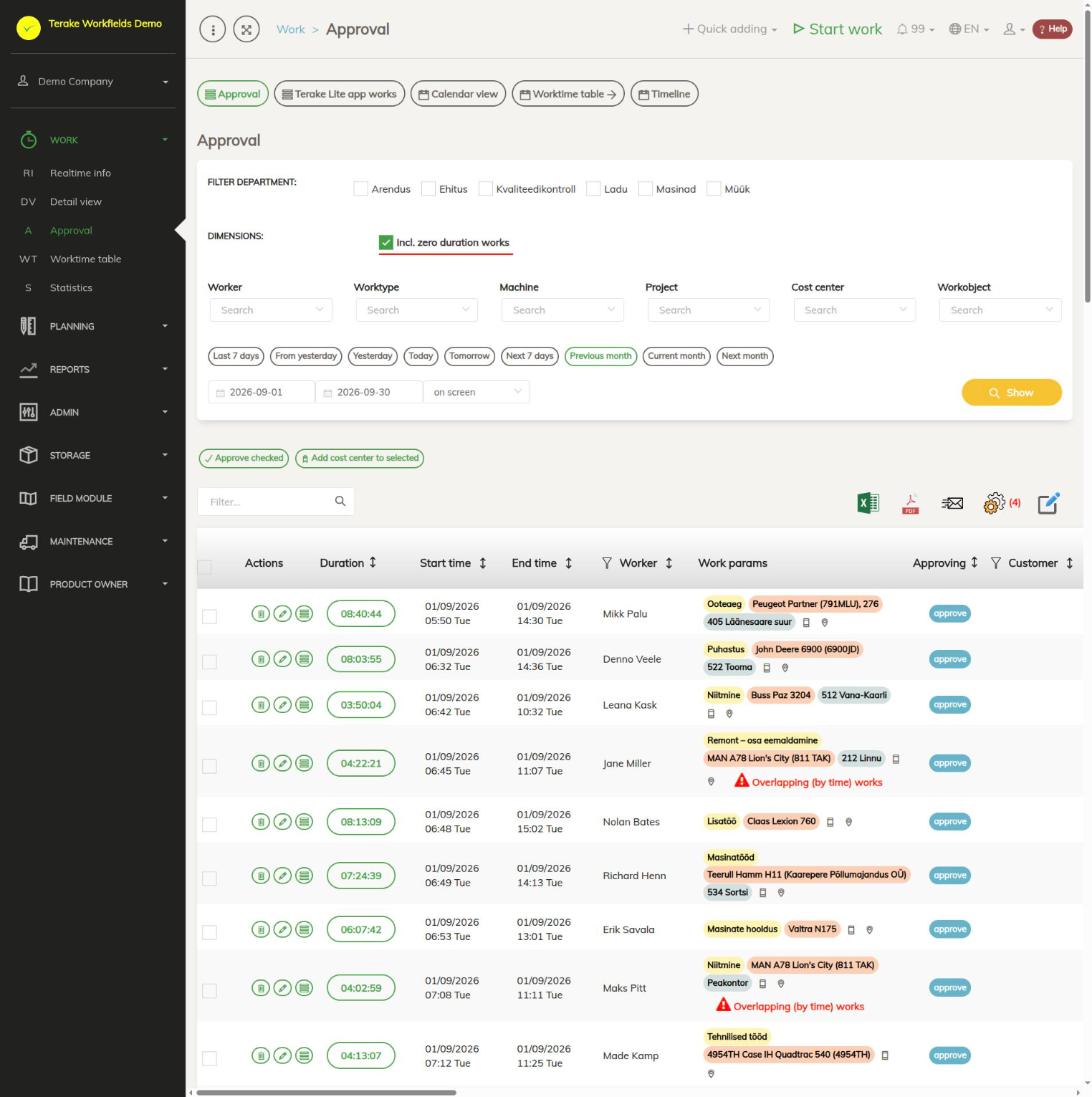
The Approval page contains only finished works that have not been approved yet. Here a manager, approver or project manager reviews and approves their workers’ works before they go into work time accounting and reports. If the selected period shows no data, all works of that period have already been approved.
How it differs from the detail view
The page is built like the Detail view: the same filters, the views “Calendar view”, “Worktime table” and “Timeline”, the same buttons and the same work edit form. The differences are:
- The first view button and the page heading are “Approval”.
- The list contains only unapproved works. When a work is approved, it disappears from the list after the data is reloaded. You find approved works in the detail view, the calendar or the timeline.
- The choice and order of columns of this list are saved separately from the detail view. This way you can keep the columns needed for approval in front here, for example “Duration”, “Worker”, “Work params” and “Approving”.
The views “Calendar view”, “Worktime table” and “Timeline” show all works on this page too. In the calendar, unapproved work time is red and approved work time green.
How to approve works
- Select the period (for example “Previous month”) and, if needed, the department, worker or another filter, and press “Show”.
- Review the work. Pay attention to durations with a warning triangle (less than 5 minutes or more than 12 hours) and to the red mark “Overlapping (by time) works”.
- If needed, click the duration and correct the work in the form. Then press “Save and close”.
- To approve one work, press “approve” in the “Approving” column on its row.
- To approve several works, tick the rows (the tick in the header selects all rows), press “Approve checked” and then “Save and close”.
You can cancel an approval in the form: remove the “Is approved” tick and save. After that the work is on this page again.
If a worker’s work time is counted by the schedule, the text “by schedule” is shown instead of the button. To approve such a work, open the form and select the worker’s schedule in the “Related schedule” field.
Works that do not reach this page
Some works are approved automatically and never appear on this page:
- works created from a task with “Save and mark done” or “Mark as done”, when the task has a worker and a worktype;
- works made from tasks that another company (a partner) gave you, when they are marked done in your company;
- works made by marking a work schedule done, and works created from refuelings.
Before payroll, review these works on the Detail view or Worktime table page. Pay attention to durations with a warning triangle. If needed, open the work, correct it and save. To send a work back for approval, remove the “Is approved” tick and save.
Who can see and approve it
The menu item is visible to the roles “Administrator”, “Approver”, “Observer” and “Project Manager”. “Administrator” and “Observer” see all works of the company. Others see their own works, those of their subordinates and of the workers they approve, and the works of the projects they are project manager of.
Works may be approved and changed:
- By the roles “Administrator” and “Power user”, always.
- By the role “Approver”, for the works of the workers marked as theirs to approve. This is done in the “Worker settings” menu, on the “Roles” tab of the approver’s “Worker” form, in the “Approvable workers” block.
- By a worker’s boss, for the works of their subordinates.
- By a project manager, for the works of the projects they manage. The role “Project Manager” also for works without a project.
- By the role “Agronomist”, for field works linked to a field’s growing season.
- A worker can change their own work as long as it is not approved.
Others are not allowed to change works. If your company has people who need to approve works but are nobody’s boss, give them the “Approver” role and mark the workers they approve. The full description is on the Detail view page.
Tips
- If “Approve checked” gives an error message, the selection includes a work you are not allowed to approve.
- After approval, the work is counted on the Worktime table and Statistics pages.
- Works in progress cannot be approved. They are shown on the Realtime info page.
- For checking the works that come from partner tasks, see Partner tasks.
Video guides
Detail view, part 2: calendars
API calls on this page
For integrations and AI assistants: this page uses the following Terake API calls. The full description is in the API reference.
When the page opens:
GET /api/is-workfields-app-in-use– Whether the company has any TTKI work recorded through the Workfields appGET /api/workdones– Workdones detailed list by period
Adding, changing and deleting (from the API description):
DELETE /api/workdones/{id}– Delete Workdone by ID or UUIDPOST /api/workdones/{id}/files– Add new file to parent objectPOST /api/workdones/{wdid}/materialusages– Creates new MaterialUsage for workdonePOST /api/workdones– Create new WorkdonePOST /api/workdones/{wdid}/recalcmaterialusages– Recalc material usage for workdonePUT /api/workdones/{id}– Modify Workdone
Other calls from this screen’s dialogs and actions:
DELETE /api/rosteritems/{id}– Delete Rosteritem by ID or UUIDGET /api/geometry/workobject/{id}– Geometry of one workobject.GET /api/location/device/workdone/{workdone_id}– Device location track recorded during one workdoneGET /api/location/facilities/history– Location history of a facility over a periodGET /api/workdonehours/{period}– Each worker's hours in the period by hour type: norm, overtime, night etcGET /api/workdones/{id}– Workdone by ID or UUIDGET /api/worktimereports/ttki-works– Finished works started by the TTKI solutionPOST /api/rosteritems/{id}– Creates or modifies a Rosteritem (Scheduled Work or an absence). Returns an array of itemsPOST /api/signed-document-pdf– Renders a signed document as a PDFPUT /api/workdone/approve/{id}– Approves the WorkdonePUT /api/terake-relations– Replaces the relations between one Terake object and a set of objects of another typePUT /api/workdone/approve_client– Lets a customer approve or reject a Workdone through the token link sent to them