“Work schedule” is a table view for building work schedules, meant above all for adding identical shifts to many workers and days at once, for example to fill in a whole month’s schedule. For day-to-day planning, adding vacations and locking schedules, the Roster timeline is more convenient.
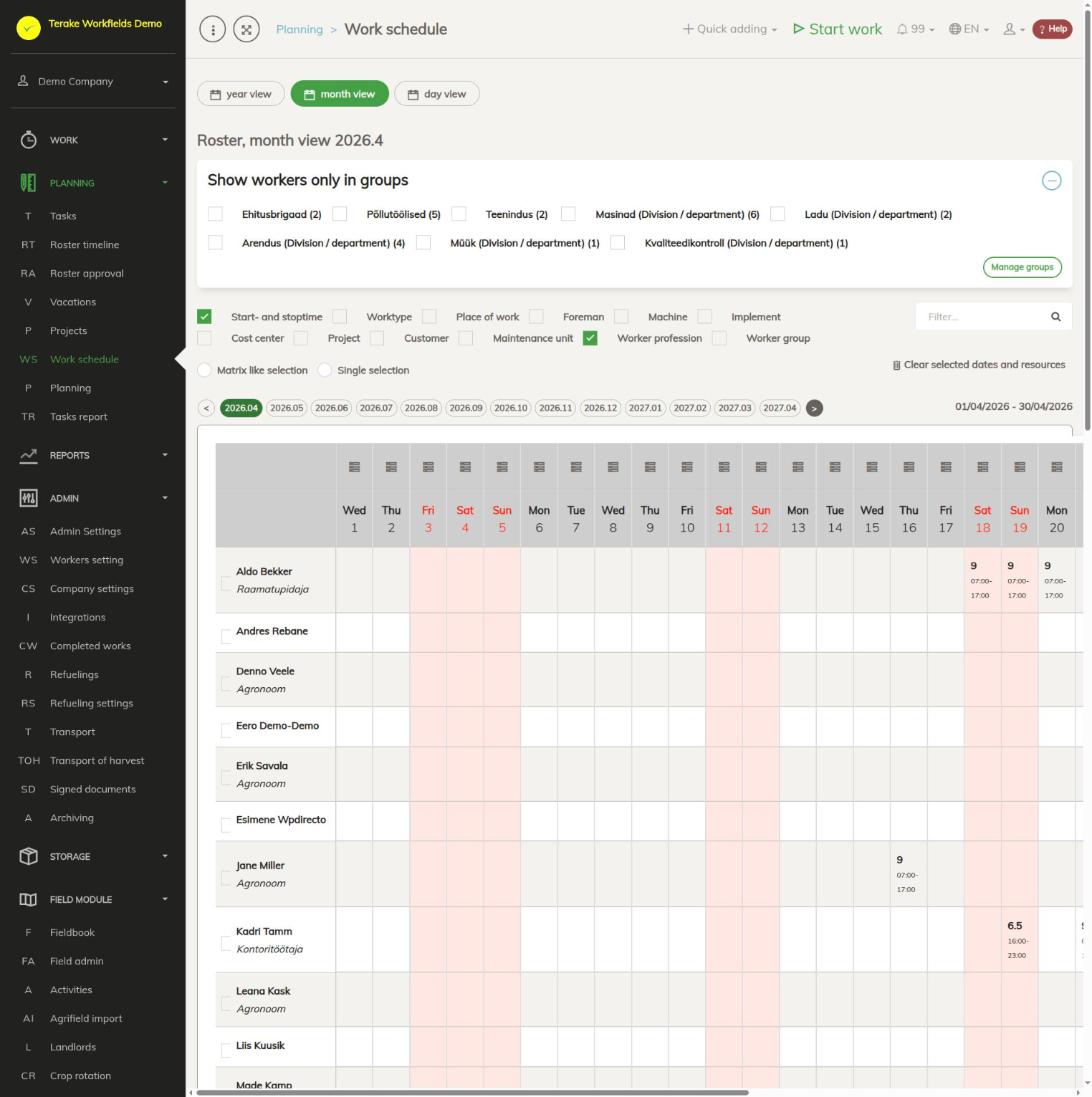
Page layout
There are three views at the top:
- “month view” (opens by default): workers in rows, the days of the month in columns. A cell holds that day’s work schedule hours (pauses deducted), and the SUM column on the right of the row holds the month’s total hours. Weekends and public holidays are highlighted. If the worker is on vacation that day, the cell shows the vacation mark (hint “Vacation request”).
- “year view”: the work schedule hours of the selected year by worker and month, and the year’s total. Choose the year with the buttons under the “Period” block; the eye icon in a month’s header opens the month view of that month.
- “day view”: the work schedules and tasks of one day by worker. In the month view, the icon in the header of a day’s column opens the day view.
Parts of the month view:
- “Show workers only in groups”: tick worker groups or divisions/departments so that the table shows only their workers. Groups can be managed with the “Manage groups” button.
- Checkboxes that set what is shown in the cell under the hours: “Start and end time”, “Worktype”, “Place of work”, “Foreman”, “Machine”, “Implement”, “Cost center”, “Project”, “Customer”, “Maintenance unit”. “Worker profession” and “Worker group” show these details under the worker’s name.
- “Filter…”: searches for a worker by name.
- Month buttons (year and month, for example 2026.04) and the arrows for the previous and next period.
- Selection mode: “Matrix like selection” or “Single selection”, and the “Clear selected dates and resources” button.
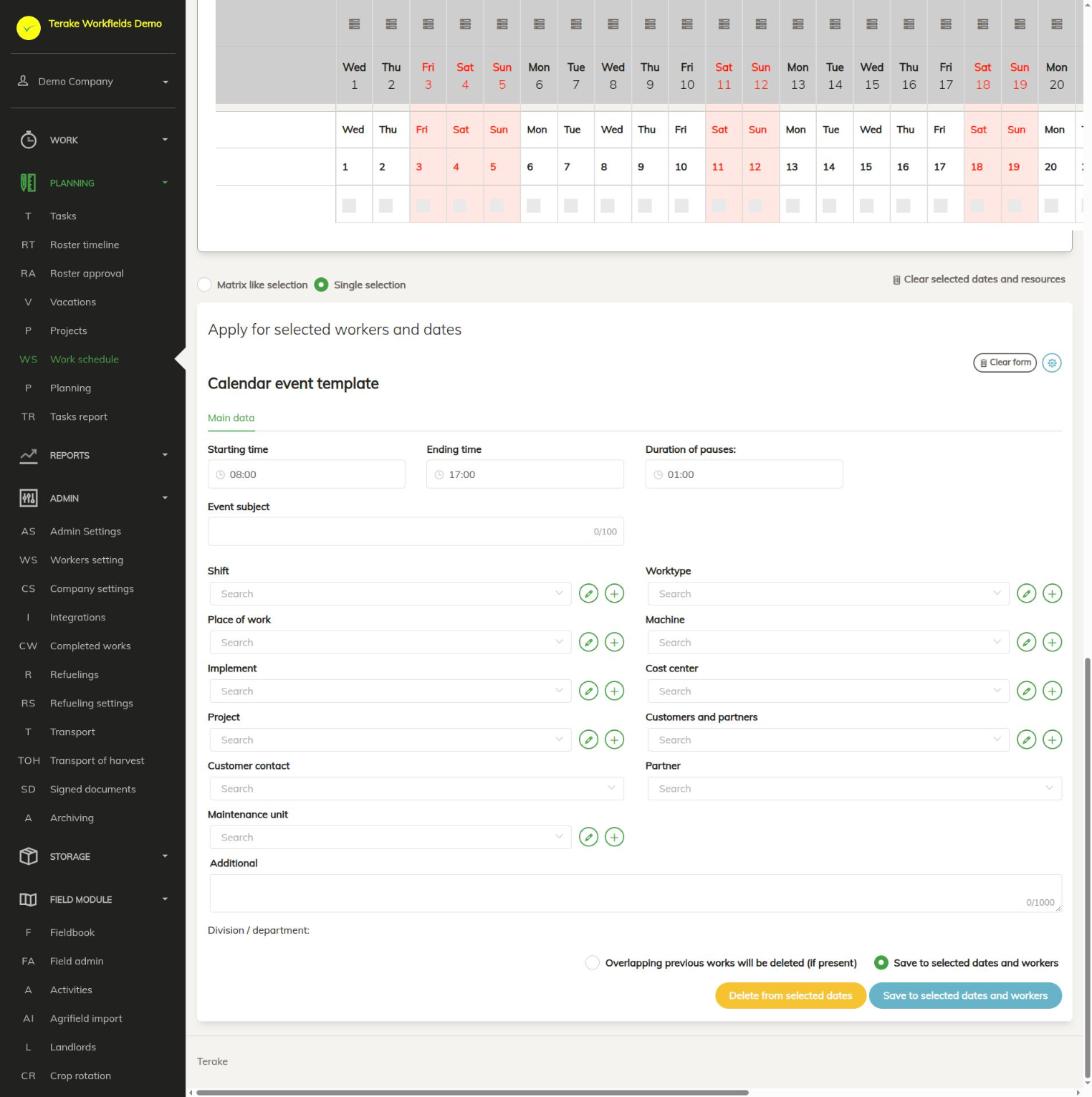
- “Apply for selected workers and dates” block below the table: the schedule template, the way of saving and the buttons.
Hold the mouse over a cell to see the details of that day’s schedule.
How to add a schedule to several workers and days
- Select the month in the month view.
- Choose the selection mode:
- “Matrix like selection”: each click on a cell adds that worker and that day to the selection; what is selected is every crossing of all the selected workers and all the selected days. Workers can also be selected with the checkbox next to the name, and days with the day’s checkbox below the table.
- “Single selection”: only the clicked cells are selected. Clicking the same cell again clears the selection.
- Check that the selected cells are highlighted. To clear the selection, press “Clear selected dates and resources”.
- Fill in the schedule template in the “Apply for selected workers and dates” block:
- “Starting time” and “Ending time”: the times of the shift. If the end is earlier than the start, the shift ends on the next day.
- “Duration of pauses”: pauses that are deducted from the hours.
- “Event subject”: a short title shown in the calendar.
- “Shift”, “Worktype”, “Place of work”, “Machine”, “Implement”, “Cost center”, “Project”, “Customers and partners”, “Customer contact”, “Partner”, “Maintenance unit” and “Additional”: as needed; they are saved on each schedule created.
- Choose the way of saving:
- “Overlapping previous works will be deleted (if present)”: the existing events of the selected days are deleted and the new schedule takes their place.
- “Save to selected dates and workers”: the existing events are kept and the new schedule is added next to them.
- Press “Save to selected dates and workers”. A work schedule with the status “Locked” (locked) is created for each selected worker and day.
How to delete a schedule
- Several days at once: select the cells as above, choose “Overlapping previous works will be deleted (if present)” as the way of saving and press “Delete from selected dates”.
- One day: right-click the cell and confirm the deletion.
Deleting removes all of the worker’s events that start on the selected day, including vacations, sick leave and other absences, and the work records made from the schedule. It does not delete tasks.
How to use the day view
- Open the “day view” or click the icon in the header of a day’s column in the month view.
- Each worker’s card has a “Work schedule” block (the schedules as an hour bar) and a “Tasks” block (that day’s tasks: worker, worktype, start, end, place of work and machine).
- The pencil button on a schedule row opens the schedule form for editing, the plus button at the top of the card adds a new schedule for the worker.
- The “Salvesta töökäsuks” (save as work order) button creates a task from the schedule with the same worker, time, worktype and place of work.
- The “Lisa uus objekt” (add new object) button opens the form for a new place of work.
Who can see and change it
The page is visible to the roles “Administrator”, “Approver”, “Observer”, “Agronomist” and “Power user”. “Administrator” and “Observer” see all the company’s workers; if divisions/departments have been assigned to them, only the schedules of those divisions are shown. Others see only the workers whose manager or approver they are.
All schedules can be changed by “Administrator”, “Self planner”, “Power user”, “Project Manager”, “Approver”, “Foreman” and “Personnel”, and in addition a worker’s direct manager can change the schedules of their subordinates (see Roster timeline).
Tips
- The month view and year view count only work schedules; vacations, sick leave and tasks are not included in the hours.
- A schedule created here is locked at once and the worker sees it in the mobile app. A schedule added on the timeline waits to be locked first.
- Check the way of saving before you save: overwriting also deletes vacations and other absences that start on the selected day.
- A summary table of vacations is on the Vacations page.
API calls on this page
For integrations and AI assistants: this page uses the following Terake API calls. The full description is in the API reference.
When the page opens:
GET /api/worker_groups– All WorkerGroups listGET /api/rostermain– Roster for one month, by year and month
Other calls from this screen’s dialogs and actions:
DELETE /api/agreements/{id}– Delete Agreement by ID or UUIDDELETE /api/customer/{customer_id}/person/{id}– Deletes a Customer contact personDELETE /api/inspections/workobject/{id}– Delete InspectionCase by ID or UUIDDELETE /api/plans/{id}– Delete Planitem by ID or UUIDDELETE /api/plans/{planid}/materialusages/{usageid}– Deletes one material usage of a PlanitemDELETE /api/rosteritems/{id}– Delete Rosteritem by ID or UUIDDELETE /api/worker_groups/{id}– Delete WorkerGroupDELETE /api/workobjects/cadastres/{workobject_id}/{cadastre_id}– Removes a Workobject from a CadastreDELETE /api/workobjects/{id}– Delete WorkobjectDELETE /api/workobjects/{id}/files/{uuid}– Delete fileGET /api/workers/brigade-members/{id}– Brigade members of one worker acting as foreman, by worker id.GET /api/agrifield/pria/massive/{massiveid}– Returns Pria MassiveGET /api/cadastres/{id}– Get CadastreGET /api/faults/workobject/{faultitem_consumer_id}– Faultitem collection of one work objectGET /api/faults/workobject– Faultitem collection of work objectsGET /api/fieldbook– Fieldbook Agrifield collectionGET /api/geoinfo/cadaster/{num}– Cadastral register information for one cadastre numberGET /api/geometry/agrifielddata/{id}– Geometry of one agrifield_data record.GET /api/inspections– InspectionCase collectionGET /api/inspections/workobject/{consumer_id}– InspectionCase collection of one work objectGET /api/inspections/workobject– InspectionCase collectionGET /api/fieldbook/overlapping-check/{agrifield_id}/{crop_period_id}– Reports fieldbook entries whose geometry overlaps for one Agrifield and crop periodGET /api/planreport/{id}– Planitem by IDGET /api/planreportsync/{id}– Planitem by IDGET /api/plans/{id}– Planitem by IDGET /api/plans– Planitem collectionGET /api/plans/{id}/files– List all files related with parent objectGET /api/plans/{calendaritem_id}/recurrence– Recurrence Setup related to RosteritemGET /api/plans/{planid}/materialusages– Material usages planned on one planitem.GET /api/projects/{id}– Project by IDGET /api/relations/{object_type}/{object_id}– Returns the objects related to one Terake objectGET /api/rosterday– Roster for a single dayGET /api/rosteritems/{id}– Rosteritem by ID or UUIDGET /api/rosteritems– Rosteritem collection for the caller's company.GET /api/roster/{calendaritem_id}/recurrence– Recurrence Setup related to RosteritemGET /api/rosteryear– Roster for a whole year, by yearGET /api/worker_groups/{id}– Get WorkerGroupGET /api/workers/{id}/files– List all files related with parent objectGET /api/workobjects– All Workobjects listGET /api/worktypes/{id}– Get WorktypePOST /api/agreements– Create new AgreementPOST /api/customer/{customer_id}/person/{id}– Creates or modifies a Customer contact personPOST /api/sendinvitationletter– Sends a partnership invitation to a customer's e-mail addressPOST /api/plans/{planid}/materialusages– Adds material usage to a PlanitemPOST /api/plans/{id}/files– Add new file to parent objectPOST /api/plans/{planid}/mark-as-done– Creates a Workdone from a Planitem and marks the plan item donePOST /api/plans– Creates or modifies a PlanitemPOST /api/plans/{id}– Creates or modifies a PlanitemPOST /api/plans/{calendaritem_id}/recurrence– Creates or modifies the recurrence of a Rosteritem or PlanitemPOST /api/rosteritems/{id}/mark-as-done– Creates a Workdone from a Rosteritem and marks the item donePOST /api/rosteritems/{id}– Creates or modifies a Rosteritem (Scheduled Work or an absence). Returns an array of itemsPOST /api/rosteritems– Creates or modifies a Rosteritem (Scheduled Work or an absence). Returns an array of itemsPOST /api/worker_groups– Creates or modifies a WorkerGroupPOST /api/workobjects/cadastres/{workobject_id}/{cadastre_id}– Add Cadastre to WorkobjectPOST /api/workobjects– Creates or modifies a WorkobjectPUT /api/agrifields/{id}/setcropperiod– Sets the Agrifield data for a crop periodPUT /api/geometry/agrifielddata/{id}– Stores the geometry of an Agrifield data recordPUT /api/plans/{id}– Creates or modifies a Planitem. Planitem subtypes, set through roster_type, are Task (id 8,
the common case, with planned start and stop time), Todo (id 12, no planned stop time),
Teamwork (id 18) and Groupwork (id 19).PUT /api/roster/add– Writes roster items across the selected workers and datesPUT /api/roster/addworkorder/{rosteritem_id}– Creates a Planitem (work order) from the Rosteritem named in the URL, copying its timesPUT /api/roster/clear– Clears the roster of one worker for a single dayPUT /api/roster/{calendaritem_id}/recurrence– Saves the recurrence of a Rosteritem or Planitem. A new recurrence generates the recurring
events; an existing one has events added.PUT /api/worker_groups/{id}– Creates or modifies a WorkerGroupPUT /api/workobjects/{id}– Modifies a Workobject