The maintenance module page “Workobjects” is the same list of work objects as in the “Admin” menu. In the maintenance module it is used to plan maintenance and repairs for work objects too, for example a building, a warehouse or a structure, and to see the object’s maintenance and faults in one place.
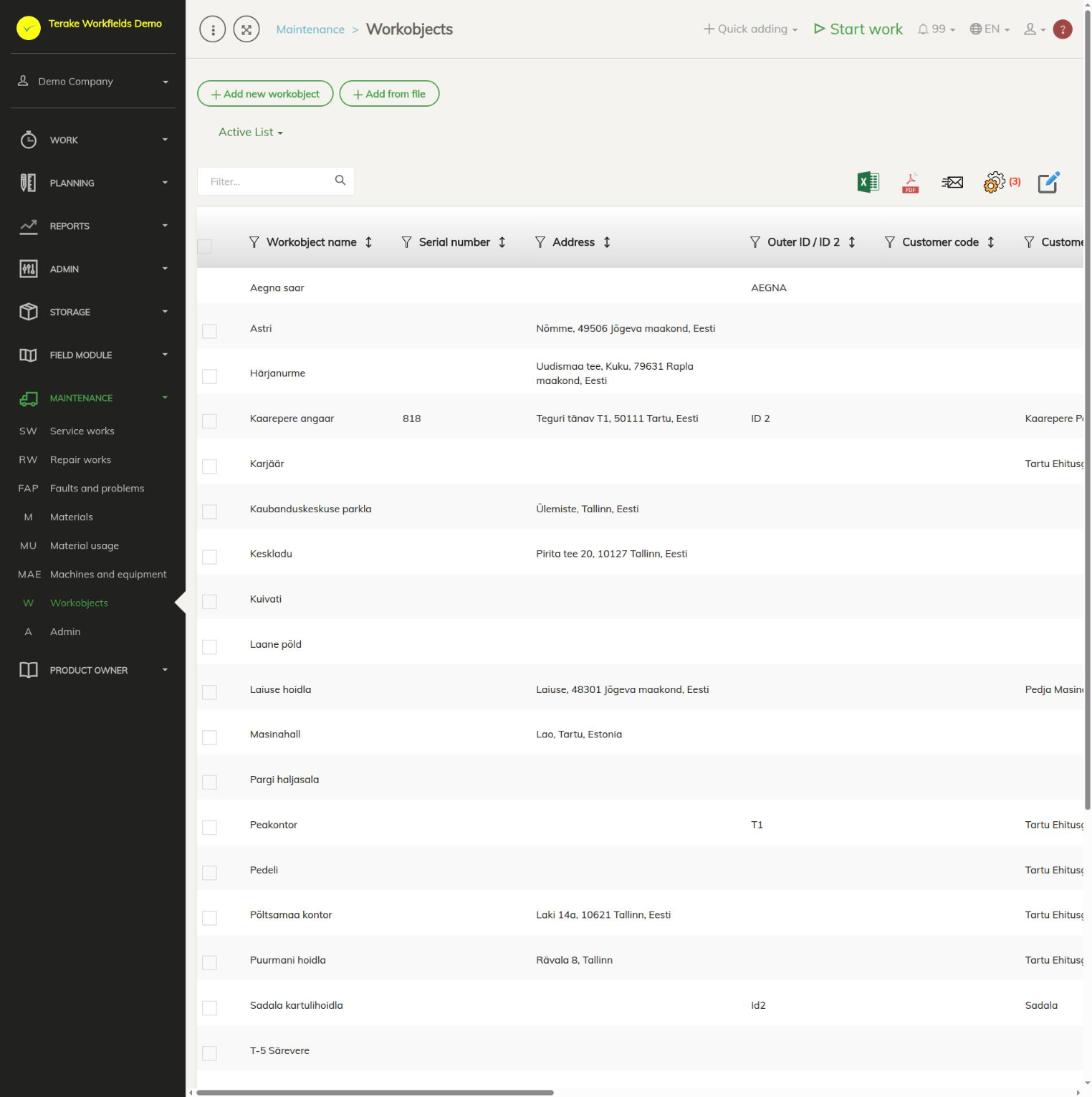
Page layout
- Buttons “Add new workobject” and “Add from file”, drop-down “Active list” / “Archived list”.
- The table includes “Workobject name”, “Address”, “Outer ID / ID 2” and “Customer”. The “Faults” column shows an icon when the work object has unresolved faults.
- The work object window opens when you click a row. For maintenance, the tabs that matter are “Main data” (the person responsible for maintenance and the schedule), “Maintenance” and “Faults and problems”.
How to prepare a work object for maintenance
- Click the work object’s row or press “Add new workobject” and enter at least the “Workobject name” and “Workobject type”.
- On the “Main data” tab, select “Responsible for maintenance”: the employee responsible for the object’s maintenance. This person is selected as the responsible person of a new maintenance.
- Select “Maintenance schedules and checklist”: the maintenance schedule whose tasks go into the object’s maintenance. Schedules are described on the page Maintenance ADMIN.
- Press “Save” or “Save and close”.
How to plan maintenance for a work object
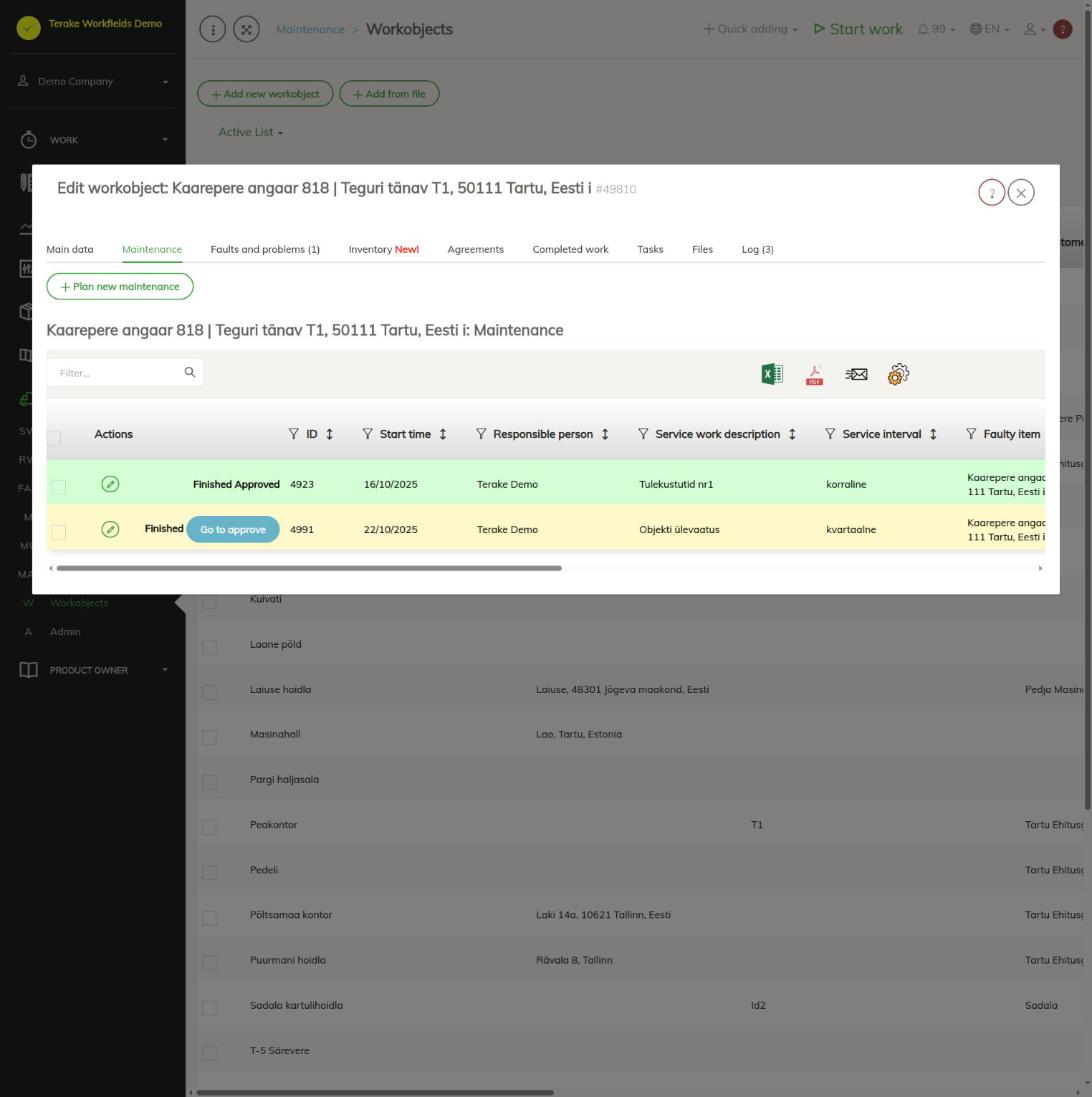
- Open the work object and select the “Maintenance” tab.
- Press “Plan new maintenance”. The “Service works” page opens with a new maintenance form in which the work object, schedule and responsible person are already filled in.
- Select the “Service interval”, check the “Planned start” and “Planned end”, and save. More details are on the page Service works.
The “Maintenance” tab has a table of all the object’s maintenance with the columns “ID”, “Start time”, “Responsible person”, “Service work description”, “Service interval”, “Faulty item”, “Done”, “Approving”, “Additional”, “Total points”, “Correct”, “Not correct” and “Unhandled”. The row colour shows the state of the maintenance as in the list of service works: a maintenance that is done and approved is green, done and not approved yellow. A maintenance that is not approved has the button “Go to approve”; the pencil opens the maintenance.
How to register a fault for a work object
- Open the work object and select the “Faults and problems” tab. The number in the tab name shows the number of faults.
- Press “Fault registration”, describe the fault and press “Save and close”.
Handling faults and planning repairs are described on the pages Faults and problems and Repair works.
Who can see and change it
- In the “Maintenance” menu the page is shown to the roles “Vehicle service” and “Administrator”.
- The roles “Administrator” and “Stock management” and the work object’s “Responsible for maintenance” can add and change work objects. Other roles, “Vehicle service” included, can view the work object and use its maintenance and faults.
- The roles “Administrator”, “Dispatcher” and “Vehicle service” can add and change maintenance.
Tips
- Terake does not send warnings about upcoming maintenance of work objects, so plan it by date.
- The maintenance of all work objects is on the page Service works when you select the button “Workobjects” there.
- The other fields and tabs of a work object are described on the page Workobjects.
API calls on this page
For integrations and AI assistants: this page uses the following Terake API calls. The full description is in the API reference.
When the page opens:
GET /api/workobjectsonly– Workobjects without their related agrifield data
Adding, changing and deleting (from the API description):
DELETE /api/workobjectsonly/{id}– Delete WorkobjectPOST /api/workobjectsonly– Creates or modifies a WorkobjectPUT /api/workobjectsonly/{id}– Modifies a Workobject
Other calls from this screen’s dialogs and actions (from the web client’s code):
DELETE /api/agreements/{id}– Delete Agreement by ID or UUIDDELETE /api/inspections/workobject/{id}– Delete InspectionCase by ID or UUIDDELETE /api/workobjects/cadastres/{workobject_id}/{cadastre_id}– Removes a Workobject from a CadastreDELETE /api/workobjects/{id}– Delete WorkobjectDELETE /api/workobjects/{id}/files/{uuid}– Delete fileGET /api/agrifield/pria/massive/{massiveid}– Returns Pria MassiveGET /api/cadastres/{id}– Get CadastreGET /api/faults/workobject/{faultitem_consumer_id}– Faultitem collection of one work objectGET /api/faults/workobject– Faultitem collection of work objectsGET /api/fieldbook– Fieldbook Agrifield collectionGET /api/geoinfo/cadaster/{num}– Cadastral register information for one cadastre numberGET /api/geometry/agrifielddata/{id}– Geometry of one agrifield_data record.GET /api/inspections– InspectionCase collectionGET /api/inspections/workobject/{consumer_id}– InspectionCase collection of one work objectGET /api/inspections/workobject– InspectionCase collectionGET /api/fieldbook/overlapping-check/{agrifield_id}/{crop_period_id}– Reports fieldbook entries whose geometry overlaps for one Agrifield and crop periodGET /api/workobjects/{id}– Get WorkobjectGET /api/workobjects– All Workobjects listGET /api/workobjectsonly/{id}– Get WorkobjectPOST /api/agreements– Create new AgreementPOST /api/workobjects/cadastres/{workobject_id}/{cadastre_id}– Add Cadastre to WorkobjectPOST /api/workobjects– Creates or modifies a WorkobjectPUT /api/agrifields/{id}/setcropperiod– Sets the Agrifield data for a crop periodPUT /api/geometry/agrifielddata/{id}– Stores the geometry of an Agrifield data recordPUT /api/workobjects/{id}– Modifies a Workobject