The “Signed documents” page holds the documents linked to works that a customer or another person has signed at the work in the mobile app, for example a confirmation of work done. Here the administrator or the accountant can search for documents, view them, download them as PDF files and delete them.
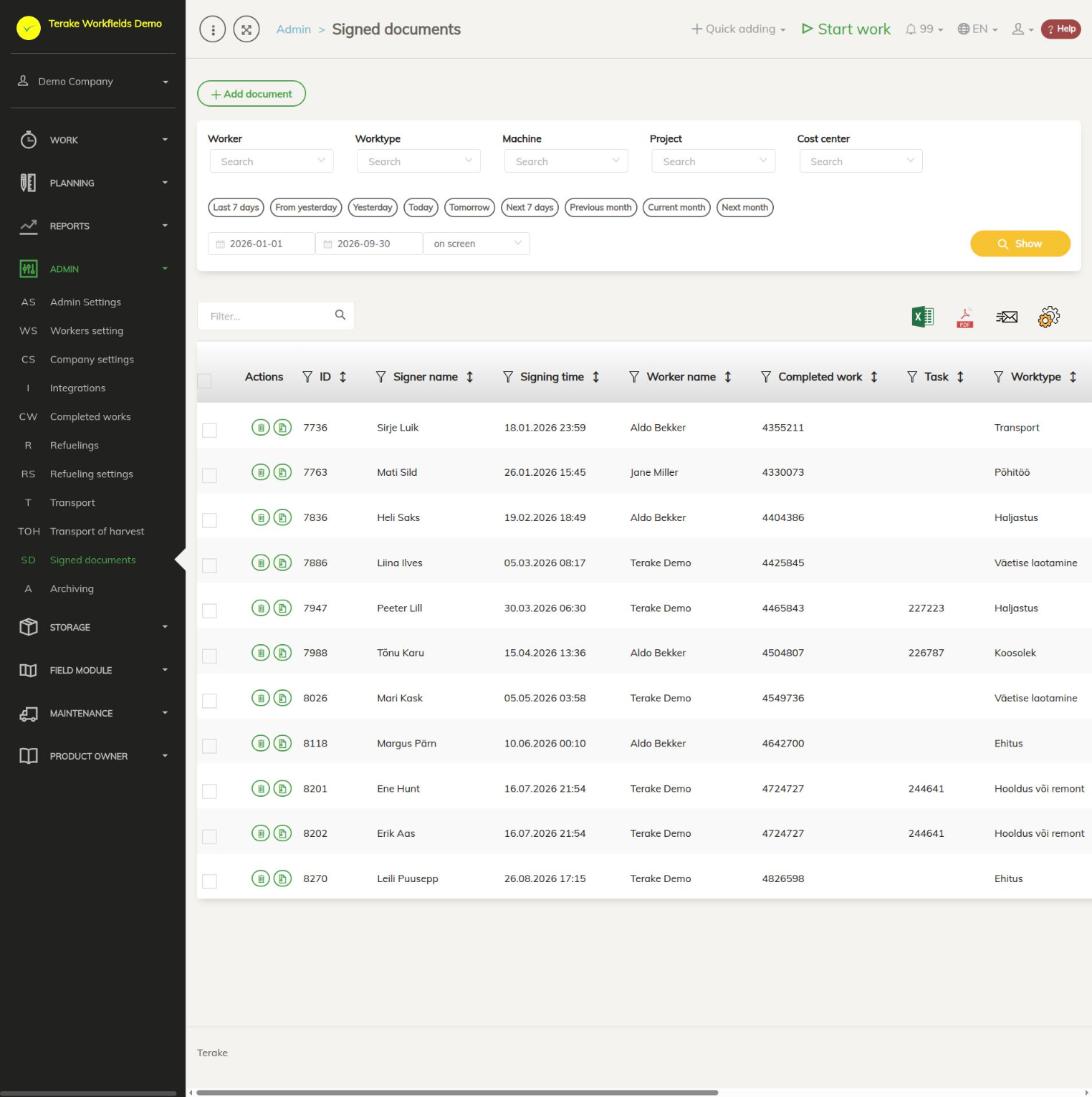
Page layout
- Filters: “Worker”, “Worktype”, “Machine”, “Project” and “Cost center”, quick period buttons or a start and end date, and the “Show” button. The list shows the documents signed in the period.
- Table columns: “Actions”, “ID”, “Signer name”, “Signing time”, “Worker name” (the worker who did the work), “Completed work” (the work number), “Task”, “Worktype”, “Machine”, “Cost center”, “Project”, “Customer” and “Workobject”.
- The “Actions” column has a trash can icon for deleting the document and an icon for opening it.
- Above the table are a search field and buttons for downloading the table as an Excel or PDF file and for choosing columns.
How to find and view a document
- Select the period and, if needed, the worker, work type, machine, project or cost center, and press “Show”.
- Click the document’s row or the document icon in the “Actions” column.
- The window that opens shows “Worker name”, “Signer name”, “Signing time”, “Document content” and “Signature” (the image of the signature).
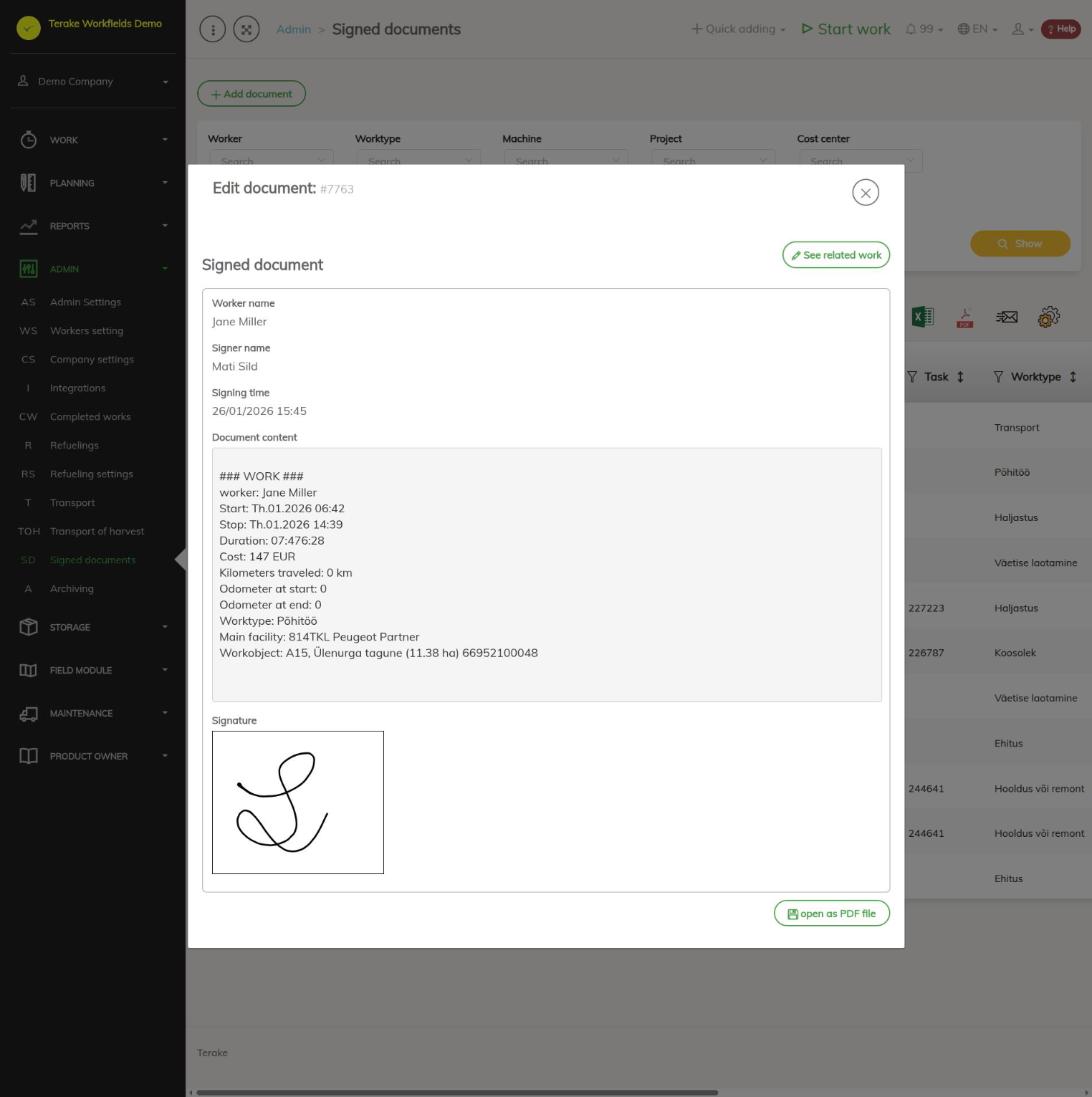
The document’s data cannot be changed; it comes from the mobile app at the moment of signing.
How to download a document as a PDF file
- Open the document.
- Press “open as PDF file”. The file is downloaded and you can, for example, send it to the customer.
How to view the related work
Open the document and press “See related work”. The work form opens, where you can view and change the work. After the work is changed, the list of documents is refreshed.
How to delete a document
Press the trash can icon on the document’s row. The work remains.
Who can see and change it
The page is seen by the “Administrator” and the “Accountant”. Documents are deleted by the “Administrator”.
Tips
- You view and change the works themselves on the Completed works page.
- To find all signatures of one project, select it in the “Project” filter.
API calls on this page
For integrations and AI assistants: this page uses the following Terake API calls. The full description is in the API reference.
When the page opens:
GET /api/signeddocuments– SignedDocument collection
Adding, changing and deleting (from the API description):
DELETE /api/signeddocuments/{id}– Delete SignedDocument by ID or UUID
Other calls from this screen’s dialogs and actions:
GET /api/signeddocuments/{id}– SignedDocument by ID or UUIDPOST /api/signed-document-pdf– Renders a signed document as a PDF