“Cadastres” is the list of the company’s cadastral units. You link cadastres to fields and field agreements so that you can see which cadastral unit a field or agreement concerns. The page is used by an agronomist or an administrator.
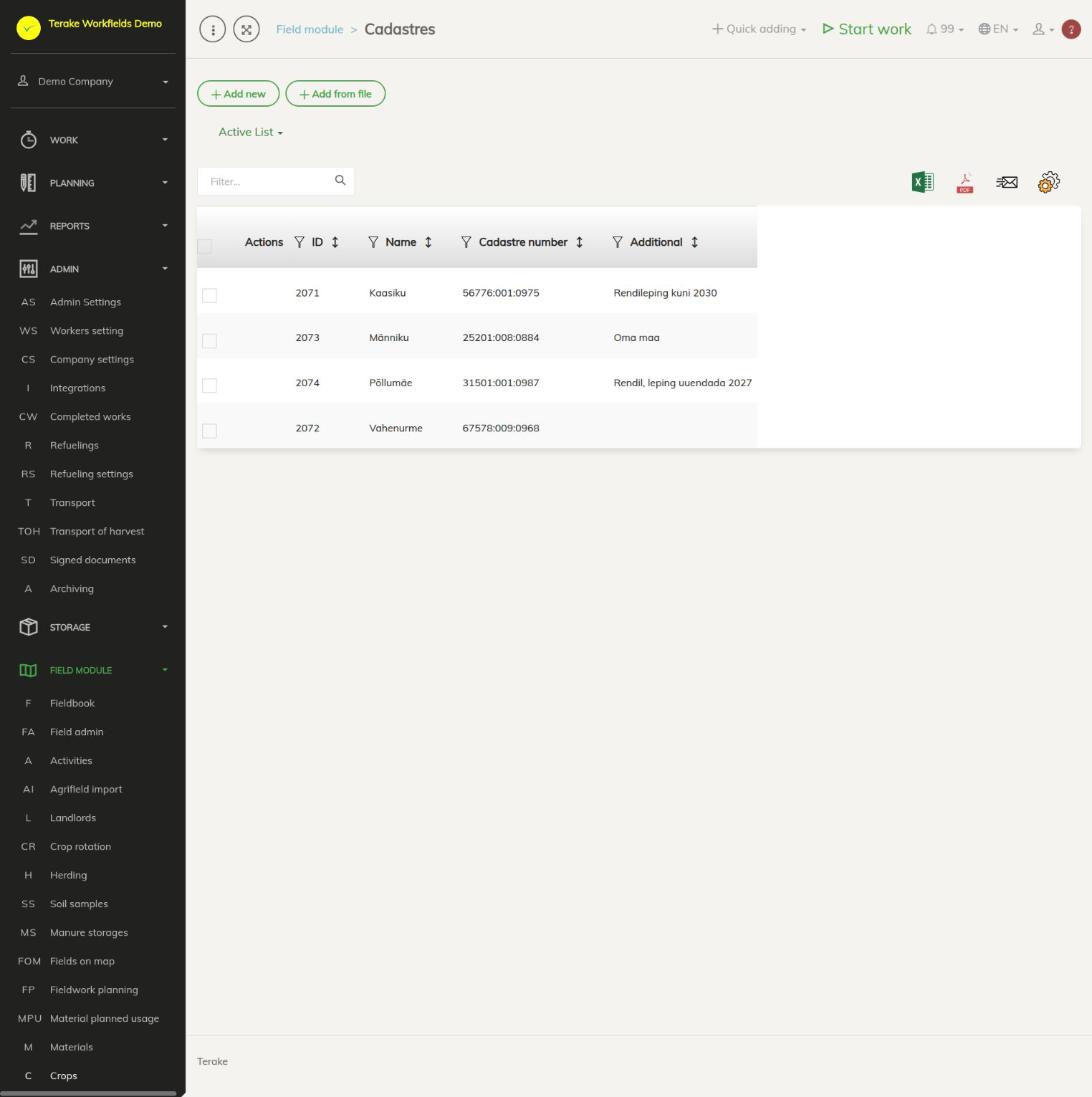
Page layout
- The “Add new” and “Add from file” buttons and the “Active list” / “Archived list” choice.
- Table columns: “Name”, “Cadastre number” and “Additional”.
- Click a cadastre to open it. Above the table are icons for Excel and PDF export and for the view settings.
How to add a cadastre
- Press “Add new”.
- Enter the “Cadastre number” in the form 12345:001:0010 (five digits, colon, three digits, colon, four digits).
- Press “Import cadastral info”. The data and boundary of the cadastral unit are brought from the cadastral register; if “Name” is empty, the address of the cadastral unit becomes its name. If the number is not found, you see the message “Cadastral info not found”.
- If needed, change “Name” and add “Additional”.
- Press “Save and close”.
The form fields are described in more detail on the Cadastral info page.
How to add cadastres from a file
- Press “Add from file” and then “Select file”. Tick “File has header row” if the first row of the file holds headings.
- In the “Select fields:” row, match the file’s columns to the fields “Name” and “Cadastre number”; both are required. Columns with a matching heading are matched automatically.
- Press “Save”. For cadastres added from a file, you can bring the data from the register by opening the cadastre and pressing “Import cadastral info”.
How to use a cadastre
- In the field form (Field admin) you add the field’s cadastres in the “Cadastre number” field.
- When you link an agreement to a field, you select the agreement and the cadastre. If the field has exactly one cadastre, it is offered automatically. The agreements table has the columns “Cadastre number” and “Cadastre name”.
- In a cadastre selection field you can add a new cadastre or change an existing one right next to the selection, without coming to this page.
Who can see and change it
The page is shown in the menu to “Administrator” and “Agronomist”. You can only change and delete your own company’s cadastres.
Tips
- Check the cadastre number before saving: “Import cadastral info” can only be used with a number in the correct form.
API calls on this page
For integrations and AI assistants: this page uses the following Terake API calls. The full description is in the API reference.
When the page opens:
GET /api/cadastres– Cadastre collection
Adding, changing and deleting (from the API description):
DELETE /api/cadastres/{id}– Delete CadastrePOST /api/cadastres– Create CadastrePUT /api/cadastres/{id}– Update Cadastre
Other calls from this screen’s dialogs and actions (from the web client’s code):
GET /api/cadastres/{id}– Get CadastreGET /api/geoinfo/cadaster/{num}– Cadastral register information for one cadastre number