The “Production” report shows what was produced with works in the selected period and how much: the product, produced amount, unit and storage, together with the work, worker, workobject, machine, implement, customer and cost center. The report includes the products entered with a work on the “Production” tab.
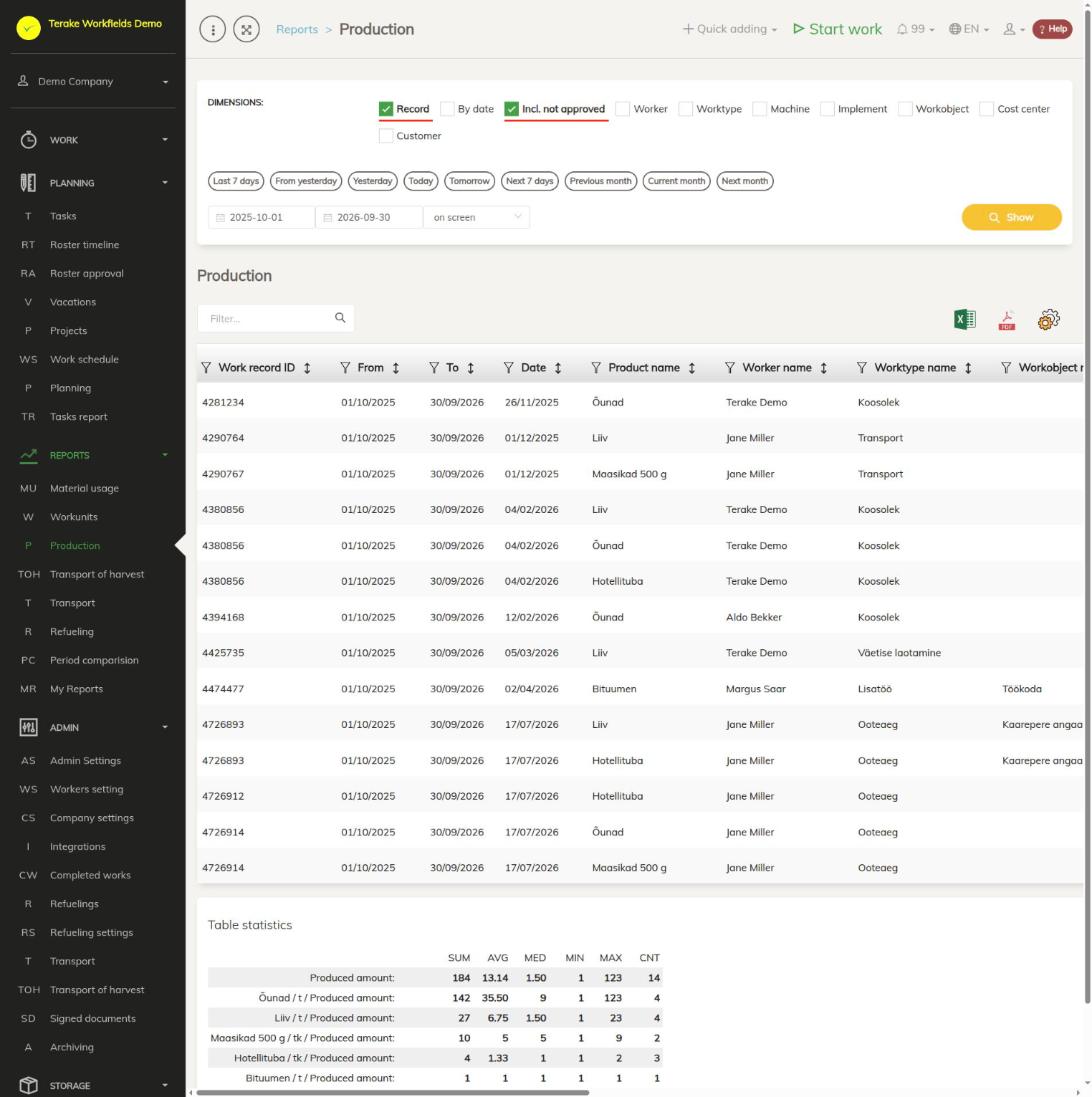
Page layout
- “Dimensions”: the options that the report rows are built by. “Record” (selected by default) gives a separate row for each product of each work. If “Record” is not selected, the amounts are added up by the selected dimensions: “By date”, “Worker”, “Worktype”, “Machine”, “Implement”, “Workobject”, “Cost center” and “Customer”. Different products and different storages are always on separate rows.
- “Incl. not approved”: without this option only approved works are counted.
- Period: the quick choices “Last 7 days”, “From yesterday”, “Yesterday”, “Today”, “Tomorrow”, “Next 7 days”, “Previous month”, “Current month” and “Next month”, or a start and end date. The period can be up to 366 days long.
- Output: “on screen” shows the result in a table, “MS Excel file” downloads it. The report is built with the “Show” button.
- Table: “Work record ID”, “From” and “To” (the selected period), “Date”, “Product name”, “Worker name”, “Worktype name”, “Workobject name”, “Storage”, “Main machine name”, “Implement name”, “Customer name”, “Cost center name”, “Produced amount” and “Product unit”. Columns that are not part of the selected dimensions stay empty on summary rows.
- Above the table: the “Filter…” search field, the icons “open in Excel” and “open as PDF file”, and “set view”, where you choose and order the columns shown.
- “Table statistics” below the table: the total (SUM), average (AVG), median (MED), minimum (MIN), maximum (MAX) and number of rows (CNT) of “Produced amount”, overall and by product and unit.
How to build the report
- Tick the options you want under “Dimensions”. Select “Record” to see each work separately. For a summary, remove “Record” and choose what to sum the production by, for example “Worker”, “Workobject” or “Cost center”.
- Tick “Incl. not approved” if you also want to see works not yet approved.
- Choose the period with a quick choice or enter the dates.
- Choose “on screen” or “MS Excel file” as the output and press “Show”.
- Narrow down the result with the filter icon in the column header or with the “Filter…” search field. Click a column’s title to sort by it.
The selected dimensions are remembered and are already selected next time.
How to view the works behind a row
- Press the list icon of the row in the “Actions” column.
- A list of the works that make up the row opens. From there you can open a work and change or delete it.
- If you changed or deleted works, press “Show” in the report again to see the changes.
Who can see it
In the “Reports” menu the report is visible to the roles “Administrator”, “Observer”, “Agronomist”, “Dispatcher” and “Accountant”.
Tips
- The produced amount and storage are entered on the “Production” tab of the work form. If no storage was selected, the “Storage” column is empty.
- A production row marked “Do not show on material reports” on the work does not appear in the report.
- Materials used are in the Material usage report, work units in the Workunits report.
- Building the report for a long period can take a few dozen seconds. If the report is too large, shorten the period or choose fewer dimensions.
API calls on this page
For integrations and AI assistants: this page uses the following Terake API calls. The full description is in the API reference.
When the page opens:
GET /api/terakereports/{id}– TerakeReport by IDGET /api/terakereports-data/{report_id}– TerakeReport data
Adding, changing and deleting (from the API description):
DELETE /api/terakereports/{id}– Delete TerakeReport by ID or UUIDPOST /api/terakereports– Creates or modifies a TerakeReportPUT /api/terakereports/{id}– Creates or modifies a TerakeReport
Other calls from this screen’s dialogs and actions:
GET /api/materials/{id}– Get MaterialGET /api/materials/{id}/harvest_sources– Harvest Material sourcesGET /api/materials/{id}/material_composition– Harvest Material compositionGET /api/materials/{material_id}/inventory– MaterialInventory of a materialGET /api/terakereports– TerakeReport collectionGET /api/workdones/{id}– Workdone by ID or UUIDPUT /api/workdone/approve/{id}– Approves the Workdone