“Telemetry” shows the machines’ latest telemetry data: engine hours, mileage, fuel level and other readings that the machine’s telemetry device sends. Managers and dispatchers use the view to see the state of the machines without asking the driver. The data comes from telemetry integration partners.
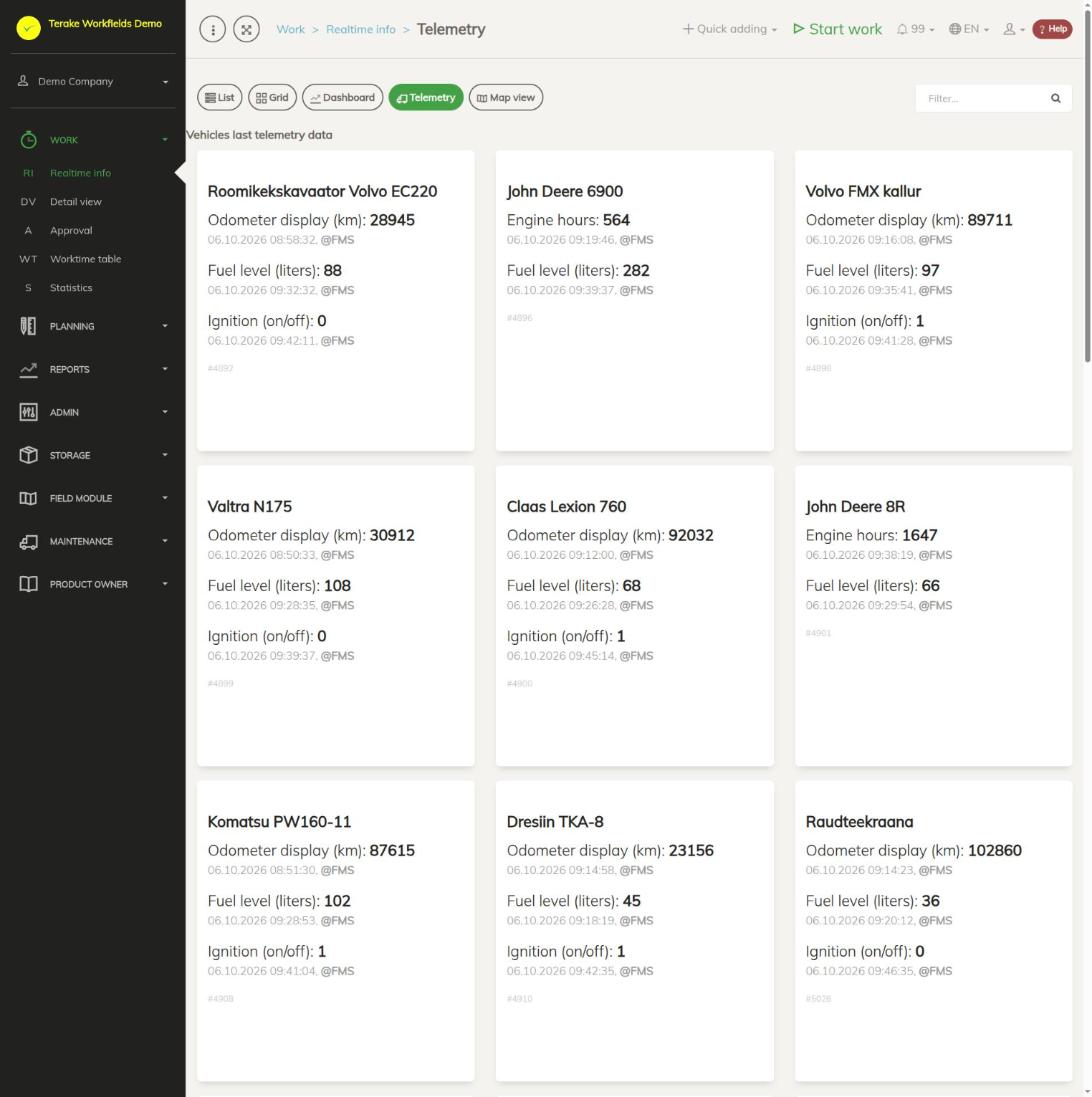
Page layout
At the top of the page are the Realtime info view buttons “List”, “Grid”, “Dashboard”, “Telemetry” and “Map view”. The “Vehicles’ latest telemetry data” block has a separate card for each machine with telemetry.
Each card shows:
- Machine name – as it is in the Terake list of machines.
- Latest readings – each reading on its own row, for example “Engine hours”, “Odometer reading (km)”, “Fuel level (liters)” or “Ignition (on/off)” (1 – ignition on, 0 – off). Which readings you see for a machine depends on what the device and the integration partner send.
- Reading time and source – under each reading is the date and time when the reading was received and, after the @ sign, the name of the integration partner.
- Machine number – at the bottom of the card in grey, # and the machine’s number in Terake.
The data is loaded when the view opens. To see fresh readings, open the view again.
How to view a machine’s readings
- Open “Work” → “Realtime info” in the menu and press the “Telemetry” button.
- Find the machine’s card by name.
- Look at the time under the reading: if it is old, the device has not sent data in the meantime (for example the machine has been standing or the device has been switched off).
The search field and the division/department selection do not filter this view: you see all of the company’s machines with telemetry.
When there is no data
If no data is found for any machine, the page shows the message “No telemetry data present. To use telemetry functions, add FMS integration partner and grant appropriate data access rights for Terake”.
- Add the telemetry service provider on the Integrations page.
- Allow data to be sent to Terake in the service provider’s system.
- Check that the machines have “Reg no.” or another identifier filled in, by which the integration partner’s device is linked to the Terake machine (see Machines and equipment).
Who can see it
Realtime info opens for the roles “Administrator”, “Approver” and “Observer”. In the Telemetry view they see all of the company’s machines with telemetry.
Tips
- Machine locations on the map are shown in the Map view and Dashboard views. On the dashboard, the truck icon also shows the machine’s latest readings next to the work.
- Telemetry data is also used for checking the engine hours and mileage of works (see Period comparison).
API calls on this page
For integrations and AI assistants: this page uses the following Terake API calls. The full description is in the API reference.
When the page opens:
GET /api/workdones/realtime– Ongoing Work listGET /api/search/{classificator_type}– Objects of one classificator type for filling drop-down listsGET /api/worktimereports/calendaritem– Calendar items currently in progressGET /api/worktimereports/ttki-ongoing– Ongoing works started by the TTKI solutionGET /api/location/facilities/last– Last known location of each facilityGET /api/general/classificator_stats– Per-classificator record counts for the caller's companyGET /api/location/facilities/params– Latest telemetry parameters of each facility
Other calls from this screen’s dialogs and actions:
DELETE /api/agreements/{id}– Delete Agreement by ID or UUIDDELETE /api/workobjects/{id}– Delete WorkobjectGET /api/agrifield_data/{crop_period_id}/{random}– Agrifield collectionGET /api/agrifield_data– Agrifield collectionGET /api/fieldbook– Fieldbook Agrifield collectionGET /api/geoinfo/cadaster/{num}– Cadastral register information for one cadastre numberGET /api/geometry/workobject/{id}– Geometry of one workobject.GET /api/geometry/workobjects– Workobject geometries for the map.GET /api/location/device/workdone/{workdone_id}– Device location track recorded during one workdoneGET /api/location/facilities/history– Location history of a facility over a periodGET /api/fieldbook/overlapping-check/{agrifield_id}/{crop_period_id}– Reports fieldbook entries whose geometry overlaps for one Agrifield and crop periodGET /api/workdones/{id}– Workdone by ID or UUIDGET /api/workobjects– All Workobjects listPOST /api/agreements– Create new AgreementPOST /api/workobjects– Creates or modifies a WorkobjectPUT /api/terake-relations– Replaces the relations between one Terake object and a set of objects of another typePUT /api/workobjects/{id}– Modifies a Workobject