On this page you change your Terake password. The page is in the menu under your name (“Change password”); the “Change password” button on the My profile page also leads here.
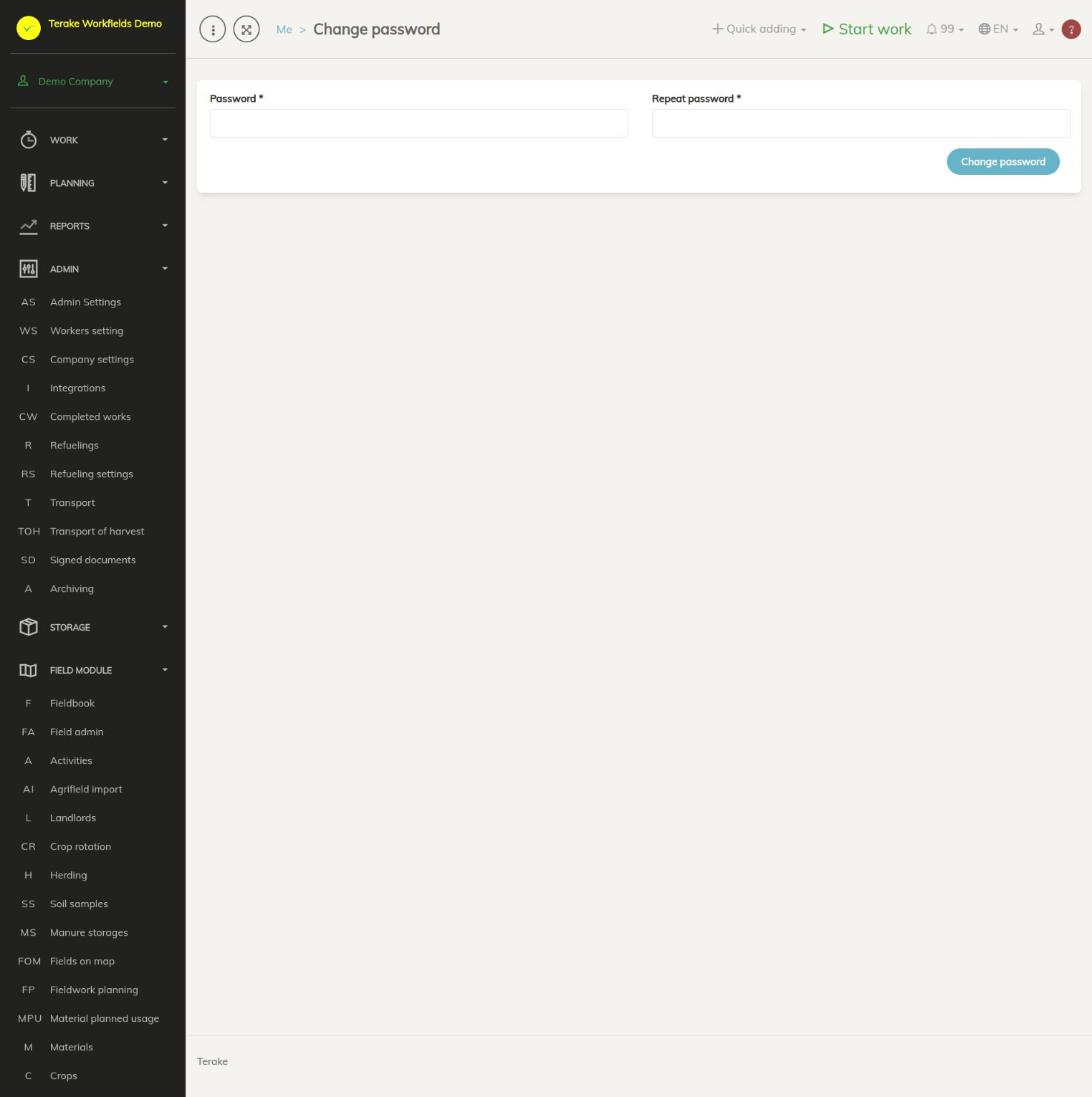
Page layout
The form has two required fields and one button:
- “Password”: the new password. It must be at least 6 characters long.
- “Repeat password”: the same password a second time, to avoid typing mistakes.
- “Change password”: saves the new password.
The characters you type are hidden. The cross at the end of a field clears it.
How to change your password
- Enter the new password in the “Password” field.
- Enter the same password again in the “Repeat password” field.
- Press “Change password”.
- When the password has been changed, you see a success message and both fields are cleared.
You are not asked for your old password. Use the new password the next time you log in.
If the password is shorter than 6 characters or the two fields do not match, an error message appears under the field and the password is not changed. Correct the field and press “Change password” again.
Who can see and change it
- On this page each user can change only their own password.
- Users with the “ARIB employee” role do not have this page in the menu; they reach it from the “My profile” page.
- Another worker’s password can be changed by an “Administrator” in the worker’s details, see Worker settings.
Tips
- Choose a password that others cannot guess, and do not use the same password in several places.
- If you have forgotten your password and cannot log in, ask your company’s administrator to change it in your worker details.
API calls on this page
For integrations and AI assistants: this page uses the following Terake API calls. The full description is in the API reference.
Other calls from this screen’s dialogs and actions (from the web client’s code):
PUT /api/workers/setpassword/{id}– Sets a new password for a Worker