The “Transport” page lists the material transports of the selected period. Each transport takes material from an origin to a destination. If the origin or the destination is a storage, saving the transport also changes that storage’s inventory. In the storage module the page is used to check, correct and add transports by hand; employees usually record transports in the mobile app with their work.
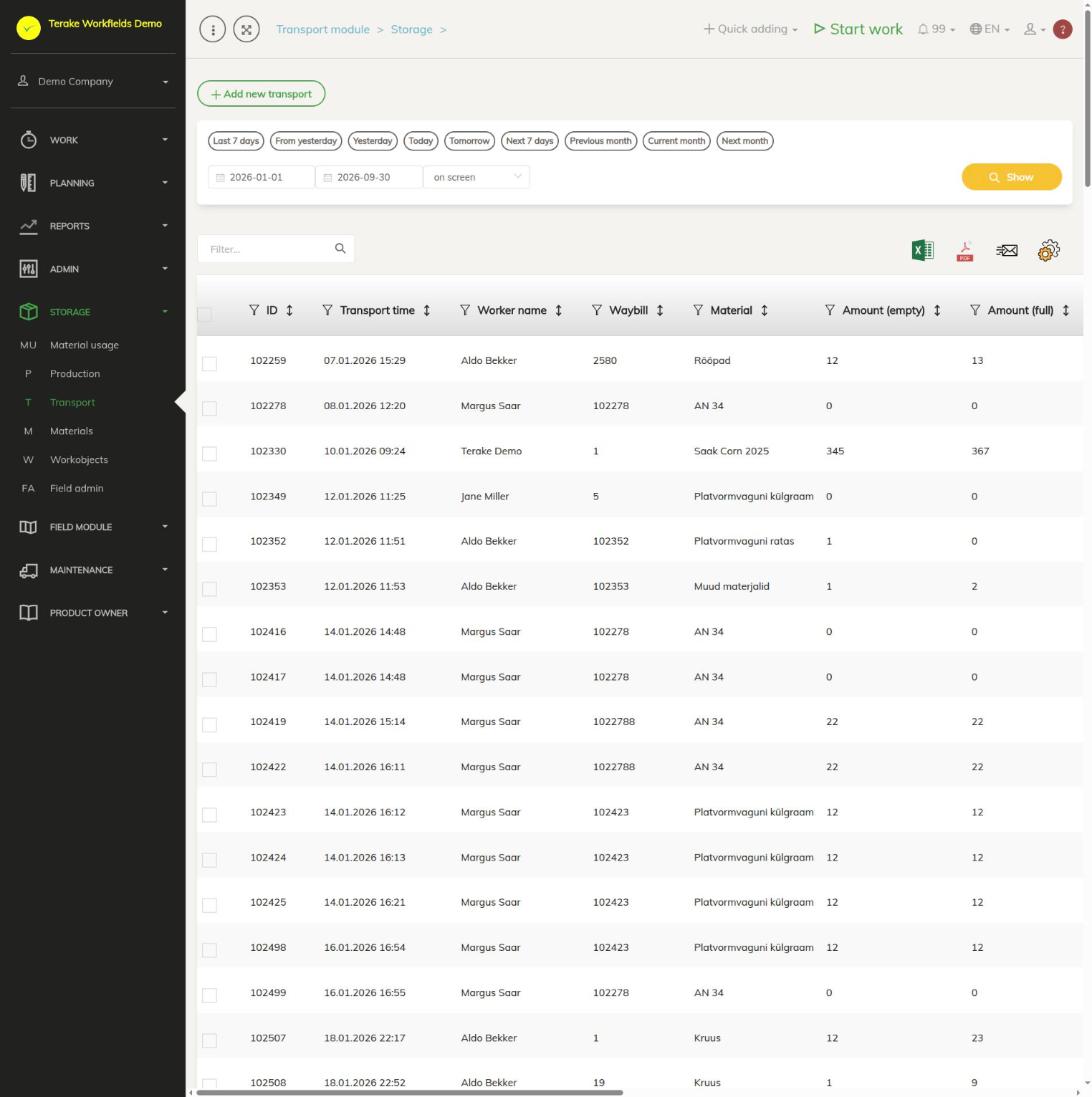
Page layout
- The button “Add new transport” and the period selection (quick choices or a start and end date), then “Show”.
- Table columns: “ID”, “Transport time”, “Worker name”, “Waybill”, “Material”, “Starting point”, “Destination”, “Amount (empty)”, “Amount (full)”, “Amount”, “Cargo count”, “Odometer start” and “Odometer end”.
- Above the table are the search field “Filter…”, the Excel and PDF icons and “set view”.
- Click a row to open the transport.
The list also includes moves of material from one storage to another (see Materials). Harvest transports from a field to a storage are in a separate list, Transport of harvest.
How to add a transport
- Press “Add new transport”.
- Enter the “Transport time” and select the “Worker” (both required).
- If needed, select the “Worktype”, “Machine” and “Implement”. They go to the work created together with the transport.
- Select “Starting point” and “Destination”. The choices are work objects and fields; the inventory changes only for those marked “Used as storage”.
- Select “Materials” (the material transported).
- Enter the amounts (see below) and, if needed, “Kilometers start”, “Kilometers stop” and “Waybill”.
- Press “Save and close”.
“Transport time”, “Worker”, “Starting point”, “Destination” and the material are required. An approved completed work record is created together with the transport.
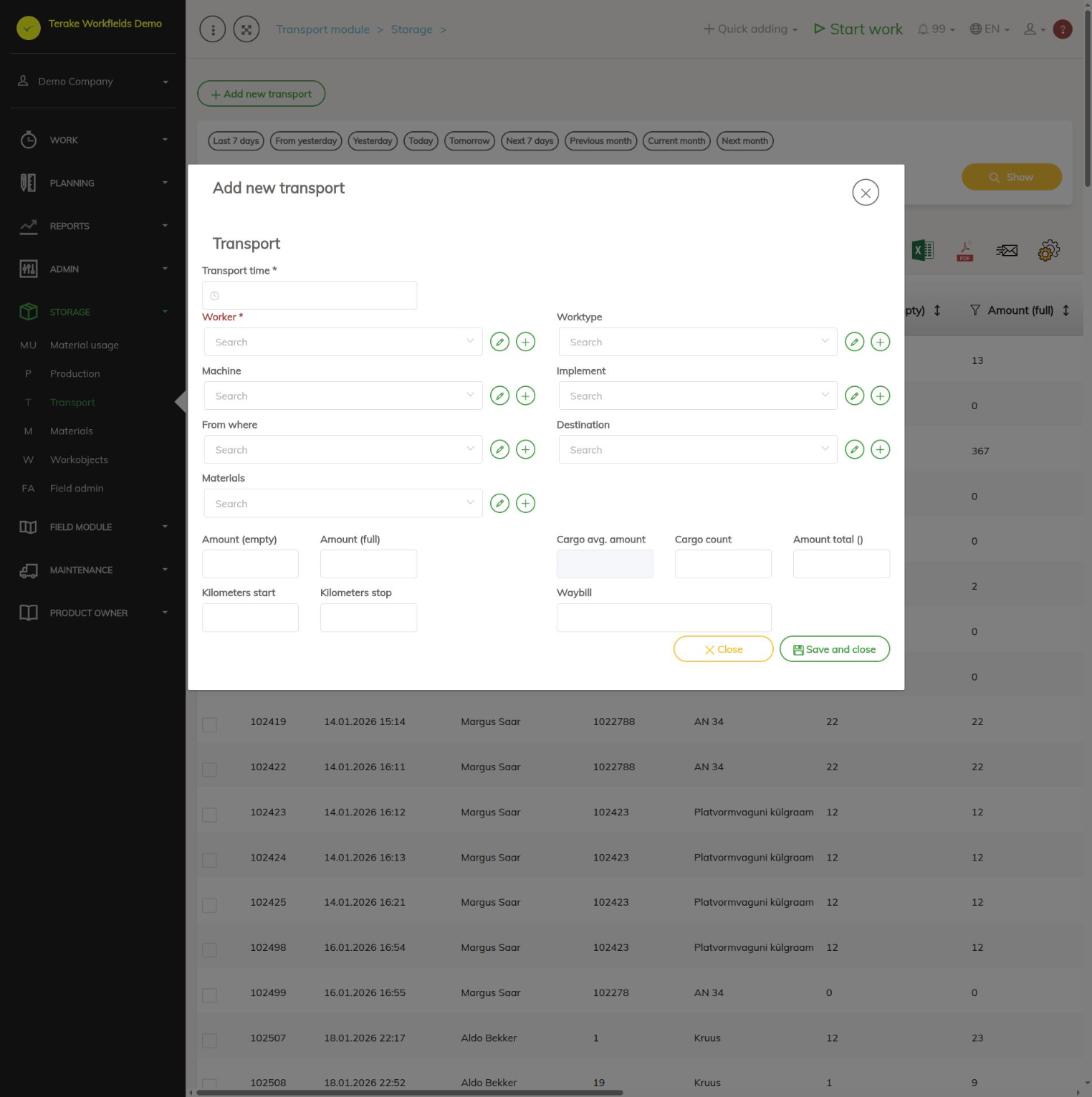
Amounts
- Amount (empty) and Amount (full): the weight of the vehicle empty and loaded. If the full weight is greater than the empty weight, the difference is calculated into the field “Cargo avg. amount”.
- Cargo count: the number of loads. If you leave it empty, one load is counted.
- Amount total: the amount transported in the material’s unit. It is calculated from the average load amount and the number of loads, but you can also enter it yourself. This is the amount that changes the inventory.
How to change or delete a transport
- Click the transport’s row in the list.
- On a saved transport the worker, worktype, machine and implement are shown as data of the related work. The button “See related work” opens that work.
- Change the origin, destination, material or amounts and press “Save and close”. The old amount is taken back from the storages and the new one is entered instead.
- To delete the transport, press “Delete”. The amount of the deleted transport is removed from the inventory; the work created with the transport remains.
Harvest transport from a field to a storage
When the origin is a field, the destination is not a field and the material is of the silage type, the transport is saved as a harvest transport and moves to the list “Transport of harvest”. Terake sets the material transported from the field’s crop year: if the “Crop purpose” is “teraks või avamaal” (for grain or in open field) or “katmikalal” (under cover), the material is the harvest of that crop (for example “Saak <crop> <year>”, harvest), otherwise the destination’s silage material “Silo <destination> <year>”. A missing material is created and the destination is marked as a storage. If the load amount is over 1000, it is taken to be in kilograms and divided by 1000.
Who can see and change it
In the storage module the page is shown to employees who have the role “Stock management”. For the roles “Administrator” and “Accountant” the same list is also in the “Admin” menu (“Transport”). The role “Administrator” always has the “Add new transport” button. Others, the role “Stock management” included, have it only when “Users have by default create privilege” is ticked on the page Company settings. The list shows the transports of the company’s employees, up to 1000 transports at a time.
Tips
- You can make a storage of a work object or field with the choice “Used as storage”, see Workobjects.
- A summary of transports for a period is in the report Transport.
- If the list is long, shorten the period.
API calls on this page
For integrations and AI assistants: this page uses the following Terake API calls. The full description is in the API reference.
When the page opens:
GET /api/transports– TransportCase collection
Adding, changing and deleting (from the API description):
DELETE /api/transports/{id}– Delete TransportCasePOST /api/transports– Create TransportCasePUT /api/transports/{id}– Modify TransportCase
Other calls from this screen’s dialogs and actions (from the web client’s code):
GET /api/transports/{id}– Get TransportCase