On the “Crops” page you manage the crops used for the fields’ harvest years, crop rotation, the fieldbook, the fertilizing plan and ARIB (PRIA) reporting. The page is meant for agricultural companies and is the same list as the Crops page in the field module. Here the administrator uses it to keep the company’s master data in order. The list, archiving and “Bulk edit parameters” are described in general on the Admin Settings page.
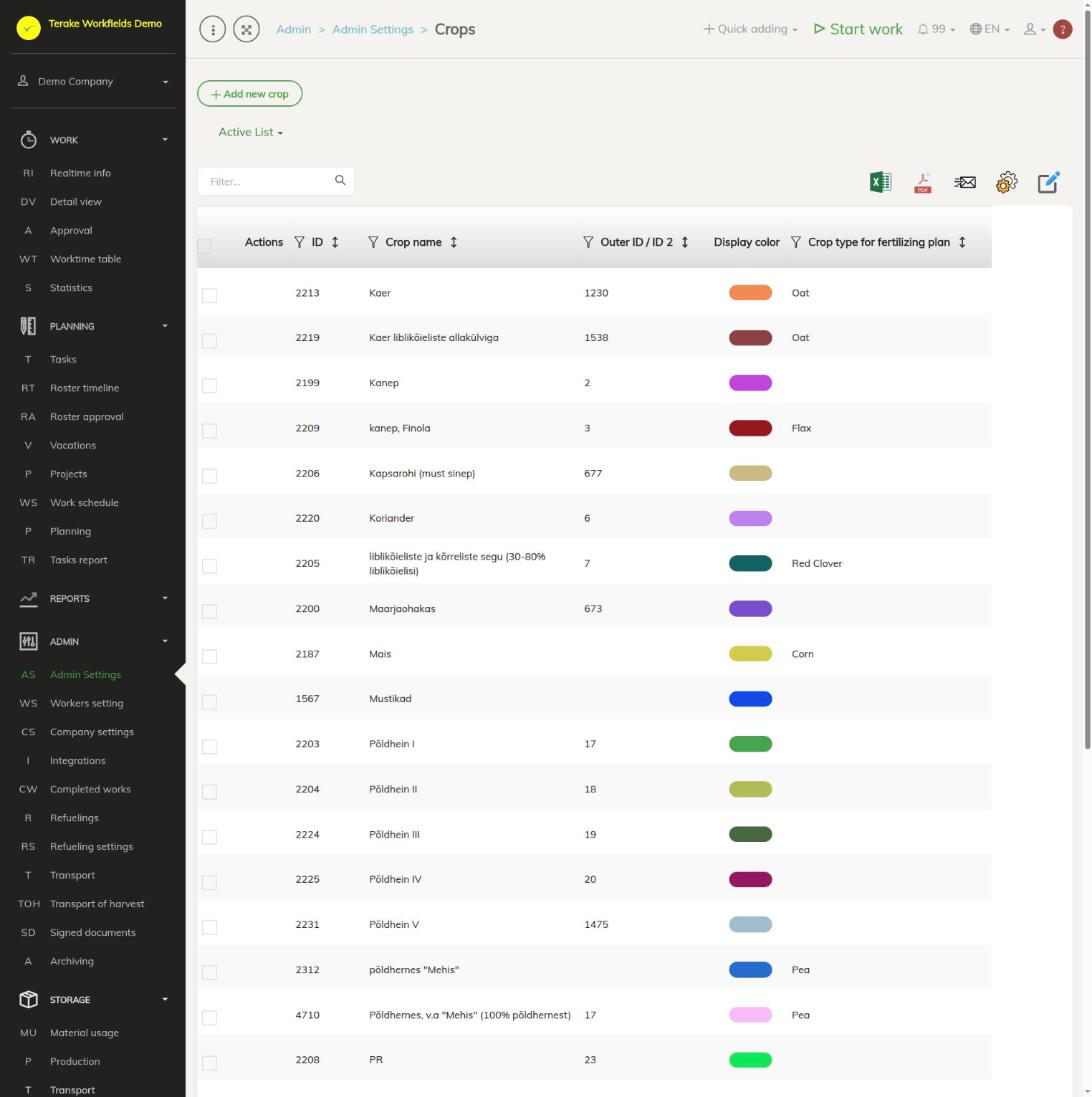
Page layout
- The “Add new crop” button and the “Active list” / “Archived list” drop-down.
- Table columns: “Actions”, “ID”, “Crop name”, “Outer ID / ID 2”, “Display color” and “Crop type for fertilizing plan”.
- The list contains both your company’s crops and the common Terake crops. A common crop’s row has an archive button in the “Actions” column.
- With “Bulk edit parameters” you can archive or delete the ticked crops at once.
How to add or change a crop
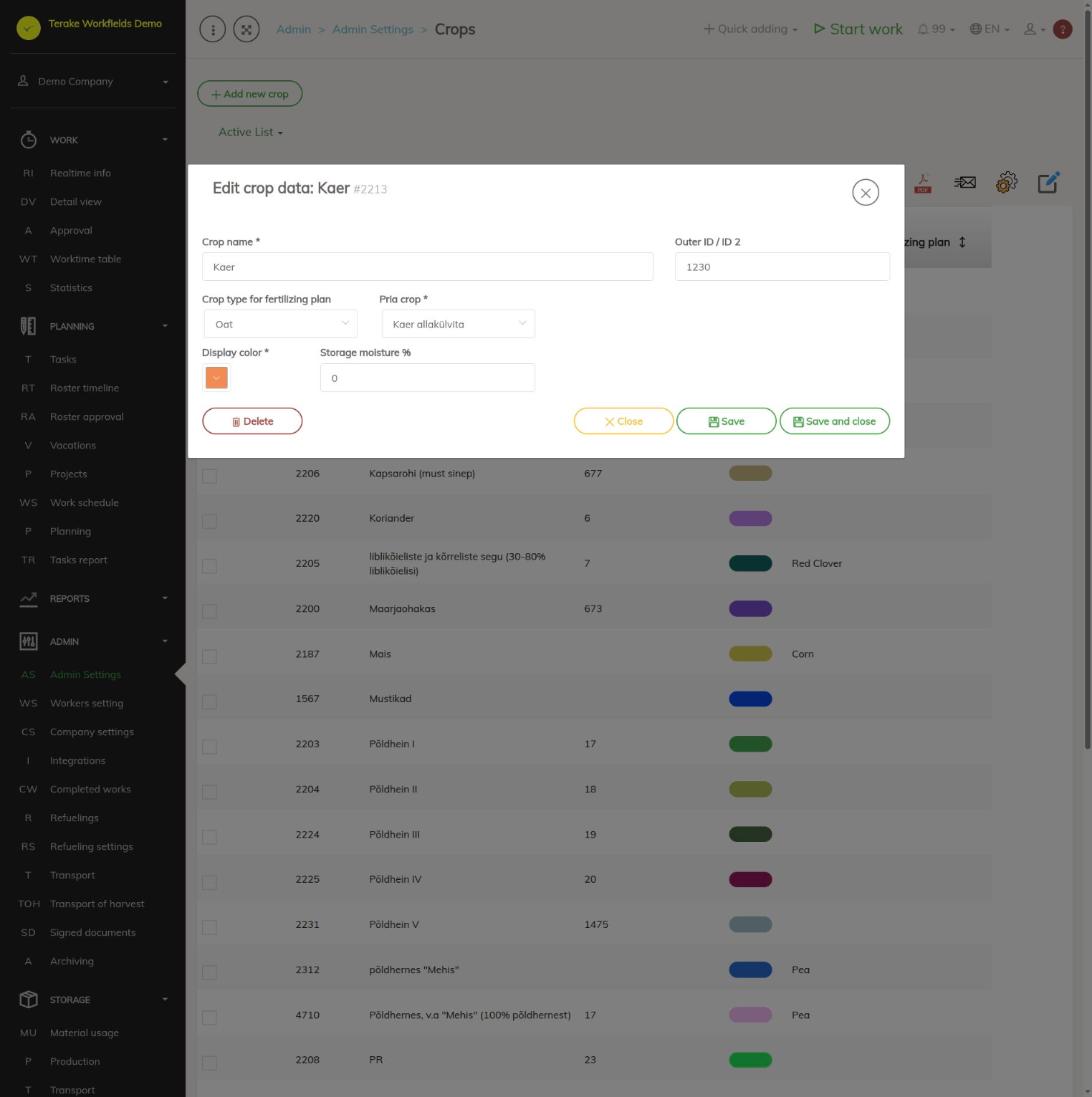
- Press “Add new crop” or click the row of one of your company’s crops. The “Add new crop” or “Edit crop data” window opens.
- Enter the “Crop name” (mandatory): the crop name as you see it on fields and in the fieldbook.
- If needed, enter the “Outer ID / ID 2”: the crop’s code in another system.
- Select the “Crop type for fertilizing plan”: it decides which yield levels and nutrient needs the fertilizing plan offers.
- Select the “ARIB crop” (mandatory): the e-PRIA crop that this crop corresponds to. The options are the ARIB crop list.
- Select the “Display color” (mandatory): the crop’s colour on the field map.
- If needed, enter the “Storage moisture %” (0 to 50): the default value for the storage weight calculation in the fertilizing plan for fields with this crop.
- Press “Save” (the window stays open) or “Save and close”.
How to archive or delete a crop
- Delete your own crop by opening it and pressing “Delete”. If the crop has already been used on fields, archive it instead of deleting it: tick the row and select “Archived” in “Bulk edit parameters”.
- You cannot change a common Terake crop. To hide it from your options, press the archive button at the start of the row, or click the row and confirm “Perform archiving?”. The crop stays available to other companies.
- Archived crops are under “Archived list”. To restore a common crop, click its row and confirm “Restore from archive?”.
Who can see and change it
The page is in the Admin menu and opens only for the “Administrator” role, who can add, change and delete the company’s crops. The “Crops” card is shown on the Admin Settings page only for agricultural companies. You cannot change another company’s crops. The “Agronomist” role manages the same list in the field module on the Crops page and can add and change all of the company’s crops. If “Users have by default create privilege” is ticked in the company settings, other users, except “Observer” and “ARIB employee”, can also add a new crop and change a crop they added within 48 hours of adding it.
Tips
- You assign crops to fields on the Crop rotation and Field admin pages.
- Without a “ARIB crop”, the field’s yield cannot be sent to e-PRIA.
- A crop can also be used as a condition of a cost center rule, see Cost center rules.
API calls on this page
For integrations and AI assistants: this page uses the following Terake API calls. The full description is in the API reference.
When the page opens:
GET /api/crops– Crop collection
Adding, changing and deleting (from the API description):
Other calls from this screen’s dialogs and actions (from the web client’s code):
GET /api/crops/{id}PUT /api/crops/merge/{mergerId}– Merge crops