“Field import” brings field data and shapes into Terake, either directly from e-PRIA or from a file, and links them to existing fields. e-PRIA is the online service of PRIA (the Estonian Agricultural Registers and Information Board); in the English interface PRIA is shown as ARIB. A link to the e-PRIA field is required before works and yields can be sent to e-PRIA; import the fields again whenever a field’s shape or number has changed. The page is used by “Administrator” and “Agronomist”.
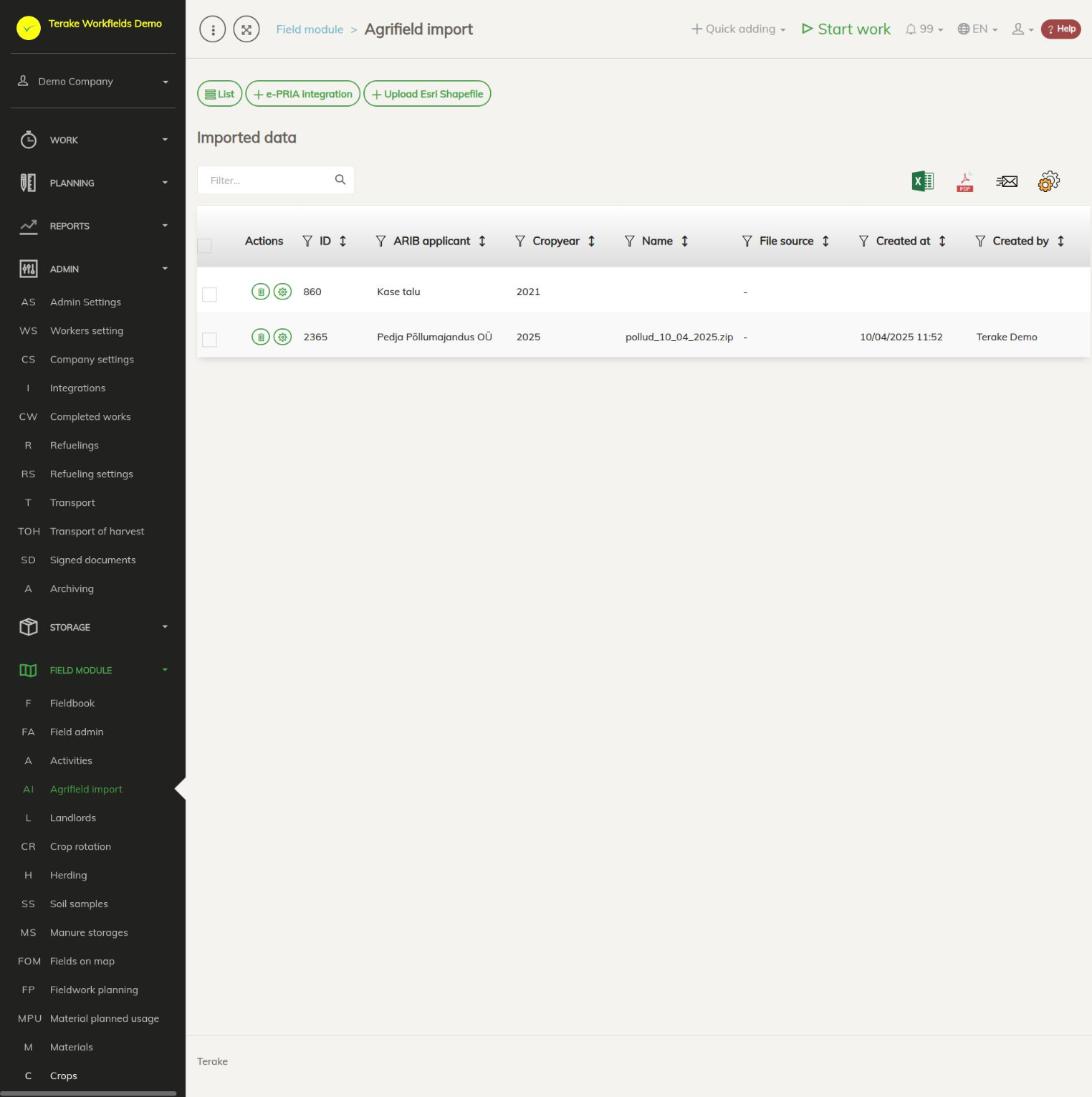
Page layout
- “List”: the “Imported data” table of previously uploaded files and e-PRIA queries. The columns are “ID”, “ARIB applicant”, “Crop year”, “Name” (file name), “File source”, “Created” and “Created by”. The cogwheel icon on a row opens the loaded data for linking to fields; the bin icon deletes the row.
- “e-PRIA integration”: bringing fields directly from e-PRIA and comparing them with the fields in Terake.
- “Upload Esri Shapefile”: loading fields from a shapefile (.zip file).
How to bring fields from e-PRIA
- Press “e-PRIA integration”. The “ARIB applicant” list contains the companies and persons you are authorised to represent in e-PRIA. If you have no authorisations, you see the message “Teid ei ole PRIA-s volitatud ühtegi ettevõtet esindama” (you are not authorised in PRIA to represent any company).
- Select “Crop year” and “ARIB applicant” and press “Field comparison in e-PRIA and Terake”. If the applicant is not yet in Terake, it is added to the list of applicants.
- For each e-PRIA field there is a table with the e-PRIA data in the “Pria” column and the Terake data in the “Terake” column: “Reg no”, “Field number”, “Field name”, “Area size (ha)”, “Cultivated size (ha)”, “Crop year”, “ARIB applicant”, “Crop”, “Crop purpose” and “Field usage”. Values that differ are highlighted in red.
- The Terake field is found automatically by the e-PRIA field identifier or by block and field number; an archived field is taken back out of the archive in the process. Crop year data is not overwritten automatically.
- If no field was found, press “Impordi kui uus põld” (import as a new field) or “Vali põld” (select field) to link the e-PRIA field to an existing field (“Impordi valitud põllule” (import to the selected field) in the selection window). You can change the linked field with “Vali teine põld” (select another field).
- For a linked field, “Kopeeri Saagiaasta andmed Priast Terakesse” (copy crop year data from PRIA to Terake) brings the selected crop year’s crop, area, applicant, crop purpose, land use and shape from e-PRIA. “Muuda saagiaasta andmeid” (edit crop year data) opens the field’s crop year form for manual correction.
- “Show in map” shows the e-PRIA field on the map in red; “Näita Terakese põld” (show the Terake field) adds the Terake field to the map.
To import several new fields at once, press “Vali kõik importimata põllud” (select all fields not yet imported), or tick “Vali hulgi importimiseks” (select for bulk import) on the fields, and then “Impordi valitud põllud e-Priast Terakesse” (import selected fields from e-PRIA into Terake). The “Progress” window shows how the import is going, and you can stop it there (“Cancel”).
The e-PRIA response is kept for eight hours, so a repeated query for the same applicant and crop year does not contact e-PRIA again. Open the result of an earlier query from the list with the cogwheel on its row.
How to load fields from a file
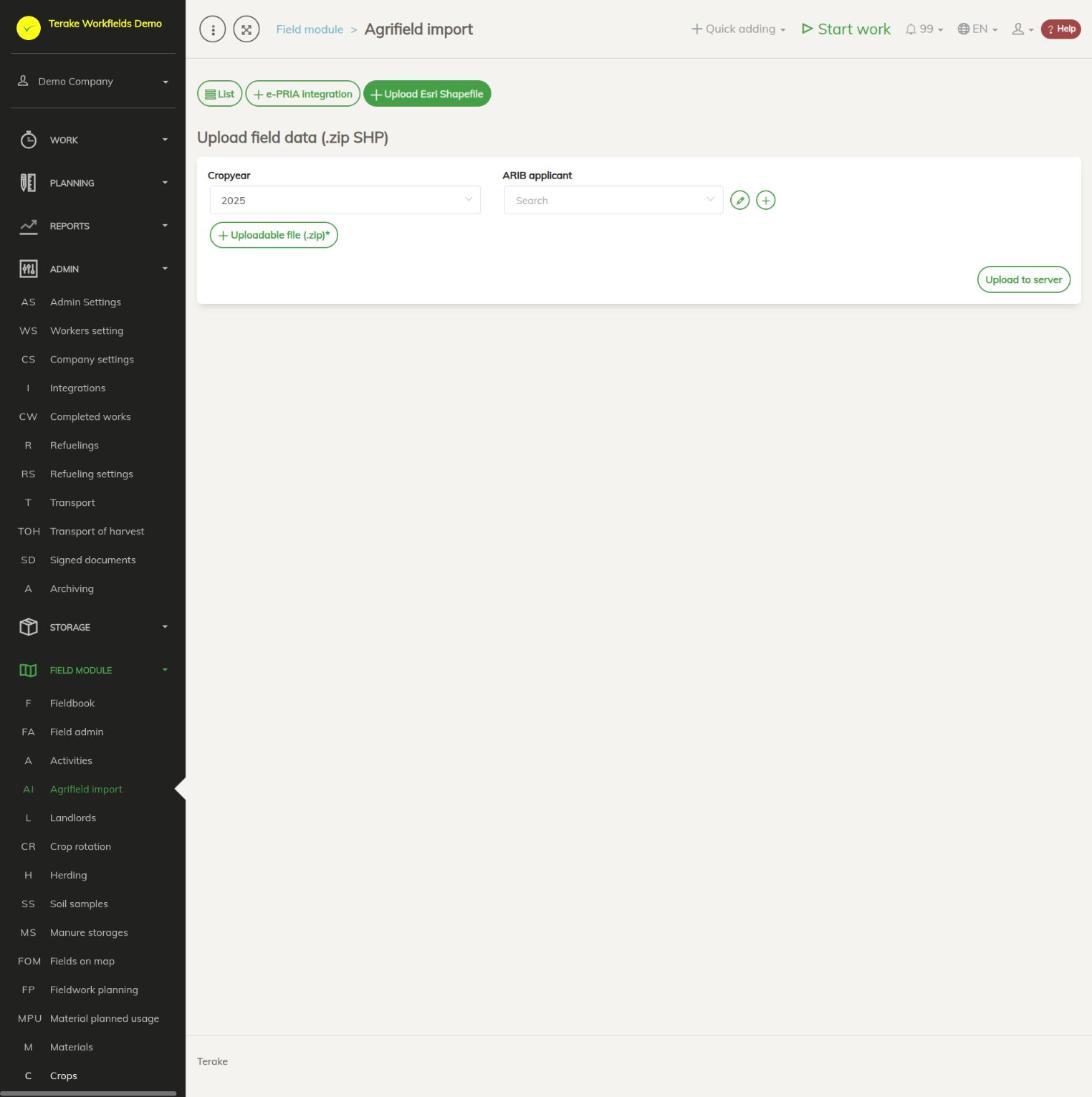
- Press “Upload Esri Shapefile”.
- Select “Crop year” and “ARIB applicant”.
- Press “Uploadable file (.zip)” and select a .zip file containing the fields’ .shp file (for example fields exported as a shapefile from e-PRIA’s field management). Shapefiles of the Environmental Board’s semi-natural grasslands, from eAgronom and exported from Terake can be loaded the same way.
- Press “Upload to server”. A new file replaces the file previously loaded for the same applicant and crop year. The loaded file appears in the list, and the “File source” column shows what type of file it was.
How to link the file’s rows to fields
- Click the cogwheel on the file’s row in the list. The view “Data from ARIB file and integration with fields” opens.
- In the “Importable datafields” block, tick what to overwrite on import: “Põllu number” (field number), “Põllu nimi” (field name), “Põllu suurus” (field size), “Kultuur” (crop), “Geomeetria” (geometry). A field that is not ticked is filled from the file only if it is empty on the field.
- Each row of the file shows the “Import result” on the left (block, field number, area, crop year, applicant, crop and so on) and, on the right, the Terake fields that match by PRIA identifier or by block and field number.
- Press “Impordi siia ->” (import here) on the row of the matching field: the crop, area, applicant and shape are stored as that field’s data for the selected crop year. If there is no matching field, select the field yourself and press “Impordi valitud põllule” (import to the selected field), or press “Impordi kui UUS põld!” (import as a NEW field).
- All rows can be imported at once with “Import all new fields at once” (rows for which no field was found) or “Import all old fields (max 1 existing counterpart)” (rows for which exactly one field was found). With a large file this takes a few seconds.
If several Terake fields match one row of the file, tick them and press “Liida valitud põllud” (merge selected fields): the field ticked last is kept, the others are archived and linked to it. “Arhiveeri valitud põllud” (archive selected fields) archives the ticked fields. “Show in map” shows the file’s shape in red with the shapes of the ticked fields beside it.
Who can see and change it
- The page is visible to “Administrator” and “Agronomist”.
- The e-PRIA integration requires your personal identification code to be confirmed by Terake; to have it confirmed, write to support@terake.com. With an unconfirmed code, you see a message about it when you press the button.
Tips
- If the company does not yet have a crop matching the e-PRIA crop, a new crop linked to the e-PRIA crop is added during the import. Crops are listed on the Crops page.
- You can go on to change the imported fields and their crop years on the Field admin page, and the crops of several fields at once on the Crop rotation page.
- The list of applicants is on the ARIB applicants page.
API calls on this page
For integrations and AI assistants: this page uses the following Terake API calls. The full description is in the API reference.
When the page opens:
GET /api/priafiles– PriaFile collection
Adding, changing and deleting (from the API description):
DELETE /api/priafiles/{id}– Deletes a PriaFile together with the GPX records imported from itPOST /api/priafiles– Create new PriaFilePUT /api/priafiles/{id}– Modify PriaFile
Other calls from this screen’s dialogs and actions:
DELETE /api/agrifields/{id}– Delete WorkobjectGET /api/pria-import/fields/{crop_period_id}/{pria_payee_id}– Import Agrifields from e-Pria for a payeeGET /api/pria-import/loadgeometry/{gpx_record_id}– Field geometry held in one GPX recordGET /api/priafiles/{id}– PriaFile by ID or UUIDGET /api/gpxrecords/{id}– GPX records belonging to one PRIA fileGET /api/agrifields/{id}– Get WorkobjectGET /api/agrifields– Agrifield collectionGET /api/priapayees-import– PriaPayees held in e-PRIAPOST /api/pria-import/fields/{crop_period_id}– Import Agrifields from e-PriaPOST /api/agrifields/upload/gpx– Uploads Agrifield geometry as a ZIP containing a shapefile (.shp) or a GPX trackPOST /api/agrifields– Creates or modifies a WorkobjectPUT /api/gpx/importallnew– Imports the selected PRIA records as new AgrifieldsPUT /api/gpx/importallold– Imports the selected PRIA records onto existing AgrifieldsPUT /api/gpx/importhere– Relates a PRIA record to an existing Agrifield and syncs its crop rotationPUT /api/gpxrecords/archivefields/{pria_file_id}– Archives the listed Agrifields of a PRIA filePUT /api/gpxrecords/mergefields/{pria_file_id}– Merges the listed Agrifields of a PRIA filePUT /api/pria-import/relate-field/{pria_record_id}/{agrifield_id}– Relates a PRIA record to an existing Agrifield and syncs its crop rotationPUT /api/pria-import/sync-crop-rotation/{pria_record_id}/{agrifield_id}– Relates a PRIA record to an existing Agrifield and syncs its crop rotationPUT /api/agrifields/{id}– Modifies a WorkobjectPUT /api/croprotation/set/{agrifield_id}/{crop_period_id}– Writes the crop rotation entry of an Agrifield for one or more crop periods