On the “Tasks” page you plan tasks for workers in a calendar. A task can have a worker, worktype, place of work, machine and implement, project, customer, cost center, maintenance unit, planned material consumption and files. The same form also opens on the “Roster timeline” when “Task” is selected as the event type.
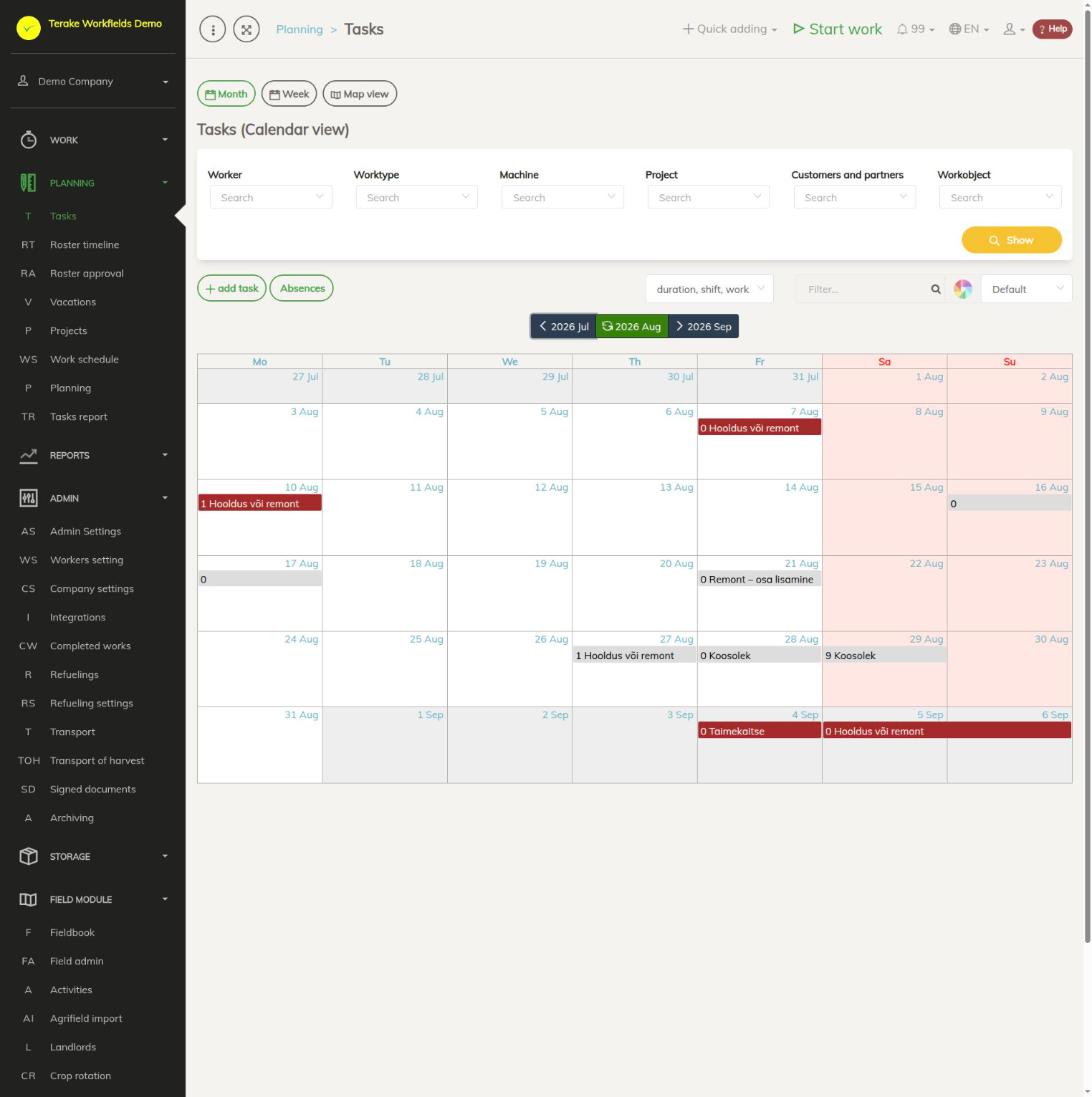
Page layout
- Views: “Month” (monthly calendar), “Week” (weekly timetable with times of day) and “Map view” (tasks on a map together with the map layers of workobjects and fields).
- Filters: “Worker”, “Worktype”, “Machine”, “Project”, “Customers and partners” and “Workobject”. Select the values you want and press “Show”.
- “add task” opens the form for a new task.
- “Absences” turns the display of workers’ vacations and sick leave in the calendar on and off.
- Title choice (for example “duration, shift, work name”) sets what is shown on a task’s bar in the calendar.
- “Filter…” hides the tasks whose text does not contain the word you are searching for.
- Colour choice (next to the palette icon) sets what the tasks are coloured by: “Default”, “Workers”, “Worktypes”, “Main facilities”, “Projects” or “Workobjects”.
- Changing the month: use the buttons above the calendar to move to the previous or next month; the middle button reloads the month. The week view also has a “Select Date” button.
Days off and public holidays are marked with a different background colour in the monthly calendar.
How to add a task
- In the month view, click a day in the calendar. In the week view, select a time range with the mouse (on a touch screen, hold your finger down a little longer).
- The window that opens shows the selected period. Press “Add new task”. In the month view the default times are 08:00–17:00.
- Fill in the fields you need on the form (see below) and press “Save and close”.
The same window also has the “To-do list”. The button with the calendar icon on a row creates a new task from the work to be done, with its fields already filled in.
The “add task” button also opens an empty form. In that case be sure to check the “Planned start” and “Planned end” fields: if no day has been selected in the calendar, the period is the whole current month.
If you later mark such a task done, a month-long work record is created, which Terake shortens to 24 hours (see Automatic processes that affect work duration). Before saving, check that the planned start and end match the actual duration of the work.
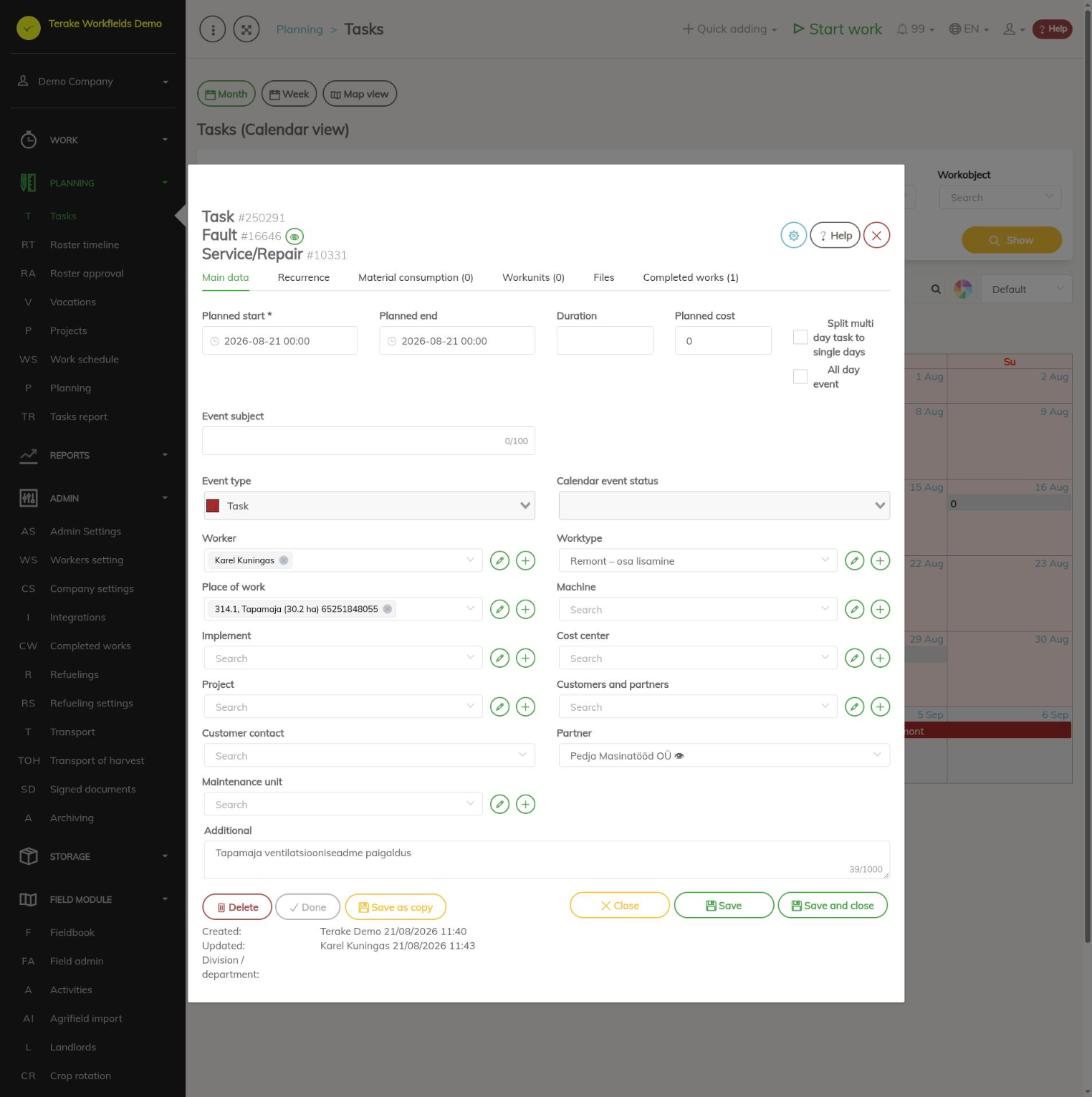
Task form
The form’s tabs are “Main data”, “Recurrence”, “Material consumption”, “Workunits” and “Files”. If work has already been done for the task, a “Completed works” tab is added.
Main data
- “Planned start” (required) and “Planned end”. If the end is earlier than the start, the form cannot be saved.
- “Duration” is calculated from the start and end; you can also change it by hand. The note “Auto-calculated” shows that the value has been calculated.
- “Planned cost” is calculated from the worktype’s hourly rate and the duration, if the worktype has an hourly rate. You can also enter the value yourself.
- “Split multi day task to single days”: when saving, a task spanning several days is split into a separate task for each day with the same times.
- “All day event”: the task lasts the whole day (or days) without a time of day.
- “Event subject”: a short title shown in the calendar and in the worker’s app.
- “Event type”: the kind of task (for example “Task”, “Task / Teamwork”, “Task / Group work”). The type cannot be changed after saving.
- “Worker”, “Place of work” and “Machine” allow several values. When a new task is saved, a separate task is created for each combination of the selected workers, places of work and machines.
- “Worktype”, “Implement”, “Cost center”, “Project”, “Customers and partners”, “Customer contact”, “Partner”, “Maintenance unit”: select from the list. The pencil button opens the selected entry for editing, the plus button adds a new entry.
- “Partner”: the company the task is given to for execution. The partner sees the task in its own Terake and can mark it done; the work record is then created for the partner’s worker and has your workobject. See Partner tasks.
- “Additional”: free text of up to 1000 characters.
The gear wheel button at the top of the form sets which fields are shown on the form.
Other tabs
- “Recurrence”: set “Recurrence start”, “Recurrence end” and “Recurrence type” to make the task repeat. The tab can be used after the main data has been saved.
- “Material consumption”: the planned material, “Amount” and “Storage”. If the place of work is a field with an area, you can also enter “Ratio per unit” and the amount is calculated from the area.
- “Workunits” and “Files”: the task’s work units and attachments.
Form buttons
- “Save” saves and keeps the form open, “Save and close” saves and closes it.
- “Save as copy” creates a new task from the form’s data.
- “Save and mark done” saves the form and creates a work record based on the task. The work’s start and end are taken from the fields “Planned start” and “Planned end”, so the planned duration becomes the work’s duration. If the task has a worker and a worktype, the work is approved automatically and goes straight into working time accounting without reaching the “Approval” page. If the task has no worker, the person who pressed the button becomes the worker and the work stays unapproved. If the work has already been done, an inactive “Done” is shown instead of the button.
- “Delete” deletes the task.
How to change a task or move it to another day
- In the week view, click a task: the form opens.
- In the month view, clicking opens the task’s popup if “Show popups on mouse over” is turned on in the “Roster timeline” settings. The popup has the buttons “Edit”, “Mark as done” and delete.
- To move a task to another day, drag it with the mouse to the new day (month view) or the new time (week view).
Who can see and change it
The page is visible to the roles Administrator, Approver, Observer, Agronomist, Self planner, Power user, Project Manager and Vehicle service. A Self planner sees only their own tasks unless they also have the Administrator or Power user role. Administrator can change all tasks; others can change the tasks they added themselves and the tasks of the workers they manage. An Observer without additional rights can only view the form.
Tips
- To plan work schedules and absences, use the Roster timeline page.
- A table of tasks with their actual cost and status is on the Tasks report page.
- For tasks given to another company (a partner), see Partner tasks.
Video guides
Adding tasks in the month and week view
API calls on this page
For integrations and AI assistants: this page uses the following Terake API calls. The full description is in the API reference.
When the page opens:
GET /api/plans-list– Planitem collectionGET /api/agrifield_data/{crop_period_id}– Agrifield collectionGET /api/workobjectsonly– Workobjects without their related agrifield data
Adding, changing and deleting (from the API description):
DELETE /api/agrifield_data/{crop_period_id}/{id}– Delete WorkobjectDELETE /api/workobjectsonly/{id}– Delete WorkobjectPOST /api/workobjectsonly– Creates or modifies a WorkobjectPUT /api/workobjectsonly/{id}– Modifies a Workobject
Other calls from this screen’s dialogs and actions:
DELETE /api/customer/{customer_id}/person/{id}– Deletes a Customer contact personDELETE /api/plans/{id}– Delete Planitem by ID or UUIDDELETE /api/plans/{planid}/materialusages/{usageid}– Deletes one material usage of a PlanitemDELETE /api/rosteritems/{id}– Delete Rosteritem by ID or UUIDGET /api/workers/brigade-members/{id}– Brigade members of one worker acting as foreman, by worker id.GET /api/absences– Vacations and absences over a period.GET /api/agrifield_data/{crop_period_id}/{random}– Agrifield collectionGET /api/agrifield_data– Agrifield collectionGET /api/faultitems/{id}– Faultitem by IDGET /api/planreport/{id}– Planitem by IDGET /api/planreportsync/{id}– Planitem by IDGET /api/agrifieldsforplanning/{agrifield_work_id}– Fields that can still be planned into one field jobGET /api/plans/{id}– Planitem by IDGET /api/plans– Planitem collectionGET /api/plans/{id}/files– List all files related with parent objectGET /api/plans/{calendaritem_id}/recurrence– Recurrence Setup related to RosteritemGET /api/plans/{planid}/materialusages– Material usages planned on one planitem.GET /api/projects/{id}– Project by IDGET /api/relations/{object_type}/{object_id}– Returns the objects related to one Terake objectGET /api/workers/{id}/files– List all files related with parent objectGET /api/workobjectsonly/{id}– Get WorkobjectGET /api/worktypes/{id}– Get WorktypePOST /api/customer/{customer_id}/person/{id}– Creates or modifies a Customer contact personPOST /api/sendinvitationletter– Sends a partnership invitation to a customer's e-mail addressPOST /api/main_facility– Create FacilityPOST /api/maintenance_unit– Create FacilityPOST /api/plans/{planid}/materialusages– Adds material usage to a PlanitemPOST /api/plans/{id}/files– Add new file to parent objectPOST /api/plans/{planid}/mark-as-done– Creates a Workdone from a Planitem and marks the plan item donePOST /api/plans– Creates or modifies a PlanitemPOST /api/plans/{id}– Creates or modifies a PlanitemPOST /api/plans/{calendaritem_id}/recurrence– Creates or modifies the recurrence of a Rosteritem or PlanitemPOST /api/rosteritems/{id}– Creates or modifies a Rosteritem (Scheduled Work or an absence). Returns an array of itemsPUT /api/agrifieldsforplanning/{id}/setagrifields– Plan a field job on the selected fields for a date rangePUT /api/agrifieldsforplanning/{id}/setplanparams– Set the worker and facilities of plan itemsPUT /api/faultitems/{id}– Modifies a FaultitemPUT /api/plans/changedate/{id}– Changes Planitem start-end datePUT /api/plans/{id}– Creates or modifies a Planitem. Planitem subtypes, set through roster_type, are Task (id 8,
the common case, with planned start and stop time), Todo (id 12, no planned stop time),
Teamwork (id 18) and Groupwork (id 19).PUT /api/plans/{calendaritem_id}/recurrence– Saves the recurrence of a Rosteritem or Planitem. A new recurrence generates the recurring
events; an existing one has events added.