My calendar shows your work schedule and planned tasks month by month. Here you can also mark your own vacation, sickness or days when you are not available.
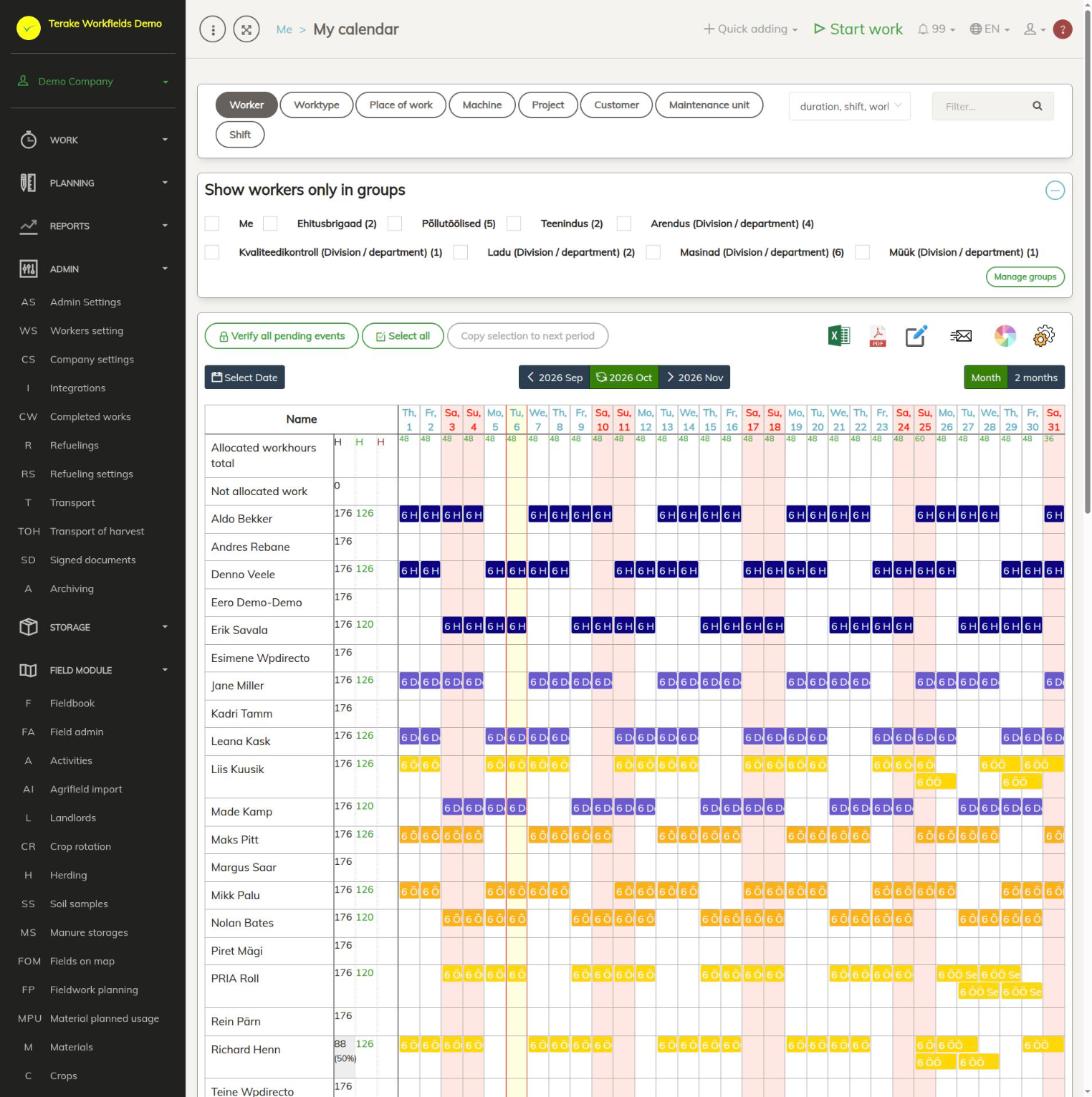
The picture shows the administrator’s view with the rows of all workers. A regular worker sees their own row and the rows of colleagues who have allowed their calendar to be shown (see below).
Page layout
- “Show workers only in groups”: tick “Me” or a group to see only those rows.
- “Select Date” and the month buttons: move to the previous or next month. The middle button takes you back to the current month.
- “Month” and “2 months”: how long a period is on the screen at once.
- Calendar: each worker has their own row, each day its own column. The coloured boxes are schedules, tasks, vacations and other events. Weekends and public holidays are marked in a different colour.
How to mark vacation or sickness
- Find your row in the calendar.
- Select the days with the mouse: press on the first day and drag to the last day. For a single day, just press on that day.
- In the window that opens, check the period. If needed, write an explanation in the “Additional” field.
- Press “Vacation”, “Sickness” or “Not available”. For “Not available” you must first write at least 5 characters in the “Additional” field.
A new event has the status “Waiting for verification” until your manager approves it, that is, locks it.
How to change or give up your event
Press your event in the calendar. What happens next depends on the event’s status:
- A vacation or sickness that your manager has not locked yet: Terake asks “Remove event from selected days”. Confirm to delete the event. You cannot delete a “Not available” event yourself; ask your manager to do it.
- A locked event (a schedule, a task or an already locked vacation): Terake asks “Abandon event”. When you confirm, the event gets the status “Rejected” and your manager sees that you gave it up.
- An event you have given up: Terake asks “Take event”. When you confirm, you take it back.
How to take a free task
If a colleague’s row or the “Not allocated work” row has an event that nobody has taken or that has been given up, press it. Confirm “Take event”. The event stays in the status “Waiting for verification” until your manager locks it.
Who can see and change it
- A regular worker sees their own row, the rows of their subordinates, and the rows of colleagues who have chosen on the My profile page “Colleagues in my department” (if in the same department) or “All company workers”.
- A user with the “Self planner” role can add and change schedules and tasks in their own row. Their page has a list of tasks and a form with the new event’s details under the calendar.
- The roles “Administrator”, “Approver”, “Observer” and “Agronomist” see the same page in full, as on the Roster timeline page.
Tips
- If you do not see a colleague’s row, they have not made their calendar visible to you.
- You cannot delete a locked event yourself. If you give it up, your manager sees this and decides what happens next.
API calls on this page
For integrations and AI assistants: this page uses the following Terake API calls. The full description is in the API reference.
When the page opens:
GET /api/worker_groups– All WorkerGroups listGET /api/appsettings/{key}– One application setting of the calling workerGET /api/todos– Planitem collectionGET /api/calendaritems/{resource_type}– Calendar items grouped by one resource type – worker, main_facility, secondary_facility
Adding, changing and deleting (from the API description):
DELETE /api/todos/{id}– Delete Planitem by ID or UUID
Other calls from this screen’s dialogs and actions (from the web client’s code):
DELETE /api/customer/{customer_id}/person/{id}– Deletes a Customer contact personDELETE /api/plans/{planid}/materialusages/{usageid}– Deletes one material usage of a PlanitemDELETE /api/rosteritems/{id}– Delete Rosteritem by ID or UUIDGET /api/workers/brigade-members/{id}– Brigade members of one worker acting as foreman, by worker id.GET /api/calendaritems– Roster and plan rows combined as calendar items.GET /api/planreport/{id}– Planitem by IDGET /api/planreportsync/{id}– Planitem by IDGET /api/plans/{id}/files– List all files related with parent objectGET /api/plans/{calendaritem_id}/recurrence– Recurrence Setup related to RosteritemGET /api/plans/{planid}/materialusages– Material usages planned on one planitem.GET /api/projects/{id}– Project by IDGET /api/relations/{object_type}/{object_id}– Returns the objects related to one Terake objectGET /api/rosteritems/{id}– Rosteritem by ID or UUIDGET /api/rosteritems– Rosteritem collection for the caller's company.GET /api/workers/{id}/files– List all files related with parent objectGET /api/workobjectsonly/{id}– Get WorkobjectGET /api/worktypes/{id}– Get WorktypePOST /api/calendaritem/setstatus/{newstatus}– Changes the status of a Rosteritem – a worker may take or reopen onePOST /api/calendaritems/copyormove– Copies or moves the listed Rosteritems and Planitems by a day offset and/or onto another resourcePOST /api/customer/{customer_id}/person/{id}– Creates or modifies a Customer contact personPOST /api/sendinvitationletter– Sends a partnership invitation to a customer's e-mail addressPOST /api/generate_roster_pdf– Renders a roster as a PDFPOST /api/generate_roster_xls– Renders a roster as an Excel filePOST /api/main_facility– Create FacilityPOST /api/maintenance_unit– Create FacilityPOST /api/plans/{planid}/materialusages– Adds material usage to a PlanitemPOST /api/plans/{id}/files– Add new file to parent objectPOST /api/plans/{calendaritem_id}/recurrence– Creates or modifies the recurrence of a Rosteritem or PlanitemPOST /api/rosteritem/setstatus/{newstatus}– Changes the status of a Rosteritem – a worker may take or reopen onePOST /api/rosteritems/{id}/mark-as-done– Creates a Workdone from a Rosteritem and marks the item donePOST /api/rosteritems/{id}– Creates or modifies a Rosteritem (Scheduled Work or an absence). Returns an array of itemsPOST /api/rosteritems– Creates or modifies a Rosteritem (Scheduled Work or an absence). Returns an array of itemsPOST /api/send-calendar– Sends a link to the calendar to e-mail addressesPUT /api/rosteritems/{id}– Creates or modifies (if id is set) a Rosteritem: a Scheduled Work entry or an absence
(Vacation, Sickness, Away, Day off, Study leave, Parental leave, Without pay). Returns an
array of items. The Terake mobile app posts vacations here.