On the “Archiving” page (heading “Statistics and archiving”) the administrator sees how much the company’s machines, implements, work types, materials, cost centers, workers, fields and work objects have been used in works in recent months. This way you find entries that are no longer used and can archive or delete them in one place.
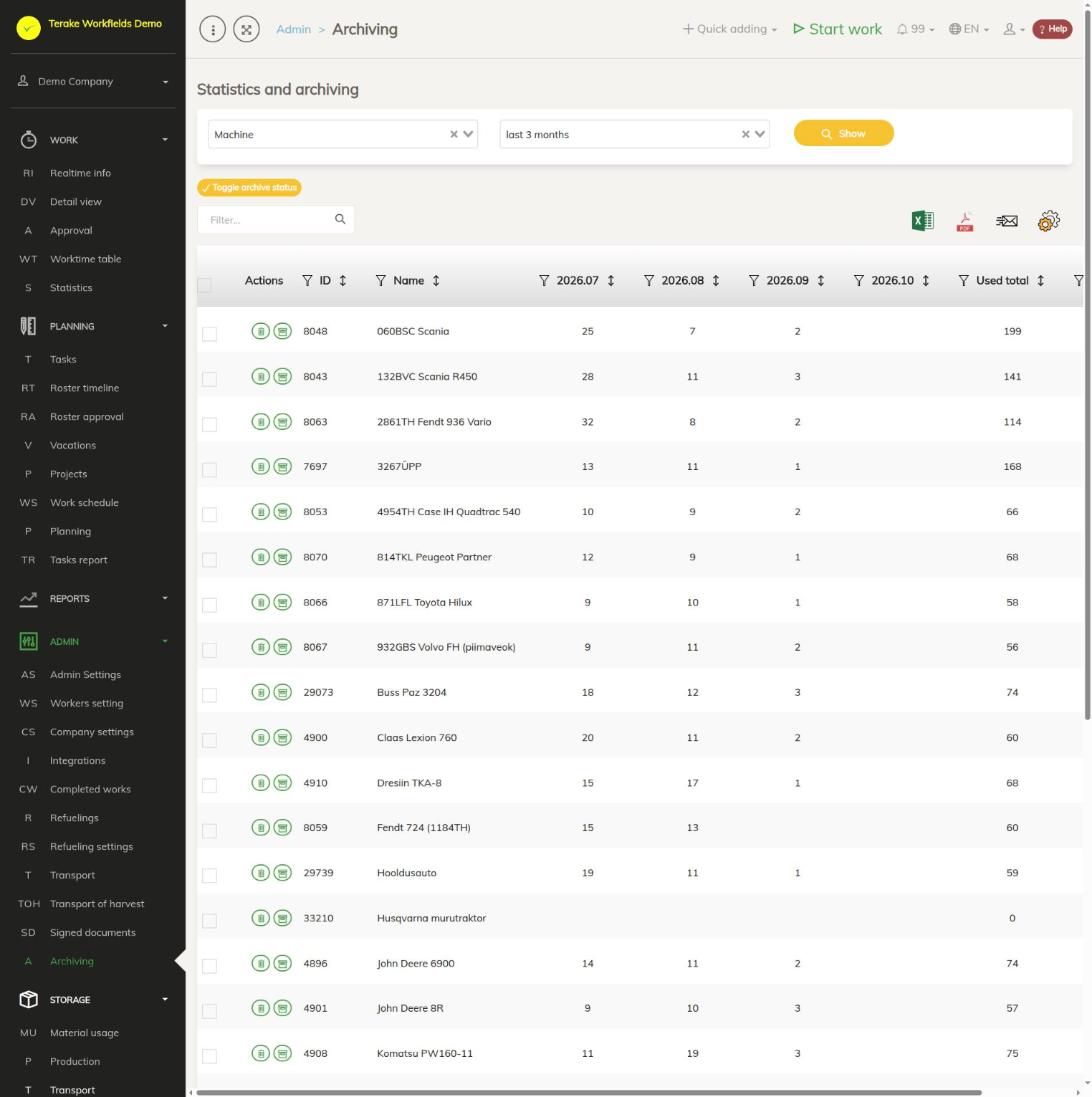
Page layout
- At the top are two selections: what to view (“Machine”, “Implement”, “Worktype”, “Material”, “Cost center”, “Worker”, “Field” or “Workobject”) and how many months (“last 1 month”, “last 3 months”, “last 6 months” or “last 12 months”), then the “Show” button.
- The “Toggle archive status” button changes the archive status of the ticked rows.
- Table columns: “Actions” (trash can and archive icon), “ID”, “Name”, for each month the number of works in that month (confirmed and unconfirmed), “Used total” and “Archived” (a tick for an archived entry).
- The month columns go back as many months as selected, up to the current month. Click a column heading to sort the table, for example to put the least used entries first.
- Above the table are a search field and buttons for downloading the table as an Excel or PDF file and for choosing columns.
How to find unused entries
- Select what to view, for example “Machine”.
- Select the period, for example “last 12 months”.
- Press “Show”.
- Sort the table by the “Used total” column or by the columns of the last months. Entries with no works in the month columns have not been used in that period.
How to archive entries
- To archive one entry, press the archive icon on its row. Pressing it on the row of an archived entry makes the entry active again.
- To archive several entries at once, tick the rows in the checkbox on the left and press “Toggle archive status”. The button reverses the status of each ticked entry: an active entry is archived and an archived one is restored. So tick only entries with the same status at a time.
Archived entries no longer appear in the selections for new works, but they stay with earlier works and reports. On the admin pages they are in the “Archived list”, where you can also restore them.
How to delete an entry
- Press the trash can icon on the entry’s row.
- Confirm the deletion.
Delete only entries that have never been used. For an entry that has been used, prefer archiving so that earlier works and reports stay complete.
Who can see and change it
Only the “Administrator” sees the page and archives and deletes entries. The changes concern only your company’s entries.
Tips
- You change the data of individual entries on the admin pages, for example Machines and equipment, Worktypes, Materials and Worker settings.
- An overview of the admin pages is on the Admin Settings page.
API calls on this page
For integrations and AI assistants: this page uses the following Terake API calls. The full description is in the API reference.
When the page opens:
GET /api/entity/utilization– Utilisation summary for an entity type over a number of months
Other calls from this screen’s dialogs and actions:
PUT /api/entity/multiaction/{id}– Applies a bulk action to the listed records of one entity type