On the “Workobjects” page you manage all locations and objects where or on which work is done: buildings, warehouses, construction sites, addresses, maintained equipment and so on. A workobject is selected in the “Place of work” field when registering and planning work. Fields are not shown in this list; they are managed in the field module. The page is used by the administrator. The list, loading from a file, archiving and “Bulk edit parameters” are described in general on the Admin Settings page.
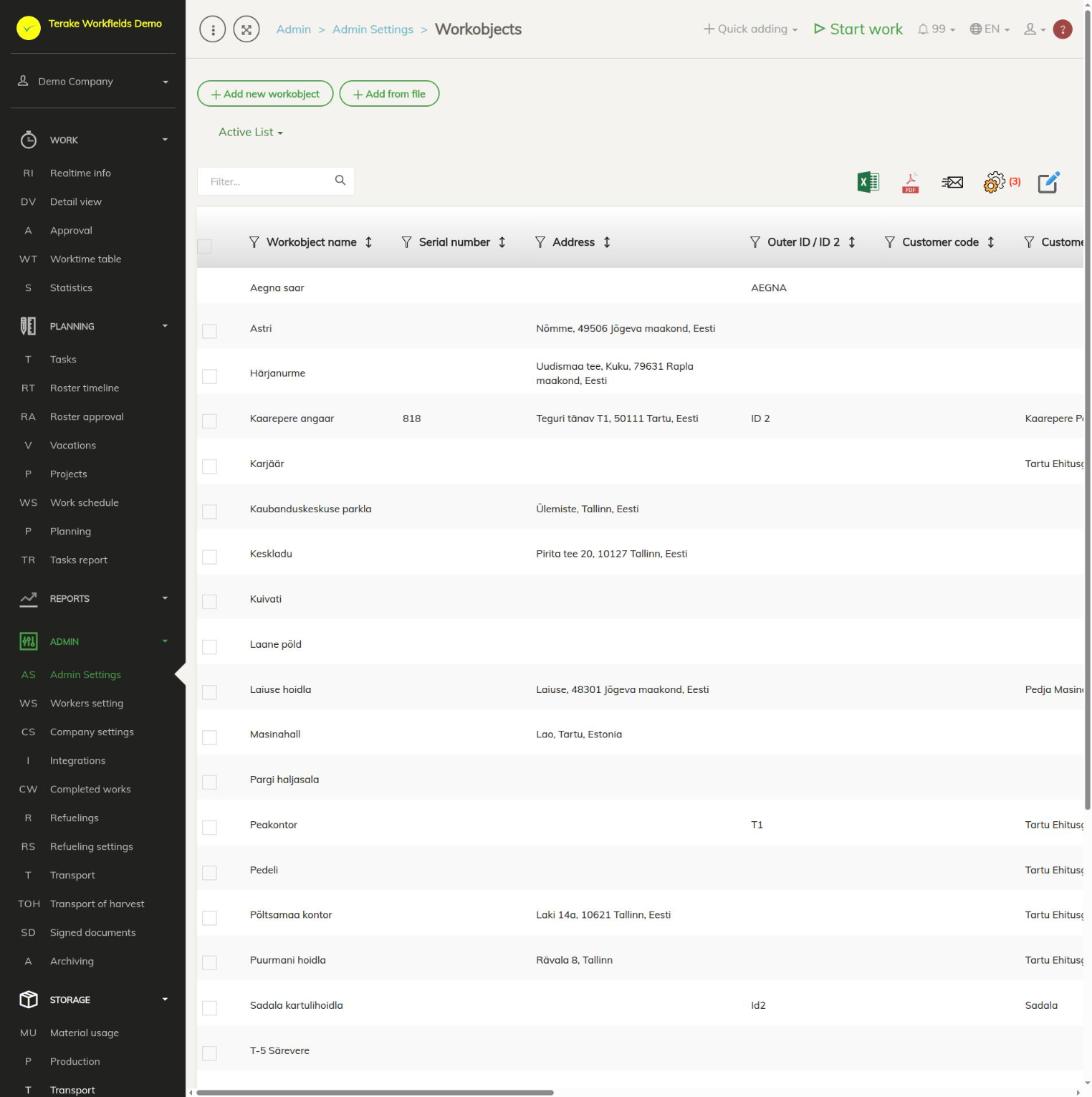
Page layout
- The “Add new workobject” and “Add from file” buttons and the “Active list” / “Archived list” drop-down.
- Table columns include: “Workobject name”, “Serial number”, “Workobject type”, “Address”, “Region”, “Division / department”, “Outer ID / ID 2”, “Customer code”, “Customer”, “Agreement”, “Archived” and “Faults”. The “Faults” column shows an icon when the workobject has unresolved faults.
- With “Bulk edit parameters” you can set the division, workobject type and customer at once, and archive or delete.
How to add or change a workobject
- Press “Add new workobject” or click the row of an existing workobject.
- Enter the “Workobject name” and select the “Workobject type” (see Workobject types).
- Enter the “Address”. Matches are suggested as you type; the “Lat” and “Lng” coordinates are filled in from the selected address and the object is shown on the map. You can set a more exact location by dragging the marker on the map.
- Fill in the extra fields you need (see below).
- Press “Save” or “Save and close”. The other tabs become available after the first save.
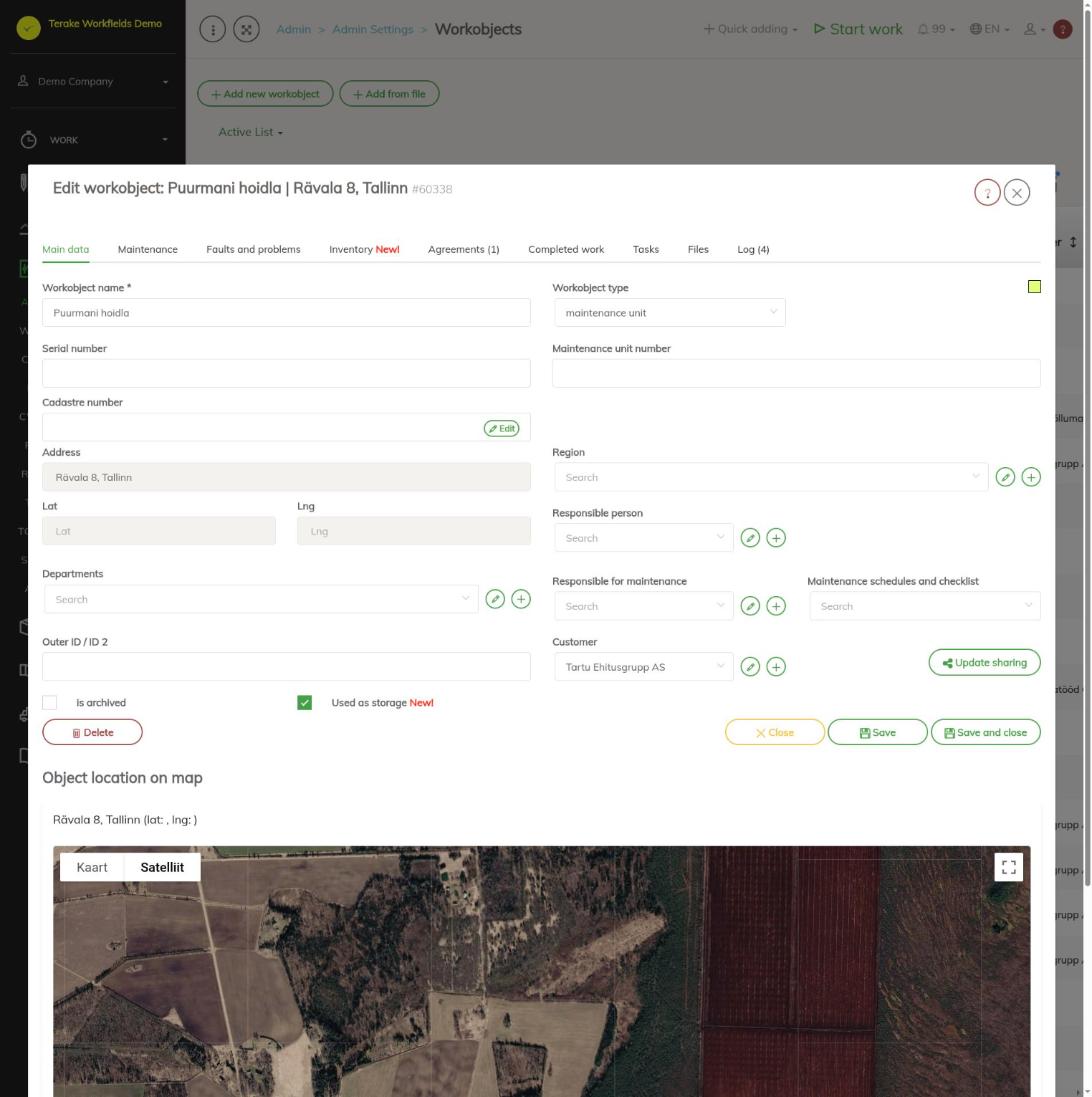
The “Main data” tab
- Serial number and Maintenance unit number: the object’s identifiers (for a field, “Reg no” and “Field number”).
- Cadastre number: the object’s cadastral units; add or change them with the “Edit” button.
- Region: for grouping and filtering workobjects (see Regions).
- Responsible person, Responsible for maintenance and Maintenance schedules and checklist: who is responsible for the object and which maintenance schedule applies to it.
- Departments: the division whose options include the object.
- Outer ID / ID 2: the object’s code in accounting or another system.
- Customer: if the object belongs to a customer. “Update sharing” shares the object with partners.
- is archived: the object is no longer in the options but stays with earlier work.
- Used as storage: the object can be used as a storage in the materials’ stock accounting. Such an object has the “Inventory” tab.
- Object location on map: on the map you can draw the object’s area (“Joonista ala”, draw area) or a line (“Joonista joon”, draw line) and remove it (“Delete geometry”).
How to import cadastral data
- Add a cadastral identifier with two colons (e.g. 12345:001:0010) to the “Cadastre number” field.
- The “Import cadastral info” button appears next to it. Press it.
- If a cadastral unit matching the identifier is found, the data of the Estonian Land Board (Maa-amet) is shown in the “Cadastral info” field and the cadastral unit’s border on the map. If not, the message is “Cadastral info not found”.
- Check the name and type and save as usual.
Cadastral data is updated from the Land Board every morning, so it is essentially as of the same day.
Other tabs
A saved workobject has the “Maintenance” (maintenance, with the “Plan new maintenance” button), “Faults and problems”, “Inventory” (for an object used as storage), “Agreements”, “Completed work”, “Tasks”, “Files” and “Log” (history of changes) tabs.
Who can see and change it
The page opens for the “Administrator” role. Workobjects shared by a partner can be used but not changed.
Tips
- When loading from a file, “Workobject name” and “Workobject type” are mandatory; you can also load “Serial number”, “Address”, “Outer ID / ID 2” and “Customer”. An unknown type is replaced with the default type; an unknown customer is created.
- Fields are added and changed in the field module, see Field admin.
- You can see the inventory of objects used as storage on the Storage: Workobjects page.
API calls on this page
For integrations and AI assistants: this page uses the following Terake API calls. The full description is in the API reference.
When the page opens:
GET /api/workobjectsonly– Workobjects without their related agrifield data
Adding, changing and deleting (from the API description):
DELETE /api/workobjectsonly/{id}– Delete WorkobjectPOST /api/workobjectsonly– Creates or modifies a WorkobjectPUT /api/workobjectsonly/{id}– Modifies a Workobject
Other calls from this screen’s dialogs and actions (from the web client’s code):
DELETE /api/agreements/{id}– Delete Agreement by ID or UUIDDELETE /api/inspections/workobject/{id}– Delete InspectionCase by ID or UUIDDELETE /api/workobjects/cadastres/{workobject_id}/{cadastre_id}– Removes a Workobject from a CadastreDELETE /api/workobjects/{id}– Delete WorkobjectDELETE /api/workobjects/{id}/files/{uuid}– Delete fileGET /api/agrifield/pria/massive/{massiveid}– Returns Pria MassiveGET /api/cadastres/{id}– Get CadastreGET /api/faults/workobject/{faultitem_consumer_id}– Faultitem collection of one work objectGET /api/faults/workobject– Faultitem collection of work objectsGET /api/fieldbook– Fieldbook Agrifield collectionGET /api/geoinfo/cadaster/{num}– Cadastral register information for one cadastre numberGET /api/geometry/agrifielddata/{id}– Geometry of one agrifield_data record.GET /api/inspections– InspectionCase collectionGET /api/inspections/workobject/{consumer_id}– InspectionCase collection of one work objectGET /api/inspections/workobject– InspectionCase collectionGET /api/fieldbook/overlapping-check/{agrifield_id}/{crop_period_id}– Reports fieldbook entries whose geometry overlaps for one Agrifield and crop periodGET /api/workobjects/{id}– Get WorkobjectGET /api/workobjects– All Workobjects listGET /api/workobjectsonly/{id}– Get WorkobjectPOST /api/agreements– Create new AgreementPOST /api/workobjects/cadastres/{workobject_id}/{cadastre_id}– Add Cadastre to WorkobjectPOST /api/workobjects– Creates or modifies a WorkobjectPUT /api/agrifields/{id}/setcropperiod– Sets the Agrifield data for a crop periodPUT /api/geometry/agrifielddata/{id}– Stores the geometry of an Agrifield data recordPUT /api/workobjects/{id}– Modifies a Workobject