ChatGPT supports MCP (Model Context Protocol) servers, which give ChatGPT access to outside tools and data. The Terake MCP server mcp.terake.com lets ChatGPT query and analyse Terake data (workers, work done, tasks, equipment, reports and more) right in the chat.
ChatGPT sees exactly what your own Terake account sees, and nothing more.
Important: this guide follows the ChatGPT desktop app. In the web version (chatgpt.com) the menus may look different or be missing, depending on your plan. The screenshots are from the app in Estonian; the English names of the buttons are given in the text.
Step 1: open the plugin settings and start adding an MCP server
- Open the ChatGPT desktop app.
- Click Plugins in the left sidebar.
- Click the gear button Manage in the top right corner.
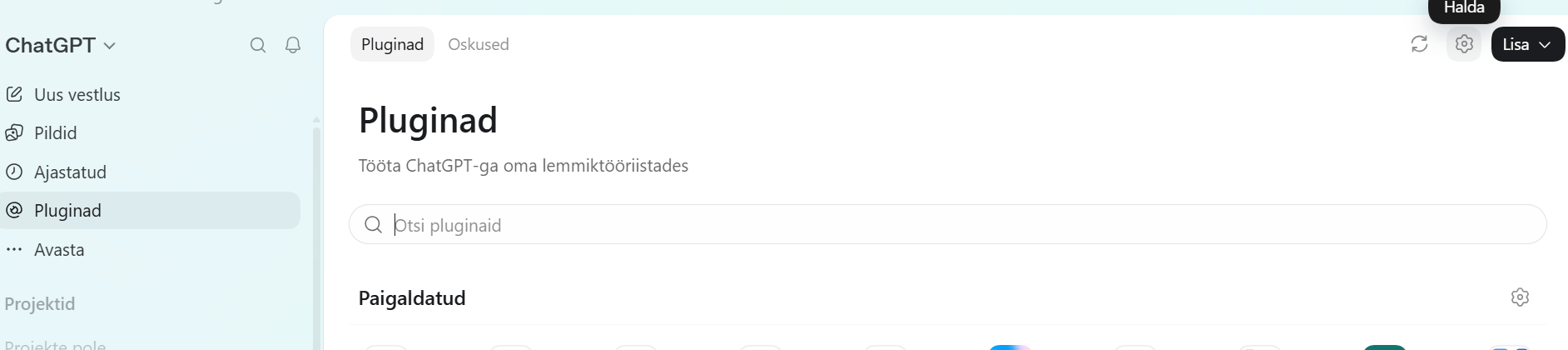
- The Plugins settings page opens, with the tabs Plugins, Apps and MCPs. Click Add in the top right corner: a menu opens with Create plugin, Add marketplace and Add MCP server.
- Click Add MCP server.
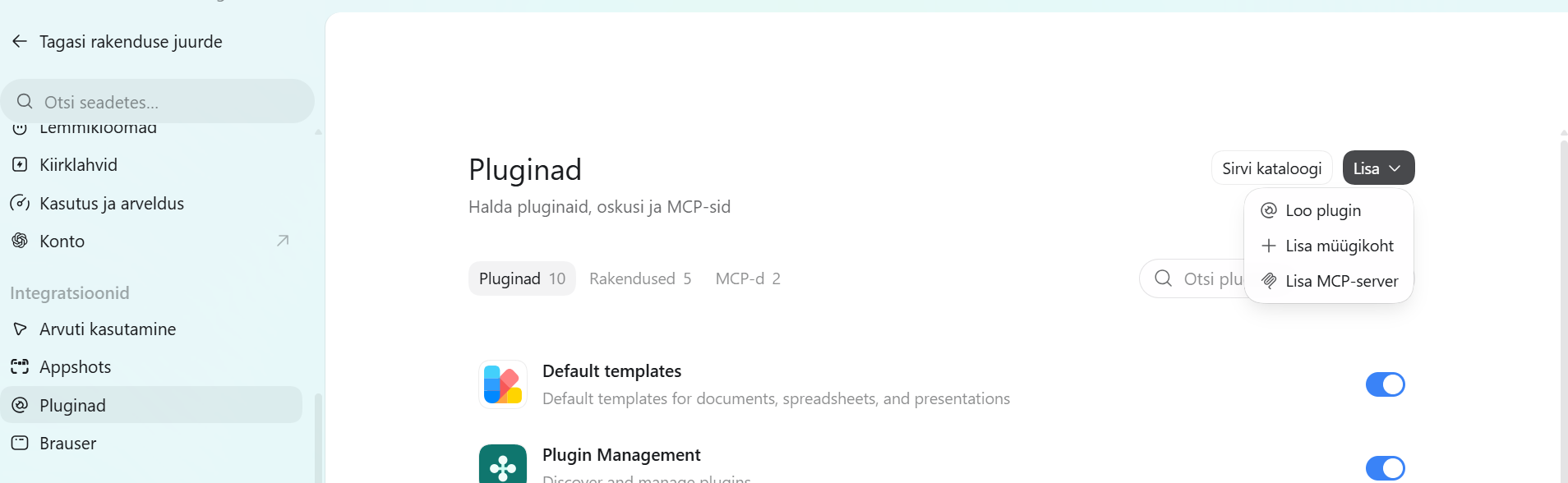
Note: if you have already added an MCP server, you get to the same place from the MCPs tab with the + Add server button (see the picture in step 3).
Step 2: fill in the “Connect to a custom MCP” form
The Connect to a custom MCP window opens.
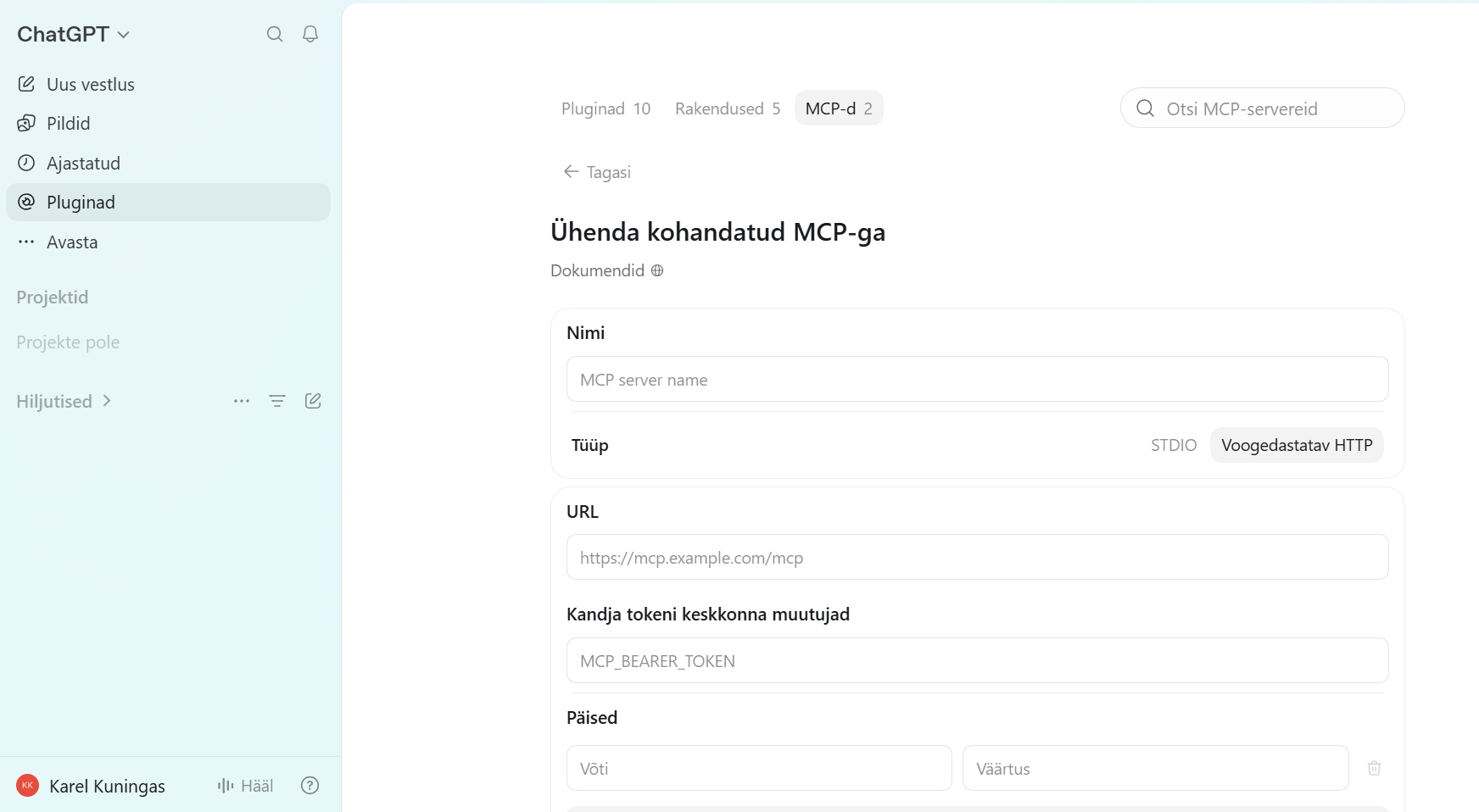
- Name: enter the name you will see in the list of MCP servers, for example
Terake. - Type: choose Streamable HTTP, not STDIO. STDIO is for servers that run on your own computer.
- URL: enter the Terake MCP server address
https://mcp.terake.com/mcp(in place of the sample texthttps://mcp.example.com/mcp). - Bearer token env var: leave empty. The Terake server uses no token or API key; you log in in step 3 with the Authenticate button.
- Headers (Key / Value): leave empty.
- Scroll to the end of the form and click the save button.
Step 3: log in and check the connection
Once added, the server is on the MCPs tab in the Servers list.
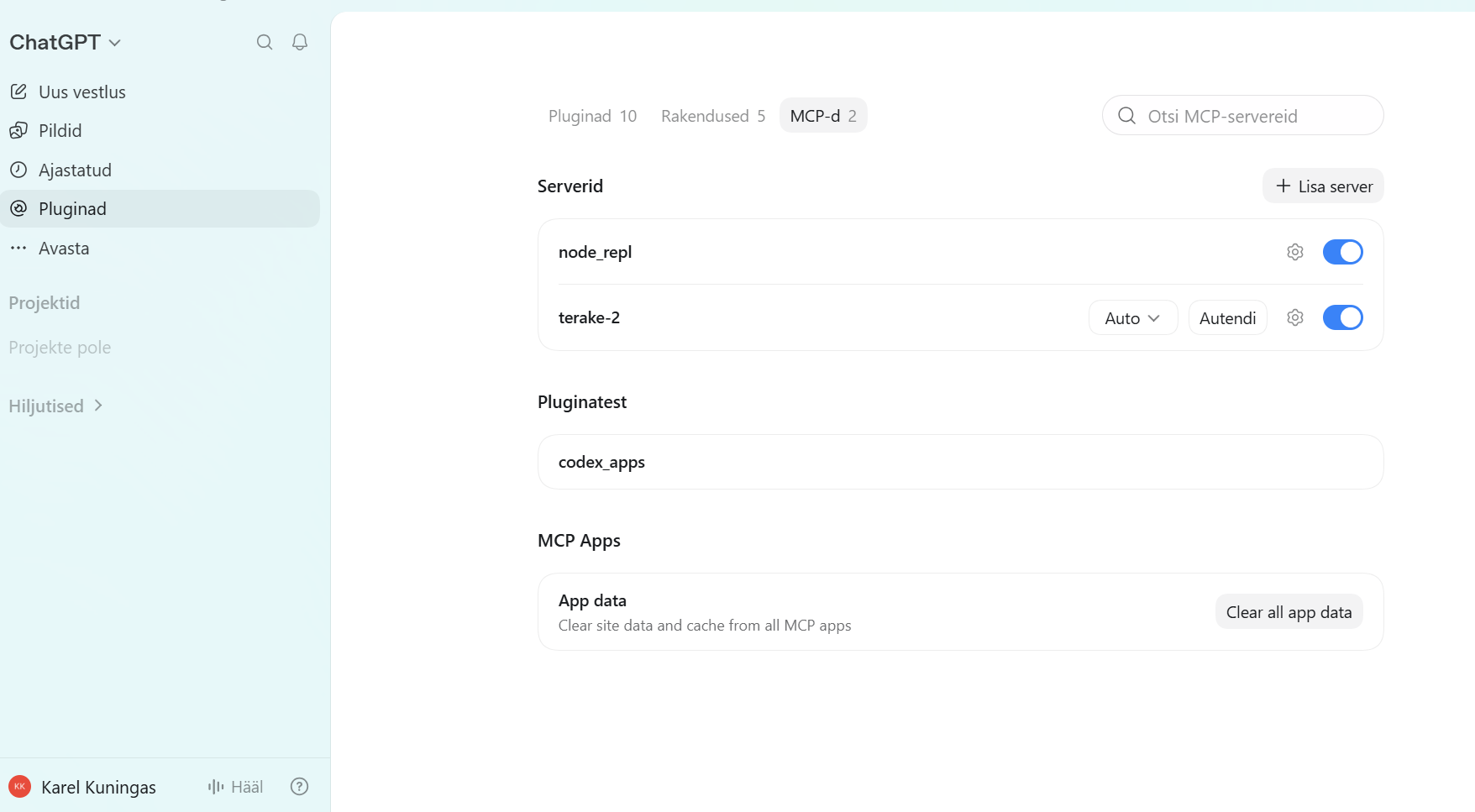
- Find your server’s row in the Servers list (in the picture,
terake-2). - Click Authenticate at the end of the row. ChatGPT sends you to the Terake login page at auth.terake.com. Log in with the same username and password you use for Terake.
- The switch at the end of the row shows whether the server is turned on. Make sure it is blue.
- The Auto option sets whether ChatGPT asks for your approval before using a Terake tool. Choose what suits you.
- When everything is in order, you can ask about your Terake data in a new chat and ChatGPT uses the Terake tools.
Common problems and tips
- Add MCP server or the MCPs tab is missing. This option is currently found mainly in the ChatGPT desktop app. In the web version or on mobile it may be missing or need a certain plan or developer mode.
- The wrong type is chosen. For a remote server such as mcp.terake.com the right choice is always Streamable HTTP, not STDIO.
- Authentication fails. Make sure the URL is exactly
https://mcp.terake.com/mcpand that you use your Terake username and password. If logging in to Terake works but logging in through ChatGPT does not, write to support@terake.com. - The server is added, but ChatGPT does not use it. On the MCPs tab, check that the server’s switch is on (blue) and that you have authenticated.
- ChatGPT does not see some data. ChatGPT sees only what your Terake account is allowed to see. If you need wider rights, ask your company’s Terake administrator.
- Security. Add only MCP servers you trust. The only official Terake MCP server is
https://mcp.terake.com/mcp.