A Claude custom connector links Claude to an MCP (Model Context Protocol) server, which gives Claude tools and data. The Terake MCP server mcp.terake.com gives Claude access to Terake data: workers, work done, tasks, equipment, reports and more.
Once the connector is added, you can ask Claude about your Terake data in a chat and have it analyse the data, without logging in to Terake and copying it yourself.
Claude sees exactly what your own Terake account sees, and nothing more.
Step 1: open the Connectors settings
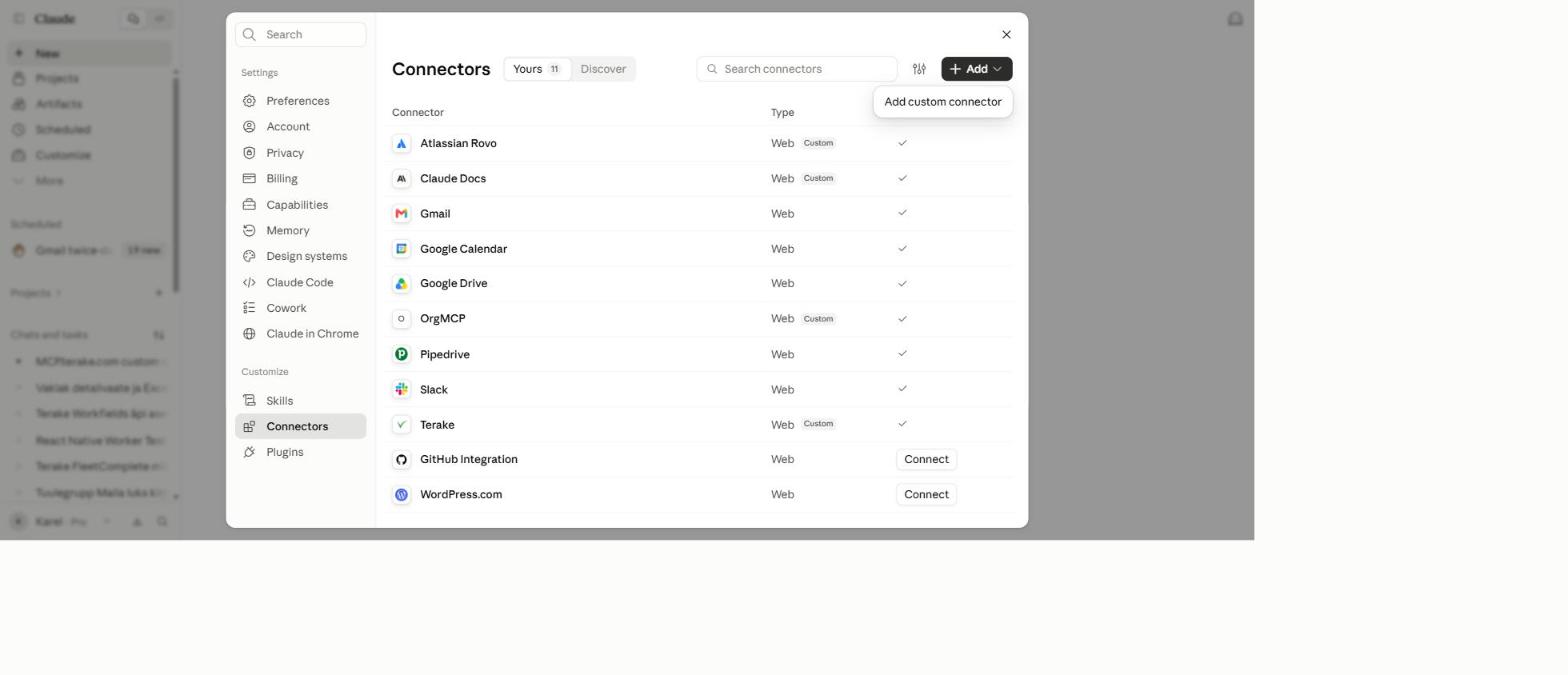
- Open Claude and click your account name in the bottom left corner (or go straight to Settings).
- In the menu on the left, choose Connectors (in the “Customize” group).
- You see the list of connectors already connected (e.g. Gmail, Slack, Pipedrive). If Terake is already there with the status ✓, there is nothing to add.
- Click + Add in the top right corner and choose Add custom connector from the menu.
Step 2: fill in the connector details
The Add custom connector window opens with two fields.
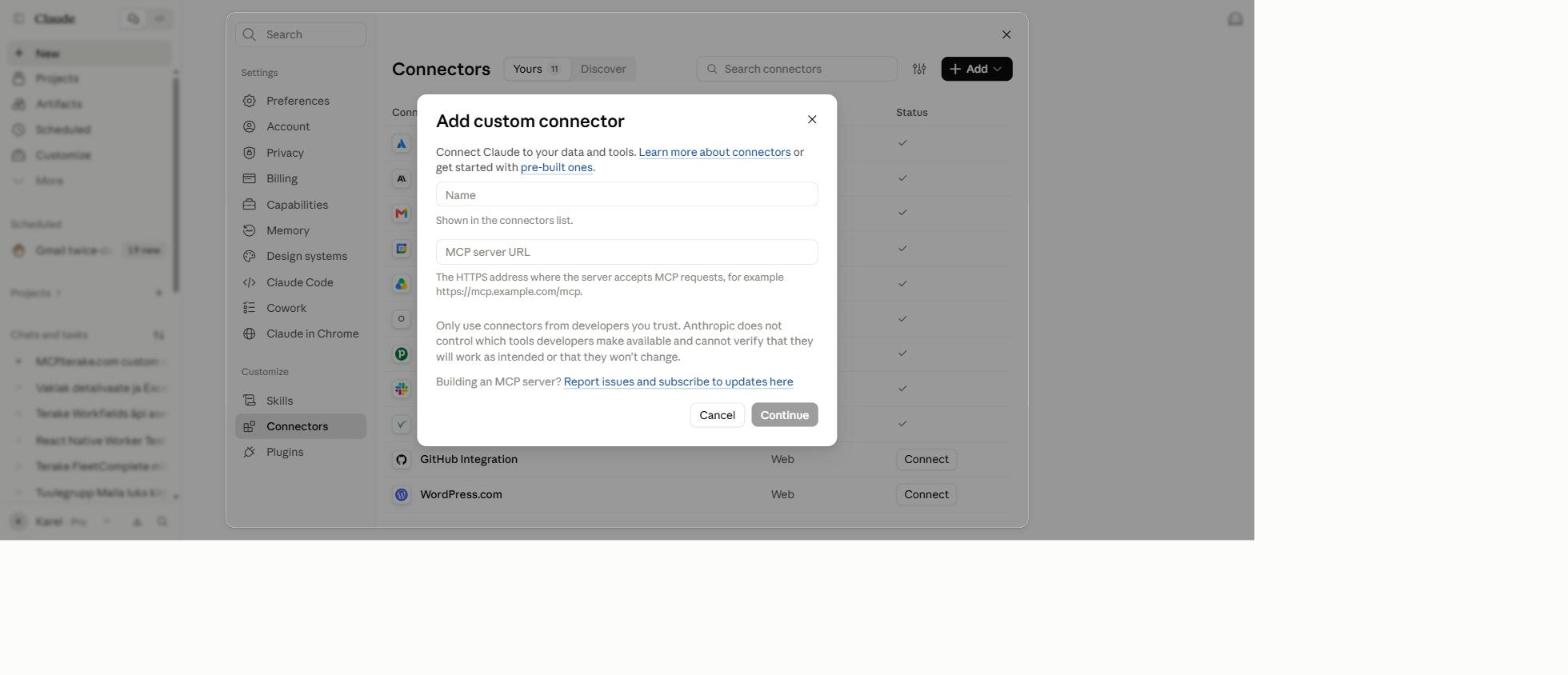
- In Name, enter the name you will see in the connector list, for example
Terake MCP. - In MCP server URL, enter the server address:
https://mcp.terake.com/mcp - When both fields are filled in, the Continue button becomes active (black, not grey).
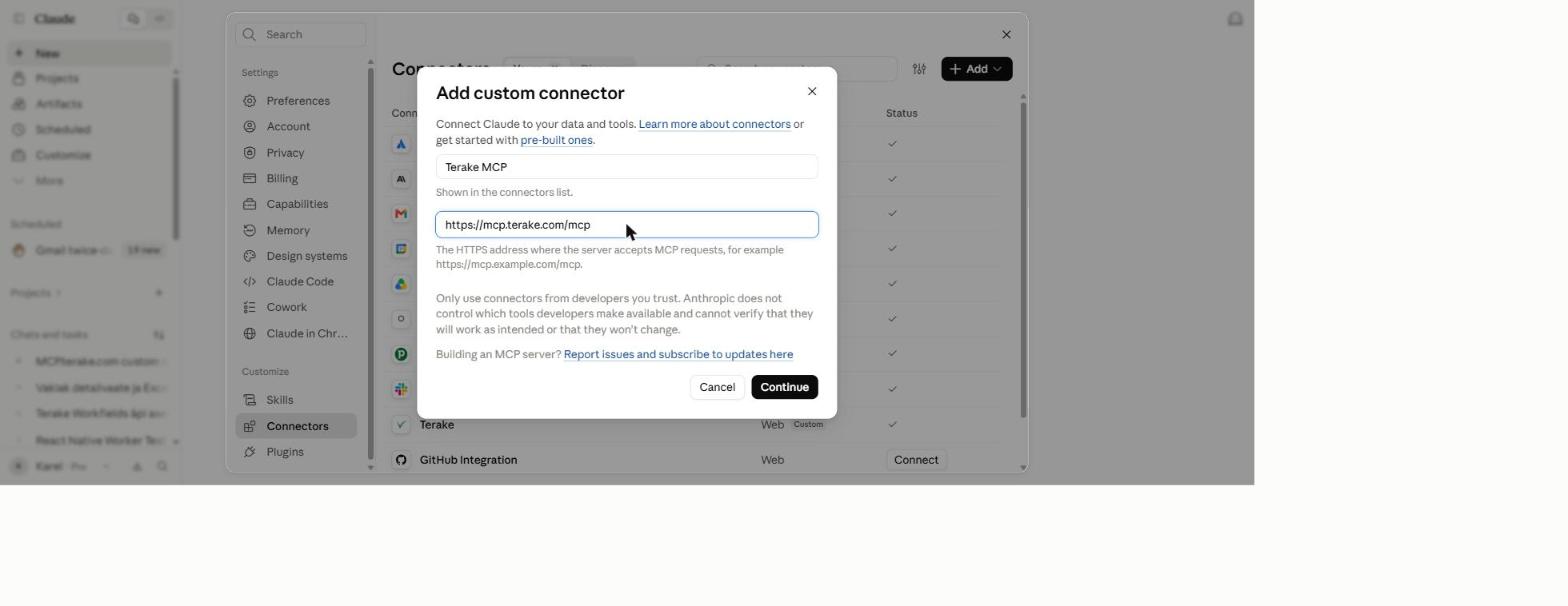
- Click Continue.
Step 3: log in and confirm
- After you click Continue, Claude asks you to confirm that you trust this server. Confirm (Connect or Continue).
- Claude sends you to the Terake login page at auth.terake.com. Log in with the same username and password you use for Terake.
- Once connected, the new entry (e.g. “Terake MCP”) appears in the connector list with the status ✓ (connected).
- In a new chat, turn the connector on: click Add files, connectors, and more below the message box and choose it from the list. This tells Claude that the Terake tools are in use in the chat.
For Claude to query Terake data, the connector must be in the Yours list with the status ✓. A red warning means the connection was lost and you need to log in again: click the connector and choose Reconnect.
Common problems and tips
- The Continue button stays grey. Check that MCP server URL starts with
https://and that Name is not empty. - Add custom connector is missing from the menu. On a Claude Team or Enterprise account, custom connectors are usually added by the organisation’s owner or administrator. Ask them to add the Terake connector with the address
https://mcp.terake.com/mcp. - Login fails. Make sure you use your Terake username and password. If logging in to Terake works but logging in through the connector does not, write to support@terake.com.
- The connector is in the list, but Claude does not find the tools. Make sure you added the connector from the Add files, connectors, and more menu below the message box. A connector added in an earlier chat does not start working in a new chat by itself.
- Claude does not see some data. Claude sees only what your Terake account is allowed to see. If you need wider rights, ask your company’s Terake administrator.
- Security. Add only servers you trust as custom connectors. The only official Terake MCP server is
https://mcp.terake.com/mcp.