On the “Mobile app folders (beta)” page the administrator decides which folders the company workers’ mobile app shows and in what order. The feature is in beta and the page is not in the menu; it opens with a direct link.
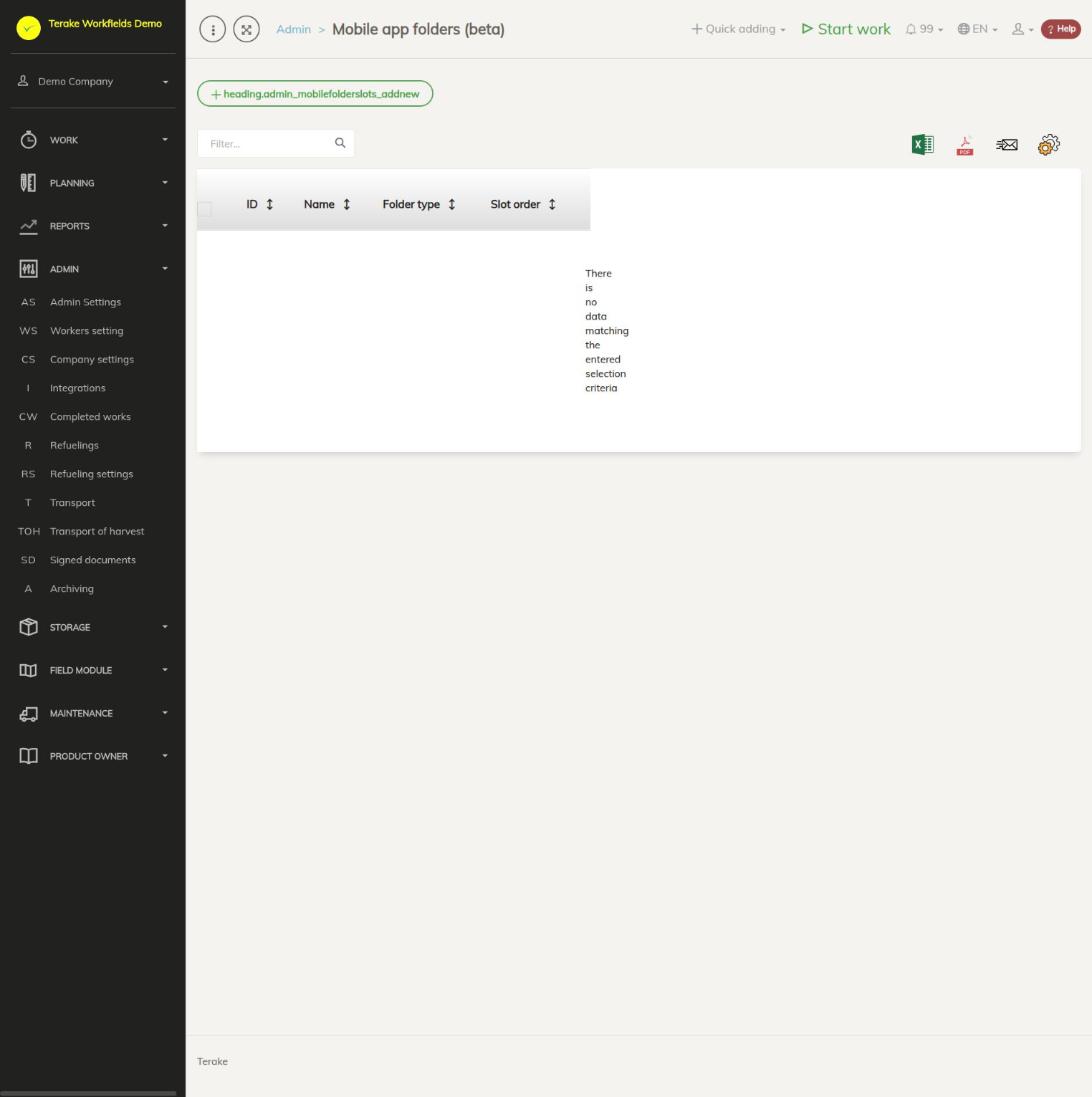
Page layout
- At the top is the button with a plus sign for adding a folder.
- The table lists the company’s folders with the columns “ID”, “Name”, “Folder type” and “Slot order”, sorted by name.
- The trash can icon on a row deletes the folder. Above the table are a search field and buttons for downloading the table as an Excel or PDF file and for choosing columns.
How to add a folder
- Press the add button with the plus sign at the top of the page.
- Enter the “Name”: this is what the folder is called in the mobile app.
- If you wish, enter the “Slot order”: the folder’s position in the mobile app.
- Select the “Folder type”: what the folder contains in the mobile app. The cross next to it clears the selection.
- Press “Save” if you want to keep working on the form, or “Save and close”.
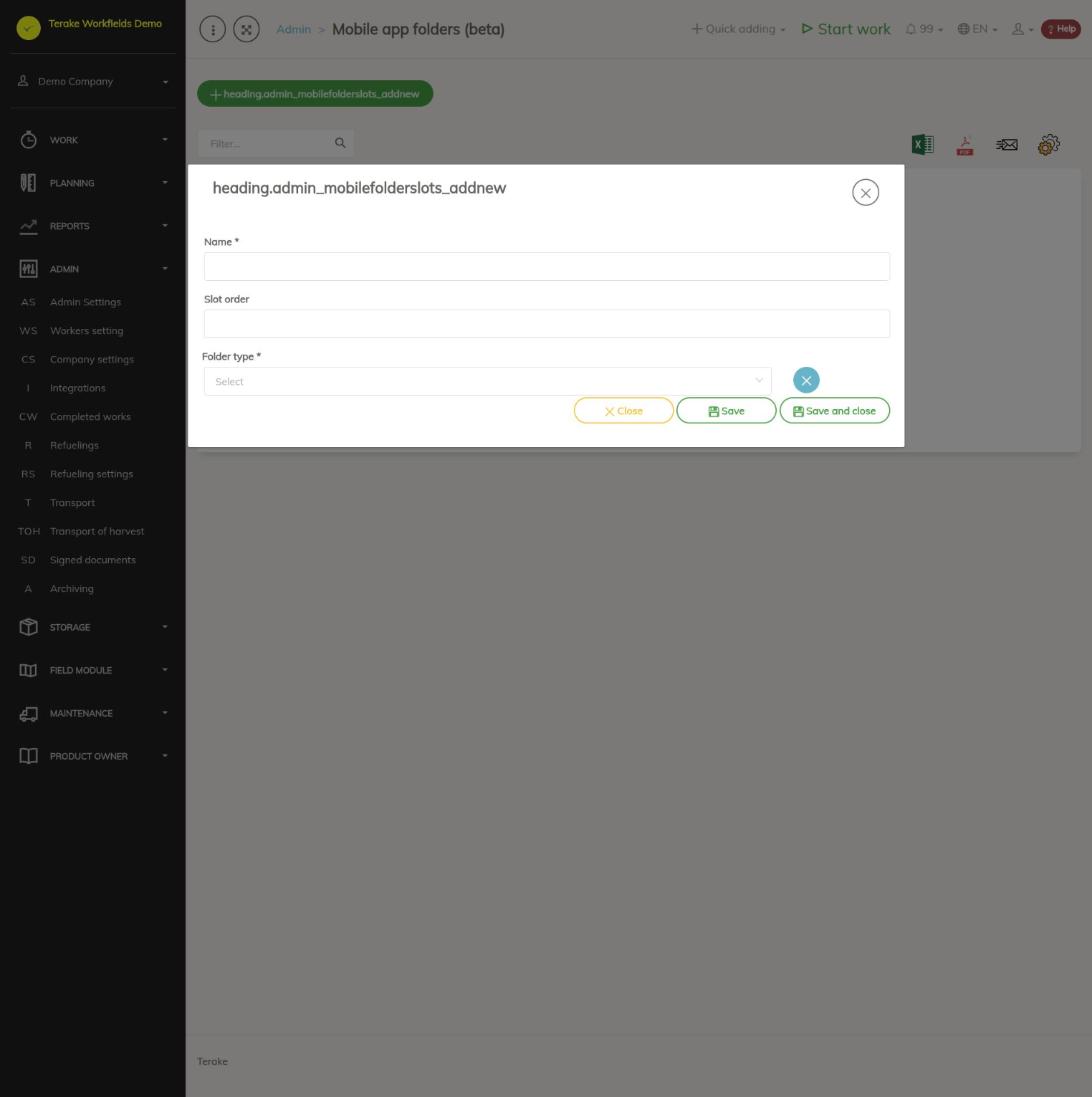
“Name” and “Folder type” are mandatory.
How to change or delete a folder
- To change a folder, click its row, change the fields and save.
- To delete a folder, press the trash can icon on its row.
Who can see and change it
Only the “Administrator” sees the page and changes the folders.
Tips
- For the other mobile app settings per worker, see the Worker settings page.
API calls on this page
For integrations and AI assistants: this page uses the following Terake API calls. The full description is in the API reference.
When the page opens:
GET /api/mobilefolderslots– MobileFolderSlot collection
Adding, changing and deleting (from the API description):
DELETE /api/mobilefolderslots/{id}– Delete MobileFolderSlotPOST /api/mobilefolderslots– Create MobileFolderSlotPUT /api/mobilefolderslots/{id}– Modify MobileFolderSlot
Other calls from this screen’s dialogs and actions:
GET /api/mobilefolderslots/{id}– Get MobileFolderSlot