The “Transport” page lists the company’s material transports in the selected period. Each transport takes material from a starting point to a destination. Transports are usually registered in the mobile app at the work; on this page the administrator or the accountant can check, correct, add and delete them.
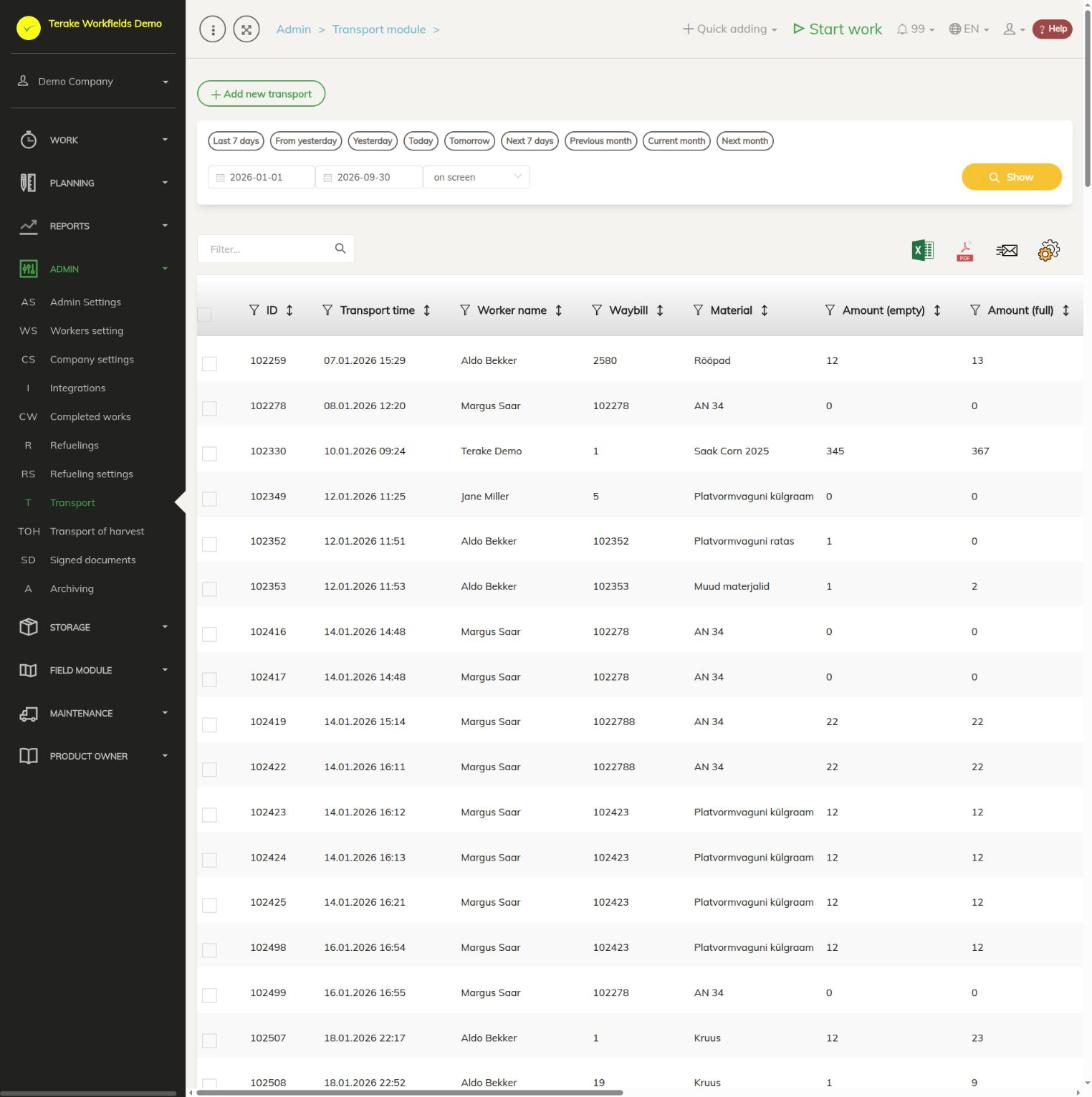
Page layout
- The “Add new transport” button.
- Period selection: quick buttons or a start and end date, then “Show”. The list shows the transports of the period, at most 1000.
- Table columns: “ID”, “Transport time”, “Worker name”, “Waybill”, “Material”, “Starting point”, “Destination”, “Amount (empty)”, “Amount (full)”, “Amount”, “Cargo count”, “Odometer start” and “Odometer end”.
- The trash can icon on a row deletes the transport. Above the table are a search field and buttons for downloading the table as an Excel or PDF file and for choosing columns.
Harvest transports (crop taken from a field to a silo or warehouse) are not in this list; they are on the Transport of harvest page.
How to add a transport
- Press “Add new transport”.
- Enter the “Transport time” (date and time).
- Select the worker who made the transport. If you wish, select the “Worktype”, “Machine” and “Implement”.
- Select “Starting point” and “Destination”. The selection contains fields and warehouses.
- Select the material.
- Enter the amounts (see below) and, if you wish, the kilometres and the “Waybill”.
- Press “Save and close”.
“Transport time”, the worker, “Starting point”, “Destination” and the material are mandatory. Together with the transport, a confirmed work with zero duration is created for the selected worker, with you as its approver. If no “Worktype” is selected, the work gets a general work type. If “Cargo count” is left empty, it is taken as one load.
Form fields
- “Amount (empty)” and “Amount (full)”: the machine’s weight empty and loaded. Their difference is the “Cargo avg. amount”, which is calculated automatically.
- “Cargo count”: how many loads were transported. “Amount total” is calculated as the average load amount times the number of loads.
- “Amount total”: the amount of the transport in the material’s unit (the unit is in brackets). You can also enter it directly; then the average load amount is not calculated from the weights.
- “Kilometers start” and “Kilometers stop”: the machine’s odometer reading at the start and end of the transport.
- “Waybill”: the number of the transport’s waybill.
How to change a transport
- Click the transport’s row. The “Edit transport” window opens.
- Correct the fields you need and press “Save and close”.
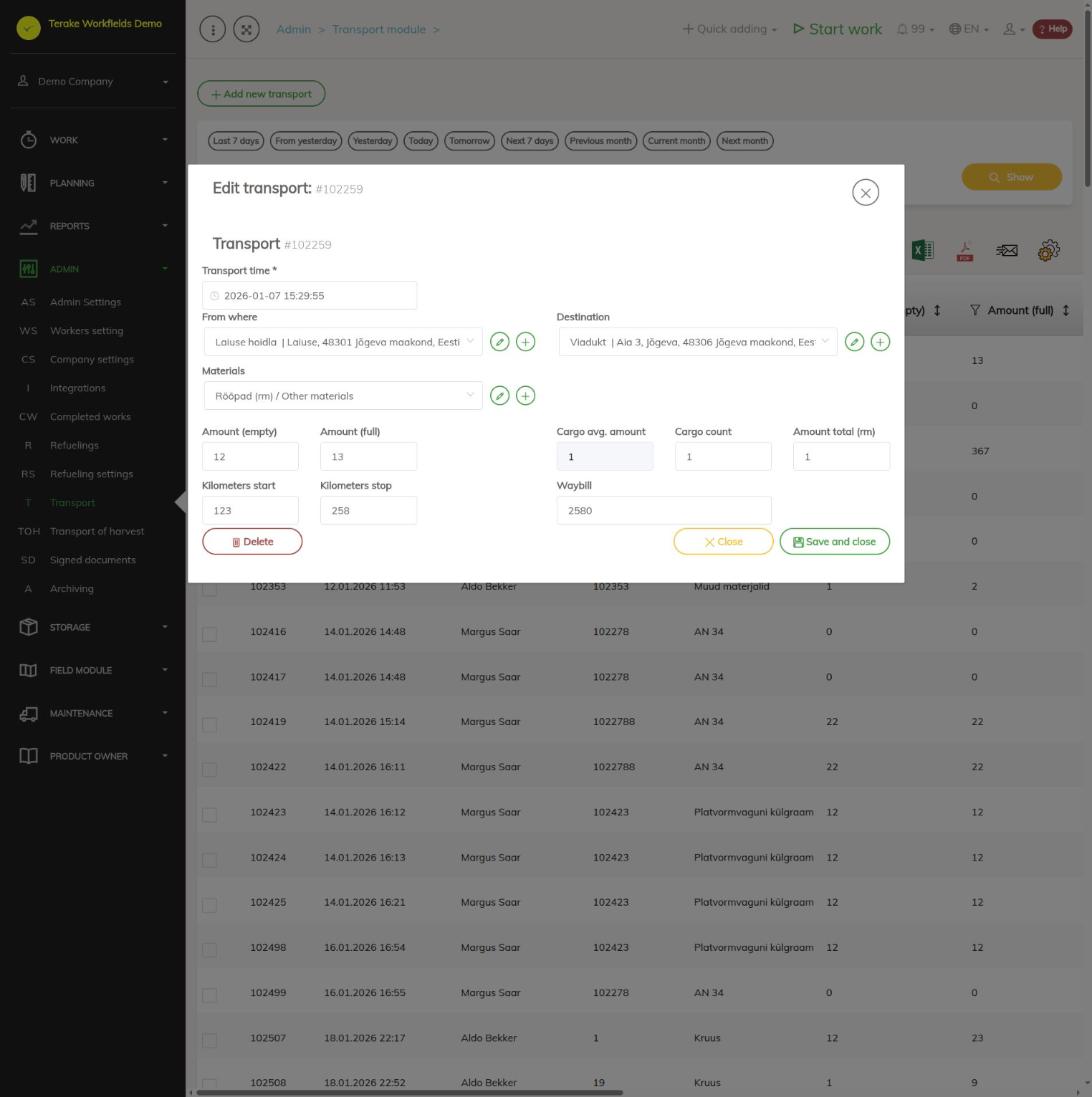
The worker, work type, machine and implement of an existing transport cannot be changed on the form: if the transport is linked to a work, you see them from the work’s data on a grey background. To open the linked work, press the work number next to “See related work”.
How to delete a transport
Press the trash can icon on the transport’s row, or open the transport and press “Delete”. The linked work remains but is no longer linked to the transport.
Effect on stock
If the starting point or the destination is a warehouse, the transport changes the stock of the material in that warehouse. When the transport is changed, the old amount is taken out of the stock and the new one is added; when it is deleted, the transport’s amount is taken out of the stock.
Who can see and change it
The page is in the menu of the “Administrator” and the “Accountant”. A user with the “Administrator” role always has the “Add new transport” button. The “Accountant” sees this button only if “Users have by default create privilege” is ticked on the Company settings page.
Tips
- You see a summary of the transports for a period in the Transport report.
- The storage module has the same list on the Transport in the storage module page.
- You set up materials and their units on the Materials page.
API calls on this page
For integrations and AI assistants: this page uses the following Terake API calls. The full description is in the API reference.
When the page opens:
GET /api/transports– TransportCase collection
Adding, changing and deleting (from the API description):
DELETE /api/transports/{id}– Delete TransportCasePOST /api/transports– Create TransportCasePUT /api/transports/{id}– Modify TransportCase
Other calls from this screen’s dialogs and actions:
GET /api/transports/{id}– Get TransportCase