“Refuelings” is the list of refuelings of the company’s machines. Refuelings come from the mobile app, from a filling station integration or from a file, and they can also be added by hand. The page is used by the “Administrator” and the “Accountant”.
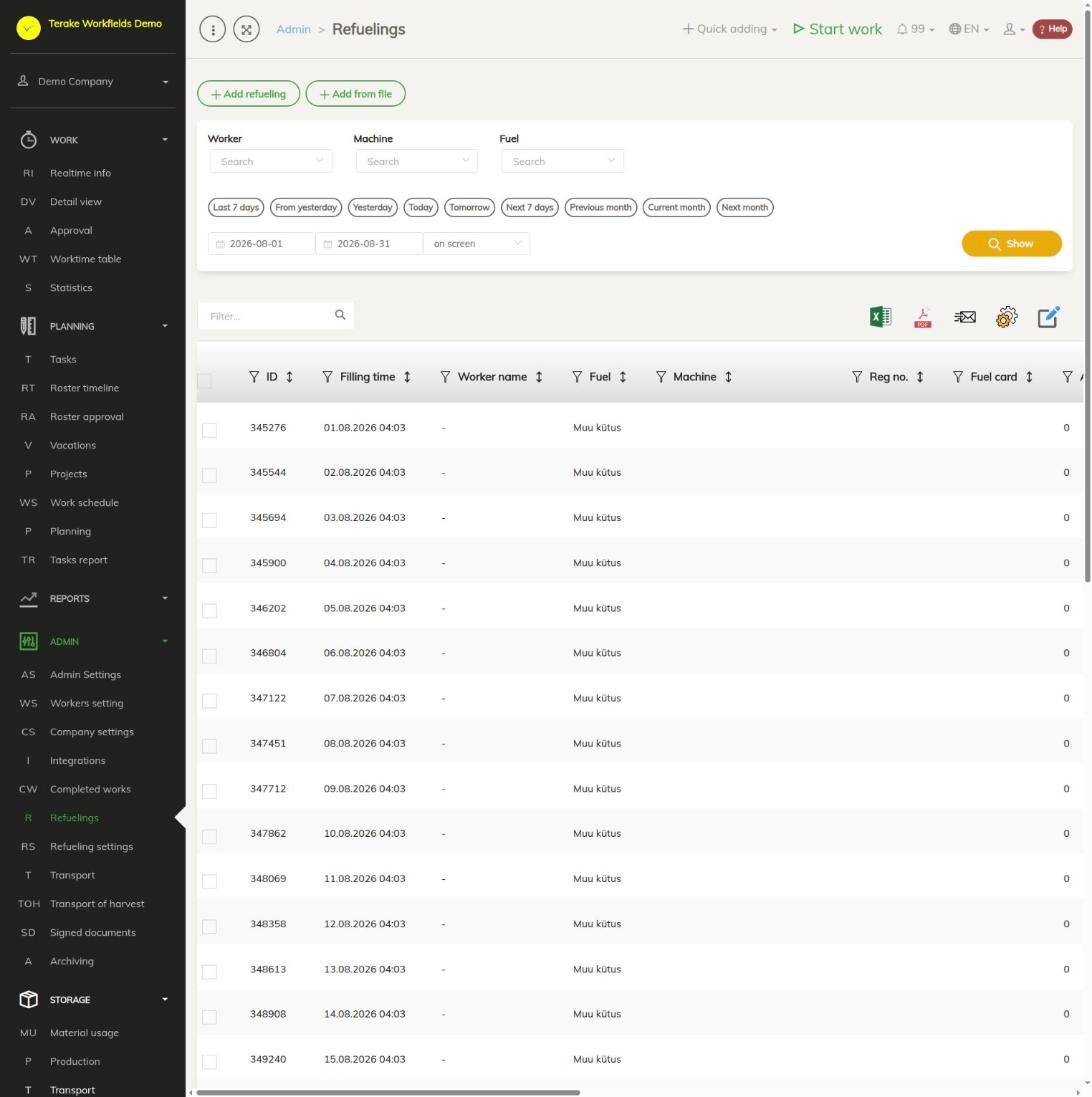
Page layout
- At the top are the buttons “Add refueling” and “Add from file”.
- The filters “Worker”, “Machine” and “Fuel”, quick period choices and dates, and the choice “on screen” or “MS Excel file”. Press “Show”.
- Table columns: “ID”, “Filling time”, “Worker name”, “Fuel”, “Machine”, “Reg no.”, “Fuel card”, “Amount”, “Fuel balance”, “Engine hours”, “Kilometers”, “Net price”, “Taxes”, “Total price”, “Created by”, “Outer ID / ID 2” and “Additional”. The amount and price columns have a total at the bottom.
- Above the table are the icons “open in Excel”, “open as PDF file”, “Send to email”, “set view” and “Bulk edit parameters” (for deleting the selected refuelings at once).
How to add a refueling
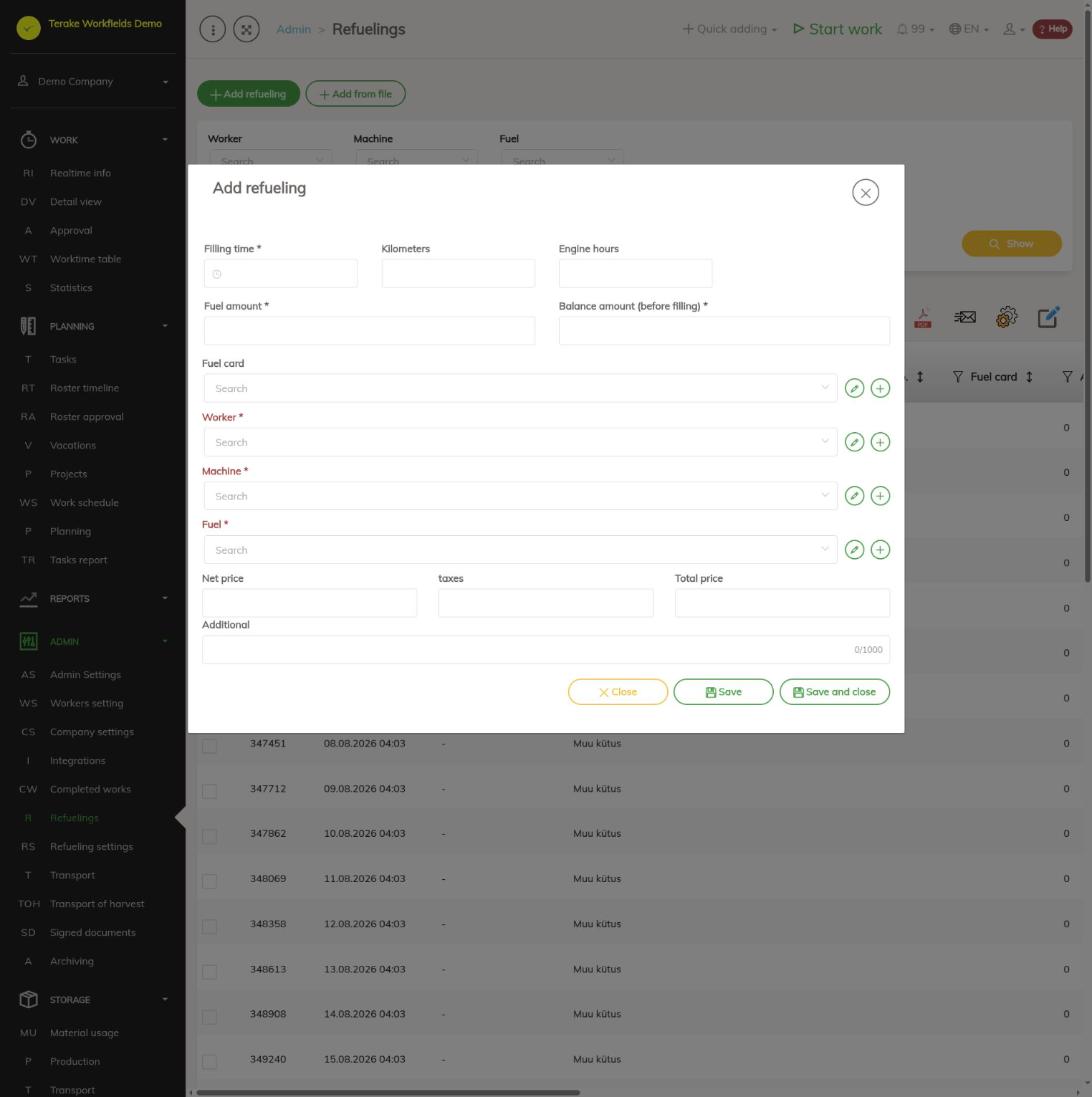
- Press “Add refueling”.
- Enter the “Filling time”, the “Fuel amount” and the “Fuel balance in tank (before filling)”. If you wish, enter “Kilometers” and “Engine hours”.
- Select the “Worker”, the “Machine” and the “Fuel”, and the “Fuel card” if needed.
- If you wish, enter the “Net price”, “Taxes”, “Total price” and “Additional”.
- Press “Save and close”.
To change an existing refueling, click its row in the table. If the refueling was made during a work, the form also shows the “Work record ID”. To delete a refueling, press the trash can icon on its row.
How to load refuelings from a file
- Press “Add from file”, press “Select file” and choose an Excel, OpenDocument or csv file.
- Select a field above each column. “Filling time”, “Worker name”, “Machine”, “Fuel name” and “Amount” are mandatory; you can also load “Fuel balance”, “Engine hours” and “Kilometers”.
- Check the preview. The worker and the machine must already exist in Terake; a new fuel is created (yellow background). An orange background means a wrong data type, for example text instead of a date or a number.
- Press “Save”.
Dates can be Excel or OpenDocument date cells, or text in the form DD.MM.YYYY or YYYY-MM-DD.
Filling station integrations
An integration with a filling station is created by the “Administrator” on the Integrations page.
- Alexela: refuelings are loaded into Terake once a day in the morning, for the previous day. Some refuelings may reach the Alexela system several days late; they are then loaded afterwards. See also Automated processes.
- Piusi B.Smart: refuelings are loaded every hour.
A refueling that comes from an integration is linked to a worker by name and to a machine by registration number. The name must be exactly the same in both systems (first and last name). If there is no worker with that name in Terake, a new worker is added. If there is no machine with that registration number, a new machine is added. If the refueling has no name or registration number, the worker and machine linked to the fuel card are used.
If a machine has no registration number (for example a lawn mower), you can give it the same made-up registration number in both systems. If the filling station system has some other name instead of a person (for example a department name), that name is added to Terake as a worker.
If you would like refuelings from Circle K, Olerex, Neste, Terminal or JetOil to be loaded automatically, contact us: info@terake.com.
Who can see and change it
The page is seen by the “Administrator” and the “Accountant”. Another company’s refuelings cannot be changed.
Tips
- You find the machines’ fuel balance and calculated fuel consumption on the Refueling settings page.
- If an integration created a duplicate worker or machine, make the name or registration number the same both in Terake and in the filling station system.
API calls on this page
For integrations and AI assistants: this page uses the following Terake API calls. The full description is in the API reference.
When the page opens:
GET /api/fuelfillings– Fuel fillings list
Adding, changing and deleting (from the API description):
DELETE /api/fuelfillings/{id}– Delete FuelFilling by ID or UUIDPOST /api/fuelfillings– Creates or modifies a FuelFillingPUT /api/fuelfillings/{id}– Modify FuelFilling
Other calls from this screen’s dialogs and actions:
GET /api/fuelfillings/{id}– FuelFilling by ID or UUID