“Completed works” is the table of all the company’s works in the selected period. Here you can search for, change and confirm works, change several works at once, load works from a file and export the table to Excel or PDF. The page is used by the “Administrator” and the “Accountant”.
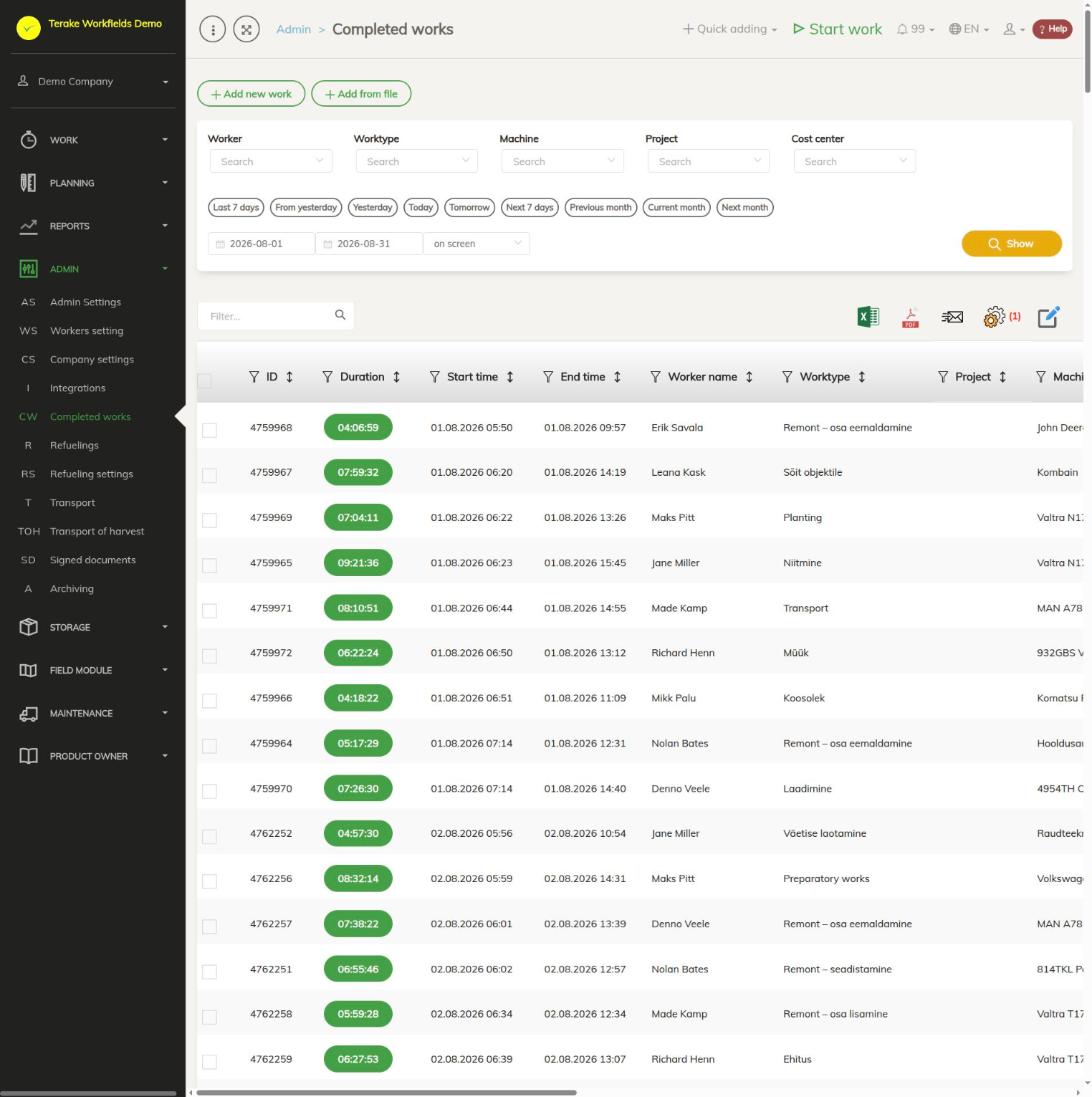
Page layout
- At the top are the buttons “Add new work” and “Add from file”.
- The filters “Worker”, “Worktype”, “Machine”, “Project” and “Cost center”, quick period choices (“Last 7 days”, “From yesterday”, “Previous month”, “Current month” and others) and the start and end date of the period. With the choice “on screen” or “MS Excel file” you decide whether the result is shown as a table or downloaded as an Excel file. Press “Show”.
- Above the table are the search field “Filter…” and the icons “open in Excel”, “open as PDF file”, “Send to email”, “set view” and “Bulk edit parameters”.
- The columns include “ID”, “Duration”, “Start time”, “End time”, “Pause (in min)”, “Worker name”, “Worktype”, “Machine”, “Implement”, “Object”, “Cost center”, “Customer”, “Project”, “Maintenance unit”, “Approved”, “Worker department” and “Work department”. With the funnel icon in a column heading you can filter the table by that column’s values. When a column filter is in use, the line “Filters active” above the table shows how many filters are on.
How to view and change works
- Select the period and, if needed, the filters, and press “Show”.
- Click the work’s row. The work form opens, the same as on the Detail view page. The form can be opened only for works of your own company’s workers.
- Change the data and press “Save and close”. To confirm the work, tick “Is approved” on the form.
To delete a work, press the trash can icon on its row.
How to change or confirm several works at once
- Tick the works you want to change in the left column of the table.
- Press the “Bulk edit parameters” icon. The window shows the “Record count” selected.
- Tick the fields to change and choose the new values. You can change, for example, the start and end time, worker, work type, cost center, department, machine, implement, object, customer, project, maintenance unit and pause, and mark the works as confirmed (“Is approved”), invoiced (“Invoice done”) or deleted (“Deleted”).
- Press “Save and close”.
How to load works from a file
- Press “Add from file”, press “Select file” and choose an Excel, OpenDocument or csv file. Tick “File has header row” if the first row holds the column names.
- Select a field above each column. “Start time”, “End time” and “Worker name” are mandatory; the start and end must contain both the date and the time.
- Check the preview: a red background means a missing mandatory value, orange a wrong data type, and yellow a new value that will be created (for example a new worker, work type or machine).
- Press “Save” and look at the “Import result” column.
If a row of the file has an “ID”, the existing work with that ID is changed. If there is no ID but the same worker already has a work with the same start time, that work is changed. Otherwise a new work is added. This way you can load the same file again without creating duplicate works.
Who can see and change it
The page is seen by the “Administrator” and the “Accountant”. Works can be changed and confirmed by:
- the “Administrator” and the “Power user”, always;
- the worker’s “Boss”, for the works of the workers they manage;
- the “Approver”, for the works of the workers set as their “Approvable workers” on the “Roles” tab of the worker form on the Worker settings page;
- the “Project Manager”, for works with no project, and a project’s manager for the works of their project;
- the “Agronomist”, for field works linked to a crop year;
- the worker themselves, for their own works until they are confirmed;
- everyone, for works that have no worker.
A work confirmed more than 30 days ago can be changed only by the “Administrator” and the “Power user” (and field works linked to a crop year also by the “Agronomist”).
If the company has people who need to change works but are not other workers’ bosses, give them the “Approver” role and mark the workers whose works they confirm.
Tips
- If the table has fewer rows than expected, check whether the line “Filters active” is shown above the table, and remove the column filter.
- You can bring hidden columns back with the “set view” icon.
- Long works left running are stopped automatically, see Automatic processes that affect work duration.
API calls on this page
For integrations and AI assistants: this page uses the following Terake API calls. The full description is in the API reference.
When the page opens:
GET /api/workdones– Workdones detailed list by period
Adding, changing and deleting (from the API description):
DELETE /api/workdones/{id}– Delete Workdone by ID or UUIDPOST /api/workdones/{id}/files– Add new file to parent objectPOST /api/workdones/{wdid}/materialusages– Creates new MaterialUsage for workdonePOST /api/workdones– Create new WorkdonePOST /api/workdones/{wdid}/recalcmaterialusages– Recalc material usage for workdonePUT /api/workdones/{id}– Modify Workdone
Other calls from this screen’s dialogs and actions:
DELETE /api/workdones/{wdid}/materialusages/{usageid}– Deletes a material usage of a WorkdoneGET /api/location/facilities/params-for-workdone/{workdone_id}– Facility telemetry parameters recorded during one workdoneGET /api/workdones/{wdid}/materialusages– Workdone collectionGET /api/workdones-list/{ids}– Simplified Workdone list for the ids given in the URL, at most 100GET /api/workobjectsonly/{id}– Get WorkobjectPOST /api/main_facility– Create FacilityPOST /api/maintenance_unit– Create FacilityPOST /api/secondary_facility– Create FacilityPUT /api/workers/brigade-members/{id}– Replaces the brigade members of a WorkerPUT /api/workers/change_username/{id}– Change Worker usernamePUT /api/workers/priapayees/{id}– Replaces the PRIA payees a Worker represents and the crop periods visible to themPUT /api/workers/approvables/{id}– Replaces the set of Workers whose work this Worker may approvePUT /api/workers/setpassword/{id}– Sets a new password for a WorkerPUT /api/workers/setroles/{id}– Replaces the roles of a Worker