On the “Integrations” page the administrator connects Terake with other systems: telemetry (for example Navirec, SkyFMS, John Deere, Wialon, Metrotec, Mapon, FleetComplete), refueling (Alexela, Piusi B.Smart), accounting (Directo) and the TTKI of the Estonian Tax and Customs Board. Each connection is a separate integration, for which you enter the credentials given by the partner or give Terake permission in the partner’s system to read the data.
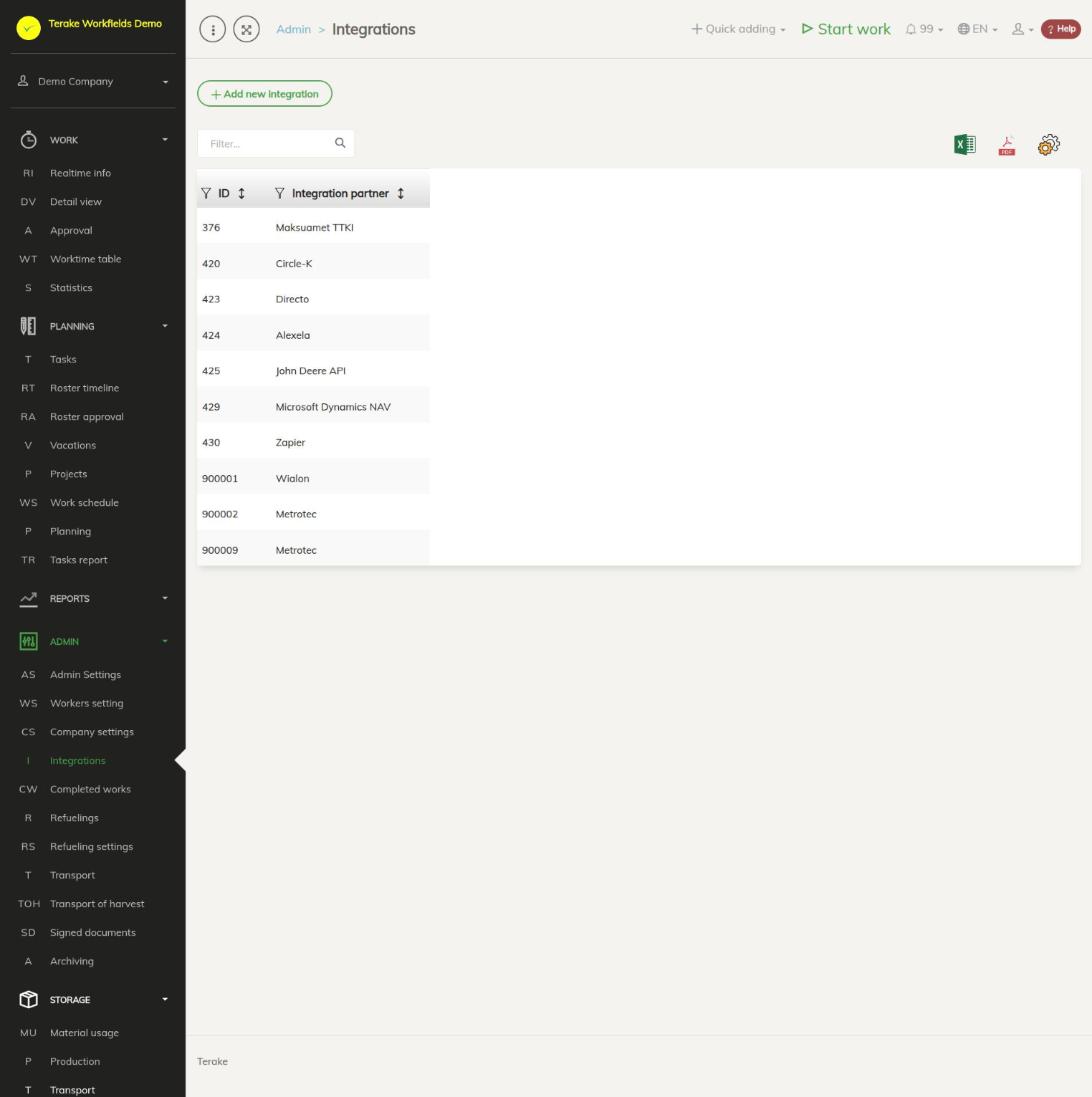
Page layout
- The “Add new integration” button opens the form for a new integration.
- The table lists the company’s integrations with the columns “ID” and “Integration partner”. There can be several integrations with the same partner, for example two different accounts.
- Above the table are a search field and buttons for downloading the table as an Excel or PDF file and for choosing columns.
- To open an integration, click its row. The “Edit integration” window opens.
How to add an integration
- Press “Add new integration”.
- Select the “Integration partner”. The fields for that partner appear on the form.
- Fill in the partner’s fields or give permission in the partner’s system, as described for the partner below.
- Press “Save” or “Save and close”.
The partner of a saved integration cannot be changed. If you need another partner, add a new integration. To remove an integration, open it and press “Delete”.
Setting up the partners
Navirec
- Select Navirec as the partner. The form has the field “Apikey” and the address for requesting the key (“Apikey obtaining URL”).
- Enter the key given by Navirec in the “Apikey” field, or enter your Navirec username and password in the lower fields of the form and press “Get key from Navirec”. The request copies the key into the “Apikey” field automatically. Terake does not save the username and password.
- Save the integration.
SkyFMS
- Select SkyFMS as the partner and press the www.skyfms.com button. The SkyFMS login page opens in a new window.
- Log in with your SkyFMS account and allow Terake to access the data. If the permission was given successfully, you see the message “All done! Please close this browser window”. Close that window.
- Save the integration in Terake.
John Deere
- Select John Deere as the partner and press the button below it with the text “Grant rights on John Deere”. The John Deere login page opens in a new window.
- Log in with your John Deere account and give Terake the rights you want.
- Save the integration in Terake.
Wialon
- Select Wialon as the partner and press “Log in to Wialon to get new Apikey”.
- In the window that opens, log in with your Wialon account and confirm the access.
- After you log in, the window closes, the integration is saved and the form shows the fields “Apikey” and “API url” and the list of Wialon machines.
Metrotec and Alexela
Enter the “Username” and “Password” given by the partner and save. With the Alexela integration, Alexela refuelings come into Terake.
Piusi B.Smart
- Log in to the Piusi B.Smart system, select “Settings” and “API”, switch on “Enable API for Export” and press “Generate”.
- Copy the values you get there into the “Client ID” and “Client Secret” fields of the Terake form and save.
With the Piusi integration, the refuelings registered in the Piusi B.Smart system come into Terake. Read about loading refuelings on the Refuelings page.
Directo
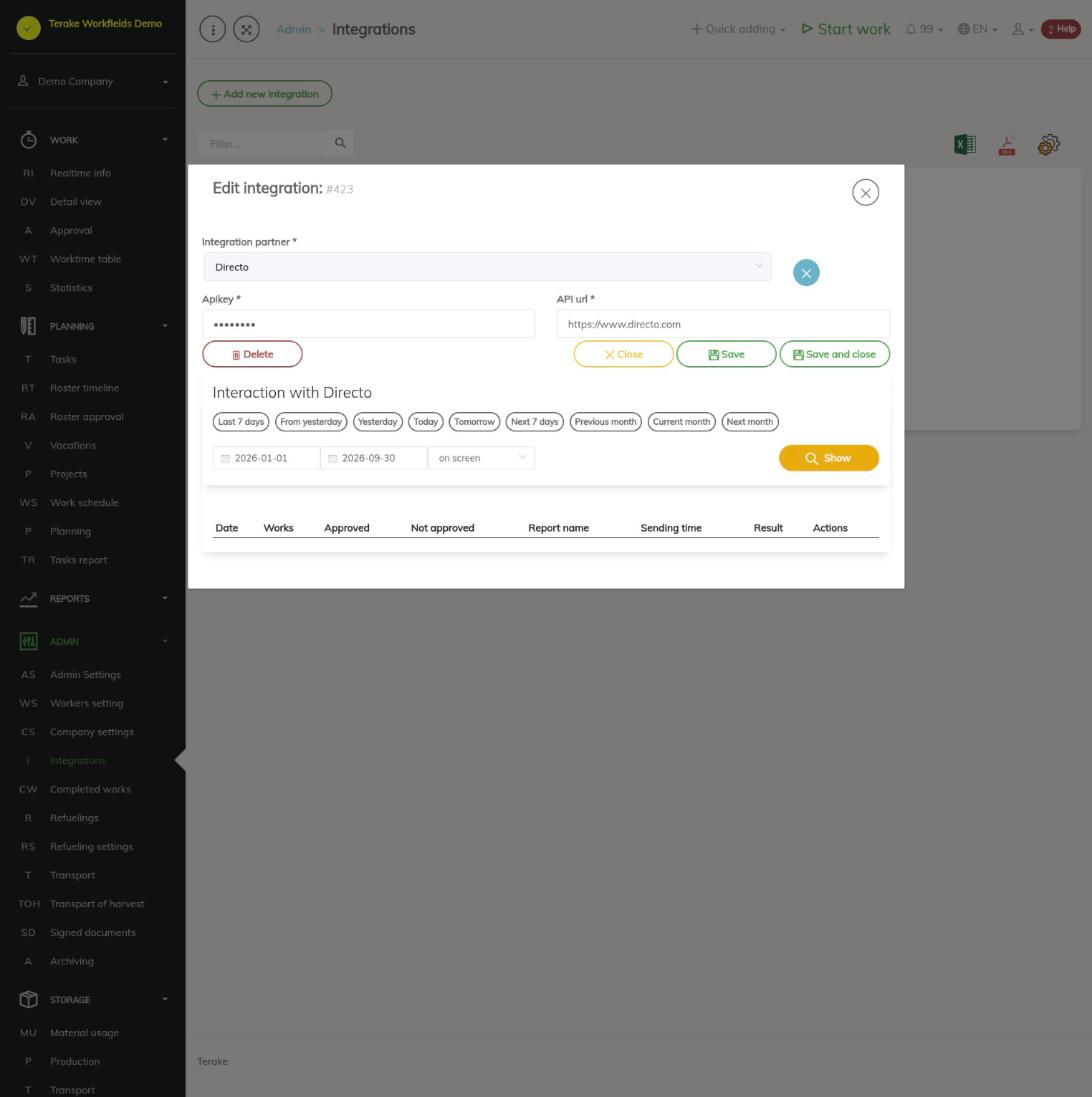
- Select Directo as the partner and enter the “Apikey” you got from Directo and the Directo address in the “API url” field.
- Save the integration.
From Directo, Terake receives workers, projects as work objects and customers, holidays and other absences into the roster, and machines. Terake sends Directo the worker hours and machine hours of confirmed works, day by day. You control the sending in the table “Interaction with Directo” at the bottom of the saved integration’s form:
- Select the period and press “Show”. For each day the table shows “Works”, “Approved”, “Not approved”, “Report name”, “Sending time” and “Result”.
- When all works of the day are confirmed, press “Send” on that day’s row. If the day has unconfirmed works, the row says “Wait workdones to be approved”: confirm them first on the Approval page.
- You can send a day that was already sent again with the “Resend” button and download the sent file with the “.xml” button. When sending succeeds, the “Result” column shows OK, otherwise Directo’s error message.
Maksuamet TTKI
The TTKI integration sends the entry and working time data of construction sites (work areas) to the employee register of the Estonian Tax and Customs Board. Requests are made on behalf of the company with the personal identification code of the administrator who first loaded the TTKI data successfully, so your worker card must have a personal identification code. Select Maksuamet TTKI as the partner and save. The form has three tabs:
- “TTKI employees”: the workers registered in TTKI. When you open the tab, the list is loaded from TTKI and missing workers are added to Terake. If a worker was not linked to the right Terake worker, press “Edit” on the row, select the worker and press “Save”. “Refresh” loads the list again.
- “TTKI workareas”: the company’s work areas in TTKI. Link each work area to a Terake work object: press “Edit”, select the “Place of work” and press “Save”. Works done on a linked work object create TTKI reports.
- “TTKI reports”: select the period and see “Record count”, “Records to be exported”, “Sending time” and “Result” for each day and work object. The “Record count” button opens the report of the day’s works, the “Records to be exported” button the sent records. Send the unsent data of a past day with the “Send” button, and data already sent again with the “Resend” button.
Other partners
For the other partners (for example Mapon, FleetComplete), enter the key given by the partner in the “Apikey” field and save.
How to check whether machines are linked
A telemetry integration brings in the machines’ locations, mileage and engine hours, and machine works are created from them. The data is linked to a Terake machine by registration number, VIN code or the field “Integration key (reg.number without spaces)”.
- Open a saved telemetry integration.
- Press “Show vehicles from specified API”.
- The table “Vehicle list from API provider” lists the partner’s machines with the columns “Source”, “Reg no.”, “Name”, “Additional”, “VIN code” and “Outer ID / ID 2”. If the same registration number or VIN code appears several times, it is red and marked “Error: duplicate”.
- Check that the Terake machines on the Machines and equipment page have the same registration numbers or VIN codes.
If the partner returns an error (for example a wrong key), the error message is shown instead of the list. Refueling, Directo and TTKI integrations have no machine list button.
Who can see and change it
The page is seen, and integrations are added, changed and deleted, by the “Administrator”. Directo and TTKI data is also sent by the administrator.
Tips
- Keep the partners’ keys and passwords only on the integration form; do not share them in e-mails or files.
- If telemetry data does not reach a machine, check in the machine list whether the registration number is the same at the partner and in Terake. Telemetry data is loaded every few minutes, see Automated processes.
- You see refuelings from integrations on the Refuelings page, and fuel balances and refueling settings on the Refueling settings page.
API calls on this page
For integrations and AI assistants: this page uses the following Terake API calls. The full description is in the API reference.
When the page opens:
GET /api/integrations– Integration collection
Adding, changing and deleting (from the API description):
DELETE /api/integrations/{id}– Delete Integration by ID or UUIDPOST /api/integrations– Create new IntegrationPUT /api/integrations/{id}– Modify Integration
Other calls from this screen’s dialogs and actions:
GET /api/facilities/data/last-enginehours– Get Facility engine hoursGET /api/facilities/data/vehiclelist/{integration_id}– API provider vehicle listGET /api/generate-token/{token_type}– Issues a one-time token for the caller. Returns the token as a bare string, not JSON.GET /api/integrations/{id}– Integration by ID or UUIDGET /api/directo-file/{integration_id}/{accounting_date}– Downloads a day's resources fileGET /api/directo-status/{integration_id}– Directo file status per dayGET /api/get-ttki-employees-list– TTKI employees of the companyGET /api/get-ttki-file-content/{file_id}– Content of a sent X-Road fileGET /api/get-ttki-workareas-list– TTKI work areas of the companyGET /api/wialon-callback/{token}– Wialon callbackGET /api/ttki-status– TTKI access log status per dayPOST /api/relate-partner-object/worker– Maps a TTKI employee to a workerPOST /api/relate-partner-object/workobject– Maps a TTKI work area to a work objectPOST /api/send-directo-file/{integration_id}/{accounting_date}– Sends a day's resources file to DirectoPOST /api/send-ttki-person-log-file/{accounting_date}/{agrifield_id}– Sends a day's TTKI access logs