“Fields on map” shows all the company’s fields on a map, coloured by crop or by PRIA applicant. PRIA is the Estonian Agricultural Registers and Information Board (shown as ARIB in the English interface), and the PRIA applicant is the person or company in whose name the field is declared. The page gives a quick overview of where a crop is grown and how many hectares it takes.
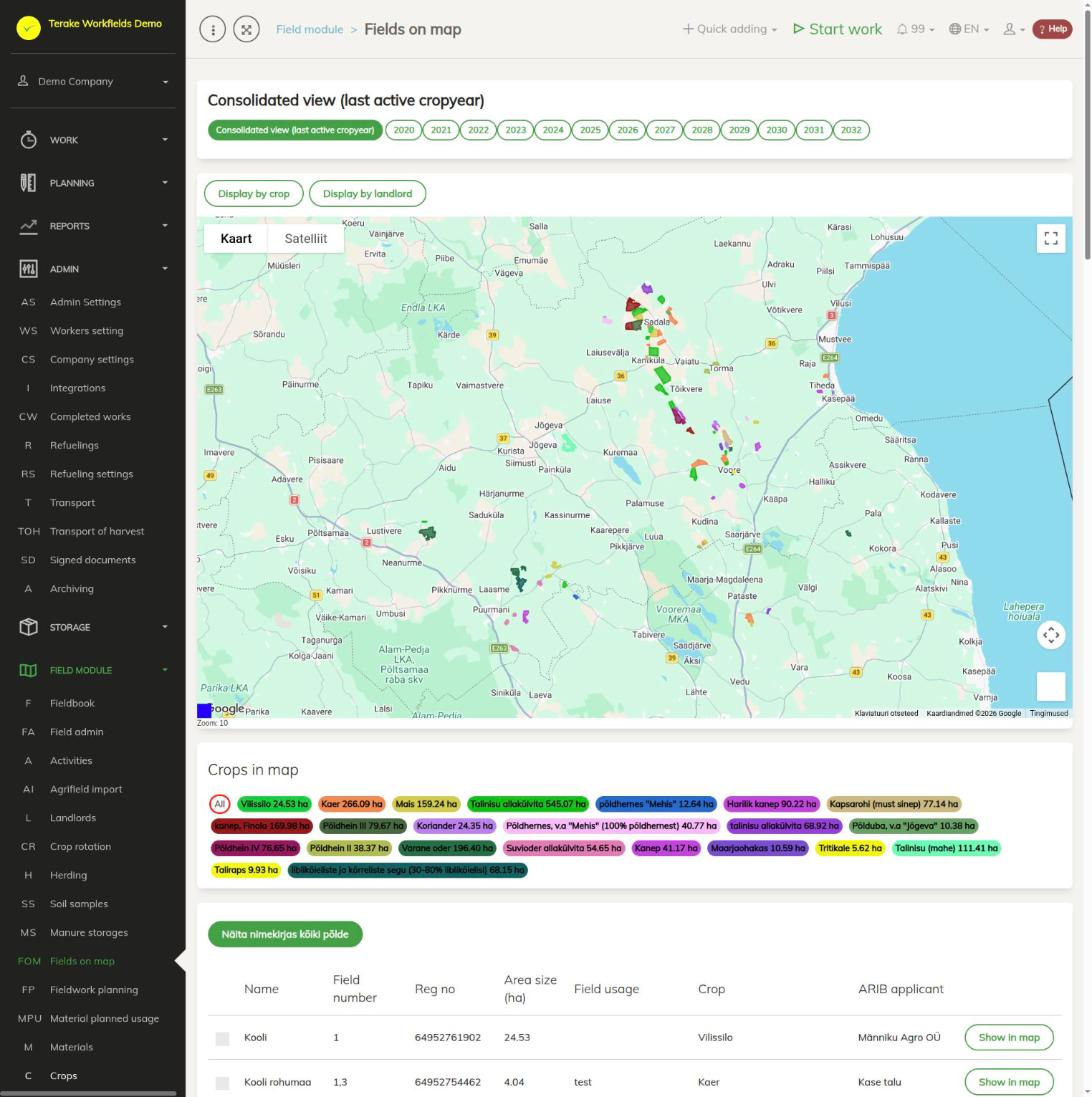
Page layout
- At the top are the crop year buttons. “Consolidated view (last active cropyear)” shows all fields with each field’s latest crop year; a year button shows the fields and crops of the selected crop year.
- The “Display colors by crop” and “Display colors by ARIB applicant” buttons switch what the fields on the map are coloured by.
- Below the map is the legend “Crops on map” or “ARIB applicants on map”: the name, colour and total hectares of each crop or applicant.
- At the bottom of the page is the table of fields: “Name”, “Field number”, “Reg no”, “Area size (ha)”, “Field usage”, “Crop” and “ARIB applicant”.
How to find the fields of a crop or applicant
- Select the crop year.
- Click a crop or applicant in the legend. Only the fields of that crop or applicant stay on the map. “All” brings back all fields.
- In the table, the button “Näita nimekirjas “…” põlde” (show “…” fields in the list) shows only the fields of the selected crop or applicant, and “Näita nimekirjas kõiki põlde” (show all fields in the list) shows all of them.
- “Show in map” on a table row zooms the map to that field.
How to open a field’s data from the map
- Click a field on the map. An info window with the field’s data opens.
- “Selected” marks the field as selected (click again for “Remove”). The table button “Näita nimekirjas valitud põlde” (show selected fields in the list) shows the selected fields.
- “Edit” opens the field’s data on the Field admin page, “Open fieldbook” opens the field’s fieldbook.
Who can see and change it
The page is visible to “Administrator”, “Observer” and “Agronomist”. The info window buttons “Edit” and “Open fieldbook” are visible only to the roles “Administrator”, “Agronomist” and “Stock management”.
Tips
- Only fields that have a shape drawn or imported for the crop year are on the map. To add a shape, see Field import or the field’s “Crop years” tab on the Field admin page.
- You can change a crop’s colour on the Crops page (“Display color”). Terake sets the colour of a PRIA applicant itself.
API calls on this page
For integrations and AI assistants: this page uses the following Terake API calls. The full description is in the API reference.
When the page opens:
GET /api/agrifield_data/{crop_period_id}– Agrifield collection
Adding, changing and deleting (from the API description):
DELETE /api/agrifield_data/{crop_period_id}/{id}– Delete Workobject
Other calls from this screen’s dialogs and actions:
GET /api/agrifield_data/{crop_period_id}/{random}– Agrifield collectionGET /api/agrifield_data– Agrifield collection