“Soil samples” is the register of soil samples from the company’s fields: sample number, date, location and analysis results (pH, N, P, K, Ca, Mg, organic carbon, soil texture and more). Samples are linked to fields by their location and are used by the fieldbook and the fertilizing plan. Samples can be entered by hand or loaded from a file.
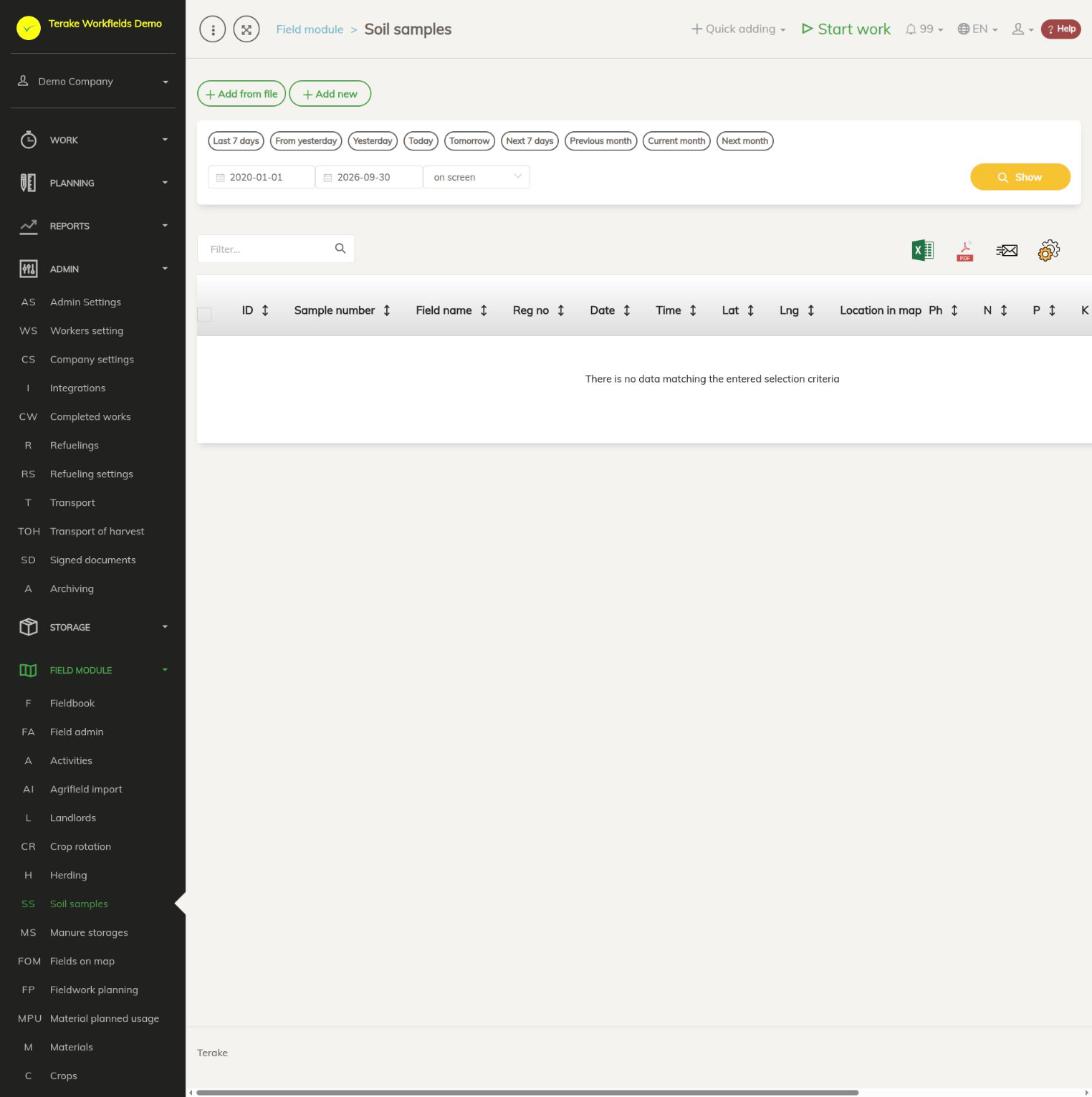
Page layout
- “Add from file” opens the window for loading soil sample shapefiles and Excel files; “Add new” opens the form for a new sample.
- Table columns: “ID”, “Sample number”, “Field name”, “Reg no”, “Date”, “Time” (the sample year), “Lat”, “Lng”, “Location in map” and the analysis results “Ph”, “N”, “P”, “K”, “Ca”, “Org.C”, “Mg” and “Soil texture”.
- At the start of each row are buttons for changing and deleting the sample. You can hide columns with the cogwheel and download the table as an Excel or PDF file.
How to add a soil sample by hand
- Press “Add new”.
- Enter “Sample number” and “Date” (required) and, if needed, “Reg no”.
- Enter the analysis results you have: “Ph”, “N”, “P”, “K”, “Org.C”, “Mg”, “Humus”, “Cu”, “Mn”, “B”, “Ca” and “Soil texture”.
- Set the sample’s location: enter “Latitude” and “Longitude”, or click the map at the sample’s location and confirm the change of location. You see the field layer on the map when you select a crop year or “Consolidated view” above the map. The location is required.
- Press “Save” or “Save and close”.
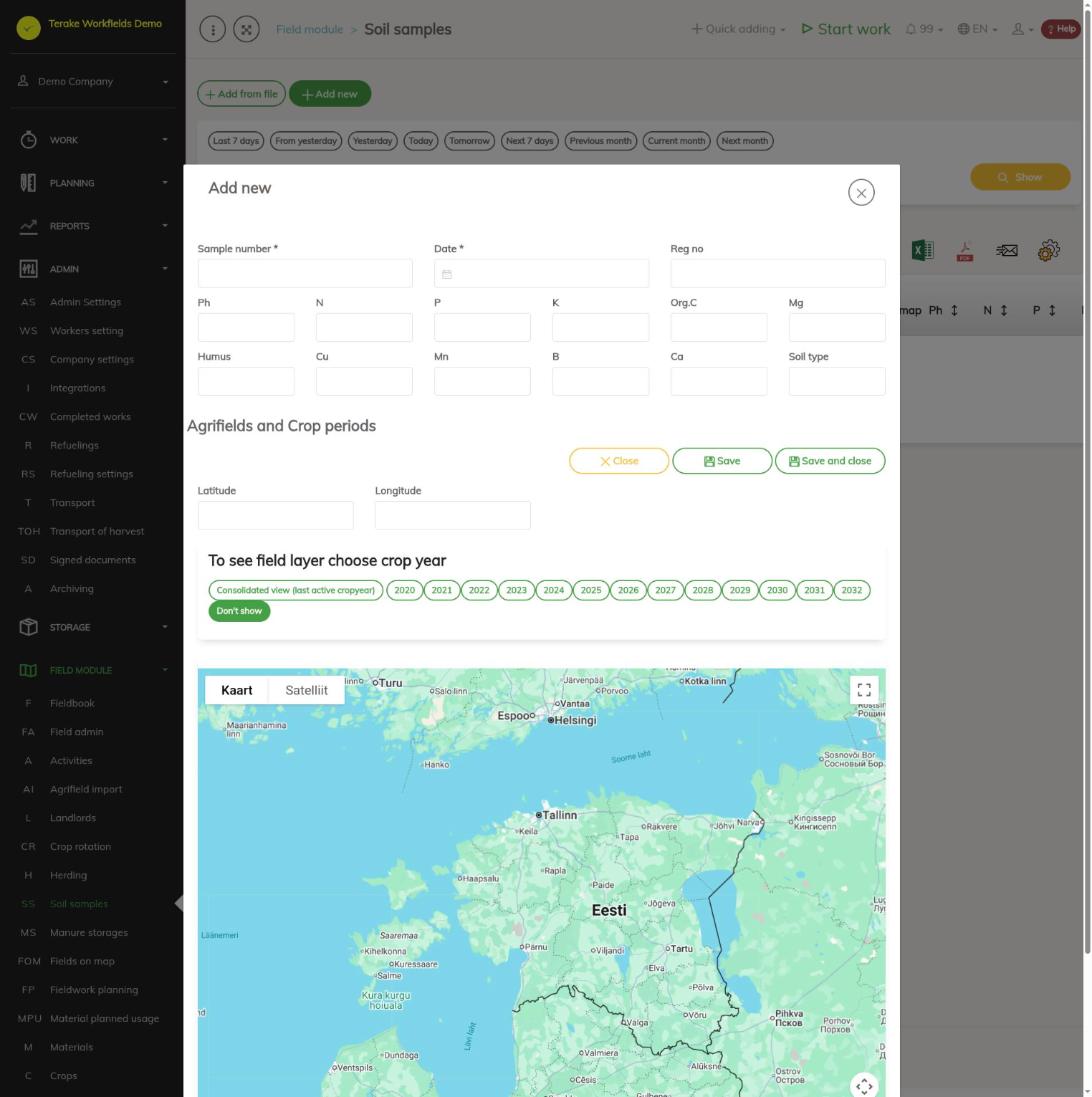
To change an existing sample, click its row in the list; the form’s “Delete” button deletes the sample.
How a sample is linked to a field
You do not select a field in the sample form. Each time a sample is saved or loaded from a file, it is automatically linked to the crop years of the fields whose boundary contains the sample’s location. The “Field name” column of the list shows the name of that field.
The linked fields and crop years are shown in the sample form in the “Agrifields and Crop periods” block. If a sample is not linked to any field, the reason is usually one of these:
- the sample has no coordinates;
- the coordinates are not within the boundary of any field;
- the field has no crop year;
- the sample is too old for the crop year.
Correct the sample’s coordinates or the field boundary (see Field admin) and save the sample again.
How to load soil samples from a file
Press “Add from file”. The window has two parts.
Shapefile
- Enter the “Year” (the current year by default). This year is given to the samples read from the file.
- Press “Uploadable shapefile” and select a .zip file containing a shapefile with the soil sample points.
- Press “Upload to server”.
If the company already has a sample with the same number and year, its data is updated; otherwise a new sample is added with the coordinates from the file.
Excel file
- Download the structure of the Excel file: soil sample Excel template (the column headings are in Estonian).
- Fill in the file. The first three columns (sample number, block, year) are required; fill in the others as far as you have data. If the date is missing, the sample gets 1 January of the year as its date.
- Press “Excel file for upload”, select the file and press “Upload to server” under that part.
The heading of the first cell of the Excel file must be “Proovi nr” or “Proovi number” (sample number, in Estonian), otherwise the file is not read. The sample number must be a positive number. If the company already has a sample with the same number, its data is updated; empty cells leave the existing values unchanged. Up to 499 rows are read from one file. For an Excel file the window’s “Year” field is not used: the year comes from the file.
Who can see and change it
The page is visible to “Administrator”, “Observer” and “Agronomist”. “Administrator” and “Agronomist” can change and delete soil samples. “Observer” sees the list read-only.
Tips
- A field’s soil samples and their averages are in the field’s fieldbook on the “Soil samples” tab, and the sample locations are on the field’s map.
- From the soil samples’ average organic carbon, the fertilizing plan suggests the nitrogen need level (see Fieldbook).
- The number of soil samples per field is shown in the “Soil samples count” column of the fieldbook and of Field admin.
API calls on this page
For integrations and AI assistants: this page uses the following Terake API calls. The full description is in the API reference.
When the page opens:
GET /api/soilsamples– SoilSample collection
Adding, changing and deleting (from the API description):
DELETE /api/soilsamples/{id}– Delete SoilSamplePOST /api/soilsamples– Create SoilSamplePUT /api/soilsamples/{id}– Modify SoilSample
Other calls from this screen’s dialogs and actions:
GET /api/soilsamples/{id}– Get SoilSamplePOST /api/soilsamples/upload/shp/{year}– Imports SoilSamples from an uploaded shapefilePOST /api/soilsamples/upload/xls/{year}– Imports SoilSamples from an uploaded spreadsheet