“Crop rotation” shows each field’s crops by crop year in one table. Here you set a field’s crop, variety, field usage and PRIA applicant for a crop year, for one field or for several fields at once. PRIA is the Estonian Agricultural Registers and Information Board (shown as ARIB in the English interface); the PRIA applicant is the person or company in whose name the field is declared to PRIA.
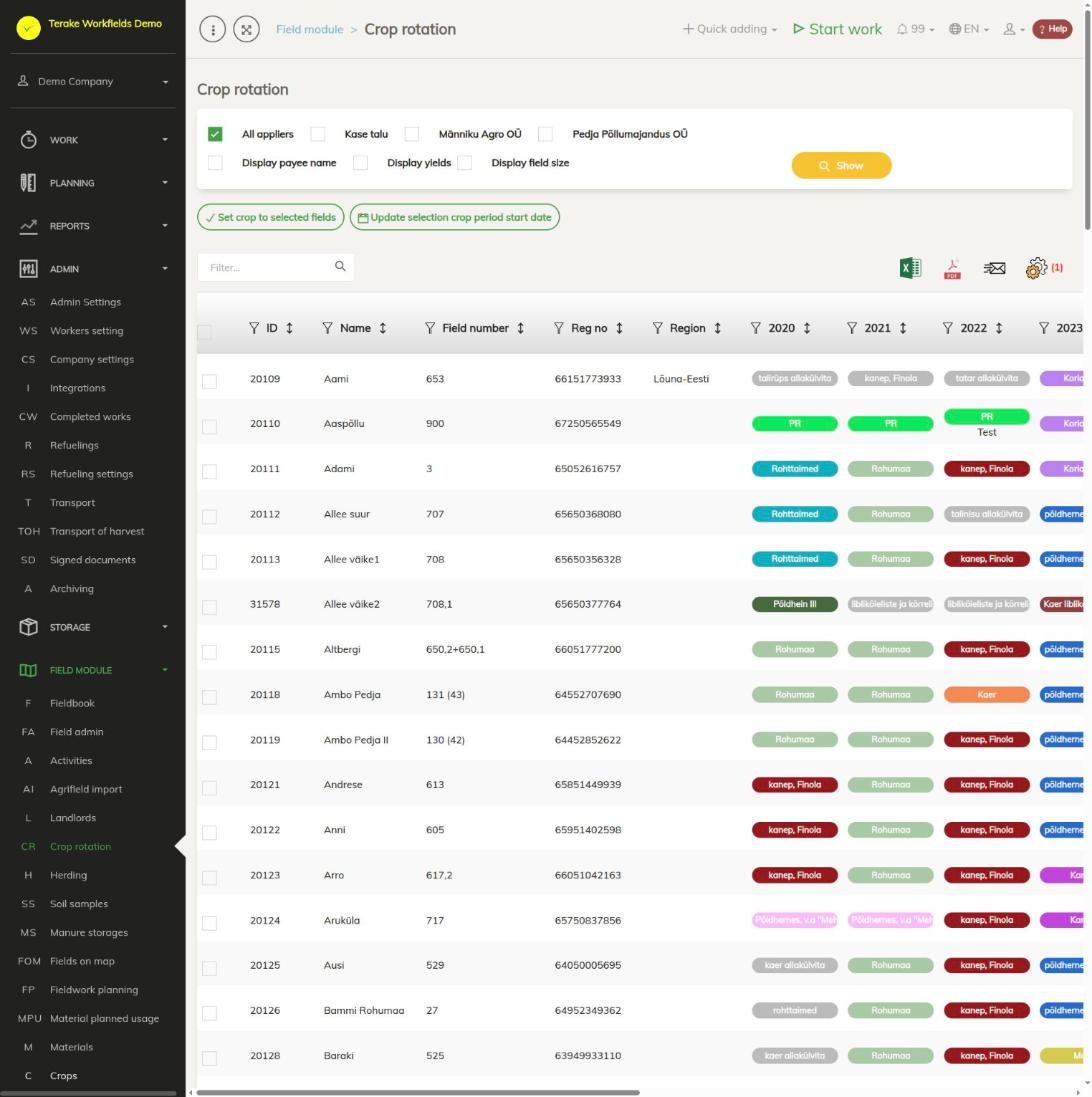
Page layout
- In the top box, select the PRIA applicants whose fields to show (“All applicants” or specific applicants) and tick, if needed, “Display payee name”, “Display yields” and “Display field size”. Press “Show”.
- The table shows the field’s “ID”, “Name”, “Field number”, “Reg no” and “Region”, and a column for each crop year with that year’s crop. An empty cell shows “+”.
- Below the table is the summary “Sowing area (ha)”: the area of each crop by crop year and in total.
- With the “set view” button (the cogwheel above the table) you can switch crop year columns off.
How to set the crop year data of one field
- Click the cell of the crop year you want on the field’s row (“+” for an empty cell).
- In the form that opens, fill in “Crop year start”, “ARIB applicant”, “Field usage”, “Crop”, “Variety”, “Crop purpose” and, if needed, “Additional”. If the field was imported from e-PRIA, you also see the crop name read from PRIA next to the crop.
- Press “Save and close”. The “Delete” button removes the crop year data.
How to set a crop for several fields at once
- Tick the fields the data applies to in the first column of the table.
- Press “Set crop to selected fields”. The form heading shows how many fields the setting is added to at once.
- Select “Crop year”, “ARIB applicant”, “Field usage”, “Crop”, “Variety” and “Crop purpose” and press “Save and close”.
How to change the crop year start of several fields
- Tick the fields.
- Press “Update selection crop period start date”, select “Crop year” and “Crop year start”.
- Press “Save and close”.
Who can see and change it
The page is visible to “Administrator”, “Observer” and “Agronomist”. “Administrator”, “Agronomist” and “Stock management” can change crop year data; “Observer” sees the data read-only.
Tips
- A fertilizing plan can only be made for a field in a crop year that has a crop set here (see Fieldbook).
- The list of crops is managed on the Crops page, the applicants on the ARIB applicants page.
- You can download the table as an Excel or PDF file with the buttons above it.
API calls on this page
For integrations and AI assistants: this page uses the following Terake API calls. The full description is in the API reference.
When the page opens:
GET /api/cropstats– Get crop statisticsGET /api/croprotation– Crop rotation
Adding, changing and deleting (from the API description):
DELETE /api/croprotation/{agrifield_data_id}– Deletes the crop rotation entry of an Agrifield data record
Other calls from this screen’s dialogs and actions:
GET /api/costaccounts/{id}– CostAccount by ID or UUIDPUT /api/croprotation/set/{agrifield_id}/{crop_period_id}– Writes the crop rotation entry of an Agrifield for one or more crop periods