On the “Activities” page you see the work done on the fields in the selected period, field by field, add material usage and production to it, and send the work to the e-PRIA fieldbook. PRIA (the Estonian Agricultural Registers and Information Board) runs e-PRIA; in the English interface PRIA is shown as ARIB. The “e-PRIA works import” view brings activities already in e-PRIA into Terake.
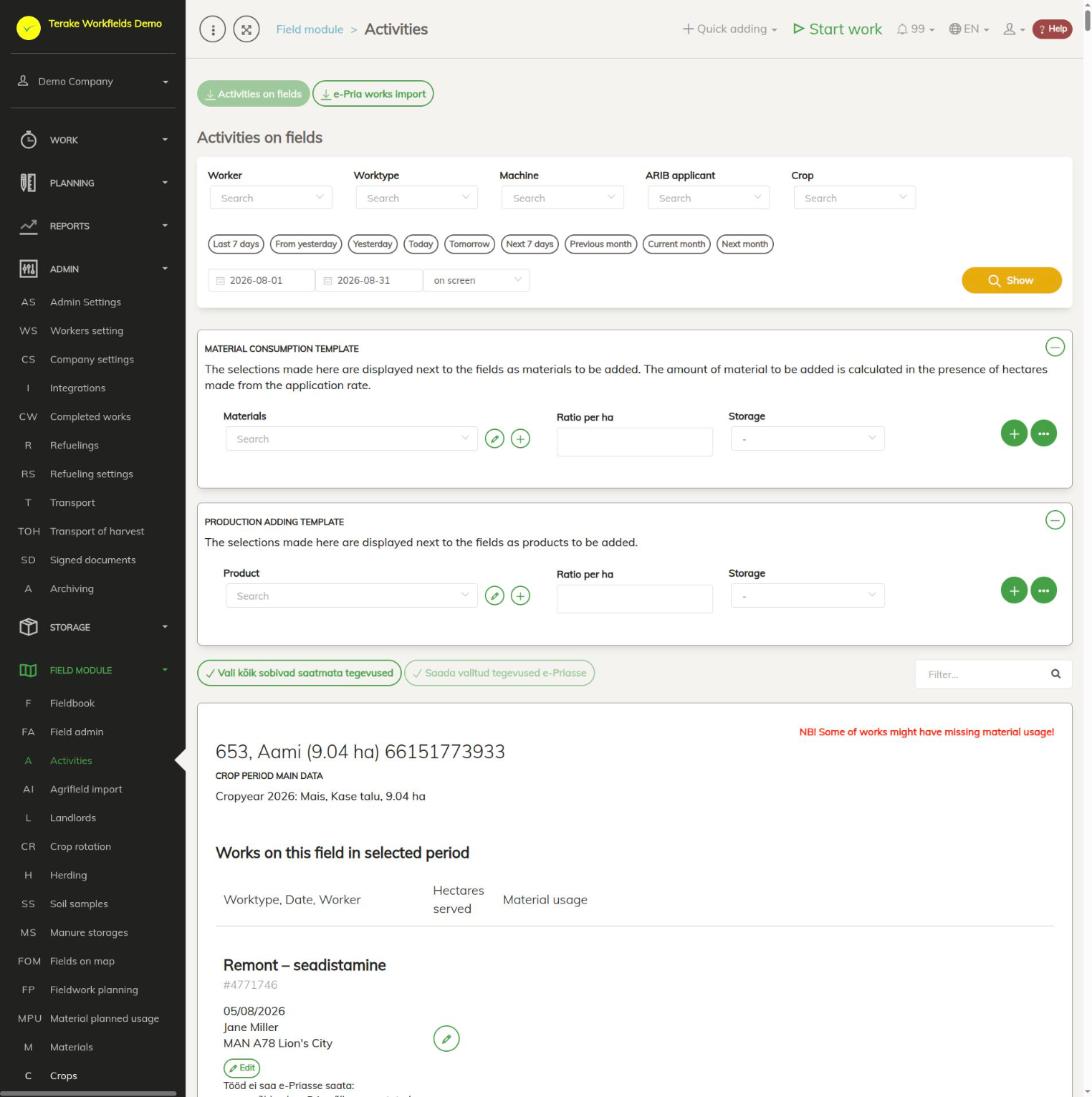
Page layout
- The “Activities on fields” and “e-PRIA works import” buttons switch the view.
- Filters: “Worker”, “Worktype”, “Machine”, “ARIB applicant”, “Crop” and the period. Press “Show”.
- “Material consumption template” and “Production adding template”: the materials or products you want to add to several works, with an application rate (“Ratio per ha”) and a storage (“Storage”).
- Each field has a card: the field name, “Crop year main data” (crop year, crop, PRIA applicant, area) and the table “Works on this field in selected period”. If material usage seems to be missing for some work, the card shows the warning “NB! Some works are probably missing material usage!”.
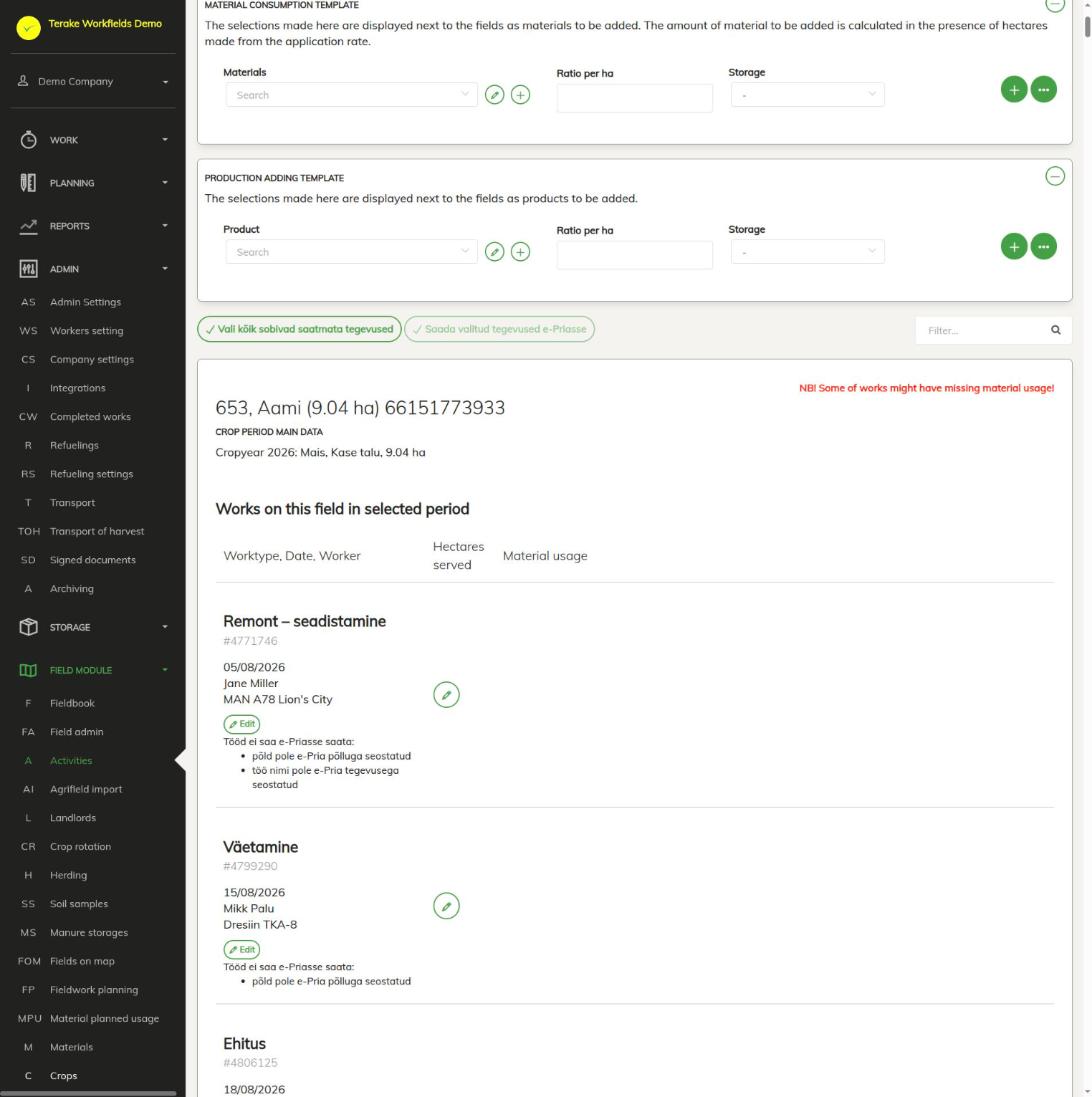
How to add materials to works with a template
- Select the period and filters and press “Show”.
- Under “Material consumption template”, select a material, enter “Ratio per ha”, select a storage if needed and press “+”. For production, do the same under “Production adding template”.
- Each work gets a table “Add material usage (according to template above)” or “Add production (according to template above)”. The quantity is calculated as hectares served × rate; if the work has no hectares served, as field area × rate.
- Press “Save” next to the work to add the material to it.
You change or delete a work’s existing material usage with the pencil and bin buttons on the row, and the hectares served with the pencil in the “Hectares served” column. The “Edit” button opens the full work form. For a monitoring work, add the result with the “Add monitoring result” button.
How to send work to e-PRIA
- Make sure the fields are linked to e-PRIA fields. To do this, import the fields from e-PRIA on the Field import page; this is also needed when a field’s shape or number has changed.
- Make sure the worktype is linked to an e-PRIA activity: on the Worktypes page, select a suitable activity in the “Pria activity” field. This way several worktypes can match one PRIA activity (for example several different ploughing or fertilizing works), each with its own price and other properties.
- Select the period and press “Show”. Each work has a “Saada e-Priasse” (send to e-PRIA) button (“Saada uuesti” (send again) for work already sent) and the sending time “E-Priaga sünk” (synced with e-PRIA).
- Send one work with its button, or tick several works (“Vali hulgi saatmiseks” (select for bulk sending); all at once with “Vali kõik sobivad saatmata tegevused” (select all eligible unsent activities)) and press “Saada valitud tegevused e-Priasse” (send selected activities to e-PRIA).
- If PRIA or Terake does not accept the work, you see an error message under the work. Correct the data and send it again.
If a work cannot be sent, the page shows the reason next to it, for example “põld pole e-Pria põlluga seostatud” (field is not linked to an e-PRIA field), “töö nimi pole e-Pria tegevusega seostatud” (worktype is not linked to an e-PRIA activity), “Seire tööl puudub tulem” (monitoring work has no result) or “Saagi koristusel puudub toodang” (harvest has no production). When sending, it is also checked that:
- the field has crop year data for the work’s crop year and a PRIA applicant who exists in e-PRIA;
- the start and end of the work fall within the range allowed for the crop year (from 1 July of the previous year to 9 February of the following year);
- the unit of a plant protection product is g, kg, ml or l and the product is linked to the plant protection products register;
- for seed, a crop and a certificate are selected and the unit is kg, tonne or pcs;
- the unit of the harvested crop is tonne and the crop details (crop type, harvest type) are filled in.
Data is exchanged with e-PRIA using your personal identification code. The code must be entered in your worker data and confirmed by Terake; to have it confirmed, write to support@terake.com.
How to bring activities in from e-PRIA
- Press “e-PRIA works import”.
- Select “Crop year” and “ARIB applicant” and press “Tegevuste laadimine e-Priast ja kontroll” (load and check activities from e-PRIA).
- The page shows, field by field, the activities saved in e-PRIA and whether they exist in Terake. Import a single activity with the “Impordi” (import) button, or tick several and press “Impordi valitud tegevused e-Priast Terakesse” (import selected activities from e-PRIA into Terake).
An imported activity becomes a confirmed work in Terake; if needed, a matching worktype and materials are created as well.
Who can see and change it
The page is visible to “Administrator”, “Observer” and “Agronomist”.
Tips
- The works and materials of one field are also in the field’s fieldbook.
- You send yields to e-PRIA on the Field admin page.
API calls on this page
For integrations and AI assistants: this page uses the following Terake API calls. The full description is in the API reference.
When the page opens:
GET /api/agrifieldworkandmaterialusage– Work performed on Agrifields, with the material used on each
Other calls from this screen’s dialogs and actions:
DELETE /api/materialusages/{usageid}– Deletes a material usage of a WorkdoneGET /api/priapayees-import– PriaPayees held in e-PRIAGET /api/workdones/{id}– Workdone by ID or UUIDGET /api/load-pria-activities/{crop_period_id}/{pria_payee_uuid}/{pria_agrifield_uuid}– Activities held in e-PRIA for a crop period, payee and fieldPOST /api/pria-import/fields/{crop_period_id}– Import Agrifields from e-PriaPOST /api/import-pria-activities– Imports an e-PRIA activity as a WorkdonePOST /api/pria-activities/{workdone_id}– Send Activity to e-PriaPUT /api/add-agrifieldworkandmaterialusage– Adds material usage to a Workdone performed on an Agrifield