On the “Admin” page of the maintenance module you describe the maintenance schedules, service intervals and maintenance tasks. A maintenance schedule consists of intervals and tasks: a car and a crane usually have different schedules, but one schedule is enough for machines of the same type. It pays to describe the intervals and tasks following the manufacturer’s manual. The page is used by the person responsible for maintenance before planning maintenance.
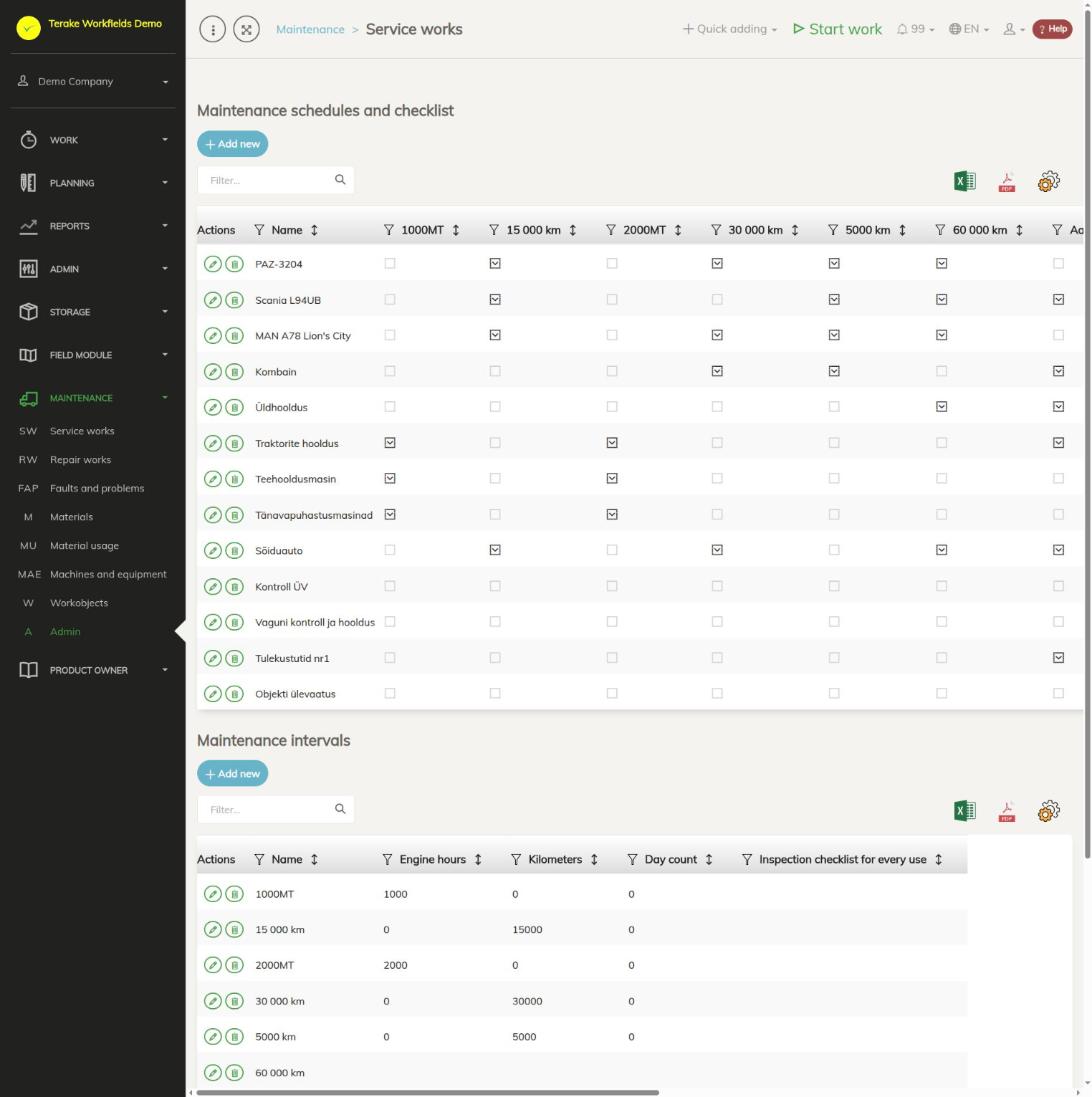
Page layout
- “Maintenance schedules and checklist”: the button “Add new” and the table of schedules. The “Actions” column has a pencil (the schedule’s name and tasks) and a bin (delete), the “Name” column the schedule’s name. The table has a column for each service interval: a tick shows that the interval belongs to the schedule.
- “Maintenance intervals”: the button “Add new” and the table of intervals with the columns “Name”, “Engine hours”, “Kilometers”, “Day count” and “Inspection checklist for every use”.
- Schedule view (opens with the schedule’s pencil): the schedule’s name, the button “Add new check” and the table “Checklist” with the columns “ID”, “Maintained part”, “Maintenance content”, “Comment” and a column for each interval of the schedule. The button “Back” takes you back to the schedules.
How to add a service interval
- Press “Add new” below the block “Maintenance intervals”.
- Enter the “Name” (required), for example “15,000 km” or “Annual”.
- In the block “Service interval”, give the length of the interval in the fields “Engine hours”, “Kilometers” and “Day count”, also several at once, for example 365 days or 15,000 km.
- In the block “Notification”, enter for the same measures the value after which a warning is sent that the maintenance is coming up.
- Press “Save and close”.
The notification value shows after how many engine hours, kilometres or days from the previous maintenance the warning is sent: with an interval of 15,000 km and a notification of 14,000 km, the warning comes when less than 1000 km are left until the maintenance. The warning is sent only for machines and only for a measure that has both the interval and the notification filled in. Change an interval with the pencil and delete it with the bin.
How to add a maintenance schedule
- Press “Add new” below the block “Maintenance schedules and checklist”.
- Enter the “Name” (required), for example “Tractor maintenance”, and press “Save”.
- Press “Back”. In the table of schedules, click the cell of each interval that belongs to the schedule; another click removes the interval from the schedule.
How to describe the schedule’s tasks
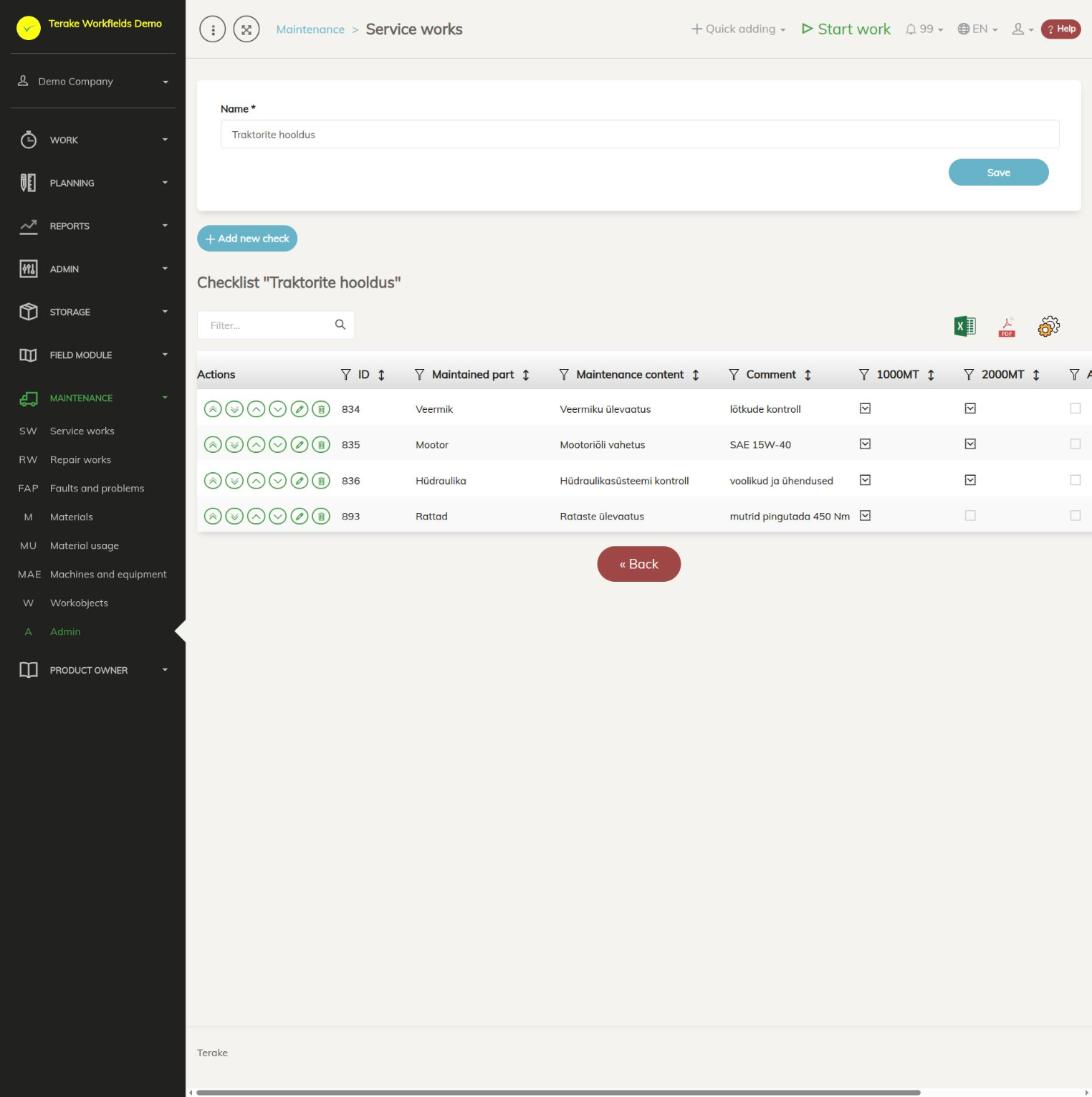
- Open the schedule with the pencil.
- Press “Add new check”, enter “Maintained part” and “Maintenance content” (required) and, if needed, a “Comment”, for example “Engine”, “Engine oil change” and “SAE 15W-40”. Press “Save and close”.
- In the table of tasks, click the cell of each interval whose maintenance the task belongs to. For example, an oil change can belong to both the 1000 and the 2000 engine hour maintenance.
- Change the order with the arrow buttons (first, last, up, down). The tasks appear in this order in the view for carrying out the maintenance too.
- Change a task with the pencil and delete it with the bin. Finally press “Back”.
How the schedules are used
Once the schedules are described, set them for machines and work objects and plan maintenance on the page Service works. When planning a maintenance, the schedule and interval are selected and the maintenance gets the tasks of that interval.
If a task is the replace task of a machine part, it starts that part’s lifespan again; if it is the part’s check or measure task, the part’s measured wear is entered during the maintenance (see Machines and equipment).
Who can see and change it
- The page is in the “Maintenance” menu, shown to employees with the role “Vehicle service”.
- The roles “Administrator” and “Vehicle service” can add and change schedules, intervals and tasks.
Tips
- Describe the intervals before the schedules: the tables of schedules and tasks only have columns for intervals that exist.
API calls on this page
For integrations and AI assistants: this page uses the following Terake API calls. The full description is in the API reference.
When the page opens:
GET /api/inspection-type– Inspection types (maintenance intervals) of the companyGET /api/inspection-template– InspectionTemplate collection
Adding, changing and deleting (from the API description):
DELETE /api/inspection-type/{id}– Deletes InspectionType by ID or UUIDPOST /api/inspection-template/{inspection_m_template_id}/inspection-task– Creates or modifies an inspection task of a master templatePOST /api/inspection-type– Creates or modifies an inspection typePUT /api/inspection-type/{id}
Other calls from this screen’s dialogs and actions:
DELETE /api/inspection-master-template/{id}– Deletes InspectionMasterTemplate by ID or UUIDDELETE /api/inspection-task/{id}– Deletes an inspection task and bumps the timestamp of its master templateGET /api/inspection-master-template/{id}– Returns one InspectionMasterTemplate by id or uuidGET /api/inspection-task/{id}– Returns one InspectionTask by id or uuidGET /api/inspection_task/{id}– Returns one InspectionTask by id or uuidGET /api/inspection-task-matrix-y/{id}– Inspection tasks forming the Y axis of the cross matrix for one InspectionMasterTemplateGET /api/inspection-template/{id}– InspectionTemplate by ID or UUIDGET /api/inspection-template/{inspection_template_id}/inspection-task– Inspection templates (X-axis) for master template with cross matrixGET /api/inspection-type/{id}– Returns one InspectionType, the maintenance interval definition, by id or uuidPOST /api/inspection-master-template– Creates or modifies an inspection master templatePUT /api/inspection-master-template/{id}PUT /api/inspection-task/{id}/move/{direction}– Moves an inspection task up, down, first or last in the list order