“Field admin” is the company’s register of fields: here you add and change fields, manage their crop years and their shape on the map, and carry out actions on several fields at once (yields, sending to PRIA (the Estonian Agricultural Registers and Information Board), adding works, fieldwork plan, export). In the English interface PRIA is shown as ARIB.
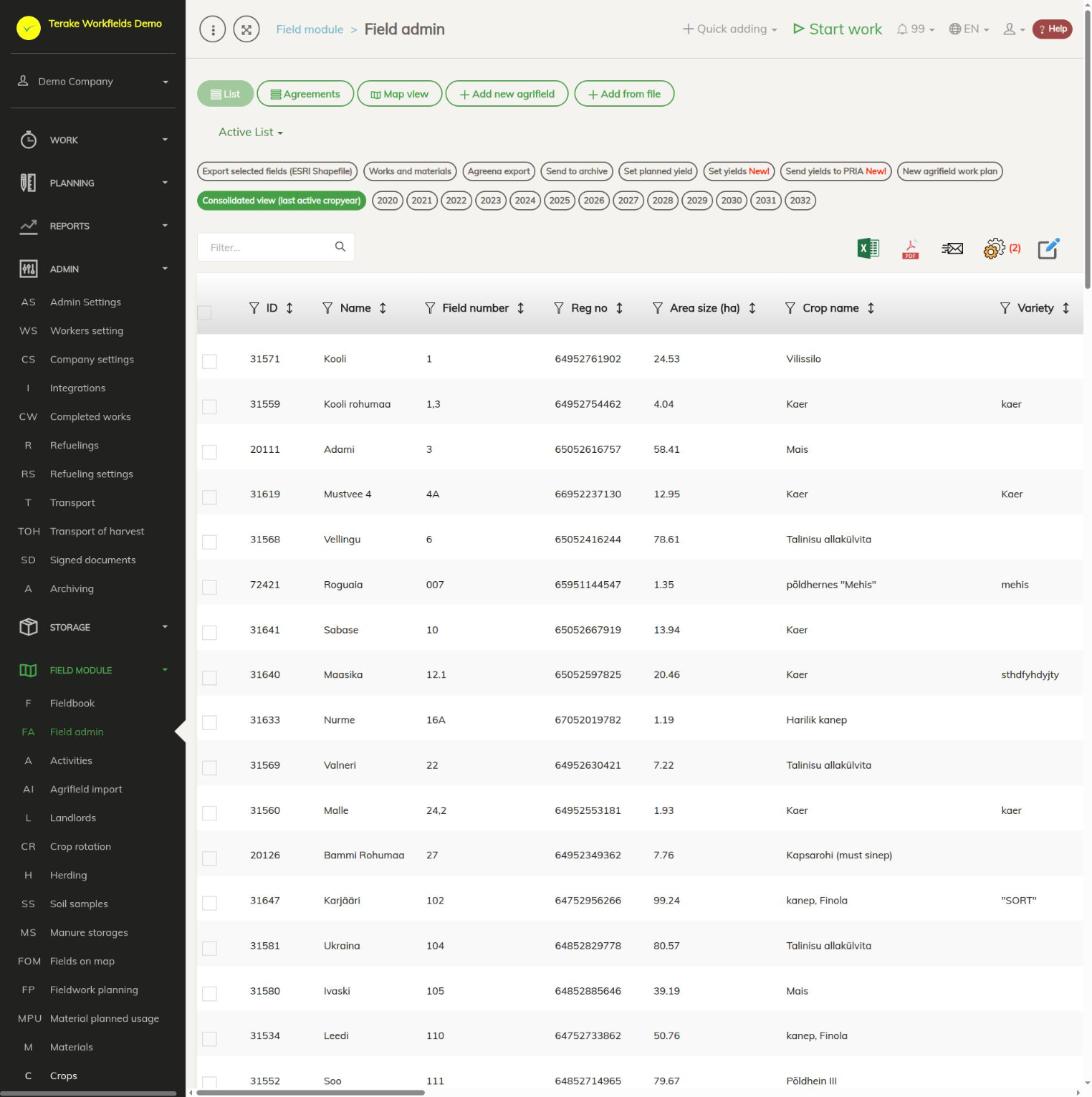
Page layout
- Views: “List” (table of fields), “Agreements” (agreements for fields and cadastres) and “Map view” (fields on the map with the list of fields beside it).
- “Add new agrifield” opens the form for a new field; “Add from file” imports fields from an Excel file.
- Crop year buttons: “Consolidated view (last active cropyear)” or a specific crop year. To use the yield and fieldwork plan buttons, a specific crop year must be selected.
- The table columns include “Area size (ha)”, “Crop”, “Variety”, “Region”, “Pria link”, “ARIB applicant”, “Current crop year”, “Is water protect. area”, “Water prot. area (ha)”, “Planned yield (t/ha)”, “Actual yield (t/ha)”, “Time of yield sending” and “Soil samples count”. You can hide columns with the cogwheel (“set view”).
How to add or change a field
- Press “Add new agrifield” or click an existing field.
- On the “Main data” tab, fill in “Workobject name”, “Reg no”, “Field number” and, if needed, “Cadastre number”, “Region”, “Customer”, “Outer ID / ID 2” and so on. Press “Save”.
- After saving, the “Crop years” tab appears. It holds the field’s crop years (crop year start, area, field usage, crop, variety, PRIA applicant). “Add new crop year” adds a year, “Copy” makes a copy of an existing one, and “Edit geometry” and “Edit simplified geometry” let you draw or correct the field boundary on the map. If the field has a block number, “Import field block geometry from ARIB public data” brings the block’s shape from PRIA.
- Tick “Do not show in fieldbook” if the field must not be shown in the fieldbook, and “Archived” if the field is no longer in use.
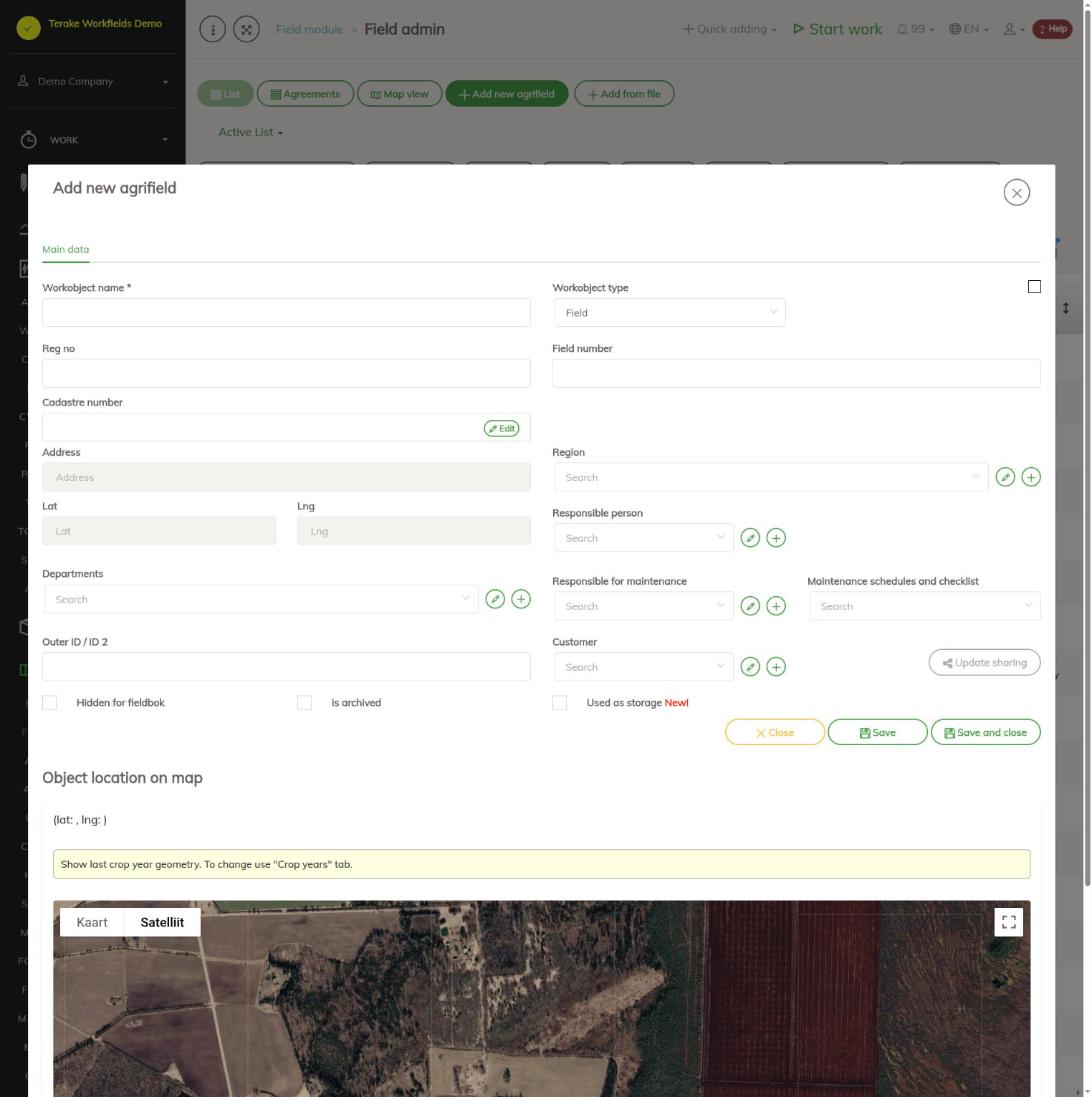
The field form also has the tabs “Agreements”, “Completed work”, “Tasks”, “Files” and “Log”.
How to carry out actions on several fields at once
Tick the fields in the table and press the button you need:
- “Export selected fields (ESRI Shapefile)”: the field shapes as a file; when the file is ready, press “Download file”.
- “Works and materials”: opens the form “Töö ja materjali lisamine valitud põldudele” (add work and materials to the selected fields). Select the work data and materials and press “Salvesta põldudele” (save to fields); each selected field gets its own work.
- “Agreena export”: downloads a CSV file with the fields’ names, areas and coordinates.
- “Set planned yield” and “Set yields”: enter the yield of the selected crop year for the ticked fields.
- “Send yields to PRIA”: shows the ticked fields’ crop, “ARIB crop”, planned and actual yield. Press “Send yields to PRIA” in the form; the “Result” column shows “OK” or the PRIA error message for each field.
- “New agrifield work plan”: creates a fieldwork plan for the selected crop year with the ticked fields and opens the planning calendar (see Fieldwork planning).
Sending yields to e-PRIA
- The field must be linked to an e-PRIA field; if there is no link, the form shows “Pria seos puudub” (no PRIA link).
- The field’s crop must have a “ARIB crop” set (see Crops); otherwise the form shows “Pria kultuur puudub” (PRIA crop missing).
- A yield must be entered for the crop year.
- The sender must have a personal identification code confirmed by Terake. To have it confirmed, write to support@terake.com.
Who can see and change it
The page is visible to “Administrator”, “Observer” and “Agronomist”. “Administrator”, “Agronomist” and “Stock management” can add and change fields; “Observer” sees the data read-only.
Tips
- When you import fields from e-PRIA or from a shapefile, a link to the e-PRIA field is also created, see Field import.
- You set crops for several fields at once on the Crop rotation page.
API calls on this page
For integrations and AI assistants: this page uses the following Terake API calls. The full description is in the API reference.
When the page opens:
GET /api/agrifield_data/{crop_period_id}– Agrifield collection
Adding, changing and deleting (from the API description):
DELETE /api/agrifield_data/{crop_period_id}/{id}– Delete Workobject
Other calls from this screen’s dialogs and actions:
DELETE /api/agreements/{id}– Delete Agreement by ID or UUIDDELETE /api/agreements/{agreement_id}/agreement_object/{agreement_object_uuid}– Removes an agreement objectDELETE /api/agrifields/{id}– Delete WorkobjectDELETE /api/inspections/workobject/{id}– Delete InspectionCase by ID or UUIDDELETE /api/workobjects/cadastres/{workobject_id}/{cadastre_id}– Removes a Workobject from a CadastreDELETE /api/workobjects/{id}– Delete WorkobjectDELETE /api/workobjects/{id}/files/{uuid}– Delete fileGET /api/agreements/agrifield– Agreements collectionGET /api/agreements/{id}– Agreement by ID or UUIDGET /api/agrifield_data/{crop_period_id}/{random}– Agrifield collectionGET /api/agrifield_data– Agrifield collectionGET /api/agrifield/pria/massive/{massiveid}– Returns Pria MassiveGET /api/agrifields/{id}– Get WorkobjectGET /api/agrifields– Agrifield collectionGET /api/agrifield-multiworks– Work of several Agrifields around a dateGET /api/cadastres/{id}– Get CadastreGET /api/faults/workobject/{faultitem_consumer_id}– Faultitem collection of one work objectGET /api/faults/workobject– Faultitem collection of work objectsGET /api/fieldbook– Fieldbook Agrifield collectionGET /api/fieldsshapefile– Fields as a shapefileGET /api/geoinfo/cadaster/{num}– Cadastral register information for one cadastre numberGET /api/geometry/agrifielddata/{id}– Geometry of one agrifield_data record.GET /api/inspections– InspectionCase collectionGET /api/inspections/workobject/{consumer_id}– InspectionCase collection of one work objectGET /api/inspections/workobject– InspectionCase collectionGET /api/fieldbook/overlapping-check/{agrifield_id}/{crop_period_id}– Reports fieldbook entries whose geometry overlaps for one Agrifield and crop periodGET /api/workobjects– All Workobjects listPOST /api/agreements– Create new AgreementPOST /api/agrifieldplannedyield/{crop_period_id}– Sets the planned yield on the listed Agrifields for the crop periodPOST /api/agrifield-multiworks– Creates work for several Agrifields at oncePOST /api/agrifields– Creates or modifies a WorkobjectPOST /api/agrifieldyield/{crop_period_id}– Saves the harvested yield on the listed Agrifields for the crop periodPOST /api/pria-send-yields/{crop_period_id}– Sends the yields of the crop period to e-PRIAPOST /api/workobjects/cadastres/{workobject_id}/{cadastre_id}– Add Cadastre to WorkobjectPOST /api/workobjects– Creates or modifies a WorkobjectPUT /api/agreements/{id}– Modify AgreementPUT /api/agreements/{id}/togglearchive– Toggle Archive/Un-archive AgreementPUT /api/agrifields/{id}– Modifies a WorkobjectPUT /api/agrifields/{id}/setcropperiod– Sets the Agrifield data for a crop periodPUT /api/agrifieldworks/{id}/agrifieldsoperation/{action}– Add, exclude or clear one field in a planned job's selectionPUT /api/agrifieldworks/{id}/joinagrifield/{agrifieldid}– Add one field to a planned jobPUT /api/agrifieldworks/set/{id}/agrifields– Add fields to, or exclude them from, a planned jobPUT /api/crops/merge/{mergerId}– Merge cropsPUT /api/geometry/agrifielddata/{id}– Stores the geometry of an Agrifield data recordPUT /api/workobjects/{id}– Modifies a Workobject