“Period comparison” compares work hours, engine hours and kilometres driven by month: each selected month is a separate column in the table. With the report you can see, for example, how the workload of a work, machine or cost center has changed from month to month or from year to year. Only approved works are counted.
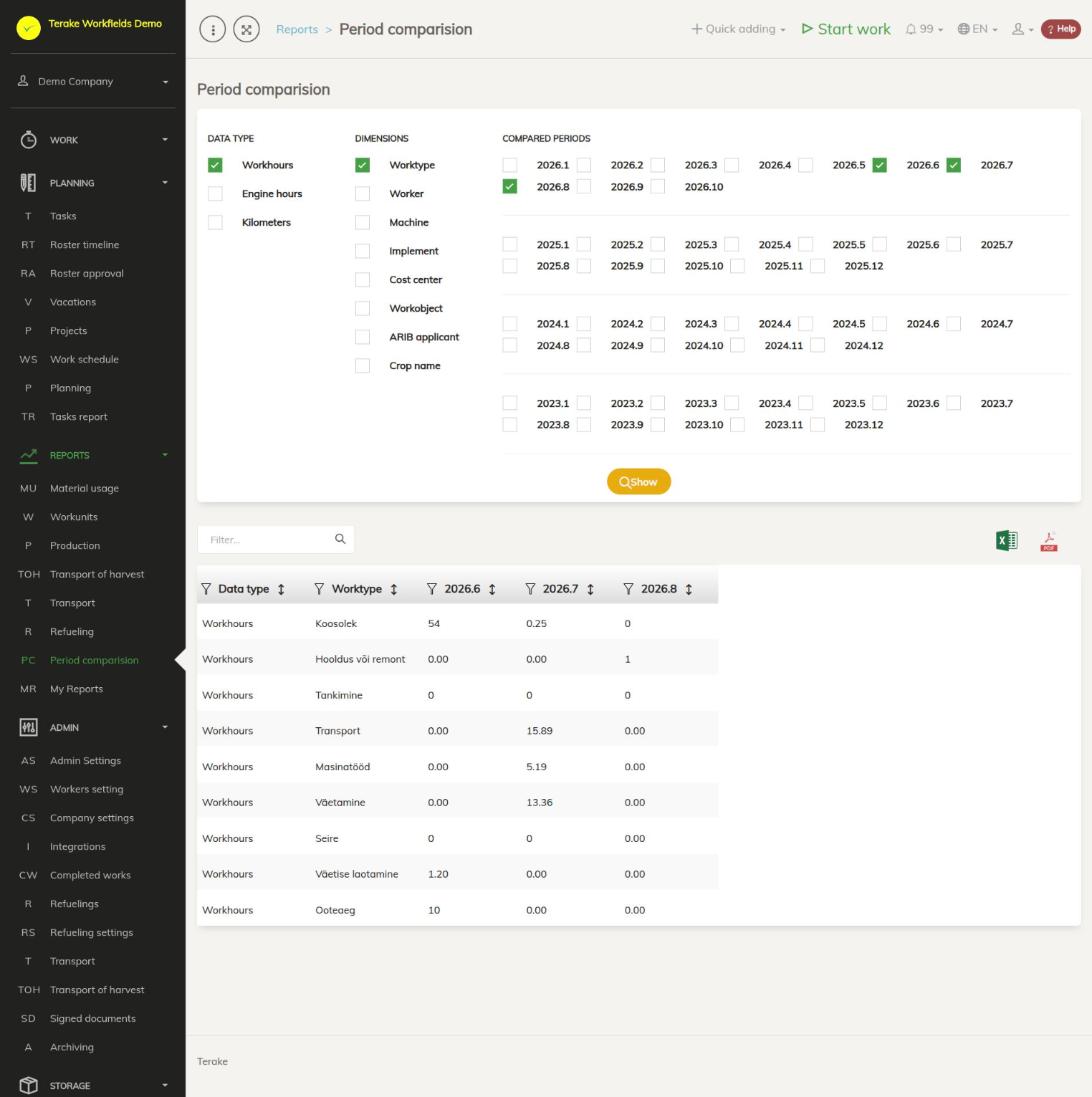
Page layout
- “Data type”: “Workhours”, “Engine hours” and “Kilometers”. You can select several; each data type is on separate rows in the table.
- “Dimensions”: “Worktype”, “Worker”, “Machine”, “Implement”, “Cost center”, “Workobject”, and in an agricultural company also “ARIB applicant” and “Crop name”. Each selected dimension adds a column to the table, and the rows are built by its values.
- “Compared periods”: the months from the start of the current year up to the current month, and all months of the three previous years, in the form year.month (for example 2026.6).
- Table: the “Data type” column, a column for each selected dimension and a column for each selected month. Above the table are the “Filter…” search field and the icons “open in Excel” and “open as PDF file”.
How to build the report
- Under “Data type”, tick what to compare: “Workhours”, “Engine hours” and/or “Kilometers”.
- Under “Dimensions”, tick at least one option, for example “Machine” if you want to compare the engine hours of machines.
- Under “Compared periods”, tick the months you want to compare, for example the same month in three years.
- Press “Show”.
- Narrow down the result with the filter icon in the column header or with the “Filter…” search field. Click a column’s title to sort by it. Download the table with the “open in Excel” and “open as PDF file” icons.
How it is calculated
- Workhours: the duration of works in hours per month.
- Engine hours: the difference between the start and end engine hours entered with the work is counted. If they have not been entered or are faulty, the telemetry service provider’s data is used, if available.
- Kilometers: counted in the same way from the difference between “Kilometers start” and “Kilometers stop” entered with the work, or from telemetry data if that is missing.
- An entry is considered faulty if the start reading is 0, the end reading is smaller than the start reading, or the difference for one work is 100 engine hours or 1200 km or more. For example, if a worker enters 0 as the start of engine hours and the actual reading 6382 as the end, that entry is not counted. If there is no telemetry data either, the engine hours or kilometres of that work are left out of the report.
Who can see it
In the “Reports” menu the report is visible to the roles “Administrator”, “Observer”, “Agronomist”, “Dispatcher” and “Accountant”.
Tips
- The more carefully the readings are entered and checked when approving works, the more accurate the report. Works that are not approved are not included: approve them on the Approval page.
- If you select several dimensions, there will be many rows. For comparison, one dimension at a time is usually clearer.
API calls on this page
For integrations and AI assistants: this page uses the following Terake API calls. The full description is in the API reference.
When the page opens:
GET /api/report/summaryreport– Worked hours, engine hours or kilometers per month, by dimension.