The “Refueling” report gathers the refuelings of the selected period that have been entered in the mobile app or on the web, or have arrived from integrations (fuel sellers’ systems, automatic fuel dispensers). Use the report to follow fuel quantities and costs by fuel, machine, worker and cost center.
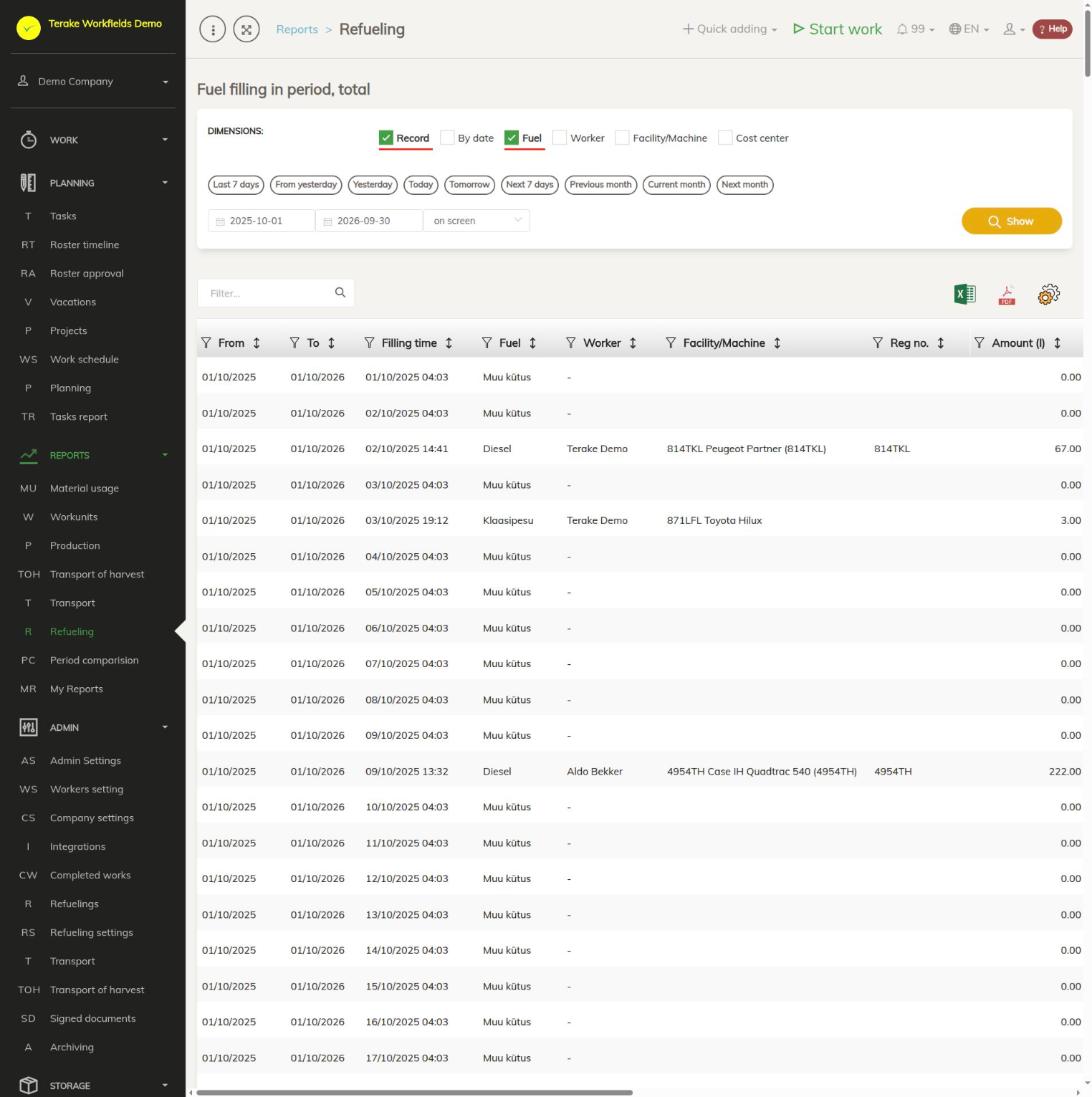
Page layout
- “Dimensions”: “Record” shows each refueling as a separate row. If “Record” is not selected, the refuelings are added up by the selected dimensions: “By date”, “Fuel” (selected by default), “Worker”, “Facility/Machine” and “Cost center”. If “Record” is selected, the other dimensions are ignored.
- Period: the quick choices “Last 7 days”, “From yesterday”, “Yesterday”, “Today”, “Tomorrow”, “Next 7 days”, “Previous month”, “Current month” and “Next month”, or a start and end date. The refuelings whose “Filling time” falls within the period are included.
- Output: “on screen” shows the result in a table, “MS Excel file” downloads it. The report is built with the “Show” button.
- Table: “From”, “To”, “Filling time” (in the by-date breakdown, the date of refueling), “Fuel”, “Worker”, “Facility/Machine”, “Reg no.”, “Amount (l)”, “Record count” (how many refuelings the row holds) and “Additional”. The hidden columns “Net price”, “Total price”, “Cost center”, “ID” and “Work record ID” can be made visible with the “set view” icon.
- Above the table: the “Filter…” search field and the icons “open in Excel”, “open as PDF file” and “set view”.
- “Table statistics” below the table: the total (SUM), average (AVG), median (MED), minimum (MIN), maximum (MAX) and number of rows (CNT) of the visible number columns (“Amount (l)”, “Record count”, and the prices when they are switched on).
How to build the report
- Tick the options you want under “Dimensions”. Select “Record” to see each refueling. For example, to get the fuel quantity of the machines by fuel, remove “Record” and select “Fuel” and “Facility/Machine”.
- Choose the period with a quick choice or enter the dates.
- Choose “on screen” or “MS Excel file” as the output and press “Show”.
- If you need the prices or the cost center, open “set view” and tick the “Net price”, “Total price” or “Cost center” columns.
- Narrow down the result with the filter icon in the column header or with the “Filter…” search field. Click a column’s title to sort by it.
“Amount (l)”, “Net price” and “Total price” are added up over the refuelings of the row. The selected dimensions are remembered and are already selected next time.
Who can see it
In the “Reports” menu the report is visible to the roles “Administrator”, “Observer”, “Agronomist”, “Dispatcher” and “Accountant”.
Tips
- The price columns are filled only when the refueling has a price, usually for refuelings that came from an integration. A zero or missing value may point to a faulty data feed.
- The cost center is taken from the work during which the refueling was done. If the refueling is not linked to a work, the cost center is empty.
- Refuelings can be viewed, added and changed on the Refuelings page. The machines’ remaining fuel and calculated fuel consumption are on the Refueling settings page.
API calls on this page
For integrations and AI assistants: this page uses the following Terake API calls. The full description is in the API reference.
When the page opens:
GET /api/report/fuelfillings– Fuel filling report over a period, grouped by the requested dimensions.