The “Transport” report gathers the material transports of the selected period: what was transported, from where to where, who transported it with which machine, and how much. Transports are entered in the mobile app or on the web. Harvest transports are in a separate report, Transport of harvest.
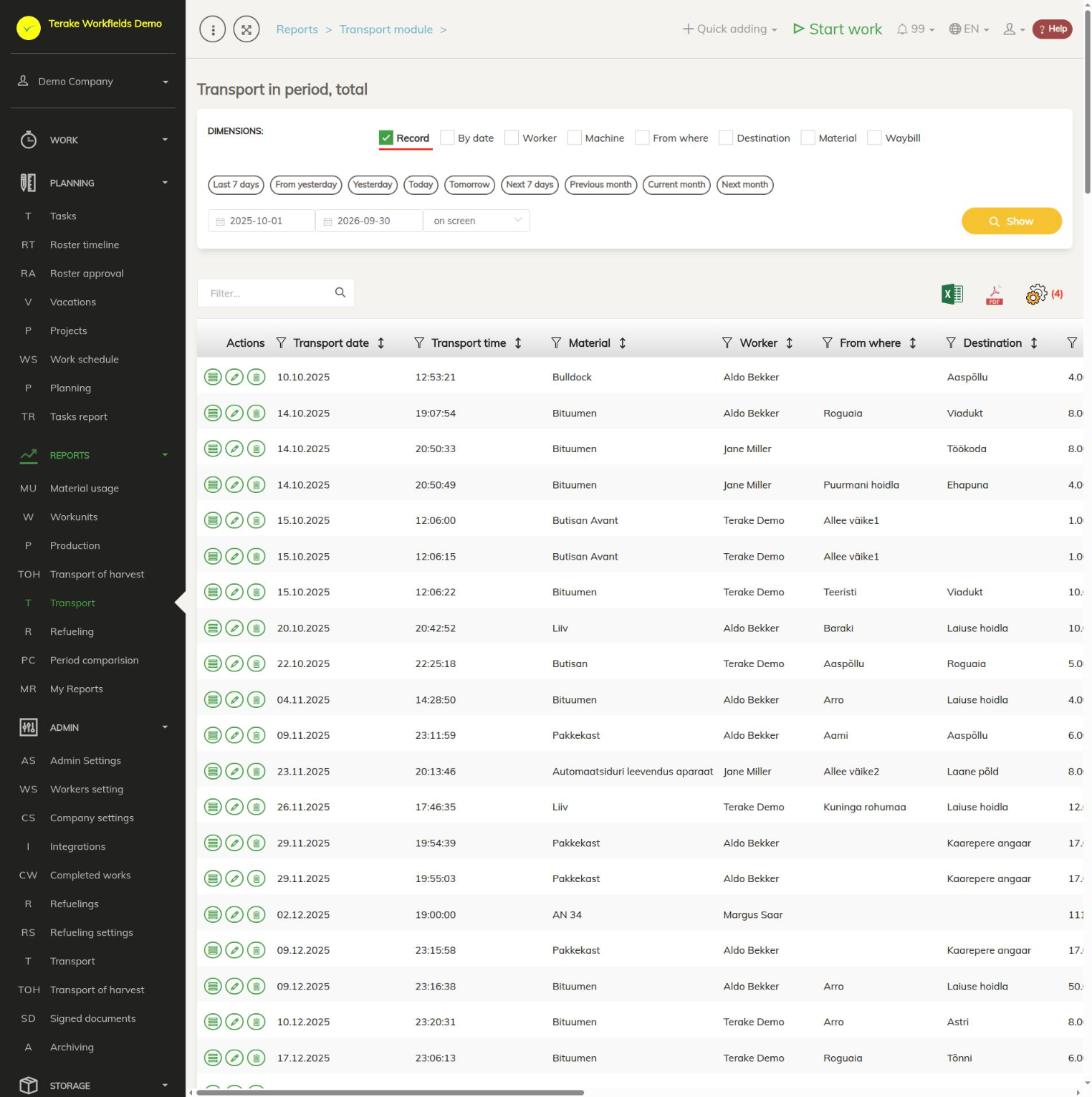
Page layout
- “Dimensions”: “Record” gives a separate row for each transport. If “Record” is not selected, the transports are added up by the selected dimensions: “By date”, “Worker”, “Machine”, “Starting point”, “Destination”, “Material” and “Waybill”.
- Period: quick choices (“Current month”, “Previous month” and others) or a start and end date, up to 366 days. Choose “on screen” or “MS Excel file” as the output and press “Show”.
- Table: “Transport date”, “Transport time”, “Material”, “Worker”, “Main machine name”, “Starting point”, “Destination”, “Weight”, “Cargo count”, “Waybill”, “Record count” and the ID2 columns. “Weight”, “Cargo count” and “Record count” are added up in the table statistics.
- “Actions”: the list of the row’s transports, editing (pencil) and deleting (bin). Editing and deleting are possible only with the “Record” dimension, where a row is one transport.
- Above the table are the “Filter…” search field, the icons “open in Excel” and “open as PDF file”, and “set view” for choosing the columns.
How to build the report
- Select “Record” under “Dimensions” if you want to see each transport separately, or remove it and choose what to sum the transports by, for example “Material” and “Destination”.
- Choose the period and press “Show”.
- On a summary row, press the list icon in the “Actions” column to see which transports make up the row.
The report includes all transports of the period, also those whose work has not yet been approved.
How to change or delete a transport
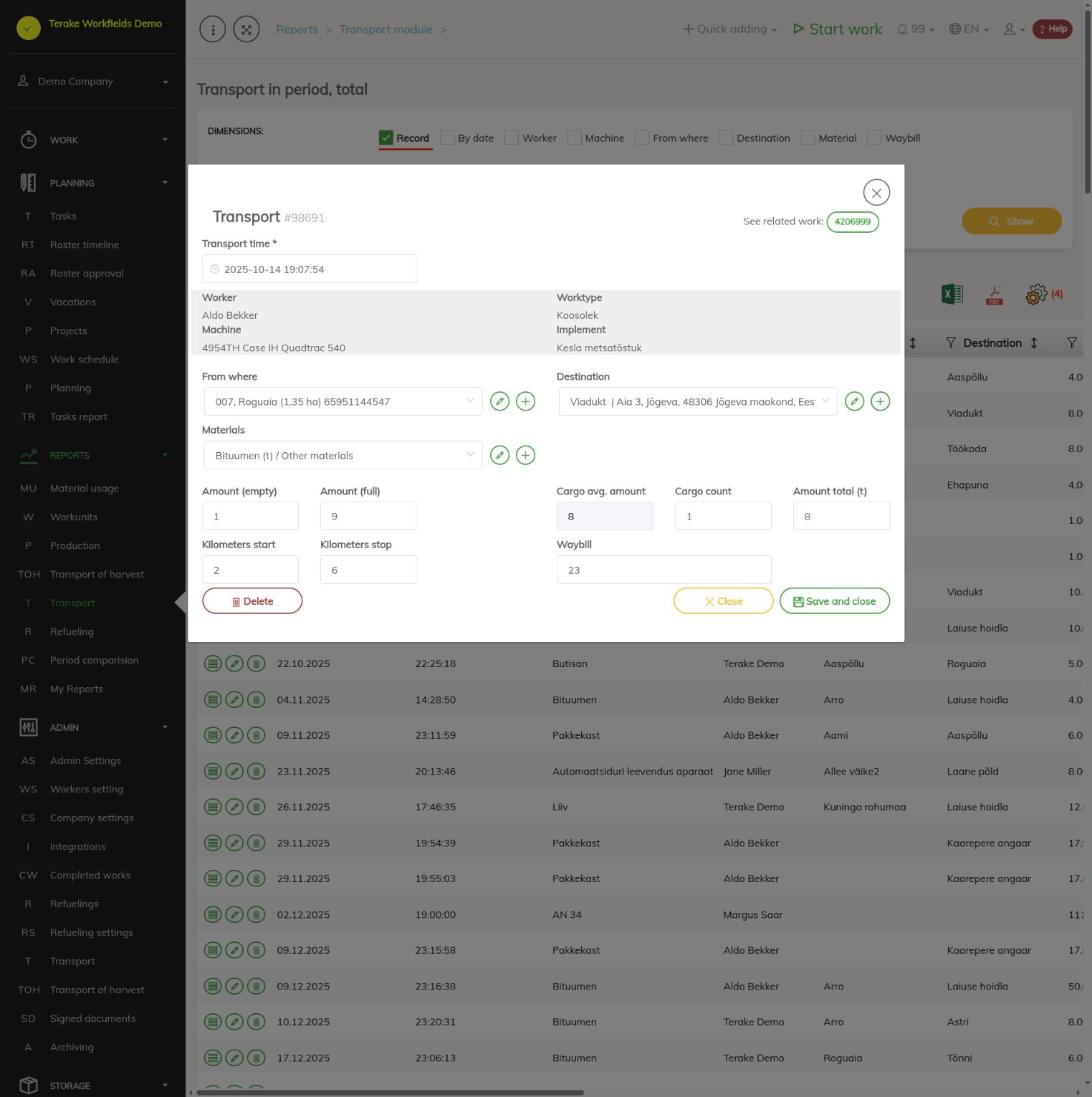
- Select “Record” as the dimension and press “Show”.
- Press the pencil icon on the transport’s row. The transport window opens.
- Change “Transport time”, “Starting point”, “Destination”, “Material”, the amounts or “Waybill”. The worker, work, machine and implement details come from the work linked to the transport and are not changed here. The linked work opens with the “See related work” button.
- Amounts: if you enter “Amount (empty)” and “Amount (full)”, “Cargo avg. amount” is calculated, and multiplied by the “Cargo count” field it gives “Amount total”. You can also enter “Amount total” directly.
- Press “Save and close”. To delete the transport, press “Delete” in the window or the bin icon in the table, and confirm.
If the transport’s origin or destination is a storage, changing or deleting the transport also changes the stock. When a transport is deleted, the work linked to it is kept.
Who can see it
The report is visible to the roles “Administrator”, “Observer”, “Agronomist”, “Dispatcher” and “Accountant”.
Tips
- In the storage module, the list of transports is on the Transport page, where you can also add a new transport.
API calls on this page
For integrations and AI assistants: this page uses the following Terake API calls. The full description is in the API reference.
When the page opens:
GET /api/report/transportsummary– Transport report: { collection: rows }; { error, error_slug } with HTTP 200 over 366 days.
Other calls from this screen’s dialogs and actions:
GET /api/transport-cases-list/{ids}– TransportCase simplified listGET /api/transports/{id}– Get TransportCase