“Tasks report” shows tasks in a table together with their status: whether a task is done, in progress or not done, and how much time and money the planned work actually took. The report helps you follow the progress of work and compare the plan with what actually happened.
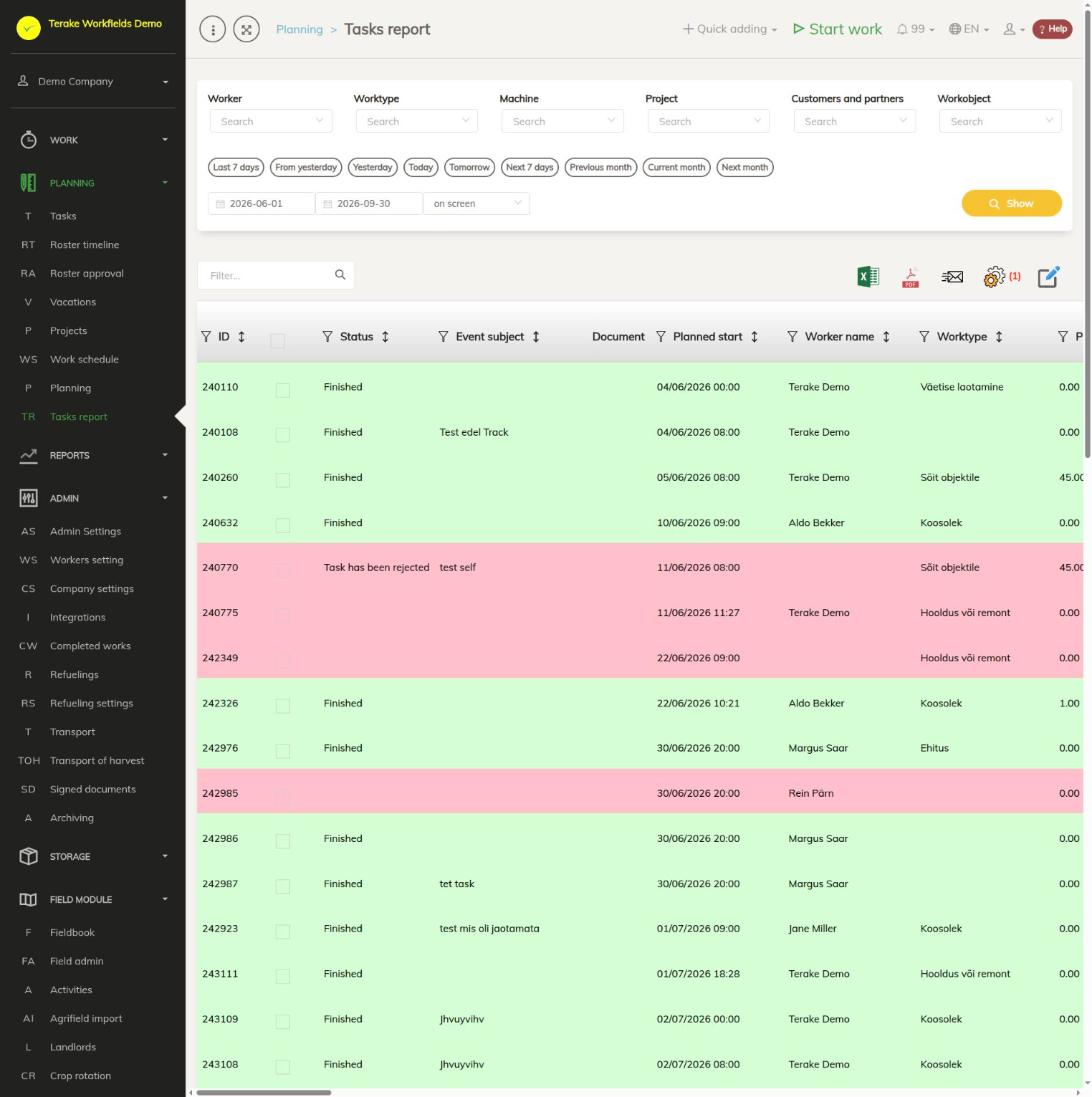
Page layout
- Filters: “Worker”, “Worktype”, “Machine”, “Project”, “Customers and partners”, “Workobject” and the period (quick choices or dates). Press “Show”.
- Table: one row per task. The colour of the row shows its state:
- green – the work is finished;
- yellow – the work is in progress or unfinished;
- pink – the planned end has passed and there is no completed work, or the task has been rejected or its time has been changed.
- Icons above the table: search field, Excel and PDF download, sending by e-mail, choice of columns to show (gear wheel) and “Bulk edit parameters”.
Main columns
- “Status” and “Task status”: the task’s state, for example “Finished” or “Task has been rejected”.
- “Planned start”, “Planned end”, “Planned cost”.
- “Worker name”, “Worktype”, “Machine”, “Implement”, “Project”, “Place of work”, “Address”, “Region”, “Maintenance unit”, “Maintenance unit address”, “Cost center”.
- “Customer”, “Contact person”, “Contact phone”, “Partner”.
- “Event subject”, “Plan info”, “Added by”, “Task created at”.
- Details of the completed work: “Actual duration” and “Actual cost”; under the gear wheel you can add, for example, “Work record ID”, “Actual start”, “Actual worker”, “Approver”, “Invoice done”, “Materials”, “Document”, “Pictures” and “Customer approval”.
How to use the report
- Select the period and, if needed, filters, and press “Show”.
- Click a row to open the task form. There you can change, save or delete the task.
- To mark several tasks as done at once, select the rows with the checkboxes and use “Bulk edit parameters”.
- The bin button on a row deletes the task.
When you open the report from the project view with the “Tasks report” button, the filter already holds that project and there is a “Back to project” button at the top.
What happens when a task is marked done
When you mark a task done (with “Save and mark done” on the form, or several at once through “Bulk edit parameters” with “Mark as done”), a work record is created for each task:
- the work’s start and end = the task’s “Planned start” and “Planned end”;
- the worker = the task’s worker (if there is none, the person who pressed the button); the work is created in that worker’s company;
- the worktype, workobject, machine, implement, project, cost center, customer and maintenance unit are taken from the task;
- if the task has a worker and a worktype, the work is approved automatically and goes straight into working time accounting;
- if the planned period is longer than 28 hours and the task has a worktype, the work is shortened to 24 hours (see Automatic processes that affect work duration).
So before marking a task done, always check that the planned start and end match what you want in working time accounting.
Tasks given by a partner
If another company has given a task to your company for execution (column “Partner”), you see that task here. On marking it done, the work record is created in your company for your worker, but the workobject stays the orderer’s object. The orderer’s planned time often means a deadline, not the duration of the work. If the duration must not go into your worker’s working time, set “Planned start” and “Planned end” to the same value (duration 0) before marking the task done. More: Partner tasks.
Who can see and change it
The page is visible to the roles Administrator, Approver, Observer, Agronomist, Self planner, Power user and Project Manager. A Self planner sees only their own tasks unless they also have the Administrator or Power user role. A task can be changed by Administrator, the person who added the task and the manager of the task’s worker. An Observer without additional rights can only view the form.
Tips
- Tasks are added on the Tasks page, which also describes the form’s fields.
- The actual cost and duration columns hold data only once a work record has been made from the task.
- Works marked done are found on the Detail view page. Automatically approved works do not reach the Approval page.
API calls on this page
For integrations and AI assistants: this page uses the following Terake API calls. The full description is in the API reference.
When the page opens:
GET /api/planreport– Planitem report for a period
Adding, changing and deleting (from the API description):
DELETE /api/planreport/{id}– Delete Planitem by ID or UUIDPOST /api/planreport/{planid}/mark-as-done– Creates a Workdone from a Planitem and marks the plan item donePOST /api/planreport– Creates or modifies a PlanitemPOST /api/planreport/{id}– Creates or modifies a PlanitemPUT /api/planreport/{id}– Creates or modifies a Planitem. Planitem subtypes, set through roster_type, are Task (id 8,
the common case, with planned start and stop time), Todo (id 12, no planned stop time),
Teamwork (id 18) and Groupwork (id 19).
Other calls from this screen’s dialogs and actions:
DELETE /api/customer/{customer_id}/person/{id}– Deletes a Customer contact personDELETE /api/plans/{id}– Delete Planitem by ID or UUIDDELETE /api/plans/{planid}/materialusages/{usageid}– Deletes one material usage of a PlanitemDELETE /api/rosteritems/{id}– Delete Rosteritem by ID or UUIDGET /api/workers/brigade-members/{id}– Brigade members of one worker acting as foreman, by worker id.GET /api/planreport/{id}– Planitem by IDGET /api/planreportsync/{id}– Planitem by IDGET /api/plans/{id}– Planitem by IDGET /api/plans– Planitem collectionGET /api/plans/{id}/files– List all files related with parent objectGET /api/plans/{calendaritem_id}/recurrence– Recurrence Setup related to RosteritemGET /api/plans/{planid}/materialusages– Material usages planned on one planitem.GET /api/projects/{id}– Project by IDGET /api/relations/{object_type}/{object_id}– Returns the objects related to one Terake objectGET /api/workers/{id}/files– List all files related with parent objectGET /api/worktypes/{id}– Get WorktypePOST /api/customer/{customer_id}/person/{id}– Creates or modifies a Customer contact personPOST /api/sendinvitationletter– Sends a partnership invitation to a customer's e-mail addressPOST /api/plans/{planid}/materialusages– Adds material usage to a PlanitemPOST /api/plans/{id}/files– Add new file to parent objectPOST /api/plans/{planid}/mark-as-done– Creates a Workdone from a Planitem and marks the plan item donePOST /api/plans– Creates or modifies a PlanitemPOST /api/plans/{id}– Creates or modifies a PlanitemPOST /api/plans/{calendaritem_id}/recurrence– Creates or modifies the recurrence of a Rosteritem or PlanitemPOST /api/rosteritems/{id}– Creates or modifies a Rosteritem (Scheduled Work or an absence). Returns an array of itemsPOST /api/signed-document-pdf– Renders a signed document as a PDFPUT /api/plans/{id}– Creates or modifies a Planitem. Planitem subtypes, set through roster_type, are Task (id 8,
the common case, with planned start and stop time), Todo (id 12, no planned stop time),
Teamwork (id 18) and Groupwork (id 19).