The “Vacations” page shows in a table all vacations of the selected period by worker, with the number of calendar days, working days and weekend days. Managers and HR staff use the page to review and check vacations. Vacations are added on the Roster timeline page with the event type “Vacation”; here you see them together and can change them.
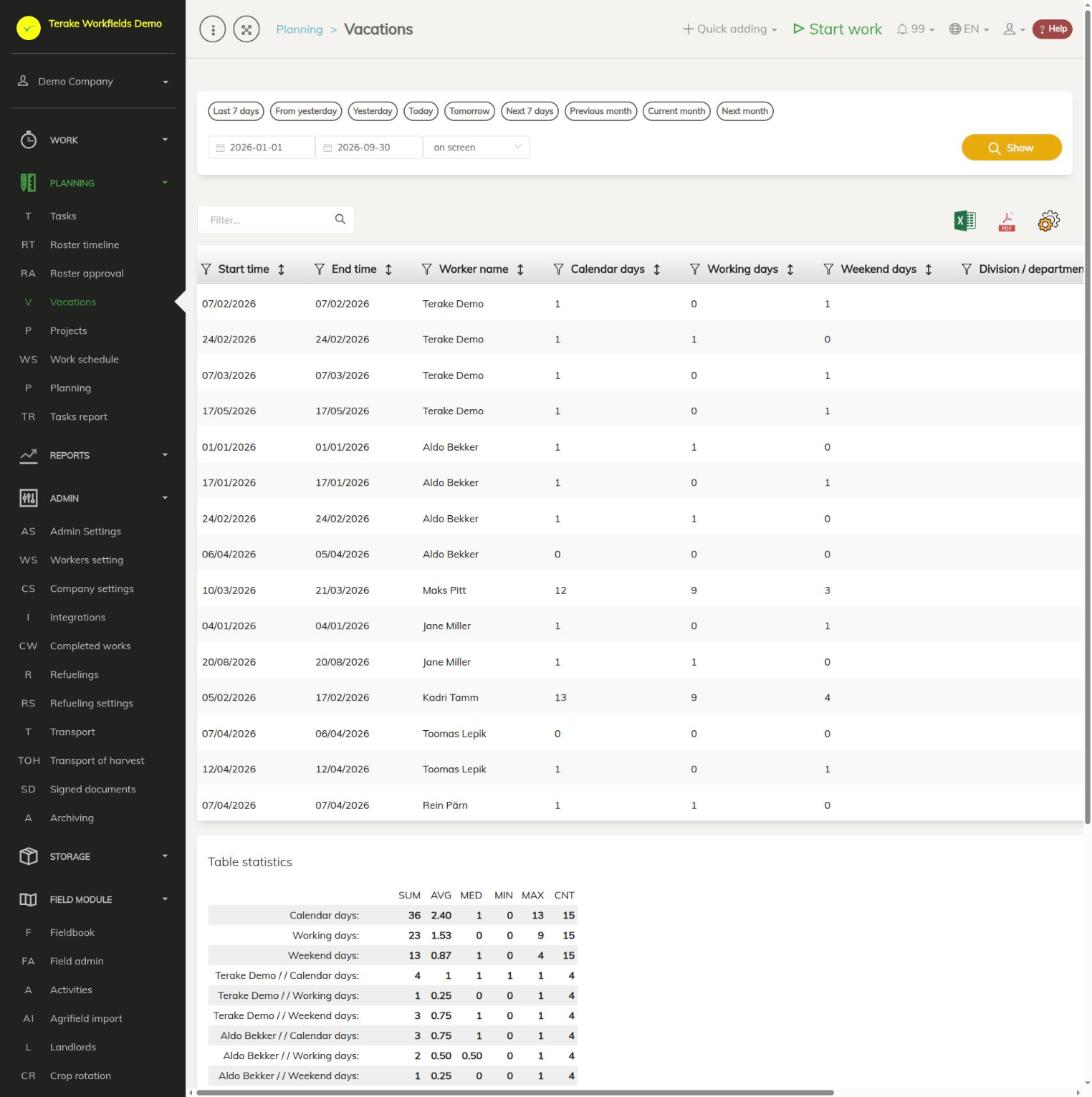
Page layout
- Period: quick choices (for example “Current month”, “Previous month”) or a start and end date. In the selection next to it, choose “on screen” (a table on the page) or “MS Excel file”. Press “Show”.
- Above the table: the “Filter…” search field, Excel and PDF download, and the gear wheel for choosing the columns shown.
- Table: one row per vacation. Columns can be sorted and filtered in the header.
- “Table statistics” below the table: the total, average, median, minimum and maximum of days and the number of rows, overall and for each worker separately.
Columns
- “Start time” and “End time”: the first and last day of the vacation.
- “Worker name” and “Division / department”.
- “Calendar days”: all days from start to end.
- “Working days”: the days that fall from Monday to Friday. Public holidays are not deducted here.
- “Weekend days”: Saturdays and Sundays.
- “Calendar event status”: “Waiting for verification” or “Locked” (locked).
- “Additional”: the note written with the vacation.
The table holds only locked vacations and vacations waiting to be locked. Sick leave, study leave and other absences are not included.
How to view vacations
- Select the period and press “Show”.
- To see one worker’s vacations, type their name in the “Filter…” field or use the header filter of the “Worker name” column.
- Look at the “Table statistics” block below the table to see how many days of vacation each worker has in the selected period.
- To get the table as a file, press the Excel or PDF icon.
How to change or delete a vacation
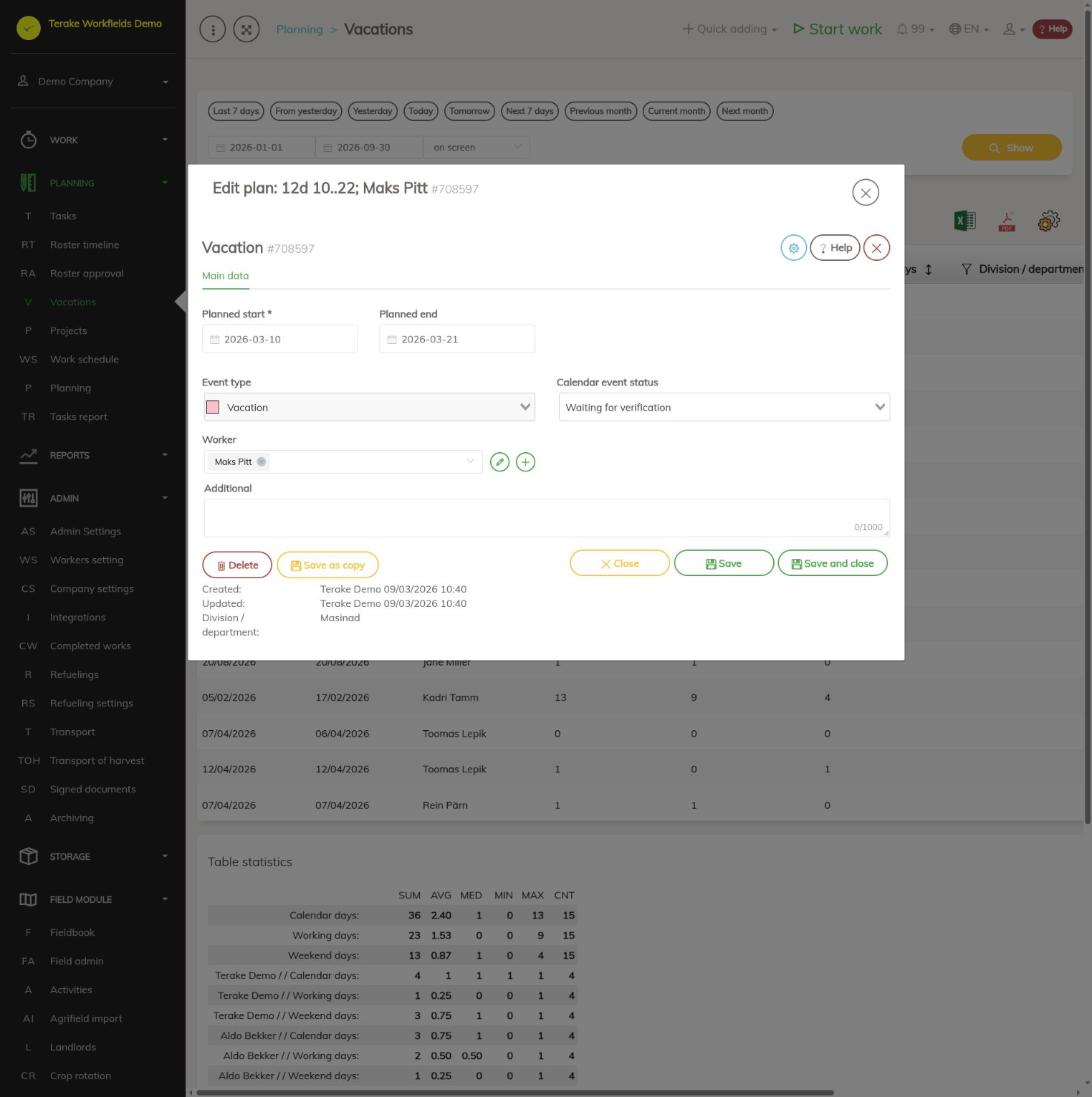
- Click a row or the row’s pencil button. The vacation form opens.
- Change the fields as needed:
- “Planned start” (required) and “Planned end”: the first and last day of the vacation.
- “Event type”: cannot be changed on an existing vacation.
- “Calendar event status”: to confirm the vacation, select “Locked” (locked).
- “Worker”: whose vacation it is.
- “Additional”: a note of up to 1000 characters.
- Press “Save” (the form stays open) or “Save and close”. “Save as copy” creates a new vacation with the changed details and keeps the original.
- To delete a vacation, press “Delete” on the form or the bin button on the table row, and confirm.
A new vacation cannot be added on this page.
Who can see and change it
The page is visible to the roles “Administrator”, “Approver”, “Observer” and “Agronomist”. “Administrator” and “Observer” see the vacations of all workers; others see their own vacations and those of the workers whose manager or approver they are, and those that the worker’s schedule visibility setting allows. If divisions/departments have been assigned to the user, they see only the vacations of the workers of those divisions.
A vacation can be changed and deleted by “Administrator”, “Self planner”, “Power user” and “Project Manager”, by the roles “Approver”, “Foreman” and “Personnel” when they have the right to change worker details, and by the worker’s direct manager. A worker can change their own vacation that is not yet locked. The creator of the entry can change it within 48 hours of creating it. “Observer” can only view vacations unless they are the worker’s direct manager.
Tips
- “Administrator” and “Observer” also see vacations that start before the period or end after it. Other roles are shown only vacations that fall entirely within the selected period, so choose a wide enough period.
- Adding and locking vacations is described on the Roster timeline page.
API calls on this page
For integrations and AI assistants: this page uses the following Terake API calls. The full description is in the API reference.
When the page opens:
GET /api/vacations– Vacations and absences over a period.
Other calls from this screen’s dialogs and actions:
DELETE /api/customer/{customer_id}/person/{id}– Deletes a Customer contact personDELETE /api/plans/{id}– Delete Planitem by ID or UUIDDELETE /api/plans/{planid}/materialusages/{usageid}– Deletes one material usage of a PlanitemDELETE /api/rosteritems/{id}– Delete Rosteritem by ID or UUIDGET /api/workers/brigade-members/{id}– Brigade members of one worker acting as foreman, by worker id.GET /api/planreport/{id}– Planitem by IDGET /api/planreportsync/{id}– Planitem by IDGET /api/plans/{id}– Planitem by IDGET /api/plans– Planitem collectionGET /api/plans/{id}/files– List all files related with parent objectGET /api/plans/{calendaritem_id}/recurrence– Recurrence Setup related to RosteritemGET /api/plans/{planid}/materialusages– Material usages planned on one planitem.GET /api/projects/{id}– Project by IDGET /api/relations/{object_type}/{object_id}– Returns the objects related to one Terake objectGET /api/workers/{id}/files– List all files related with parent objectGET /api/worktypes/{id}– Get WorktypePOST /api/customer/{customer_id}/person/{id}– Creates or modifies a Customer contact personPOST /api/sendinvitationletter– Sends a partnership invitation to a customer's e-mail addressPOST /api/plans/{planid}/materialusages– Adds material usage to a PlanitemPOST /api/plans/{id}/files– Add new file to parent objectPOST /api/plans/{planid}/mark-as-done– Creates a Workdone from a Planitem and marks the plan item donePOST /api/plans– Creates or modifies a PlanitemPOST /api/plans/{id}– Creates or modifies a PlanitemPOST /api/plans/{calendaritem_id}/recurrence– Creates or modifies the recurrence of a Rosteritem or PlanitemPOST /api/rosteritems/{id}– Creates or modifies a Rosteritem (Scheduled Work or an absence). Returns an array of itemsPUT /api/plans/{id}– Creates or modifies a Planitem. Planitem subtypes, set through roster_type, are Task (id 8,
the common case, with planned start and stop time), Todo (id 12, no planned stop time),
Teamwork (id 18) and Groupwork (id 19).