On the “Roster approval” page the work schedule is turned into working time. When a work schedule event is marked as done, a work record is created from it and goes into the working time records. The page is used by managers and approvers who keep working time according to the schedule.
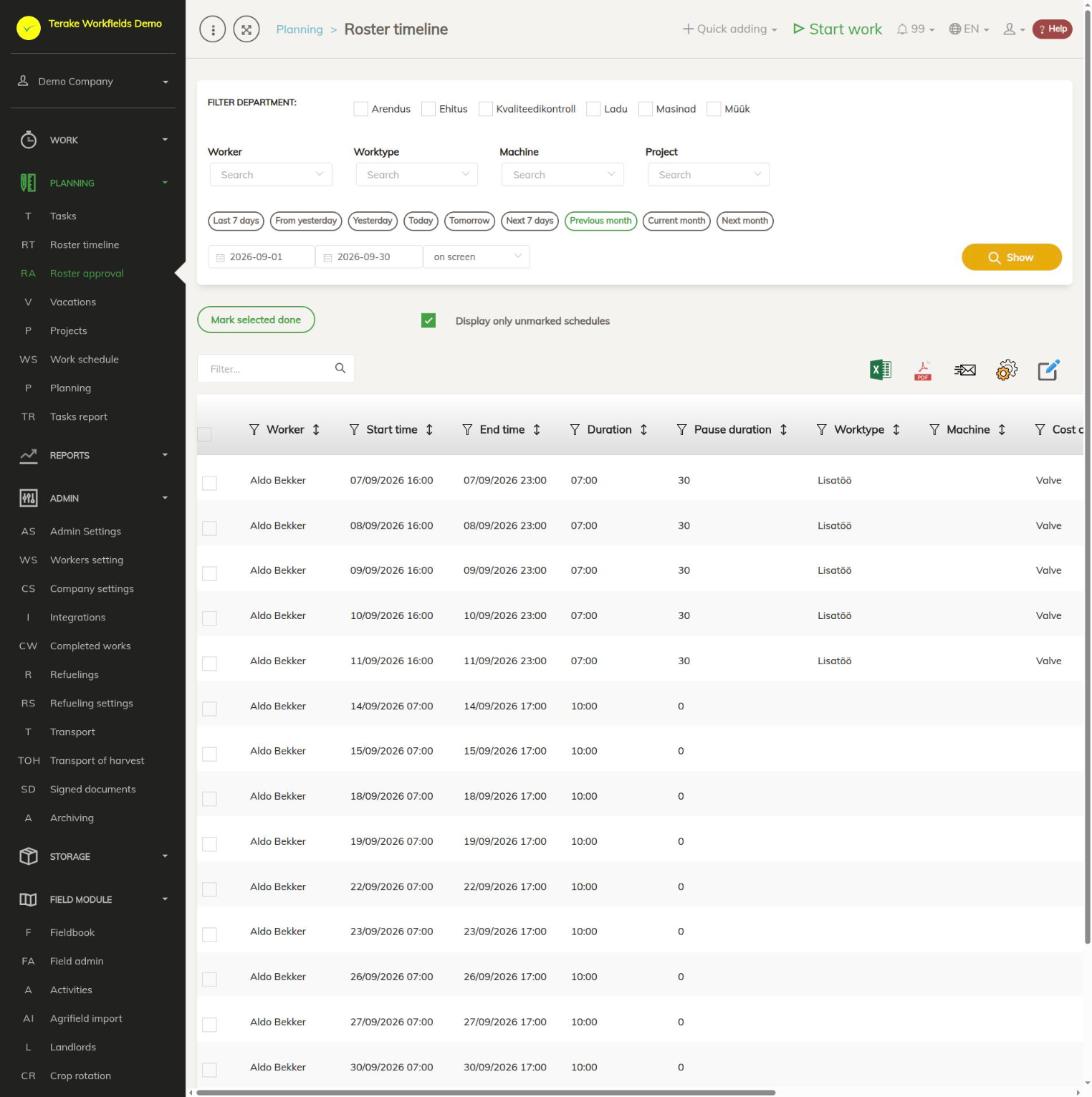
Page layout
- Filters: “Filter department”, “Worker”, “Worktype”, “Machine”, “Project” and the period (quick choices such as “Previous month”, “Current month”, or dates). Press “Show”.
- “Mark selected done” creates work records from the selected rows.
- “Display only unmarked schedules”: when this is ticked (the default), the table holds only the rows not yet marked as done.
- Table columns: “Worker”, “Start time”, “End time”, “Duration”, “Pause duration”, “Worktype”, “Machine”, “Cost center”, “Project”, “Place of work” and “Approved”.
- Above the table are a search field, Excel and PDF download and “Bulk edit parameters”.
The table holds only events of the event type “Work schedule” that have a worker. Vacations, sick leave and tasks are not here.
How to mark a work schedule as done
- Select the period and, if needed, a worker or division, and press “Show”.
- Tick the checkboxes in front of the rows. The checkbox in the header selects all rows.
- Press “Mark selected done”.
Each selected row becomes a work record with the same worker, time, pause, worktype, machine, cost center, project and place of work. If the row has no worktype, the worker’s default worktype is used. If that is missing too, add a worktype before marking the rows as done: select the rows and change their “Worktype” with the “Bulk edit parameters” button. A row already marked as done does not create a second record.
The work records created can be seen on the Detail view page, where they can be corrected if needed.
Who can see and change it
The page is visible to the roles Administrator, Approver, Observer, Agronomist and Project Manager. Administrator, Observer and Power user see the schedules of all workers; others see the schedules of the workers whose manager or approver they are. A row already marked as done cannot be changed.
Tips
- The work schedule is drawn up on the Roster timeline page. A single event can also be marked as done there, with the “Save and mark done” button on the event’s form.
- Locking (status “Locked”) is not a precondition for marking as done: the table also holds unlocked schedules.
API calls on this page
For integrations and AI assistants: this page uses the following Terake API calls. The full description is in the API reference.
When the page opens:
GET /api/rosteritems-for-approval– Rosteritems awaiting approval
Other calls from this screen’s dialogs and actions:
PUT /api/roster/createworkdones– Creates Workdones from the selected roster items