“Roster timeline” is the main page for planning work schedules. The timeline has a row for each worker (or other resource) and a column for each day. Here you add work schedules (shifts), vacations, sick leave and other absences, and tasks, one at a time or for several workers and days at once.
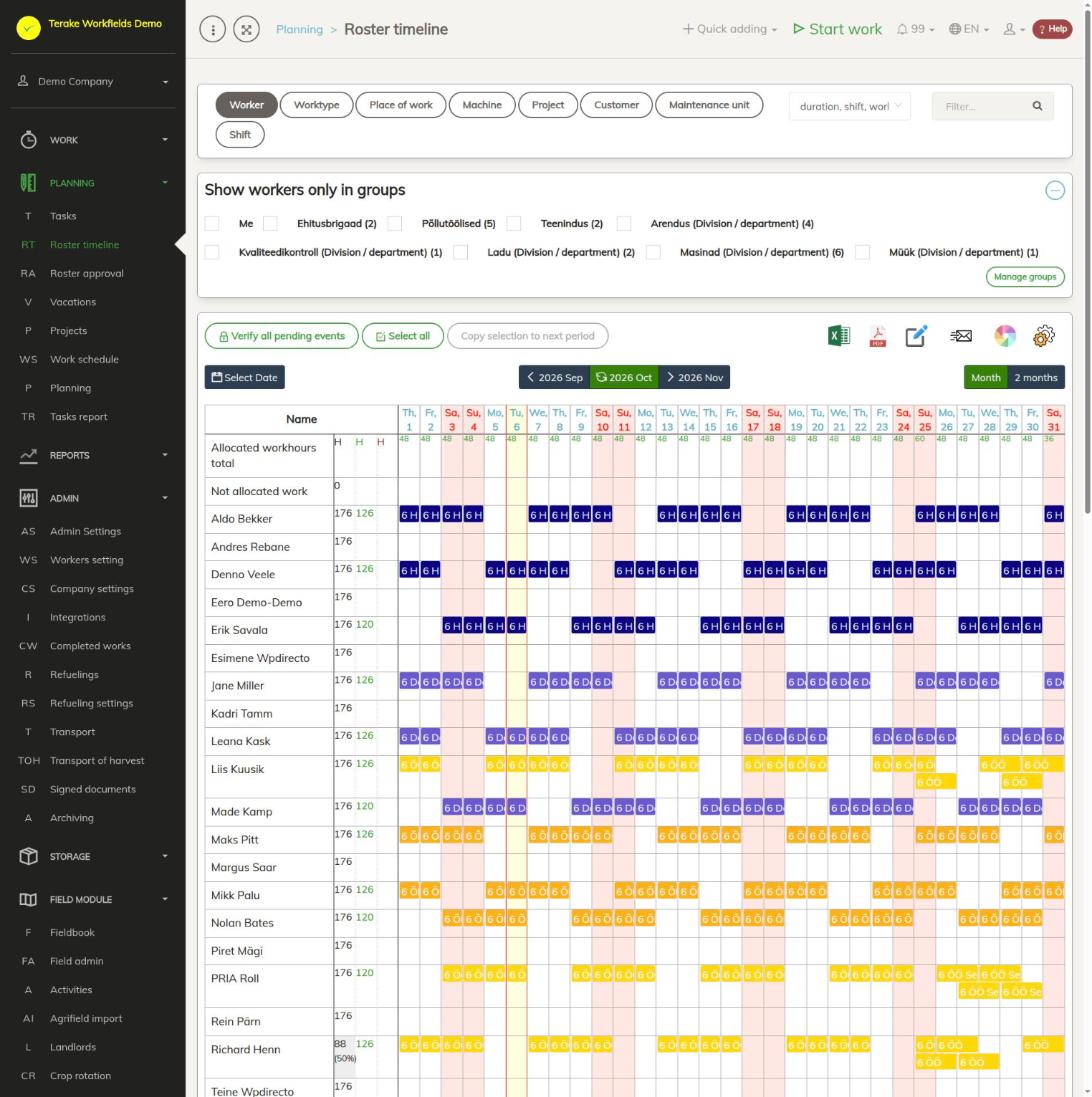
Page layout
- Resource buttons at the top: “Worker”, “Worktype”, “Place of work”, “Machine”, “Project”, “Customer”, “Maintenance unit”, “Shift”. The selected button sets what the timeline rows are shown by.
- Title choice (for example “duration, shift, work name”) sets what is shown on an event’s bar, and “Filter…” hides the events whose text does not contain the word you are searching for.
- “Show workers only in groups”: tick “Me”, worker groups or divisions/departments to show only their workers. Groups can be created and changed with the “Manage groups” button.
- Action buttons: “Lock all pending events”, “Select all” / “Deselect” and “Copy selection to next month”. On the right are icons for Excel and PDF download, “Bulk edit parameters”, “Send to email”, “Event background color base” and “Settings”.
- Period: “Select Date”, the previous and next month buttons, and “Month” or “2 months”.
- Table: the “Allocated workhours total” row shows the daily totals and public holidays, the “Not allocated work” row holds events without a resource. Events of another company’s (a partner’s) workers are on the “External resource” row.
Next to the worker’s name are three hour columns:
- the standard hours in the selected period, taking into account public holidays, workload (for part-time work the percentage is shown next to the name) and vacations and sick leave;
- the hours planned in the work schedule;
- the hours planned in tasks.
An event’s colour comes from the event type or the shift; the palette icon changes the background colour base (worker, worktype, machine, workobject or project). A striped event is waiting to be locked, an event in solid colour is locked, a grey event has been marked as done.
How to add a work schedule
- In the “Calendar event template” block at the bottom of the page, fill in the event type (for example “Work schedule”), “Starting time”, “Ending time”, “Duration of pauses” and, if needed, the worktype, shift, place of work, machine and so on. Selecting a shift fills in the shift’s times.
- Click the timeline on the worker’s row on the day you want, or drag the mouse across several days.
- If “Ask confirmation” is ticked, a form filled in from the template opens: check the details and press “Save and close”. If it is not ticked, the event is saved at once.
To add a vacation, sick leave or another absence, select the matching “Event type” in the template and drag the mouse across the days of absence. “Vacation” and “Sickness” reduce the worker’s standard hours, “Not available” does not.
To add a task, select “Task” as the type, or press the button with the calendar icon on a row of the “To-do list” at the bottom of the page: the template is filled with that work’s details.
Work schedule form
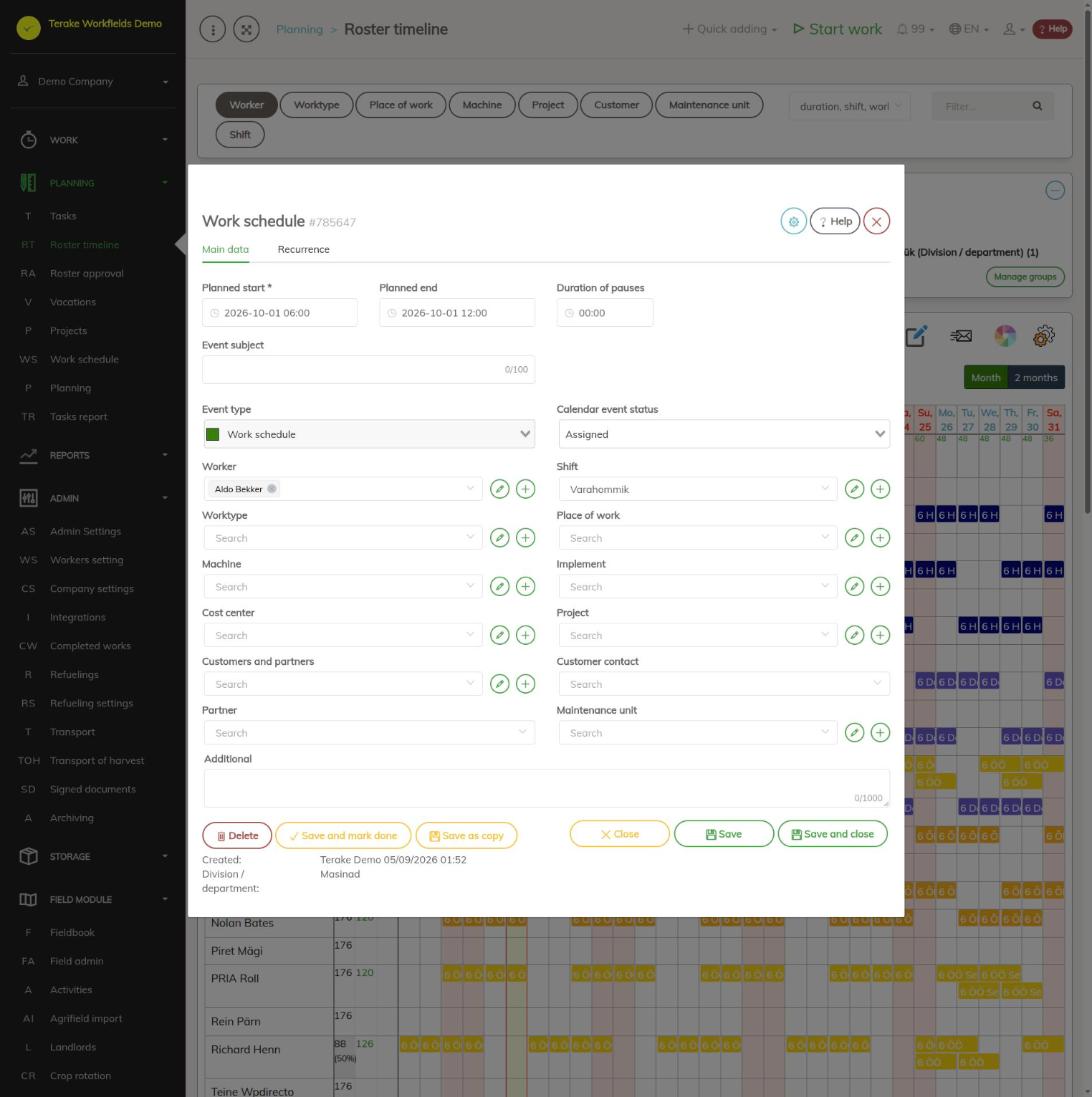
Clicking an event opens the form (or a popup, see “Settings”). The main fields:
- “Planned start” (required), “Planned end” and “Duration of pauses”.
- “Event subject”: a short title shown in the calendar.
- “Event type”: for example “Work schedule”, “Vacation”, “Sickness”, “Not available”, “Day off”, “Study leave”, “Parental leave”, “Leave without pay” or “Task”. The type cannot be changed after saving.
- “Calendar event status”: “Unassigned” (the event has no worker, workers can take it for themselves), “Waiting for verification”, “Locked” (locked) or “Rejected”.
- “Worker”, “Place of work” and “Machine” allow several values; when a new event is saved, a separate event is created for each combination. This way you can plan several objects for several workers in one go.
- “Shift” (only on a work schedule), “Worktype”, “Implement”, “Cost center”, “Project”, “Customers and partners”, “Customer contact”, “Partner”, “Maintenance unit” and “Additional”.
The form of an absence (vacation, sick leave and so on) has only the dates and the worker. The “Recurrence” tab (on a work schedule and a task) makes the event repeat automatically: choose “Recurrence start”, “Recurrence end” and “Recurrence type”. The tab can be used after the event has been saved. The “Save as copy”, “Save and mark done” and “Delete” buttons work as on the task form (see Tasks).
How to change, move and copy events
- Moving: drag the event with the mouse to another day or another worker’s row.
- Changing the duration: drag the right edge of the event.
- Selecting several events: click the events while holding down Ctrl (Cmd on a Mac), or with the right mouse button. “Select all” selects all visible events.
- Actions on selected events: click a selected event. A menu opens: “Deselect”, “Move selected”, “Copy selected”, “Delete selected”, “Mark selected done” and “Change selected”. After “Move selected” or “Copy selected”, click the target day (and, if needed, another worker’s row) and confirm. You can move or copy the events of only one worker at a time to another worker.
- “Copy selection to next month” copies the selected events to the same dates of the next month.
- “Bulk edit parameters” changes the times, worker, worktype, machine, place of work, project and so on of the selected events at once.
How the schedule reaches the workers
- A new work schedule has the status “Waiting for verification” (striped). The worker does not see such an event in the mobile app.
- Press “Lock all pending events”. All pending events that have a worker get the status “Locked” (locked).
- To send the schedule by e-mail, press the envelope icon (“Send to email”). Tick the workers and press “Send separately to each selected worker”, or enter an e-mail address and press “Send link to calendar to entered e-mail address”. The options “Including not locked events” and “Only roster items” set what is sent.
To count working time based on the work schedule, mark the events as done on the Roster approval page.
Settings
The gear wheel icon opens the settings:
- “Show in event title”: what is shown on the event’s bar.
- “Ask confirmation if resizing event with mouse”.
- “Show popups on mouse over”: when this is on, the event’s details are shown when you move the mouse over it and a click opens the form. When it is off, a click opens a popup with an “Edit” button.
Who can see and change it
The page is visible to the roles Administrator, Approver, Observer, Agronomist, Power user and Project Manager. The full timeline tools (resource buttons, template, locking, copying) are available to the roles Administrator, Approver, Observer and Agronomist. Administrator can change all events; others can change the events they added themselves and the events of the workers they manage.
Other users can request an absence by clicking their own row and using the “Vacation”, “Sickness” or “Not available” buttons (“Not available” requires additional info of at least 5 characters). A worker can remove their own unlocked vacation or sick leave, give up a locked event (“Abandon event”) and take an unassigned or rejected event for themselves (“Take event”).
Tips
- At the bottom of the page is “My calendar”, with your own events in the selected period.
- A summary table of vacations is on the Vacations page.
API calls on this page
For integrations and AI assistants: this page uses the following Terake API calls. The full description is in the API reference.
When the page opens:
GET /api/appsettings/{key}– One application setting of the calling workerGET /api/worker_groups– All WorkerGroups listGET /api/todos– Planitem collectionGET /api/calendaritems/{resource_type}– Calendar items grouped by one resource type – worker, main_facility, secondary_facility
Adding, changing and deleting (from the API description):
DELETE /api/todos/{id}– Delete Planitem by ID or UUID
Other calls from this screen’s dialogs and actions:
DELETE /api/customer/{customer_id}/person/{id}– Deletes a Customer contact personDELETE /api/plans/{id}– Delete Planitem by ID or UUIDDELETE /api/plans/{planid}/materialusages/{usageid}– Deletes one material usage of a PlanitemDELETE /api/rosteritems/{id}– Delete Rosteritem by ID or UUIDGET /api/workers/brigade-members/{id}– Brigade members of one worker acting as foreman, by worker id.GET /api/calendaritems– Roster and plan rows combined as calendar items.GET /api/planreport/{id}– Planitem by IDGET /api/planreportsync/{id}– Planitem by IDGET /api/plans/{id}– Planitem by IDGET /api/plans– Planitem collectionGET /api/plans/{id}/files– List all files related with parent objectGET /api/plans/{calendaritem_id}/recurrence– Recurrence Setup related to RosteritemGET /api/plans/{planid}/materialusages– Material usages planned on one planitem.GET /api/projects/{id}– Project by IDGET /api/relations/{object_type}/{object_id}– Returns the objects related to one Terake objectGET /api/workers/{id}/files– List all files related with parent objectGET /api/workobjectsonly/{id}– Get WorkobjectGET /api/worktypes/{id}– Get WorktypePOST /api/calendaritem/setstatus/{newstatus}– Changes the status of a Rosteritem – a worker may take or reopen onePOST /api/calendaritems/copyormove– Copies or moves the listed Rosteritems and Planitems by a day offset and/or onto another resourcePOST /api/customer/{customer_id}/person/{id}– Creates or modifies a Customer contact personPOST /api/sendinvitationletter– Sends a partnership invitation to a customer's e-mail addressPOST /api/generate_roster_pdf– Renders a roster as a PDFPOST /api/generate_roster_xls– Renders a roster as an Excel filePOST /api/main_facility– Create FacilityPOST /api/maintenance_unit– Create FacilityPOST /api/plans/{planid}/materialusages– Adds material usage to a PlanitemPOST /api/plans/{id}/files– Add new file to parent objectPOST /api/plans/{planid}/mark-as-done– Creates a Workdone from a Planitem and marks the plan item donePOST /api/plans– Creates or modifies a PlanitemPOST /api/plans/{id}– Creates or modifies a PlanitemPOST /api/plans/{calendaritem_id}/recurrence– Creates or modifies the recurrence of a Rosteritem or PlanitemPOST /api/rosteritem/setstatus/{newstatus}– Changes the status of a Rosteritem – a worker may take or reopen onePOST /api/rosteritems/{id}– Creates or modifies a Rosteritem (Scheduled Work or an absence). Returns an array of itemsPOST /api/send-calendar– Sends a link to the calendar to e-mail addressesPUT /api/plans/{id}– Creates or modifies a Planitem. Planitem subtypes, set through roster_type, are Task (id 8,
the common case, with planned start and stop time), Todo (id 12, no planned stop time),
Teamwork (id 18) and Groupwork (id 19).PUT /api/rosteritems/{id}– Creates or modifies (if id is set) a Rosteritem: a Scheduled Work entry or an absence
(Vacation, Sickness, Away, Day off, Study leave, Parental leave, Without pay). Returns an
array of items. The Terake mobile app posts vacations here.