The dashboard gives an overview at a glance of what is happening right now: how many workers, machines, objects, customers and projects are currently at work, where workers and machines are on the map, and which works are in progress. Managers and dispatchers use it during the working day. Workers start and finish works in the mobile app, and the changes reach this page within about a minute.
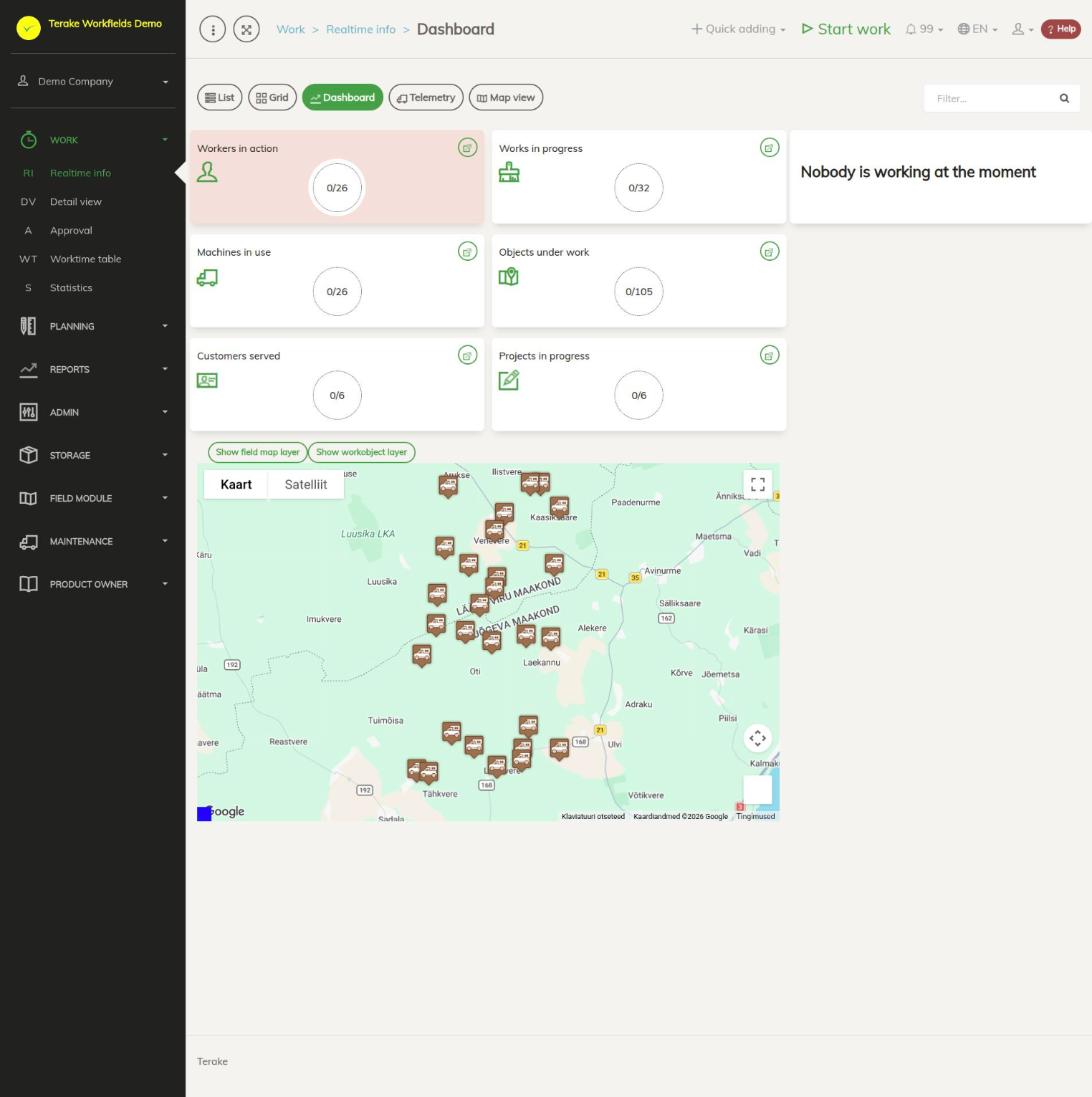
Page layout
At the top of the page are the Realtime info view buttons: “List”, “Grid”, “Dashboard”, “Telemetry” and “Map view”. On the right is a search field that filters the works in progress by worker name, work name, machine, implement, project, maintenance unit, cost center, customer or workobject.
- Counters – “Workers in action”, “Works in progress”, “Machines in use”, “Objects in progress”, “Customers served” and “Projects in progress”. The circle shows, for example, 3/26: the first number is how many of them are in works in progress right now, the second how many the company has in total.
- Map – the locations of workers and machines. Workers are shown on the map with their name, machines with a machine icon. Machine names appear when you zoom in. Machine locations come from the telemetry integration partner. The buttons above the map turn the object map layer on and off and, in an agricultural company, also the field map layer.
- List of works in progress on the right. Each card shows the work’s duration, start date and time, worker name, work name and work parameters (machine, implement, maintenance unit, workobject, cost center, customer, project). It may also show the foreman’s name if the foreman started the work, the start of a pause (“Paused from”), additional info and materials. Works started with the Terake Lite app are also in the list, but they cannot be changed here.
The duration button is green when the work is running, yellow when the work is paused, and red when the work has lasted more than 8 hours and 20 minutes. Durations update every second; the data is reloaded every minute.
How to follow the work
- Look at the counters to see how many workers and machines are at work.
- Click a worker’s name in the list to see the location of that work on the map.
- Click a worker’s marker on the map: the list scrolls to their work and highlights it.
- The location icon opens the work’s location in a separate map window.
- The truck icon shows the machine’s latest telemetry data on the map (if the machine has telemetry).
How to correct a work in progress
- Click the duration button on the work’s card.
- The “Work admin form” opens. Correct the details, for example the work name, machine, workobject or start time.
- Press “Save and close”. The “Back” button returns to the dashboard without changes.
A work in progress cannot be deleted here. You can change works with the same rights as on the Detail view page.
Who can see it
Realtime info opens for the roles “Administrator”, “Approver” and “Observer”. “Administrator” and “Observer” see all works in progress. “Approver” sees their own works, those of their subordinates and of the workers they approve, and the works of the projects they are project manager of.
Tips
- If a worker’s phone is out of coverage, the latest information may not be visible on the web yet. It arrives when the phone is connected again.
- The system finishes works left running by itself. Because of this, Realtime info may temporarily show works that have lasted up to 28 hours. Read more: Automatic processes that affect work duration and Automated processes.
- Works already finished are shown on the Approval and Detail view pages.
- When nobody is working, the text “Nobody is working at the moment” is shown on the right.
API calls on this page
For integrations and AI assistants: this page uses the following Terake API calls. The full description is in the API reference.
When the page opens:
GET /api/search/{classificator_type}– Objects of one classificator type for filling drop-down listsGET /api/workdones/realtime– Ongoing Work listGET /api/worktimereports/calendaritem– Calendar items currently in progressGET /api/worktimereports/ttki-ongoing– Ongoing works started by the TTKI solutionGET /api/location/facilities/last– Last known location of each facilityGET /api/general/classificator_stats– Per-classificator record counts for the caller's companyGET /api/location/facilities/params– Latest telemetry parameters of each facilityGET /api/location/workers/last– Last known location of each worker
Other calls from this screen’s dialogs and actions:
DELETE /api/agreements/{id}– Delete Agreement by ID or UUIDDELETE /api/workobjects/{id}– Delete WorkobjectGET /api/agrifield_data/{crop_period_id}/{random}– Agrifield collectionGET /api/agrifield_data– Agrifield collectionGET /api/fieldbook– Fieldbook Agrifield collectionGET /api/geoinfo/cadaster/{num}– Cadastral register information for one cadastre numberGET /api/geometry/workobject/{id}– Geometry of one workobject.GET /api/geometry/workobjects– Workobject geometries for the map.GET /api/location/device/workdone/{workdone_id}– Device location track recorded during one workdoneGET /api/location/facilities/history– Location history of a facility over a periodGET /api/fieldbook/overlapping-check/{agrifield_id}/{crop_period_id}– Reports fieldbook entries whose geometry overlaps for one Agrifield and crop periodGET /api/workdones/{id}– Workdone by ID or UUIDGET /api/workobjects– All Workobjects listPOST /api/agreements– Create new AgreementPOST /api/workobjects– Creates or modifies a WorkobjectPUT /api/terake-relations– Replaces the relations between one Terake object and a set of objects of another typePUT /api/workobjects/{id}– Modifies a Workobject