On the “Materials” page you manage all materials used or produced in work: fertilizers, seeds, plant protection materials, spare parts, harvests and other materials. Here you set the material’s type, unit, prices and type-specific extra data (e.g. the fertilizer’s NPK). The page is used by the administrator. The list, loading from a file, archiving and “Bulk edit parameters” are described in general on the Admin Settings page.
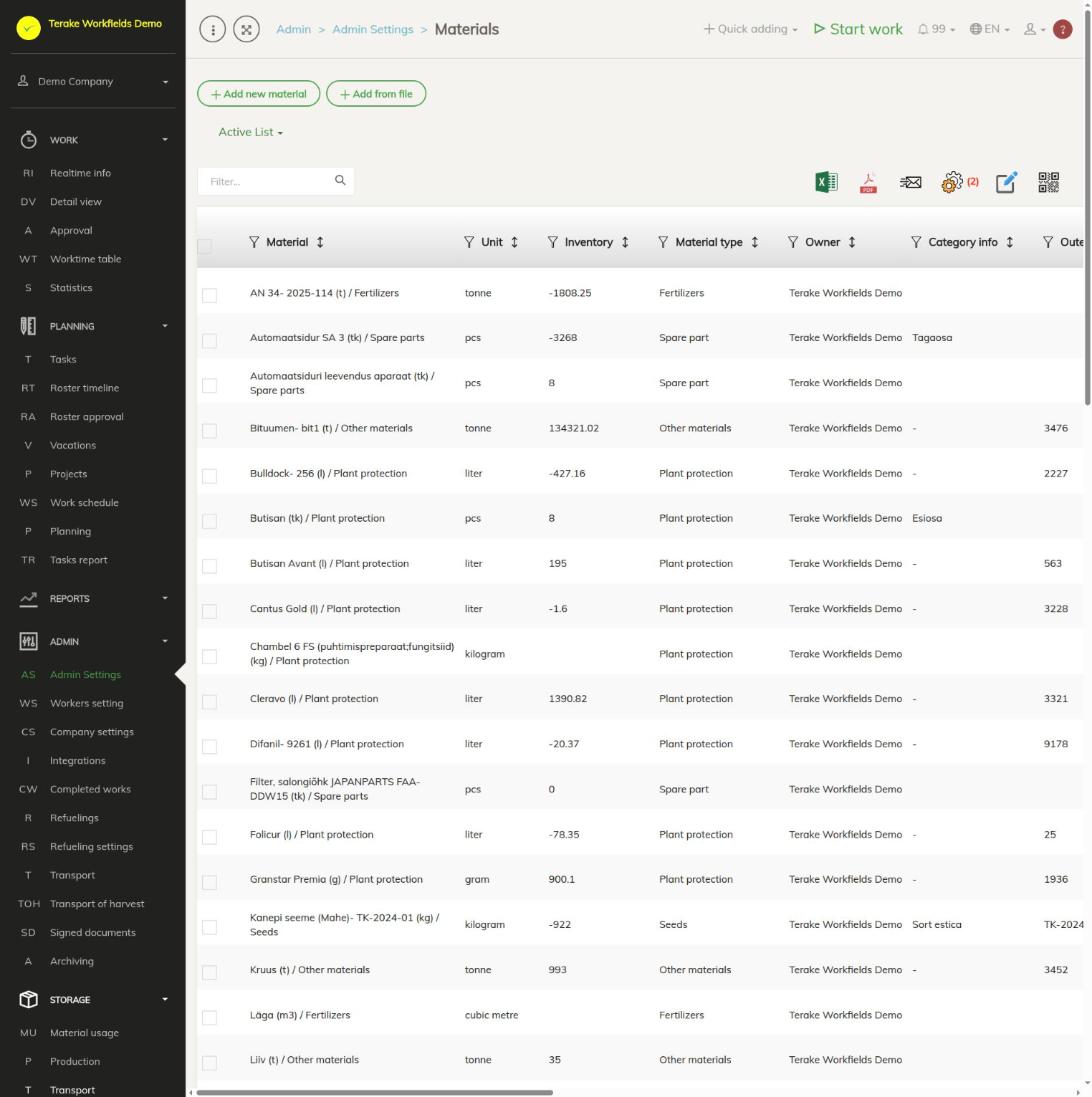
Page layout
- The “Add new material” and “Add from file” buttons and the “Active list” / “Archived list” drop-down.
- Table columns: “Material”, “Material type”, “Batch number”, “Category info”, “Unit”, “Cost per unit”, “Unit sales price”, “Outer ID / ID 2”, “Consumable”, “Product” and “Inventory”. Agricultural companies also have the fertilizer coefficients and “Is coated seed”. You can show the “Owner” column in the view settings.
- With “Bulk edit parameters” you can change the unit, material type, additional info and the “Consumable” and “Product” checkboxes at once, and archive or delete.
- With the “Generate PDF with QR codes” icon you get the QR codes of the selected materials for printing.
How to add a material
- Press “Add new material”.
- Select the “Material type” (e.g. “Fertilizers”, “Seeds”, “Plant protection”, “Spare part”, “Other materials”). You can add a new type with the plus button next to the field or on the Material types page.
- Select the “Unit”. For fertilizers, seeds, plant protection and liming materials, only units that suit them are offered.
- Enter the “Material” (for seed, the “Variety”) and, if needed, “Additional” and “Batch number”.
- Fill in the type-specific fields (see below) and the prices: “Cost per unit” (cost price) and “Unit sales price”.
- Tick “Consumable” if the material is used up in work and/or “Product” if it is a product made as a result of work.
- Press “Save and close”.
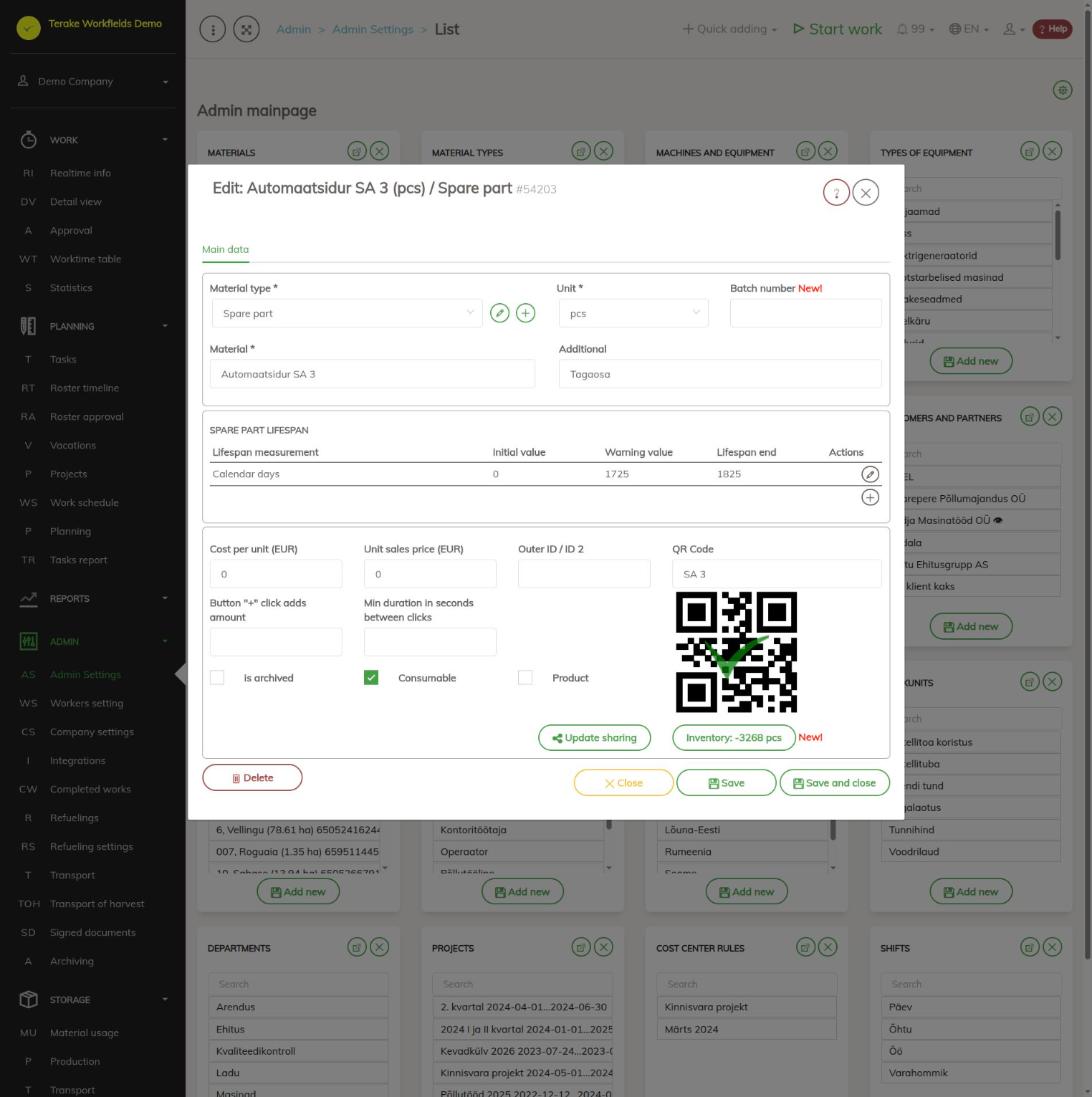
Material fields
- Outer ID / ID 2: the material’s code in accounting or another system.
- Button “+” click adds amount and Min duration in seconds between clicks: settings for adding an amount in the mobile app: how much one press of “+” adds, and how far apart consecutive presses count.
- QR Code: the text of the QR code linked to the material. If there is no code, press “Fill QR Code” on a saved material; the image appears after saving.
- is archived: the material is no longer in the options but stays with earlier work.
- Update sharing: sharing the material with partners.
- Inventory: if the material has an inventory balance, the button shows it and opens the “Inventory” tab; if not, you can enter the initial quantity with the “Insert inventory balance” button. Read more about inventory and movements on the Storage: Materials page.
Type-specific extra data
- Fertilizers: “Fertilizing material”, depending on the choice “Fertilizer registry” or “Material code”, and the “Fertilizer NPK data” block (see below).
- Liming material: “Liming material type”, if needed “Fertilizer registry”, and “Fertilizer NPK data”.
- Seeds: “ARIB crop”, “Certificate”, and the “Is undersowing seed”, “Is cover crop seed” and “Is coated seed” checkboxes. For coated seed, select the “Seed dressing agent” and enter the “Consumption rate per material unit”.
- Plant protection: “Plant protection material type”, “Plant protection material registry” and the “Is coating material” checkbox.
- Spare part: the “Spare part lifespan” table, where you add lifespan measurements to a saved material with the plus button (“Lifespan measurement”, “Initial value”, “Warning value”, “Lifespan end”). They are used to track the wear of machine parts (see Lifespan measurement).
- Silage and harvest materials also have the “Silage composition” and “Harvest sources” tabs, which show which fields and crops the material comes from.
Fertilizer NPK data
In the “N coef (%)”, “P coef.”, “K coef.” and “S coef.” fields, enter the share of the nutrient in the material as a percentage. For example, if 1 tonne (1000 kg) of liquid manure contains 3.97 kg of nitrogen, the N coefficient is (3.97 × 100) / 1000 = 0.397. The coefficient can also be entered as a formula.
The “» Näita järelmõjude vormi” (show the aftereffect form) button opens the “Direct effect”, “1.y aftereffect” and “2.y aftereffect” fields for each nutrient (the yearly effect percentage). You need them when not all of the nutrient is taken up in the same year. Example: liquid fertilizer contains 0.166% N, of which 0.08% is taken up in the same year.
- If there is no aftereffect, you can leave the aftereffect form empty and enter only the part that is taken up in the N field: 0.08.
- When using the aftereffect form, enter the actual content 0.166 in the N field and 48 as the direct effect (because 0.08 is 48% of 0.166).
Who can see and change it
The page opens for the “Administrator” role. Another company’s materials (e.g. common Terake materials) can be used and archived for your own company, but not changed.
Tips
- Enter the fertilizer’s NPK and aftereffect data before the material is used in work. A later change does not recalculate the nutrient amounts of work already done or the field’s NPK balance. For work with a wrong calculation, correct the material data and add the material to the work again.
- When loading from a file, “Material”, “Material type” and “Unit” are mandatory. New material types are created automatically when loading; an unknown unit is replaced with the default unit.
- You can also see materials on the stock accounting page Storage: Materials.
API calls on this page
For integrations and AI assistants: this page uses the following Terake API calls. The full description is in the API reference.
When the page opens:
GET /api/materials– Material collection
Adding, changing and deleting (from the API description):
DELETE /api/materials/{id}– Delete MaterialPOST /api/materials/{material_id}/inventory– Save MaterialInventoryPOST /api/materials– Create or modify MaterialPOST /api/materials/{parent_id}/lifespan– Assign Lifespan to MaterialPUT /api/materials/{id}– Modify Material
Other calls from this screen’s dialogs and actions (from the web client’s code):
DELETE /api/workdones/{wdid}/materialusages/{usageid}– Deletes a material usage of a WorkdoneGET /api/materials/{id}– Get MaterialGET /api/materials/{id}/harvest_sources– Harvest Material sourcesGET /api/materials/{id}/material_composition– Harvest Material compositionGET /api/materials/{material_id}/inventory– MaterialInventory of a materialGET /api/workdones/{wdid}/materialusages– Workdone collection