On the “Material types” page you manage the classification of materials (e.g. “Fertilizers”, “Seeds”, “Plant protection”, “Spare part”). A type is selected for each material, and materials are grouped by it in options and reports. The page is used by the administrator. The list, loading from a file, archiving and “Bulk edit parameters” are described in general on the Admin Settings page.
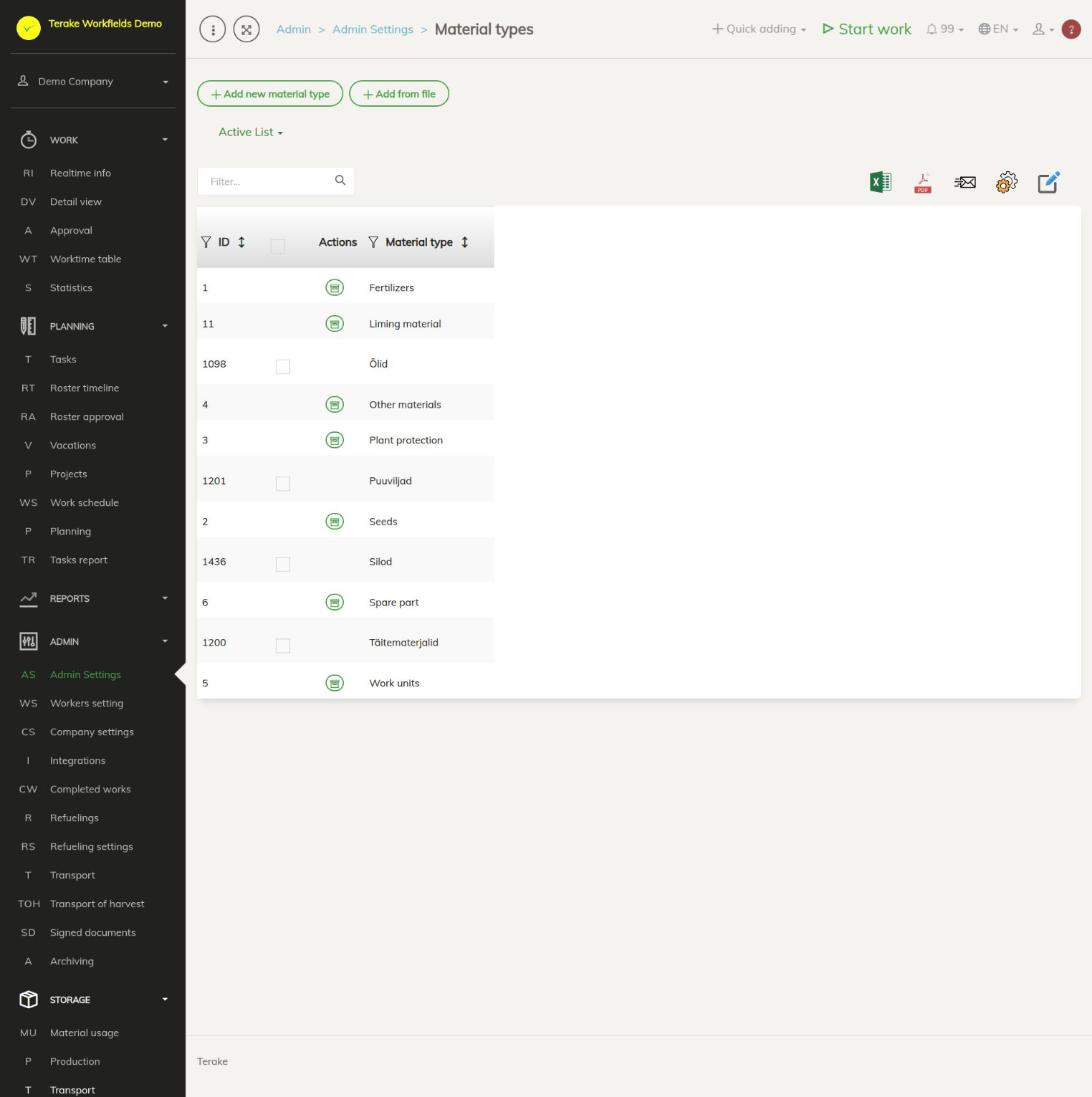
Page layout
- The “Add new material type” and “Add from file” buttons and the “Active list” / “Archived list” drop-down.
- The table has the “ID”, “Actions” and “Material type” columns.
- The list contains both your company’s own types and the common Terake types. A common type’s row has the “Archive” button in the “Actions” column and cannot be ticked; your own type’s row has a checkbox for “Bulk edit parameters”.
- With “Bulk edit parameters” you can archive (“Archived”) or delete (“Deleted”) your own types at once.
How to add or change a material type
- Press “Add new material type” or click the row of one of your company’s types. The “Add new material type” or “Edit material type” window opens.
- Enter the type name in the “Material type” field. It is the only field on the form and it is mandatory.
- Press “Save” or “Save and close”.
You can also add a new type from the material form: press the plus button next to the “Material type” field; the pencil changes the name of the selected type.

How to hide, archive or delete a type
- Your own type: open the type and press “Delete”, or tick the row in the table and use “Bulk edit parameters” (“Archived” or “Deleted”). An archived type disappears from the options but stays on materials that already have it.
- A common Terake type: it cannot be changed or deleted. If you do not use the type, press “Archive” at the start of the row (or click the row and confirm “Perform archiving?”). The type is hidden only from your company’s options. To restore it, select “Archived list” and click the row.
Common Terake types and the material form
The material form depends on the selected type. For the common Terake types, the form shows extra fields and units that match the type, for example:
- “Fertilizers”: “Fertilizing material”, if needed “Fertilizer registry”, and the nutrient content (e.g. “N coef (%)”);
- “Liming material”: “Liming material type” and, if needed, “Fertilizer registry”;
- “Seeds”: “ARIB crop”, “Certificate” and “Variety” instead of the name;
- “Plant protection”: the kind of plant protection material and “Plant protection material registry”;
- “Spare part”: the “Spare part lifespan” table, where you set the part’s lifespan measurements (see Lifespan measurement).
A type you added yourself does not have these extra fields; the material form then has only the general fields. So add fertilizers, seeds and plant protection materials under the common Terake type, not under your own type with the same name, otherwise you cannot enter their ARIB (PRIA) data on the material.
Who can see and change it
The page is in the Admin menu and opens only for the “Administrator” role, who can add, change, archive and delete the company’s material types. Common Terake types can only be archived for your own company. No other role gives a separate right to add or change material types. If “Users have by default create privilege” is ticked in the company settings, other users, except “Observer” and “ARIB employee”, can also add a new record with the plus button next to the “Material type” selection field on forms on other pages and change a record they added within 48 hours of adding it. The “Agronomist”, “Vehicle service” and “Stock management” roles may change materials, but material types only with this setting.
Tips
- When loading from a file, the only field is “Material type” (mandatory).
- If the type has already been used on materials, archive it instead of deleting it.
- Read about adding materials on the Materials page.
API calls on this page
For integrations and AI assistants: this page uses the following Terake API calls. The full description is in the API reference.
When the page opens:
GET /api/material-categories– MaterialCategory collection
Adding, changing and deleting (from the API description):
DELETE /api/material-categories/{id}– Delete MaterialCategoryPOST /api/material-categories– Create MaterialCategoryPUT /api/material-categories/{id}– Modify MaterialCategoryPUT /api/material-categories/{id}/togglearchive– Toggle MaterialCategory archive
Other calls from this screen’s dialogs and actions (from the web client’s code):
GET /api/material-categories/{id}– Get MaterialCategory