On the “Document types” page you manage the types used to classify uploaded files, for example on the “Files” tab of a machine, workobject or worker (e.g. insurance policy, inspection report, agreement). The list also contains the types of material inventory changes. The page is used by the administrator. The list, loading from a file, archiving and “Bulk edit parameters” are described in general on the Admin Settings page.
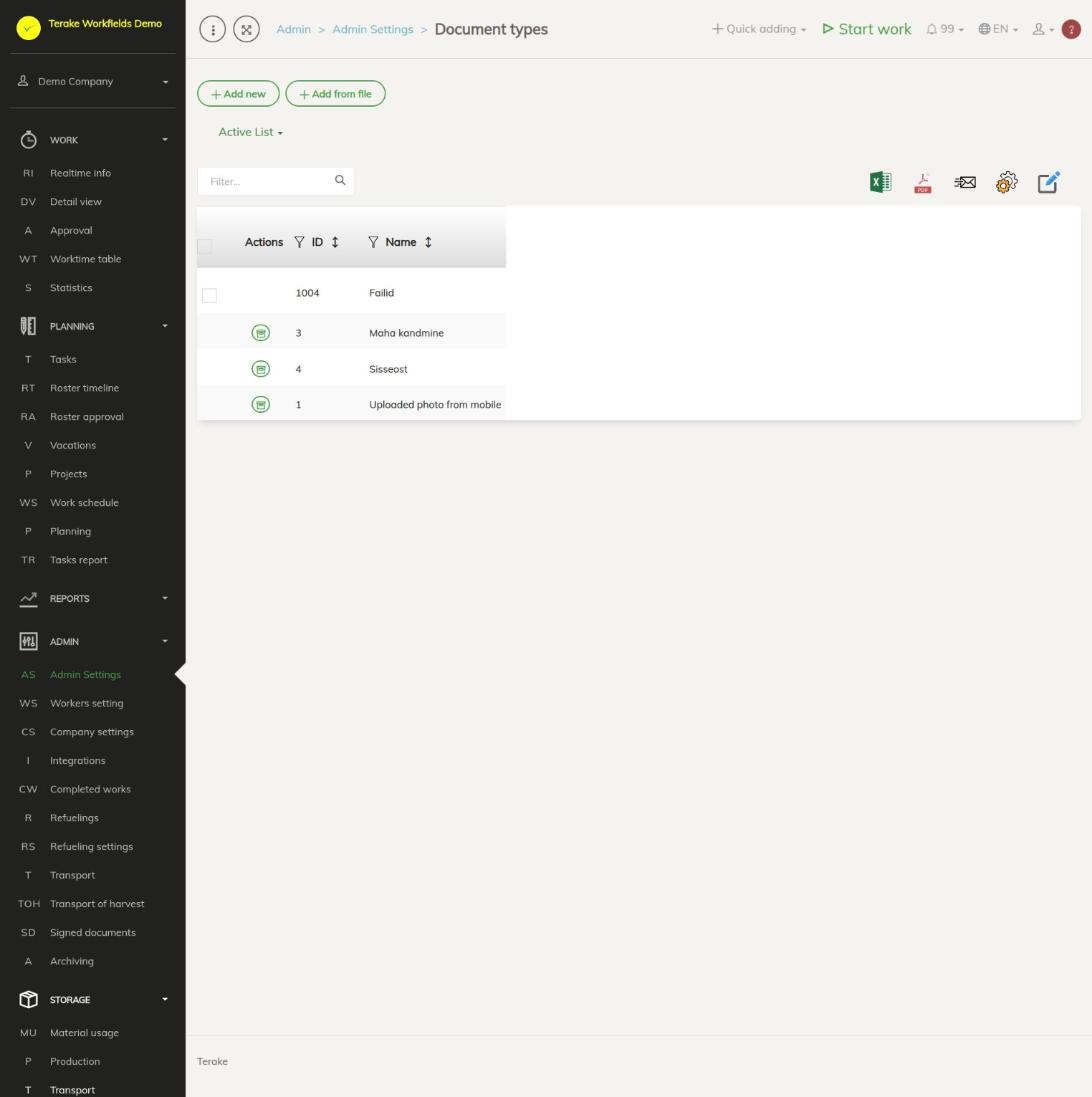
Page layout
- The “Add new” and “Add from file” buttons and the “Active list” / “Archived list” drop-down.
- The table has the “Actions”, “ID” and “Name” columns.
- The common Terake document types are also in the list. You cannot change them, but with the “Archive” button in the “Actions” column you can hide them from your options.
- With “Bulk edit parameters” you can only delete the ticked types (“Deleted”).
How to add or change a document type
- Press “Add new” or click the row of one of your company’s types. For an existing type, the “Edit” window opens.
- Enter the “Document type name” (mandatory).
- Press “Save” (the window stays open) or “Save and close”. The window also has the “Delete” and “Close” buttons.
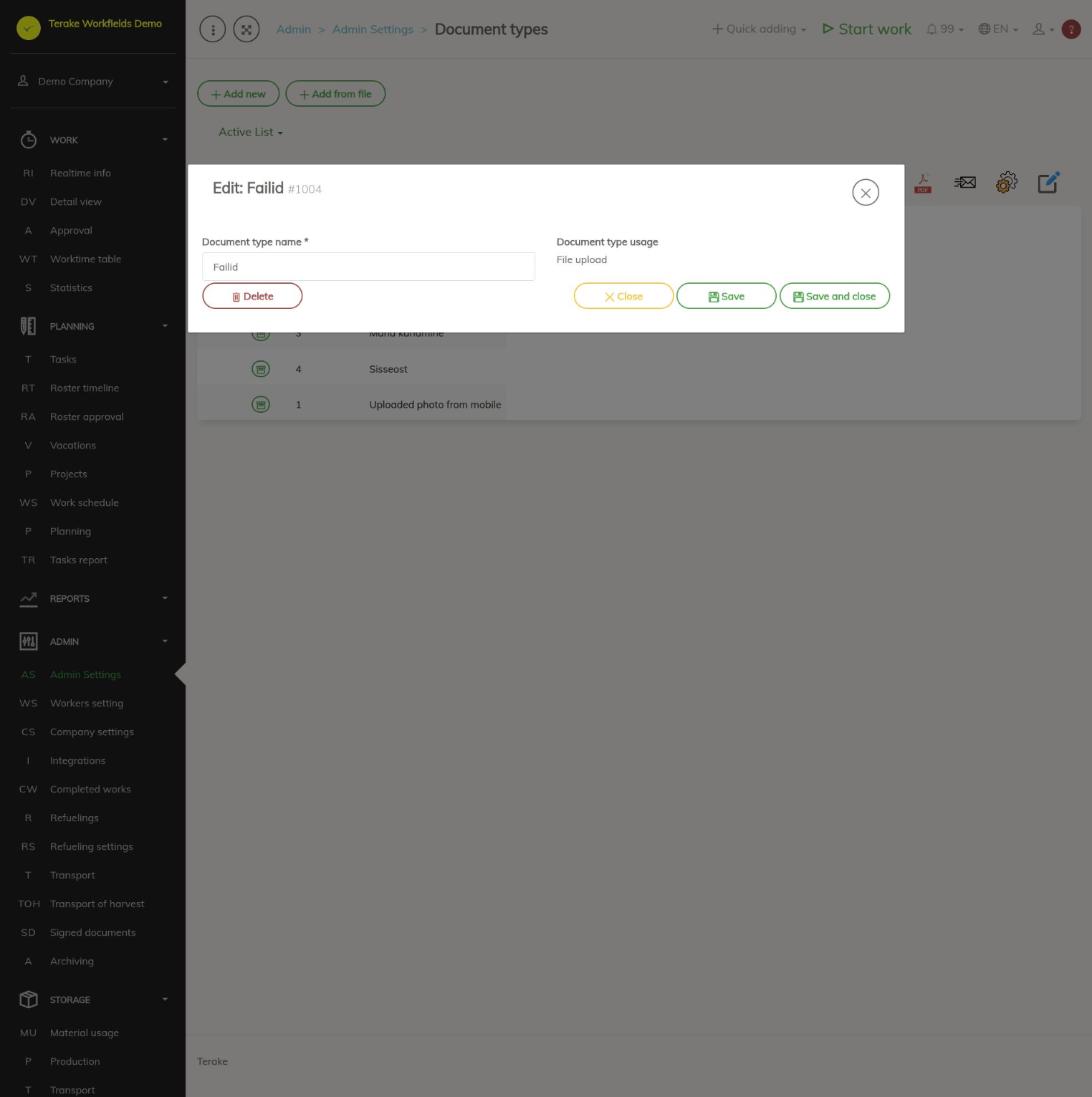
On the right of the form, the “Document type usage” field shows where the type is offered: “File upload” means uploading files, “Material inventory” means material inventory changes. It cannot be changed on the form. Types added on this page are always for files.
How to use a document type
- On the form of a machine, workobject, worker or other record, open the “Files” tab and press “Add new file”. The “File upload” window opens.
- Press “Select file” and choose a file on your computer.
- In the “Document type” field, select a suitable type. With the plus button next to the selection field you can add a new type right there.
- Press “Upload file”. In the file list, the type is shown in the “Document type” column.
The types of material inventory changes (e.g. purchase, write-off) are selected on the form opened with the “Insert inventory balance” button on the “Inventory” tab of the material form. Add a new type of this kind there with the plus button next to the selection field.
How to load types from a file
Press “Add from file” and follow the steps on the Admin Settings page. The only field in the file is “Document type name”, and it is mandatory. Types loaded from a file are for files.
Who can see and change it
The page is in the Admin menu and opens only for the “Administrator” role, who can add, change and delete the company’s document types. Common Terake types can only be archived for your own company. No other role gives a separate right to add or change document types. If “Users have by default create privilege” is ticked in the company settings, other users, except “Observer” and “ARIB employee”, can change a record they added within 48 hours of adding it.
Tips
- Selecting a document type when adding a file is not mandatory, but types make files easier to find later.
- Your company’s own types can only be deleted, not archived. If a type’s name is unsuitable, rather change the name.
API calls on this page
For integrations and AI assistants: this page uses the following Terake API calls. The full description is in the API reference.
When the page opens:
Adding, changing and deleting (from the API description):
DELETE /api/documenttypes/{id}POST /api/documenttypesPUT /api/documenttypes/{id}/togglearchivePUT /api/documenttypes/{id}
Other calls from this screen’s dialogs and actions (from the web client’s code):